Analyzing Marbury v. Madison with Mathematica
Analyzing Marbury v. Madison with Mathematica
Part 1: Visualizing Most Common Words
Aditi Deal
As a law student learning about Wolfram Mathematica for the first time in my Analytic Methods class, it was easy to feel immediately overwhelmed by the capacities of the program. Our professor introduced us to a variety of topics, from machine learning to statistics, but one particular topic immediately caught my attention: natural language processing. As a future attorney, I can appreciate the challenges behind analyzing the complexities of text, and I was determined to learn something about the field. Thus, I set off with the goal of learning how Mathematica could help me take a piece of text as the input, perhaps a case or a statute, and produce valuable output using linguistic analysis that helps uncover something interesting about the text.
This series features three computational essays that each outline a methods of analysis I found interesting. I hope that future law students, or other fellow linguists, will find this guide helpful as a introduction to the ways Mathematica processes language.
This series features three computational essays that each outline a methods of analysis I found interesting. I hope that future law students, or other fellow linguists, will find this guide helpful as a introduction to the ways Mathematica processes language.
Data Preparation
Data Preparation
Importing The Case
Importing The Case
I began with a single case to analyze: Marbury v. Madison. This data was pulled from C-Span's Landmark Cases website, which offers cleaned, PDF versions of popular case law. There are other ways to import text (copying and pasting directly into Mathematica, importing from a .txt file, etc.) but many of the alternatives required extensive cleaning the text to remove extraneous information.
The code below sets the variable "marbury" equal to the imported PDF. The "plaintext" addition to the code strips the PDF and imports the plain text of the PDF as a string in the variable named "data." The Short function wraps around the code to trigger a truncated output. This way, we get a few lines from the case to ensure we correctly imported it without the case filling the entire screen. We will use this function throughout the notebook to get a quick summary of the results of code without requiring a complete output!
In[]:=
Short[marburyText=Import["http://landmarkcases.c-span.org/pdf/Marbury_Marshall_Opinion.pdf","Plaintext"]]
Out[]//Short=
Marbury v. Madison Mr. Chief Ju…ment. The rule must be discharged.
Breaking the Case into Sentences
Breaking the Case into Sentences
With the text imported, I can proceed to clean it up for the purposes of analysis. I begin by creating a variable that breaks the long piece of text into a list with each sentence as an individual element. To do this, I use the TextSentences function built into Mathematica. You can definitely do this without using the built-in feature, but it is much cleaner and efficient to use it.
As we did earlier, I wrapped the code with the Short function to display a summary of the elements of the list so you can get an idea of what this code produced. Here, the “<<404>>” component indicates that 404 elements have been omitted from display between the first and last element.
In[]:=
Short[marburySentences=TextSentences[marburyText]]
Out[]//Short=
{Marbury v. Madison,405,The rule must be discharged.}
Another way to quickly display the sentences individually within the Marbury v. Madison case is to use the Column function. Below, the code asks Mathematica to display elements 1-5 of my sentence variable in a column, with each element framed with a line for ease of viewing.
In[]:=
Column[Framed/@marburySentences[[1;;5]]]
Out[]=
Another way to quickly display the sentences individually within the Marbury v. Madison case is to use the Column function. Below, the code asks Mathematica to display elements 1-5 of my sentence variable in a column, with each element framed with a line for ease of viewing.
In[]:=
Short[marburySentences=Delete[marburySentences,1]]
Out[]//Short=
{Mr. Chief Justice MARSHALL delivered the opinion of the court.,404,Th…ed.}
Breaking the Case into Words
Breaking the Case into Words
The other variable I will need to for my textual analysis is a string list of all the individual words in the Marbury case. To do this, I use the TextWords function built into Mathematica to break the string into words and the ToLowerCase to convert all words into lower case. The reason I do this is so that words like “Case” and “case” are recognized as the same word, rather than as separate words purely because of capitalization.
In[]:=
Short[marburyWords=TextWords[ToLowerCase[marburyText]]]
Out[]//Short=
{marbury,v.,madison,mr.,9464,rule,must,be,discharged}
Next, to clean up this list, I removed all of the stopwords and organized it alphabetically. Wolfram’s DeleteStopWords function automatically removing a standard, built-in list of stopwords like “a” and “the” and “you.” The Sort function is relatively self-explanatory, sorting the elements of a list in canonical order (here, alphabetically).
In[]:=
Short[marburyWordSort=Sort[DeleteStopwords[marburyWords]]]
Out[]//Short=
{1,1,1,1,1,3813,years,years,years,yield,yielded}
Here, it becomes clear that there are a lot of numbers in the text. These will not be beneficial for my analysis, so my last step is to remove all the numbers form the list. To do this, first I use the StringDelete function to remove any strings from our list that include any digits from “0-9” using the RegularExpression function.
Essentially, this piece of code will comb through the entire list and delete any cases that match the expression we searched for: 0-9. StringDelete has a built in Map function, which means it will apply the regular expression one by one, to each item in the list.
Essentially, this piece of code will comb through the entire list and delete any cases that match the expression we searched for: 0-9. StringDelete has a built in Map function, which means it will apply the regular expression one by one, to each item in the list.
In[]:=
Short[marburyWordSort=StringDelete[marburyWordSort,RegularExpression["[0-9]+"]|""]]
Out[]//Short=
{,,,,,,,3810,years,years,years,years,yield,yielded}
The last step is to remove the empty values from our list where the numbers used to be! To do this, we use DeleteCases to remove any items that are blank, as indicated by the “” search. Here, the Short function prints out a summary that demonstrates that the blank items at the beginning of the list have now been removed and we are ready to proceed to our analysis!
In[]:=
Short[marburyWordSort=DeleteCases[marburyWordSort,""]]
Out[]//Short=
{abilities,able,ably,abolished,3708,years,years,yield,yielded}
Method 1: Visualizing Common Words
Method 1: Visualizing Common Words
Sorting the Words
Sorting the Words
One quick way to get an overview of a piece of text is to get a quick picture of what words are most commonly used within the text. To do this, we begin by sorting the list of words in the case by the number of times they occur. The variable is set to equal the ReverseSort (biggest to smallest compared to Sort, which organizes from smallest to biggest) of the Counts of our word list. Counts produces, as it sounds, a tally of how many times that element appears in the list. Lastly, I display the first ten elements of the sorted list, so we can now see the ten words that appear most in the case.
In[]:=
marburyWordSort=ReverseSort[Counts[marburyWordSort]];marburyWordSort[[1;;10]]
Out[]=
act72,law70,commission68,constitution53,court52,appointment50,states45,president45,united43,office42
Creating a Word Cloud
Creating a Word Cloud
We can even better visualize these common words by using a word cloud, which Mathematica conveniently lets us do with a few keystrokes thanks to the WordCloud function. It’s important to note here that there is no need for a sorted list to create a word cloud. In fact, the WordCloud function in Mathematica will automatically collect the counts for the words in a given list.
In[]:=
WordCloud[marburyWordSort]
Out[]=
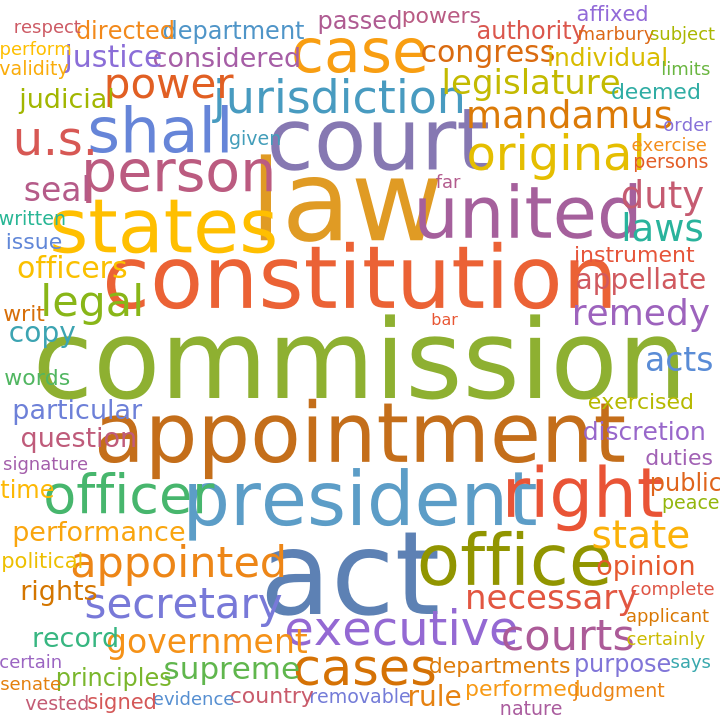
From this visual, we can quickly see that the Justices were overusing words like “commission,” “law,” “appointment,” and “president” without having to comb through the text. This produces a skeletal but adequate high-level summary of the main issue of Marbury v. Madison. Word clouds are obviously not perfect, since the most common words don’t necessarily always line up with the meaning of the text, but they do provide a bird’s eye view into a piece of text with minimal effort.
Using Word Clouds as a Timeline for the Case
Using Word Clouds as a Timeline for the Case
To take this a step further, we can evaluate using a WordCloud the evolution of ideas from the beginning of the case to the end. To accomplish this, we need to use the unsorted original variable “marburyWords” to analyze the words in the order they appeared in the case.
We begin by creating a new variable “marburyCloudWords” that takes our original list of words and removes the stop words. This is to avoid a word cloud that lists words like “the” or “an” in the image.
In[]:=
Short[marburyCloudWords=DeleteStopwords[marburyWords]]
Out[]//Short=
{marbury,v.,madison,mr.,3815,bound,instrument,rule,discharged}
Then, we once again clean up the data to remove any numbers using the StringDelete, RegularExpression, and DeleteCases functions.
In[]:=
Short[marburyCloudWords=StringDelete[marburyCloudWords,RegularExpression["[0-9]+"]|""]]
Out[]//Short=
{marbury,v.,madison,mr.,3815,bound,instrument,rule,discharged}
In[]:=
Short[marburyCloudWords=DeleteCases[marburyCloudWords,""]]
Out[]//Short=
{marbury,v.,madison,mr.,3708,bound,instrument,rule,discharged}
Then, we determine the length of this list using the Length function built into Mathematica.
In[]:=
marburyLength=marburyCloudWords//Length
Out[]=
3716
With the length of the list discovered, we next create a list of word clouds housed in the new variable “marburyCloud.” The code below creates one word cloud for ever 10% of the words in our edited list. We repeat this until we reach the end of the list at 3,823 words. Thus, we now have a list that houses 10 word clouds, one for every 10% of the case opinion.
In[]:=
marburyCloud={WordCloud[marburyCloudWords[[1;;Round[marburyLength*.1]]]],WordCloud[marburyCloudWords[[Round[marburyLength*.1];;Round[marburyLength*.2]]]],WordCloud[marburyCloudWords[[Round[marburyLength*.2];;Round[marburyLength*.3]]]],WordCloud[marburyCloudWords[[Round[marburyLength*.3];;Round[marburyLength*.4]]]],WordCloud[marburyCloudWords[[Round[marburyLength*.4];;Round[marburyLength*.5]]]],WordCloud[marburyCloudWords[[Round[marburyLength*.5];;Round[marburyLength*.6]]]],WordCloud[marburyCloudWords[[Round[marburyLength*.6];;Round[marburyLength*.7]]]],WordCloud[marburyCloudWords[[Round[marburyLength*.7];;Round[marburyLength*.8]]]],WordCloud[marburyCloudWords[[Round[marburyLength*.8];;Round[marburyLength*.9]]]],WordCloud[marburyCloudWords[[Round[marburyLength*.9];;marburyLength]]]}
As you can see, the word clouds change over the course of the case! From this list, we can tell that the key words at the beginning of the opinion are “commission,” “president,” and “appointment” while at the end of the list they change to “constitution” and “jurisdiction.” One might use this tool to evaluate how a case is structured. Here, for example, I might posit that the use of words like “commission” and “appointment” at the beginning of the case is likely indicative of a factual summary, while the use of the “constitution” at the end is an attempt by the justices to root their decision in the law of the land.
To better visualize this change in most common words over time, we can use the ListAnimate function built into Mathematica. By using our list as the input and setting the AnimationRunning to True, we can create an interactive component to better explore how common words appear in the case of Marbury v. Madison over the length of the opinion.
Future Applications
Future Applications
Although beyond the scope of this guide, this kind of visualization of common words in a timeline of a piece of text could have multiple applications. For example, it could be used to draw comparisons between different opinions written by the same Justice over time. Or, perhaps, a way to compare how different Justices structure their opinions. Questions like “Do all opinions conclude with strong ties to the Constitution?” or “Do the words in this opinion adequately reflect its subject of abortion?” could be posed and answered with this method. Thus, although simplistic in nature, there is no denying that room exists for interesting evaluations of common words in texts like this one.