This project worked to automatically generate representative pictograms given the values and their respective icons. This includes both pictograms with a single quantity as well as multiple quantities together. There are options for values such as number of rows and dimensions of the individual icons to be specified or automatically calculated.
Goals
Goals
Pictograms are a type of infographic that aim to represent quantities visually by putting up a given image repeatedly, so that the number of images is proportional to quantity the image represents. Multiple images and quantities can be used simultaneously (with the same scale), either in individual grids next to each other or within the same grid, to compare the quantities visually. This project aimed to automatically generate these infographics given the values and their corresponding pictures for each grid.
Generating a pictogram with one image and value
Generating a pictogram with one image and value
I wrote a function which will generate a pictogram of a given Image with respect to its corresponding value which represents a particular metric. This function puts the number of whole images (the floor of the total input value) together with the proportional part of the whole image, corresponding to the fractional part of the total number (which is padded to have the same dimensions as the whole image) with options to specify if the graphic that will be output should have horizontal or vertical orientation. There is a separate case for if the fractional part is zero to avoid errors resulting from trying to take 0% of an image.
For example, I can use createRepresentationSingle to generate a pictogram that represents the existence of 13.2 million dogs by inputting a dog image and the number 13.2. The function will output 13 whole dog images and .2 of a dog image in one graphic where all images output have the same dimensions.
For example, I can use createRepresentationSingle to generate a pictogram that represents the existence of 13.2 million dogs by inputting a dog image and the number 13.2. The function will output 13 whole dog images and .2 of a dog image in one graphic where all images output have the same dimensions.
createRepresentationSingle[picture_Graphics|picture_Image,n_Real|n_Integer,rows_Integer,width_,height_,horizontalQ_Symbol] := GraphicsGrid[ If[ horizontalQ == True, Transpose[#], #]&[ If[ FractionalPart[n]==0, Partition[Join[Table[picture,n], Table["",rows-Mod[n,rows]]], UpTo[rows]], Partition[Join[ Table[picture, Floor[n]], ImagePad[ ImageTrim[picture, {{0,0}, {ImageDimensions[picture][[1]]*FractionalPart[n],ImageDimensions[picture][[2]]}}], {{0,ImageDimensions[picture][[1]]*(1-FractionalPart[n])},{0,0}}, White ], Table["",(rows-Mod[Ceiling[n],rows])] ], rows] ] ], Alignment -> Left, ImageSize -> If[horizontalQ, {Automatic,height*rows}, {width*rows,Automatic}], Spacings->5]
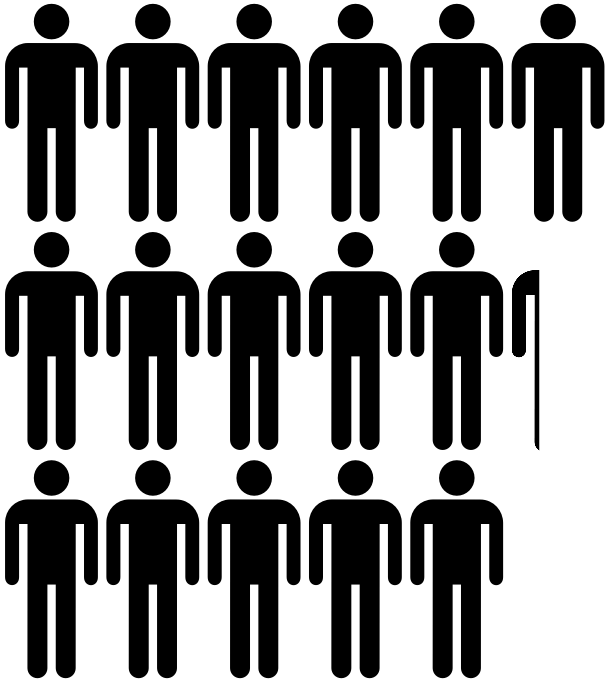
An example pictogram for 16.3 people that is horizontal:
In[]:=
createRepresentationSingle["Image"],16.3,3,50,114,True
Out[]=
Resizing the images
Resizing the images
This resizes all the images put in so they have the same dimensions.
resizeImages[pictures_List,width_Integer,height_Integer] := ImageResize[#,{width,height}]&/@pictures
Generating a pictogram with multiple images and values
Generating a pictogram with multiple images and values
I also wanted to create a function to handle the case if there is more than one image to be used in a pictogram. The function works similarly to createRepresentationSingle and considers two cases for general pictogram: - if there are just two images and corresponding values are given - if more than two images and corresponding values are given If there are two images, it takes the floor of the first value corresponding to the first image, and then stitches together the fractional part of the first image with the remainder of the second image to generate a combined image.If there are multiple images, it gives the number of whole first images (which is the floor of the first value), and then one final image which takes the proportional part from the corresponding part of each of the remaining images and combines them, up until a whole image is reached, cutting off the last image. For example, suppose we have the values {2.2, .3, .1, 4}. The last image combines 0 to .2 of the first image, .2 to .5 of the second, .5 to .6 of the third, and .6 to 1 of the fourth, with the option for white bars to be inserted between each different image for clarity.Note that these images should all be (and will be when called in future functions) the same dimension, and that the sum of the fractional part of the first value and all the other values except for the last one should be less than 1, but the sum of the fractional part of the first value and all the others should be at least 1, since these are the values that make up the last image and that image should both be filled completely but not be overfilled with extraneous values.
imageTrimCombiner[images_List,values_List,height_,separateQ_Symbol]:= Flatten[ Table[images[[1]],Floor[values[[1]]]], ImageAssemble[ If[separateQ, Riffle[#, ImageTrim[Graphics[{White, Rectangle[{-2,0},{2,height}]}], {{0,0},{1,height-1}}]], #]&[ If[ Length[images]==2, If[ FractionalPart[values[[1]]] < 10^(-10), Nothing, ImageTrim[images[[1]], {{2,0}, {ImageDimensions[images[[1]]][[1]]*FractionalPart[values[[1]]] - If[separateQ, 1, 0], height}}] ], ImageTrim[images[[2]], {ImageDimensions[images[[2]]][[1]]*(FractionalPart[values[[1]]]) + If[separateQ, 1, 0], 0}, {ImageDimensions[images[[2]]][[1]],height} ] , Join[ If[ FractionalPart[values[[1]]] < 10^(-10), Nothing, ImageTrim[images[[1]], {{2,0}, {ImageDimensions[images[[1]]][[1]]*FractionalPart[values[[1]]] - If[separateQ,1,0], height}}] ], Table[ If[ FractionalPart[values[[i]]] < 10^(-10), Nothing, ImageTrim[images[[i]], {1 + ImageDimensions[images[[i]]][[1]]*(FractionalPart[values[[1]] + Total[Take[values, {2,i-1}]]]) + If[separateQ, 1, 0], 0}, {ImageDimensions[images[[i]]][[1]]*(FractionalPart[values[[1]]] + Total[Take[values, {2,i}]]) - If[separateQ,1,0],height} ] ], {i,2,Length[images]-1} ], ImageTrim[images[[-1]], {ImageDimensions[images[[-1]]][[1]]*(FractionalPart[values[[1]]] + Total[Take[values, {2,-2}]]) + If[separateQ, 1, 0], 0}, {ImageDimensions[images[[-1]]][[1]], height} ] ] ] ] ]]
This determines which values (and their corresponding images) go into the imageTrimCombiner, based off of the criteria mentioned above. It then changes the values of all numbers that were part of the last imageTrimCombiner, taking away all of the portions of each value that was used so that the values are the remaining amount to be shown in the graphic. It then runs imageTrimCombiner on each set of values & images.
An example pictogram for 16.3 blue,0.5 green, 3.3 purple, and 4.9 red people that is vertical and has the separating bars:
Combining Multiple Pictograms
Combining Multiple Pictograms
This constructs multiple pictograms side by side with the same style (number of rows, dimensions of each icon, direction, separating bar) for easy comparison between them by taking in set values for each of those stylistic factors and tabling through lists of lists of images and values that give the data for each pictogram (which can each be of either one or multiple images/values).
Here is an example pair of pictograms
Calculation of Extra Values
Calculation of Extra Values
These functions allow some values (specifically, numeric values that are not the raw data) of createRepresentations to not be manually inputted, and instead calculated by the computer.
This scales the raw data to an appropriate size for a pictogram, with all pictograms being scaled the same power of 10 and the largest total final number of an individual pictogram being no greater than 150:
This calculates the dimensions that each icon will be, with the width being 75 and the ratio of width to height being the geometric mean of all width to height ratios of the images:
This calculates the number of rows so that the overall ratio of the final infographic will be close to ratio:
Compilation into Final Function
Compilation into Final Function
This runs createRepresentations, but with default values assigned to options and calculations to find other options using the above functions, such that the only required inputs are the list of lists of images and list of lists of values:
A couple of example output infographics:
Future Work
Future Work
Future work on this project could include:
◼
Automatic generation of the images for each value
◼
Fixing the inconsistency in spacing in the compilation of multiple representations
◼
Adding dynamic descriptive labels