Population Density Maps are among the most valuable datasets. The Humanitarian Data Exchange (HDX) seems to have world’s most detailed population density datasets. These high-resolution maps, created by Facebook, estimate the number of people living within 30-meter grid tiles. In this short computational essay, I will discuss how to covert these maps into a computable datasets in Wolfram Language (WL), with desirable size and shape of grid tiles. An an example, I shall focus on Qatar, and show how to get desired map using GeoHistogram, a very powerful built-in function of WL.
The HDX high resolution population density maps can be obtained through their website. The dataset is provided in two formats, Geotiff and CSV, for distribution of various populations. I will download and process the CSV file of the overall population density. Same methods can be applied for any other desired population distribution. Since Qatar’s dataset is small, I shall import it directly. But for larger datasets, I suggest downloading the file and then import it.
Import zipped data from HDX and get CSV file:
In[]:=
qatar=Import,"population_qat_2019-07-01.csv";
Return number of tiles on the original data:
In[]:=
Length[qatar]
Out[]=
307646
Return the headings of the original data:
In[]:=
qatar〚1〛
Out[]=
{Lat,Lon,Population}
Generate a list of two sublists as geo positions and corresponding population:
In[]:=
{geo,ppl}={qatar〚2;;,;;2〛,qatar〚2;;,-1〛};
Generate a list whose elements are {geoPosition->population}:
In[]:=
data=Thread[(GeoPosition/@geo)ppl];
Let’s look at the data using the default bins and counts og GeoHistogram.
Generate a density histogram:
In[]:=
GeoHistogramdata,PlotStyleEdgeForm[Gray],GeoScaleBar"Metric",PlotLegendsAutomatic,GeoRange
Out[]=
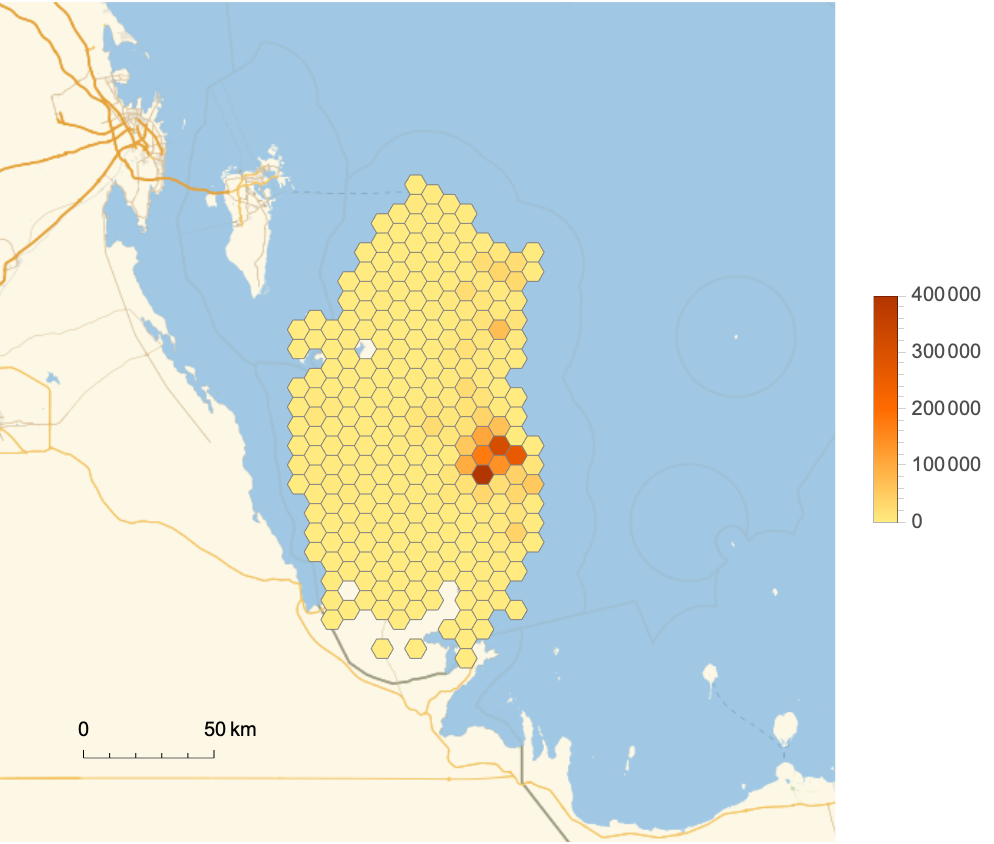
Using GeoHistogram, one can set the size and shape of the grid tiles.
Specify the diameter of each tile:
In[]:=
TableGeoHistogramdata,i*,PlotStyleEdgeForm[Gray],GeoScaleBar"Metric",PlotLegendsAutomatic,GeoRange,PlotLabel"Grid Tile ("<>ToString[i]<>"km)",{i,10,25,5}
Out[]=

In[]:=
TableGeoHistogramdata,i*^2,PlotStyleEdgeForm[Gray],GeoScaleBar"Metric",PlotLegendsAutomatic,GeoRange,PlotLabel"Grid Tile ("<>ToString[i]<>")",{i,100,800,200}
2
km
Out[]=

One can also set three different tile shapes: “Hexagon”, “Rectangle”, and “Triangle”.
In[]:=
TableGeoHistogramdata,i,250*^2,PlotStyleEdgeForm[Gray],GeoScaleBar"Metric",PlotLegendsAutomatic,GeoRange,PlotLabel"Tile Shape: "<>i,{i,{"Hexagon","Rectangle","Triangle"}}
Out[]=
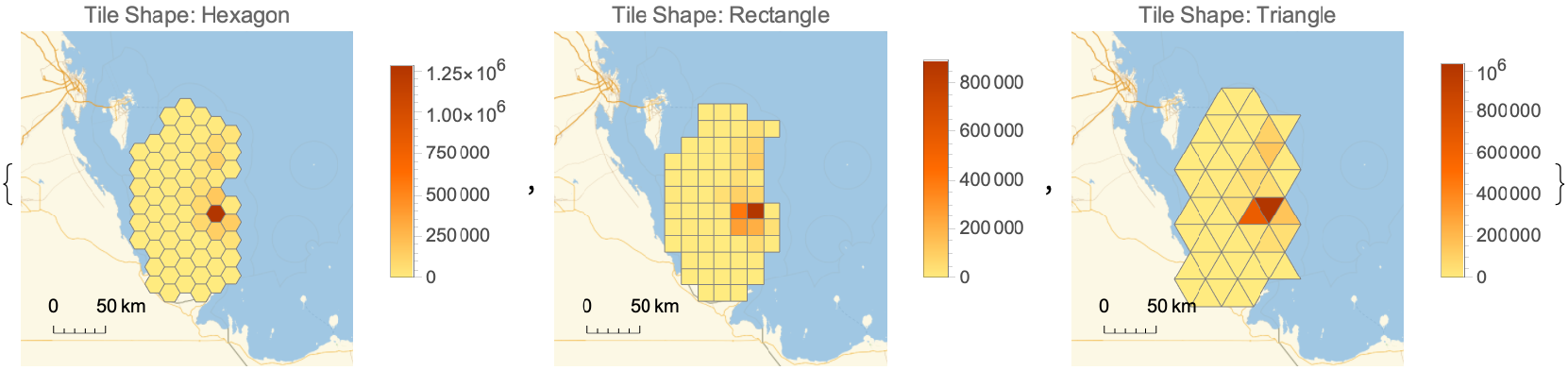
Therefore, given a tile shape and size, we need to extract the geo-positions of tiles generated by GeoHistogram and their corresponding values.
In[]:=
gh=GeoHistogram[data,"Hexagon",250*^2];
If you look at the FullForm of the GeoHistogram output, you will notice that the grid tiles are wrapped in Tooltip.
In[]:=
Short[polygons=Cases[gh,Tooltip[Polygon[y_?MatrixQ],x_]Polygon[GeoPosition[y]]x,∞]]
Out[]//Short=
PolygonGeoPosition1.28428×,PolygonGeoPosition174644.,63,PolygonGeoPosition102.292
6
10
However, the actual positions of polygon points are not correct.
In[]:=
GeoGraphicsEdgeForm[Red],polygons[[All,1]],EdgeForm[Black],Polygon
Out[]=
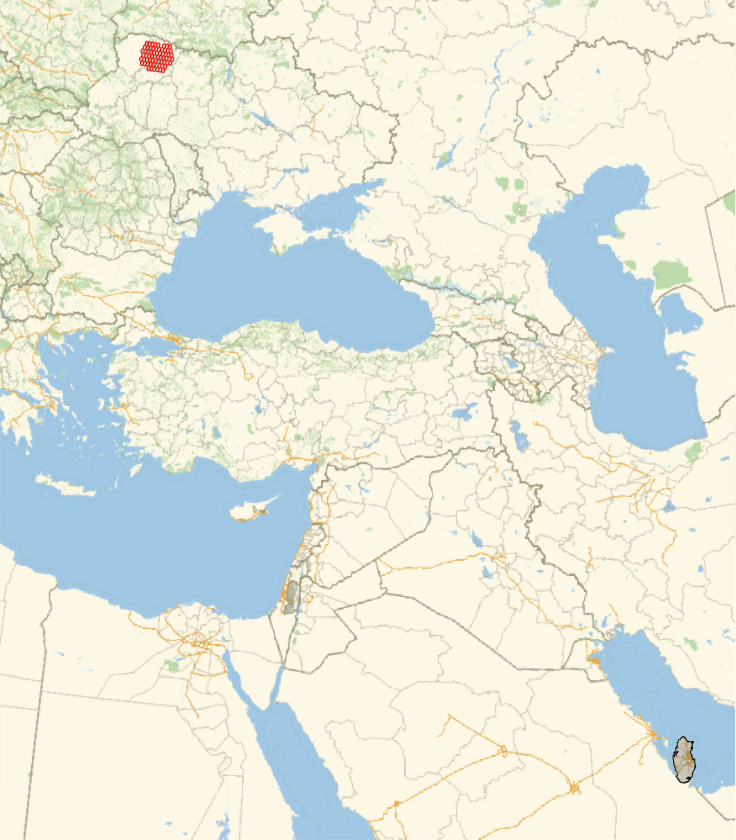
A closer look shows that the polygon points in the GeoHistogram output are also projected using GeoGridPosition. Accordingly, in order to extract polygons with correct geo-positions, we need to include the projection using GeoGridPosition, too.
In[]:=
polygonCounts=Cases[gh,Tooltip[y:Polygon[_?MatrixQ],x_]:>GeoPosition[GeoGridPosition[y,(GeoProjection/.Options[gh,GeoProjection])]]x,∞];
In[]:=
GeoGraphicsEdgeForm[Red],polygonCounts[[All,1]],EdgeForm[Black],Polygon
Out[]=
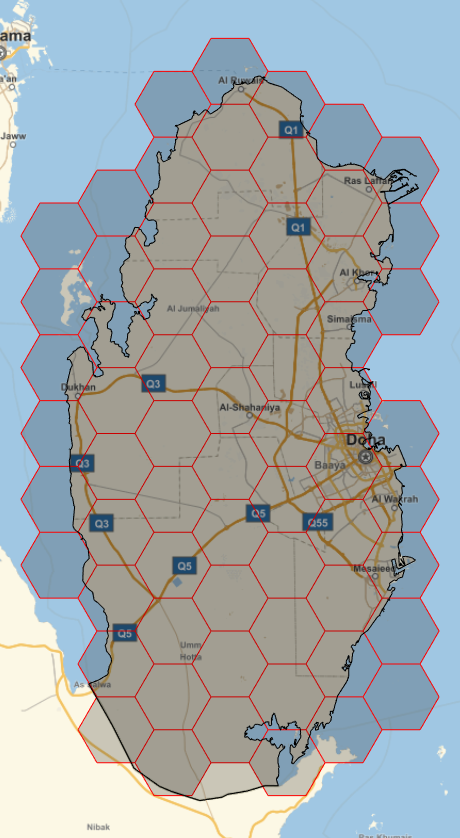
Given this result, we now put the, in the format of a list with sublists as {polygon points, center of polygon, population density} and export it as CSV file (might be useful for users of other programming languages)
Summary
Summary
Given the data from HDX, generate grid tiles of population density for a given shape and size of tiles:
Define colors, bins, and legends for GeoGraphic function:
Visualize each tile with a color specified by cfuc defined before:
Acknowledgment
Acknowledgment
I’d like to thank my colleagues, Alan Joyce (WolframAlpha team) and Jose Martin-Garcia (Algorithms R&D team), for their valuable inputs in helping with datasets and important suggestions on codes.