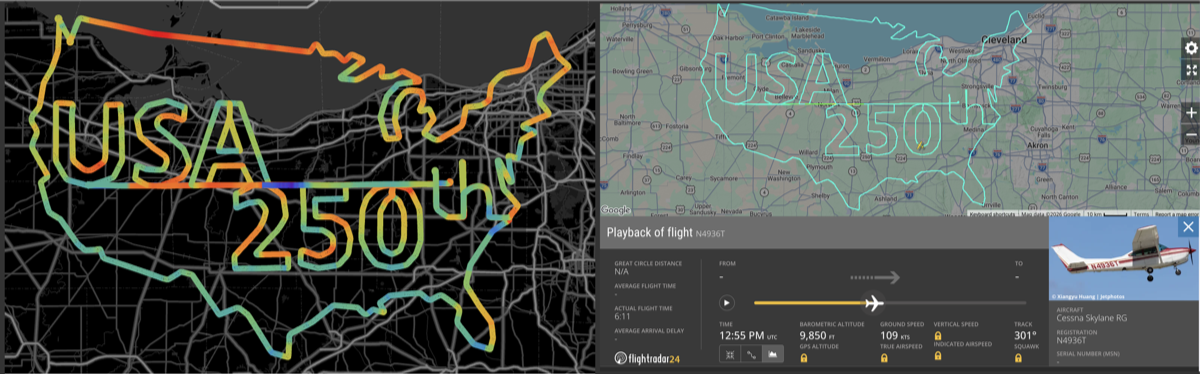
To celebrate America’s 250th anniversary, a pilot in Ohio marked the occasion in the sky by tracing a special “USA 250th” map flight path. In this Wolfram blog, we use TimeSeries, Tabular, and Geographics functionality to import, structure, analyze, and visualize the flight data. The key focus is to demonstrate how a flight path can be enriched with a speed profile, adding color directly onto the geographic route to reveal how the aircraft’s motion changed along the path.
Import the geospatial data
Import the geospatial data
Set up your local working directory, same as your notebook directory:
In[]:=
SetDirectory[NotebookDirectory[]];
Place your data at this location. The corresponding flight ID on FlightRadar24 is 407bf3fc (It is a licensed data so I cannot share within the notebook):
In[]:=
kml=FileNames["2026*/*"][[2]]
Out[]=
20260705_flighttrail_N4936T/407bf3fc.kml
Import the first layer of the data. We only need the time stamps and raw geographics positions:
In[]:=
data1=Association@Import[kml,{"Data",1}];
Check the keys in the data:
In[]:=
data1//Keys
Out[]=
{LayerName,Geometry,Labels,LabeledData,ExtendedData,PlacemarkNames,Overlays,NetworkLinks}
The geo positions and time are associated with the “Geometry” and “PlacemarkNames” key in this file:
In[]:=
geopoints=data1["Geometry"][[All,1]];timeStmps=DateObject/@data1["PlacemarkNames"];
Verify they have the same length:
In[]:=
Length/@{timeStmps,geopoints}
Out[]=
{5060,5060}
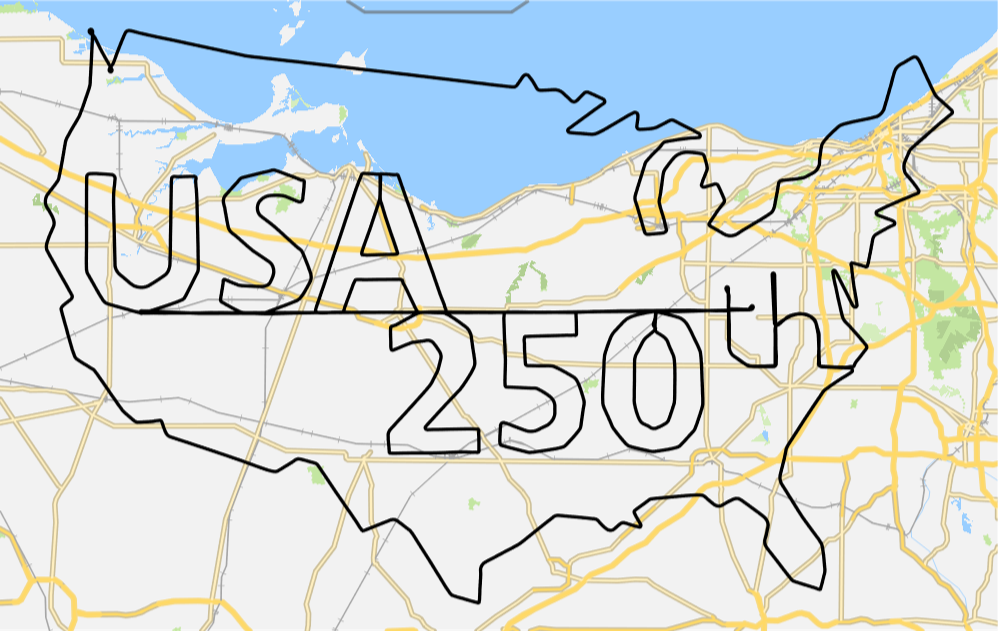
GeoGraphics function gives you the vanilla version immediately:
In[]:=
GeoGraphics[Style[GeoPath[geopoints],Black,Thick],GeoBackground"VectorBusinessNoLabels"]
Out[]=
Color the path with speed
Color the path with speed
Obtain the altitude history in feet:
In[]:=
alt=(#["Data"]&/@geopoints)[[All,3]];m2ft=UnitConvert[Quantity[1,"Meters"],"Feet"]//QuantityMagnitude;altInFt=m2ft*alt;
Convert the lat-lon-alt data into XYZ
In[]:=
cartCoord=GeoPositionXYZ[geopoints]["Data"];
Create a time series object from the processed data:
In[]:=
With[{ms2Knt=3600./1852,ds=Norm/@Differences[cartCoord],dt=QuantityMagnitude[N@UnitConvert[BlockMap[DateDifference@@#&,timeStmps,2,1],"Seconds"]]},{vel=ds/dt},speedInKnts=ms2Knt*Prepend[vel,vel[[1]]];]
In[]:=
ts=TimeSeries[Transpose@{altInFt,speedInKnts},{timeStmps},{"Altitude","Speed"}]
Out[]=
TimeSeries


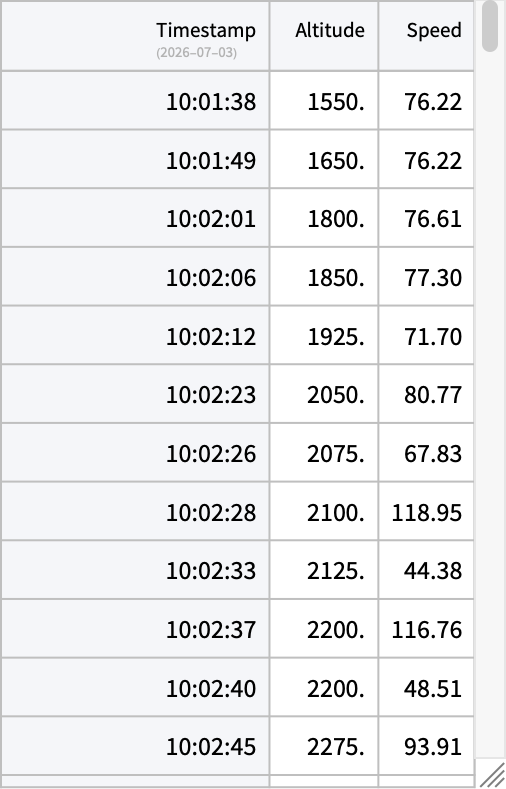
You can easily convert the time series into tabular data:
In[]:=
ts["Tabular"]
Out[]=
Configure the common settings for DateListPlot:
In[]:=
SetOptions[DateListPlot,PlotTheme->"Business",AspectRatio->.2];
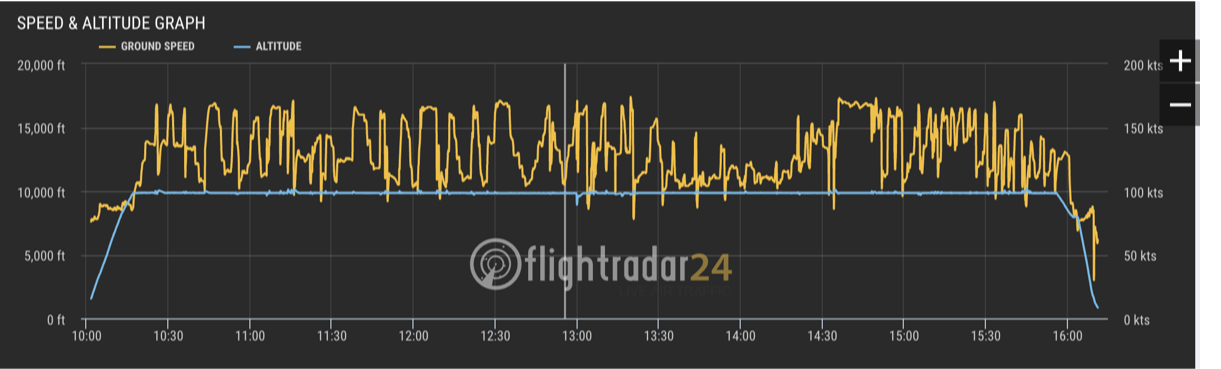
Convert the raw data lists into time series. Use TimeSeriesAggregate to average the data with sliding window:
With{asso=ts["PathComponents"]},speedAgg=TimeSeriesAggregate[asso["Speed"],Quantity[30,"Seconds"]];PlotGridDateListPlotTimeSeriesAggregate[asso["Altitude"],Quantity[30,"Seconds"]],,DateListPlotspeedAgg,//Framed
Out[]=
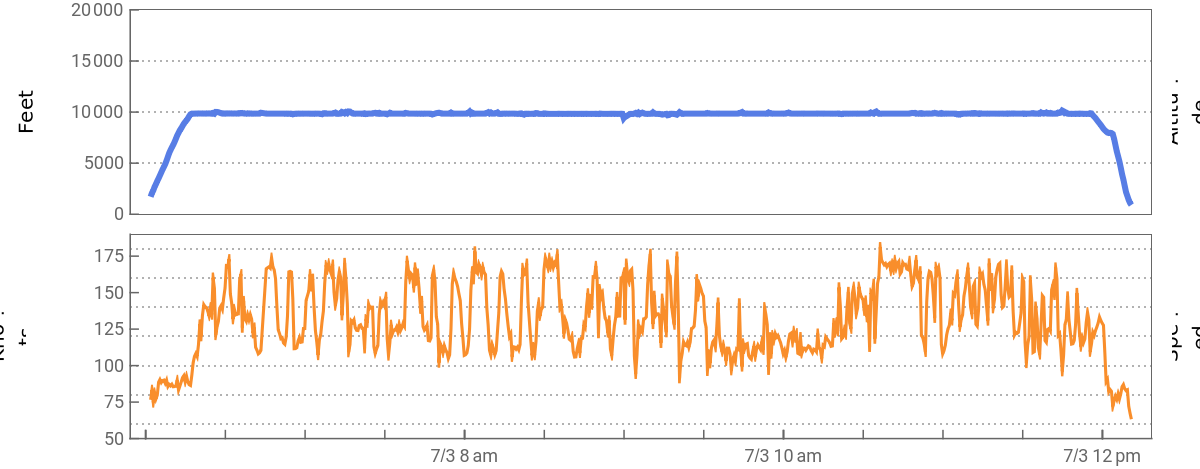
The profile above should look exactly as the one on FlightRadar24:
Normalize the speed data and color the data position on the geo path. Use the VertexColors option in colorization
In[]:=
vtxColors=ColorData["Rainbow"]/@With[{spdRng=speedAgg/@timeStmps},speedMinMax=MinMax[spdRng];Rescale[spdRng,speedMinMax,{0,1}]];
Add legend to the geographics object with the speed profile:
Animation
Animation
Choose a divisor of 5060 (total data point) to control the number of frames in the animation. The plane icon is from the pool of built-in emoji’s in your OS. On Mac the emoji I choose is pointing to north east, so the proper orientation is compensated by -45 Degree. The true speed vector is the difference between the current Cartesian coordinates and that at 5 time-step before:
Animate the flight path:
Export to local GIF file:
CITE THIS NOTEBOOK
CITE THIS NOTEBOOK
Visualizing a "USA 250th" flight path with Geographics
by Shenghui Yang
Wolfram Community, STAFF PICKS, July 5, 2026
https://community.wolfram.com/groups/-/m/t/3745102
by Shenghui Yang
Wolfram Community, STAFF PICKS, July 5, 2026
https://community.wolfram.com/groups/-/m/t/3745102