In many engineering simulations, combining high-fidelity PDE model of devices with system-level models can be very helpful. Take, for instance, the example of a one-legged jib crane. Here, system-level modeling captures multi-domain dynamics while device-level modeling dives into the mechanics of the jib, assessing stress and deformation. Similarly, this applies other fields such as turbine blade design in aerospace propulsion, belt deformations in multi-pulley systems and gear stresses in a automotive transmission system. The jib, essentially a cantilever beam, is typically represented as a rigid body in conventional simulations. By devising a controller for the crane to lift loads, we get a model that functions seamlessly under the rigid assumption. Yet, when we transition to a FEM model in Mathematica that considers real-world intricacies, the once flawless controller starts to show cracks.
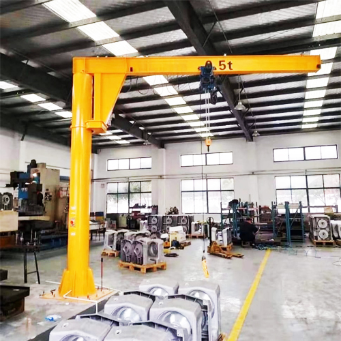
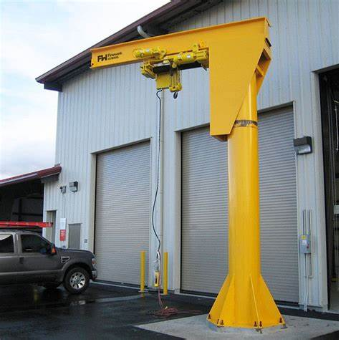
These detailed insights from individual components integrate with system-level modeling, providing a comprehensive view of the engineering design. Using advanced modeling platforms such as Mathematica and System Modeler allows us to demonstrate this. The finite element method package in Mathematica allows to perform device level partial differential equation modeling, while System Modeler is tool for system-level dynamics.
In this post, we present a proof of concept where the system matrices of a finite element analysis are transferred to System Modeler and made use of in a system model.
Cantilever Beam
Cantilever Beam
In this section, we’ll import a one-legged jib crane model that was created with System Modeler. We’ll take a closer look and design a controller to lift a load.
Import the System Model
Import the System Model
As a first step we import the model and visualize it’s diagram. If not installed, install the free Planar Mechanics library, which is required to build the model.
"ControlledCraneRigid.mo"
In[]:=
CloudImport["https://www.wolframcloud.com/obj/23f3022f-c6a6-4c7f-a8f3-456dda8b308b","SMA"]
Out[]=
In[]:=
craneRigid=ImportString,"MO";craneRigid[{"Diagram",ImageSize->Medium}]
Out[]=
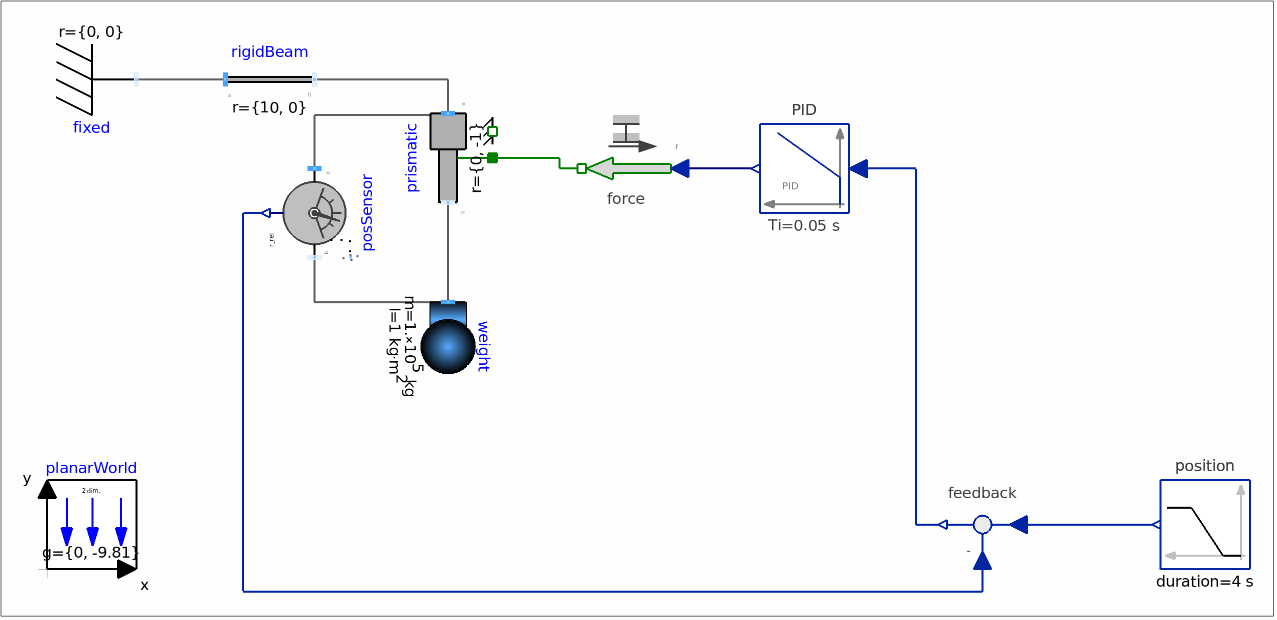
The system consists of a rigid beam, a position sensor measuring the distance between the weight and the beam, and a PID regulator that controls the position of the weight.
Now, that the model is loaded, we can simulate the model. For this, we will use .
Run the simulation:
In[]:=
simRigid=SystemModelSimulate[craneRigid]
Out[]=
SystemModelSimulationData


The result is a that contains all simulation results of interest.
Visualize the default plots of the model with the function:
In[]:=
SystemModelPlot[simRigid,ImageSize->Automatic,PlotRange->All]
Out[]=
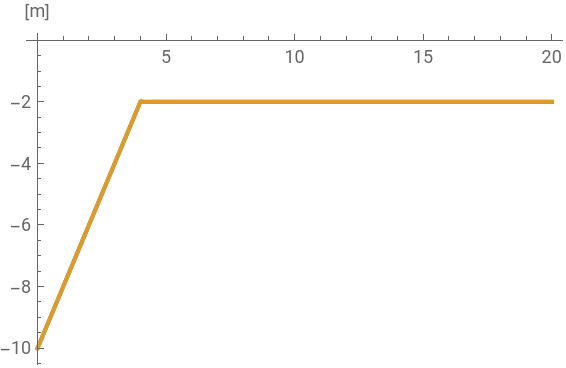


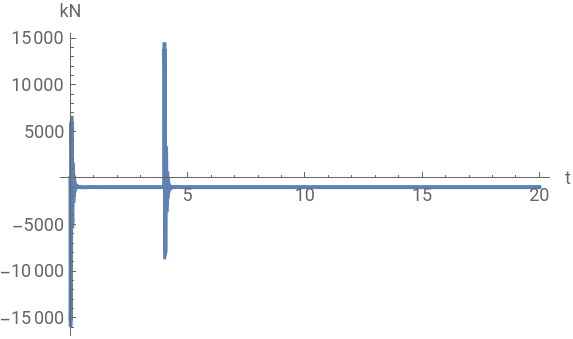
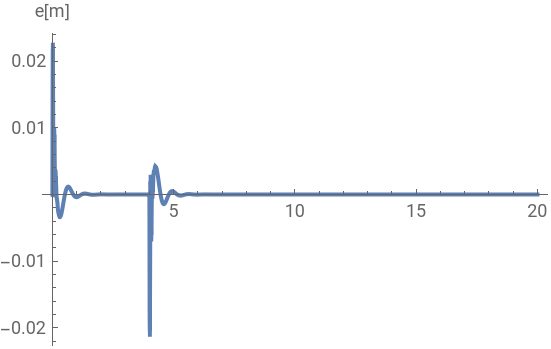
The animation of the system can be seen in the following video:
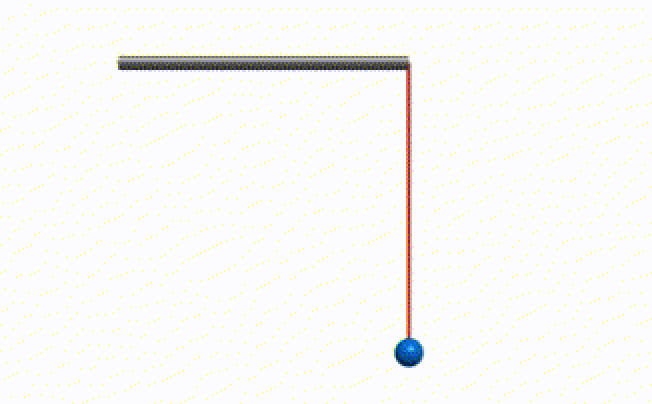
In the above video, you saw how the body attached to the beam moved form 10m to 2 m, as shown in the following plot. This shows that the controller works as expected.
PDE Cantilever Beam
PDE Cantilever Beam
In this section, we'll build a high-fidelity PDE model of the cantilever beam. We'll take a closer look to understand what are the driving variables. The idea is to find the displacement distribution over the beam for a given load. For this, we set up a partial differential equation. After creating the PDE model, we will extract the model parameters to ship them to System Modeler.
A detailed instruction on the finite element functionality can be found in the monograph.
Creating a PDE model
Creating a PDE model
Creating a solid mechanics model always comprises of the following steps:
◼
Geometry creation
◼
Material selection
◼
Boundary condition specification
◼
Mesh generation
◼
Solving the partial differential equations
◼
Post processing the solution
We start by loading the FEM package. We will set the to 0 for faster computation.
In[]:=
Needs["NDSolve`FEM`"]$HistoryLength=0;
Set up the geometry
Let’s create a 2D beam with dimensions of 10mx1m. For traceability purposes, we will define a finite element mesh of the beam with very few first order elements.
In[]:=
Ω=Rectangle[{0,0},{10,1}];mesh=ToElementMesh[Ω,"MaxCellMeasure"->4,"MeshOrder"->1]
Out[]=
ElementMesh[{{0.,10.},{0.,1.}},{QuadElement[<5>]}]
In total we 12 nodes. Each node has the possibility to move in the and the direction. This results in 24 degrees of freedom (DOF).
x
y
In[]:=
Show[mesh["Wireframe"],mesh["Wireframe"["MeshElement"->"PointElements","MeshElementIDStyle"->Black]]]
Out[]=

Each node consists of one x-DOF and one y-DOF.
Set up variables
The dependent variables , and represent the displacement in the , and -directions, respectively. is the time variable.
u
v
x
y
t
In[]:=
vars={{u[t,x,y],v[t,x,y]},t,{x,y}};
Assign material data
Let’s assume that the beam is made of steel and has a thickness of 0.3 m.
In[]:=
pars=<|"YoungModulus"->210*10^9,"PoissonRatio"->0.3,"MassDensity"->7850,"ThermalExpansion"->8.6*10^-6,"Thickness"->0.3|>;
Set up boundary conditions
The beam is fixed at the left end and subjected to 100 metric tonnes at the right end.
Set up the solid mechanics PDE component
Define the initial conditions. The cantilever starts from the rest:
Define the simulation time:
Solve the system of equations:
Test transient analysis of beam
Create frames showing the deformations at various times:
Visualize the animation:
Creating a System Model for the PDE component
Creating a System Model for the PDE component
Extract the system data
Typically the solid mechanics PDE component is a second order in time system of PDEs. To make things simple we are going to ignore that, but this is not going to be a restriction.
We set up the variables once more, this time we keep the dependent variables time dependent but remove the time dependency from the system of equations. The reason will become apparent in a later stage.
We can now regenerate the system of equations without the time derivative:
Next, we manually construct a first order time derivative:
Then we will define the initial conditions.
Let’s create the discretized PDE:
Extract the system matrices:
We can look at the stiffness and damping/mass matrix, which are of size 24 by 24, that correspond to the degrees of freedom.
By doing so, the matrix operations get easier in System Modeler.
Reorder the mass matrix :
Transferring the Beam PDE model to System Modeler
Transferring the Beam PDE model to System Modeler
Create a second order model and transfer it to System Modeler:
The cantilever beam created by FEM:
The 2D FEM beam model transmitted to System Modeler is visible in the Beam2D component of the model. Additionally, supplementary equations are utilized to link the 2D PlanarMechanics library frames to the FEM object.
When testing the FEM beam equipped with the same controller initially designed for a rigid body, the controller’s performs poorly in comparison to its operation with the rigid body.
The performance degradation is attributed to the inherent deformations and oscillations of the FEM beam, which disturb the controller’s functionality.
The FEM demonstrates its superiority by enabling the visualization of displacements between frames, i . e ., across the body .
This proof of concept shows how a FEM model can be used in System Modeler. Clearly, the workflow needs to be improved and automated but what this notebook also shows is the usefulness.
CITE THIS NOTEBOOK
CITE THIS NOTEBOOK
Create High-Fidelity System Models with PDEs - Merging Jib Crane Mechanics with Controller Dynamics
by Vedat Senol and Oliver Rübenkönig
Wolfram Community, STAFF PICKS, October 18, 2023
https://community.wolfram.com/groups/-/m/t/3051267
by Vedat Senol and Oliver Rübenkönig
Wolfram Community, STAFF PICKS, October 18, 2023
https://community.wolfram.com/groups/-/m/t/3051267