Introduction
Introduction
The interface between math and art is an endless and largely unexplored wilderness. Here are some results of my traipsing through the undergrowth.I began with the Mandelbrot Set and a resource function in the Wolfram Function Repository called MandelbrotSetRemap, which uses details of the Mandelbrot equation to distort the shapes along the edge of the Mandelbrot Set. Spirals and tendrils, like exotic botanicals of a fanciful rainforest, emerge. I imagined displaying in shadow boxes the shapes I saw, like an early 19th century explorer displaying butterflies and blossoms.The more I thought about it, the more I convinced myself that the Wolfram Language could make this fancy of my imagination become more tangible (if digital images can be called tangible). I broke the process into discrete steps, each involving math as well as artistry , and then I assembled the pieces into finished images. The process and results seemed worth sharing.
=+c
z
n+1
2
z
n
Step 1: Fractal
Step 1: Fractal
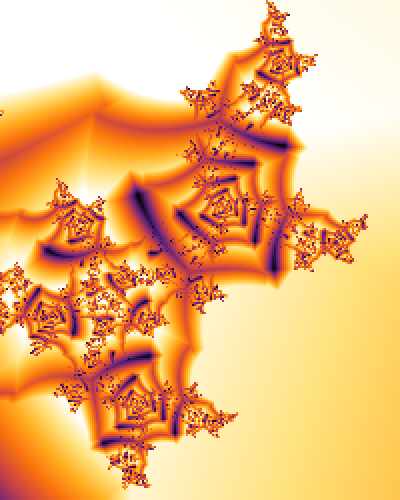
First find a worthy fractal:
In[]:=
msr=ResourceFunction["MandelbrotSetRemap"];size={200,250};cf2=ColorData[];fractal=msr[-.0415+.8375I,600,MaxIterations->54,ColorFunction->"SunsetColors",MappingFunction->"DandelionSeeds",ImageSize->size]
Out[]=
Step 2: Mask
Step 2: Mask
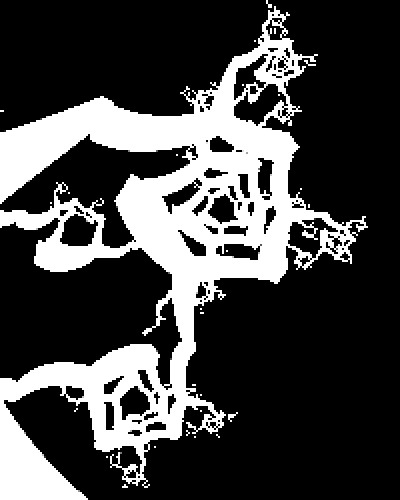
Make a mask that will cut out the shape:
In[]:=
cf=Blend[{{0,Black},{.389,Black},{.391,White},{1,White}},1-#]&;mask=msr[-.0415+.8375I,600,MaxIterations->26,ColorFunction->cf,MappingFunction->"DandelionSeeds",ImageSize->size]
Out[]=
Step 3: Height Field
Step 3: Height Field
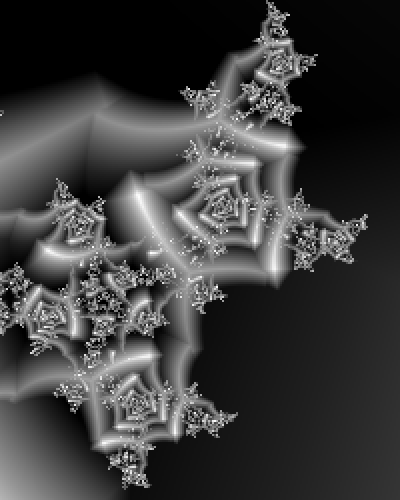
The fractal shape will have a 3D look to it. The example reverses and desaturates the colors of the fractal image to provide height data:
In[]:=
htField=ColorNegate[ColorConvert[fractal,"Grayscale"]]
Out[]=
Step 4: Bump
Step 4: Bump
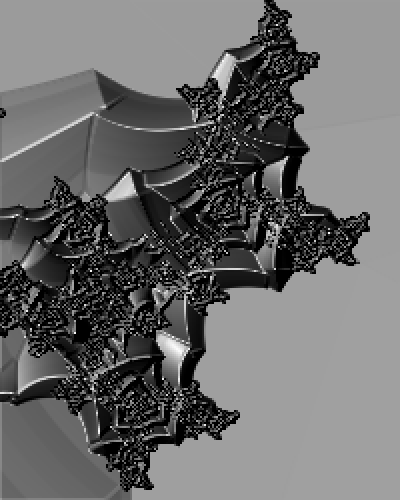
Simulate shading on the 3D height field by comparing the surface normal of each pixel with the angle that would bounce light directly upward (z direction). In this example, the light comes from the upper-left diagonal:
In[]:=
pxVal[xy_,a1_,b1_,c1_,a2_,b2_,c2_]:=Module{ht,ref,sNo,ang},ht=12;ref={-1,-1,2};(*rememberthatthefirstcoordinatehasnegativeasupandpositiveasdown.*)sNo=Mean[{({2,3,htb1}-{3,1,htc1})({1,1,hta1}-{3,1,htc1}),({1,2,htb2}-{2,1,htc2})({3,3,hta2}-{2,1,htc2})}];ang=VectorAngle[ref,sNo];Rescaleang,0,,{1,0};bump=ImageFilter[(pxVal[#[[2,2]],#[[1,1]],#[[2,3]],#[[3,2]],#[[3,3]],#[[2,1]],#[[1,2]]]&),htField,1,Interleaving->True]
π
2
Out[]=
Step 5: Highlights
Step 5: Highlights
This step helps create glassy reflections on curved surfaces. The higher the exponent, the shinier the surface will appear. You can see its effect well on the second and third image at the top of this post. In the current example it will make only a slight difference:
In[]:=
hilite=ImageApply[{1,}&,bump];Panel[hilite,Background->Blue]
3
#
Out[]=
Step 6: Top Layer
Step 6: Top Layer
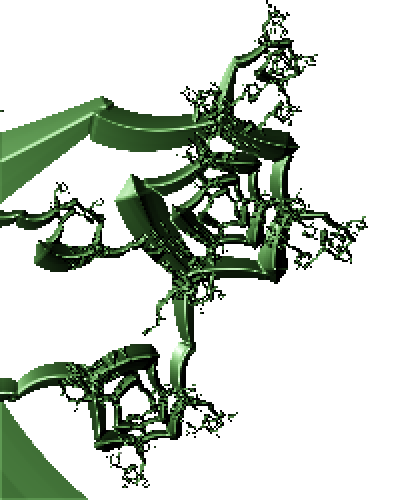
Composite the fractal, bump, highlight, and mask information to form the final fractal shape that floats in the top layer of the shadow box. Though the bump shading and the highlights appear almost identical, the bump gets multiplied into the brightness channel of the fractal (in HSB color space), while the white highlights lay on top of the fractal like frosting. In this example, the color of the fractal was too dark, so I used a solid color for the fractal’s surface:
In[]:=
channels=ColorSeparate[Image[Table[{.5,1,.4},size[[2]],size[[1]]]],"HSB"];top=SetAlphaChannel[ImageCompose[ColorCombine[{channels[[1]],channels[[2]],ImageMultiply[channels[[3]],bump]},"HSB"],hilite],mask]
Out[]=
Step 7: Shadow
Step 7: Shadow
Since the back panel of the shadow box is flat, you can get by with a drop shadow instead of a fancy ray-traced one. The top and left sides of the box will also cast a shadow:
Step 8: Assembly
Step 8: Assembly
Finally, just stack all the layers and surround it all with a double frame. The back panel is the fractal image blurred and rotated to break up the monotony of a solid color:
Conclusion
Conclusion
At the small scale of this example, the shapes have jaggies along their edges and some unsightly artifacts creep in. If you make the building block images at a larger size — say 1,000 or 2,000 pixels across — the jaggies and artifacts disappear when you resize to a smaller dimension (as in the three images at the top of this post). Be aware though, larger fractal images take longer to render.
Of course this is just for fun. I see no practical application for it, neither from a mathematical nor a visualization stand point. For me, it’s worthwhile. I hope you got some enjoyment out of it, too. If you did spend the time to make a shadow box fractal, please share it as a response to this post.
Of course this is just for fun. I see no practical application for it, neither from a mathematical nor a visualization stand point. For me, it’s worthwhile. I hope you got some enjoyment out of it, too. If you did spend the time to make a shadow box fractal, please share it as a response to this post.
CITE THIS NOTEBOOK
CITE THIS NOTEBOOK
Shadow box fractals
by Mark Greenberg
Wolfram Community, STAFF PICKS, May 5 2023
https://community.wolfram.com/groups/-/m/t/2915063
by Mark Greenberg
Wolfram Community, STAFF PICKS, May 5 2023
https://community.wolfram.com/groups/-/m/t/2915063