The Wolfram Emerging Leaders Program: High School (WELP:HS) is a remote, semester-long program designed for exceptional graduates from the Wolfram High School Summer Research Program to continue to develop their skills. Students work in a small group over the course of a semester to do either a research-based project or a product development–based project under the guidance of expert mentors. Projects are centered around a topic at the intersection of the group’s interests.
This essay was written by:
This essay was written by:
Alzheimer’s disease is a type of dementia that negatively affects more than 6 million in the U.S. alone. Currently, a cure for Alzheimer’s does not exist, but ongoing research is working towards finding treatments that target the root causes of this disease. Air quality has been linked to Alzheimer’s disease by certain research studies, though not yet proven. In this project, we focused on the possible correlation between air quality and Alzheimer’s, using data scraping and correlation functions to explore potential connection between the two. We created a dataset submitted to the Wolfram Data Repository as a resource for future studies on the linking of air quality and Alzheimer’s.
Introduction
Introduction
Alzheimer’s disease progressively attacks the nervous system and causes the decline of memory, behavior, and overall functionality of those afflicted; by searching for such underlying causes, which include genetic, environmental, and lifestyle factors, significant progress could be made towards combating this devastating disease. In this project, we focused on the environmental aspect - specifically, the possible correlation between air quality and Alzheimer’s, which allows a concentrated focus on this concept.
To begin, we scraped air quality data - primarily AQIs - from the U.S. Environmental Protection Agency’s (EPA) annual information sheets, and Alzheimer’s data from CDC’s WONDER database. We then created several datasets with each state’s information, and created functions to merge, visualize, and organize them. By plotting a linear correlation between the Alzheimer’s and AQI datasets, as well as calculating a Pearson correlation coefficient, we were able to explore the connection between the two factors.
Our Data Sets
Our Data Sets
EPA Air Quality Index(By County)
EPA Air Quality Index(By County)
◼
The first dataset is annual AQI, or Air Quality Index, data by county from EPA website. It includes information about the county each row of data is from, the median AQI during the year 2020, maximum AQI values and the count of days in each AQI category.
◼
Daily index value is calculated for air pollutants that are measured (these include CO, NO2, and more). The pollutant with the highest index value is considered the “main pollutant”.
◼
The dataset also shows the number of days with good, moderate, unhealthy for sensitive groups, unhealthy, and very unhealthy air quality; this is dependent on the number of days in the year that had an AQI value of 0-50, 51-100, and so on.
EPA Air Pollutants(By County)
EPA Air Pollutants(By County)
◼
The second dataset from the EPA is Air Quality Statistics Report.
◼
It provides standard summary data by county in the year 2020. This has information about specific counties, and if a county’s maximum air quality statistics are above the level of the national standards during 2020.
◼
It gives specific values from air quality monitors such as “PM2.5 98th Percentile 24-hr.”
CDC Alzheimer’s Deaths(1999-2020, by County and by State)
CDC Alzheimer’s Deaths(1999-2020, by County and by State)
◼
The third dataset is from the CDC.
◼
It counts the number of deaths by Alzheimer’s disease and calculates the crude rate per County.
◼
We also have a version by State.
Steps
Steps
◼
Process the data
◼
Merge
◼
Data Visualizations/Correlation Analysis
Processing the Data
Processing the Data
The first step is to clean and process the data to Wolfram, so we can later merge the two.
Air Quality Index
Air Quality Index
Loading the Data
Loading the Data
We import the data downloaded from EPA and store it in the variable rawData.
In[]:=
We turn the rawData into a list of Associations, setting the first row to the headers.
In[]:=
aqiStructuredData=With[{headers=First[rawData]},AssociationThread[headers->#]&/@Drop[rawData,1]];
We can display our data structure below:
In[]:=
KeyTake[#,{"State","County","Year","Days with AQI","Good Days","Moderate Days",,"Unhealthy Days","Median AQI","Days CO","Days NO2","Days Ozone","Days PM2.5","Days PM10"}]&/@aqiStructuredData//Dataset
Out[]=
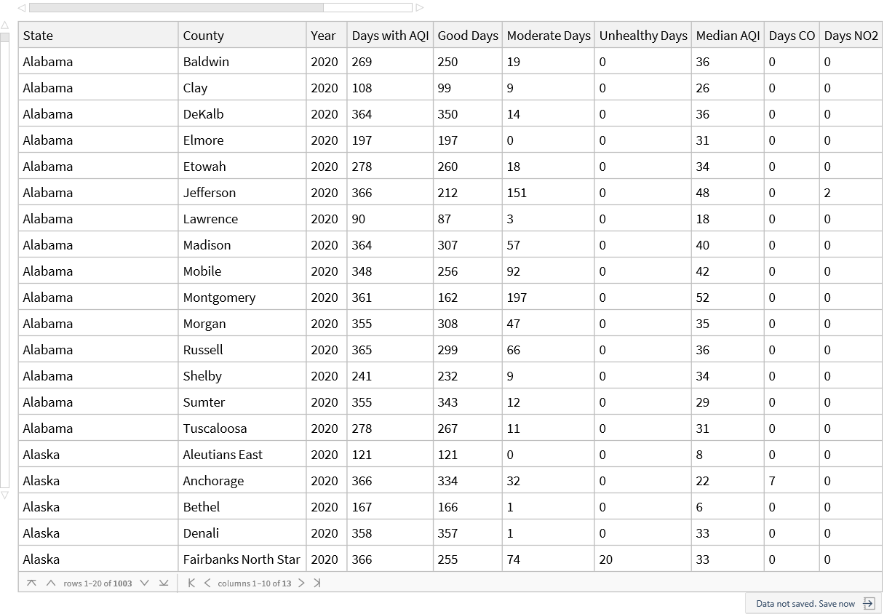
At this point, we have successfully loaded the dataset into Wolfram! Next, we will create useful functions that will allow us to properly utilize the data.
Cleaning the data
Cleaning the data
We create a function to access the data by state.
In[]:=
getAirData[state_]:=Select[aqiStructuredData,#["State"]==state&];
Next, we see that the number of Days with AQI vary for each county. Thus, we cannot rely on Good Days, Moderate Days, if the total days is not the same.
We convert it to the percentages (ex. Good Days/Days with AQI)
In[]:=
convertToPercent[idx_,name_]:=Table[ReplacePart[aqiStructuredData[[x]],idx->(100*aqiStructuredData[[x]][name]/aqiStructuredData[[x]]["Days with AQI"])+0.01-0.01],{x,1,Length[aqiStructuredData]}];
In[]:=
aqiStructuredData=convertToPercent[5,"Good Days"];
In[]:=
aqiStructuredData=convertToPercent[6,"Moderate Days"];
In[]:=
aqiStructuredData=convertToPercent[7,"Unhealthy for Sensitive Groups Days"];
In[]:=
aqiStructuredData=convertToPercent[8,"Unhealthy Days"];
In[]:=
aqiStructuredData=convertToPercent[9,"Very Unhealthy Days"];
In[]:=
aqiStructuredData=convertToPercent[10,"Hazardous Days"];
We create two New Keys: Better Days(Good+Moderate Days) and Bad Days(Unhealthy for Sensitive Groups+Unhealthy+Very Unhealthy+Hazardous Days).
In[]:=
AssociateTo[aqiStructuredData[[#]],"Bad Days"->aqiStructuredData[[#]]["Unhealthy for Sensitive Groups Days"]+aqiStructuredData[[#]]["Unhealthy Days"]+aqiStructuredData[[#]]["Very Unhealthy Days"]+aqiStructuredData[[#]]["Hazardous Days"]]&/@Range[1003];
In[]:=
AssociateTo[aqiStructuredData[[#]],"Better Days"->aqiStructuredData[[#]]["Good Days"]+aqiStructuredData[[#]]["Moderate Days"]]&/@Range[1003];
We end up with a dataset like this:
In[]:=
KeyTake[#,{"State","County","Year","Median AQI","Better Days","Bad Days"}]&/@aqiStructuredData//Dataset
Out[]=


Air Pollutants
Air Pollutants
Loading the data
Loading the data
Now, we do a similar process for the Air Pollutant dataset.
Store the data into AQdata and upload it to Cloud.
In[]:=
Convert the data to a list of associations:
We create function AQData to access the data by state, using Select and StringTake functions.
We can now view it as a dataset:
Alzheimer’s Disease Deaths
Alzheimer’s Disease Deaths
Loading the Data
Loading the Data
Store the raw data to allAlzData. Note that we use StringSplit because it is a text file separated by spaces, not a CSV file.
Deletes the “Notes” column from the headers.
We turn the raw data into a list of Associations, setting the first row to the headers.
We create a function to rename the column titles without quotation marks.
We can display our data structure below:
At this point, we have successfully loaded the dataset into Wolfram! Next, we will create useful functions that will allow us to properly utilize the data.
Cleaning the data
Cleaning the data
We create a function to access the data by state.
Next, we create a function that gets all the deaths by state.
Merge the datasets
Merge the datasets
Renaming columns
Renaming columns
We merge the datasets by a common “County” key value. In order to do this, we must make sure the key values look the same.
Recall that in the Alzheimer’s dataset, the value for County looks like:
But in the AQI dataset, the County looks like:
In Air Pollutants:
We want to reduce the County name to one that resembles the AQI dataset(ex. Baldwin)
Changes County name to match AQI data(eg. “Baldwin County, AL” --> Baldwin)
Changes County name to match AQI data(eg. Baldwin County, AL--> Baldwin)
Merges the three datasets for one state:
Merges the three datasets for ALL states:
Michigan example:
Michigan example:
Linear Correlation
Linear Correlation
Pairing and Cleaning Data
Pairing and Cleaning Data
Now, given two data values from the merged dataset, we create a function to put them into linear pairs.
Input Keys from the dataset and result in ordered pairs for those two columns of values:
Note that the above function simultaneously cleans up the data to get the paired linear format: it deletes data points that are Unreliable and changes . to 0.
Next, we plot onto a graph - with the line of best fit on it.
Using created LinearData and merge functions to organize data with the Keys “Crude Rate” and “CO 2nd Max 1-hr” into ordered pairs:
Plot the aforementioned points onto a graph, observing the slight negative linear trend:
We experiment with the plot and LinearData functions for a state - New Jersey - pulling “Crude Rate” and “Median AQI” from the merged data. Again, a negative trend is observed.
Pearson Correlation
Pearson Correlation
To have more support for our linear correlation, we calculated the Pearson correlation coefficient between crude rates and median AQIs from merged data.
Michigan
Michigan
To begin, we attempted a Pearson correlation with one state.
Using the Merge function, pull merged data for Michigan:
We create a flattened list of the ordered pairs from Michigan’s crude rate and median AQI data; then, separating this flattened list using Part functions retrieves the lists of crude rates and median AQIs.
Finally, we calculate the Pearson correlation coefficient between the two lists, and thus, between Michigan’s crude rates and median AQIs:
Replicating for Merged Data
Replicating for Merged Data
The next step was repeating this process for all merged data, using the same functions.
Note that the Pearson correlation coefficient between crude rates and median AQIs between all merged data for the U.S. is negative; however, since the value is so small, it is considered statistically insignificant.
Heat Maps
Heat Maps
To visualize and compare the distribution of Alzheimer’s deaths and air quality, we created two heat maps of both datasets.
Note: the District of Columbia was excluded from data
Note: the District of Columbia was excluded from data
Alzheimer’s Deaths Heat Map
Alzheimer’s Deaths Heat Map
The previously defined getStateAlz, returns data for Alzheimer’s deaths for each state inputted.
The function stateDeathCount returns an overall state death count, adding up the county death counts .
Creating a list of state name abbreviations and their association to their corresponding (summed up by county) death counts:
An association is created between the abbreviated state names and the full state names:
deathCountWithNames creates an association between the full state names - rather than the abbreviations - and death counts
Remove spaces from deathCountWithNames to later format the states as entities (for example, “South Carolina” -> “SouthCarolina”)
We use the Entity function to transform the state names into entities, while keeping their association with their corresponding death count; note that removing spaces was necessary for the Entity function to recognize the states.
Finally, the states as entities, assigned their numerical death counts that translate into colors, are placed into function GeoRegionValuePlot to create the final heat map. Darker colors represent more deaths, lighter colors represent less.
Air Quality Heat Map
Air Quality Heat Map
Creating an air quality heat map allows us to compare the distributions of both air quality and Alzheimer's deaths data.
stateMedianAQI retrieves all county AQIs from a state once its name and abbreviation are put in; this is based on the format of our merge function
The function stateMeanAQI finds the average of all the county AQIs, in order to have a single AQI value for each state:
Example:
Lists of states and abbreviations are created to then create an association with the average AQIs. Just like the Alzheimer’s data, spaces are removed from the double name states.
Calculate the mean AQI values for each state:
Using the states with removed spaces, we create an association between the states and their averaged median AQI:
States are then formatted as entities, and an association is created between these entities and averaged median AQIs:
We use the stateColors2 function to plot air pollution - measured by the mean Median AQI - onto the U.S. map. A different color scheme is used to make it more visually distinguishable:
Observing both maps, there are some similarities based on the color scale: for example, California has the highest amount of deaths and averaged Median AQI; Alaska remains lower for both.
However, slight disparities occur between them - Arizona has a high Median AQI but a lower amount of deaths - possibly hinting at the previously calculated negative, insignificant correlation between Alzheimer’s and air quality (this time, using Alzheimer’s death counts and averaged Median AQI, rather than crude Alzheimer’s rates and Median AQIs).
However, slight disparities occur between them - Arizona has a high Median AQI but a lower amount of deaths - possibly hinting at the previously calculated negative, insignificant correlation between Alzheimer’s and air quality (this time, using Alzheimer’s death counts and averaged Median AQI, rather than crude Alzheimer’s rates and Median AQIs).
Conclusion
Conclusion
Through our techniques of data scraping and correlation, we found an insignificant relationship between the two factors of air quality and Alzheimer’s, from the dataset we created. Furthermore, heat map visualizations of statewide Alzheimer’s deaths and average AQIs helped us gain a comprehensive understanding of the relationship between negative air quality and rising Alzheimer’s prevalence, which is valuable for examining future directives to mitigate this widespread neurodegenerative disease. We created this Wolfram Repository dataset in hopes that future researchers investigating the relationship between Alzheimer’s and air quality will be able to access and utilize this unique data within Wolfram.
Future Directions
Future Directions
A possible direction to expand this work is investigating different correlations between more of the air pollutants included in the AQI dataset (ex. NO2, Ozone, CO) to explore their individual connections to Alzheimer’s. As we primarily focused on states’ median AQIs as a overarching measure of air quality, this project could be extended by focusing on such other factors of air quality, using our dataset to tinker with similar correlations. Furthermore, an updated dataset involving statistics from past years - as we scraped data from 2020 - could be used to explore the trends of Alzheimer’s in relation to air quality, and could be compared to this project to view any changes in correlations over time.
Acknowledgements
Acknowledgements
We would like to thank Rory Foulger and Isabel Skidmore for their clear guidance, careful planning, and debugging help during this months-long adventure. Without them, this program and project would not be possible.
CITE THIS NOTEBOOK
CITE THIS NOTEBOOK
Creating a dataset for Air Quality and Alzheimer’s
by Wolfram Emerging Leaders Program
Wolfram Community, STAFF PICKS, January 2, 2024
https://community.wolfram.com/groups/-/m/t/3094902
by Wolfram Emerging Leaders Program
Wolfram Community, STAFF PICKS, January 2, 2024
https://community.wolfram.com/groups/-/m/t/3094902