ABSTRACT (original article): Given the growing prevalence of computational methods in chemistry, it is essential that undergraduate curricula introduce students to these approaches. One such area is the application of machine learning (ML) techniques to chemistry. Here we describe a new activity that applies ML regression analysis to the common physical chemistry laboratory experiment on the electronic absorption spectra of cyanine dyes. In the classic version of this experiment, students collect experimental spectra and interpret them using the Kuhn free electron model, based on the quantum mechanical particle-in-a-box (PIB). Our new computational activity has students train regression models of increasing complexity to predict the wavelength of maximum absorption for different cyanine dyes using a set of 13 molecular features. In addition, the activity introduces methods for evaluating and interpreting regression models. Ultimately, students are prompted to use their regression analysis results to generate hypotheses for what molecular properties underlie cyanine dye absorption, leading them naturally to the PIB model. In this report, we provide a dataset, reference code implementations in Mathematica and Python notebooks, and an example lab protocol with an introduction to cyanine dyes and the ML techniques. This activity can be completed in a single 3-hour lab period by upper-level undergraduate students with relatively little prior programming experience. Although intended to complement the experimental measurement of cyanine dye spectra, this activity can also be performed on its own; alternatively, it can form the basis of more involved projects in a computational chemistry or machine learning course. CITATION (original article): Thrall E, Martinez Lopez F, Egg T, Lee SE, Schrier J, Zhao Y (2023). Rediscovering the Particle-in-a-Box: Machine Learning Regression Analysis for Hypothesis Generation in Physical Chemistry Lab. J. Chem. Educ. 2023, 100, 12, 4933–4940. https://doi.org/10.1021/acs.jchemed.3c00765
GITHUB
GITHUB
Part I
Part I
Objectives
Objectives
◼
Build regression models that predict the wavelength of maximum absorbance of different cyanine dyes.
◼
Understand and apply different types of regression models, including simple linear regression, multiple regression, penalized regression, and tree models.
◼
Use feature selection and the evaluation of feature importance to improve and interpret model performance.
◼
Use regression model analysis as part of the scientific discovery process by generating hypotheses for factors that affect cyanine dye absorption.
◼
Gain proficiency in reading and writing Mathematica code in a notebook environment.
Getting started
Getting started
◼
If you have limited Mathematica experience, you may wish to watch this screencast (12 minutes) which will help you get started by introducing basic concepts, including entering input, understanding functions, working with data and matrix operations, and finding functions. https://www.wolfram.com/broadcast/video.php?c=86&v=327
◼
If you have experience in another programming language, the Fast Introduction for Programmers is a good way to get started https://www.wolfram.com/language/fast-introduction-for-programmers/en/
Mathematica notebooks consist of text cells (like this one) and program input and output cells like the ones below. An input cell is evaluated by typing Shift+Enter
Basic of Mathematica
Basic of Mathematica
Get and Preprocess the Data
Get and Preprocess the Data
In[]:=
(*loadthedatasetsfromGitHub*)dataset=Import["https://raw.githubusercontent.com/elizabeththrall/MLforPChem/main/MLcyaninedye/Data/cyaninedye_dataset.csv","Dataset",HeaderLines1];
(Note that Import can be used to import data from anywhere, including files on your local computer; here we are reading it from an internet URL).
Let’s see what these data look like. You can display the current contents of a variable by entering its name and executing the cell:
Let’s see what these data look like. You can display the current contents of a variable by entering its name and executing the cell:
In[]:=
dataset(*displaythecontentsofthevariable"dataset*)
Take a look at the structure of this variable (you may need to use the scroll buttons to see each row and column, depending on your screen size):
◼
Each row contains data for a different molecule
◼
The first column contains the molecule SMILES string. SMILES is a representation of the atoms and the bonds between them in the form of an ASCII string.
◼
The second column contains the molecule InChIKey. InChIKey is another unique chemical identifier in the form of an ASCII string.
◼
The next 13 columns contain different molecular features (described below). These are the variables that we will use to predict the wavelength of maximum absorbance. Features are sometimes called "independent" or "predictor" variables.
◼
The final column contains the wavelength of maximum absorbance (MaxAbsorbanceWavelength) for each molecule. This is the target variable that we want to predict (sometimes called the “dependent” or “response” variable).
Features:
Our regression analysis will use the 13 features below, which were computed for each molecule in the dataset.
Our regression analysis will use the 13 features below, which were computed for each molecule in the dataset.
◼
AromaticRingCount: Number of aromatic rings in the molecule
◼
HBondDonorCount: Number of hydrogen bond donors in the molecule
◼
HBondAcceptorCount: Number of hydrogen bond acceptors in the molecule
◼
FractionCarbonSP3: Fraction of carbon atoms in the molecule with sp3 hybridization
◼
HeteroatomCount: Total number of heteroatoms (i.e., atoms other than carbon) in cyclic rings in the molecule
◼
HeterocycleCount: Total number of heterocyclic rings (i.e., rings containing atoms other than carbon) in the molecule
◼
RotatableBondCount: Number of bonds that can be rotated in the molecule (i.e., the number of non-cyclic sp3 bonds)
◼
MolecularMass: Mass of the molecule
◼
DegreeOfUnsaturation: Total number of pi bonds and rings in the molecule
◼
MinEllipsoidLength: The major axis length of the smallest volume ellipsoid that could contain the molecule
◼
MaxDistance: The largest distance between any pair of atoms in the molecule
◼
LongestPiChain: Longest continuous path of conjugated pi bonds
◼
LinkerLength: Longest conjugated pi chain that is not part of a ring
Sometimes removing outliers from the dataset can help improve model performance. Outliers are data points that differ drastically from the rest of the observations. Machine Learning models generalize from training data to make predictions; if they learn from data with extreme outliers, they may perform worse.
Sometimes removing outliers from the dataset can help improve model performance. Outliers are data points that differ drastically from the rest of the observations. Machine Learning models generalize from training data to make predictions; if they learn from data with extreme outliers, they may perform worse.
In[]:=
Histogram[dataset[All,"MaxAbsorbanceWavelength"],PlotRange->All]
Out[]=
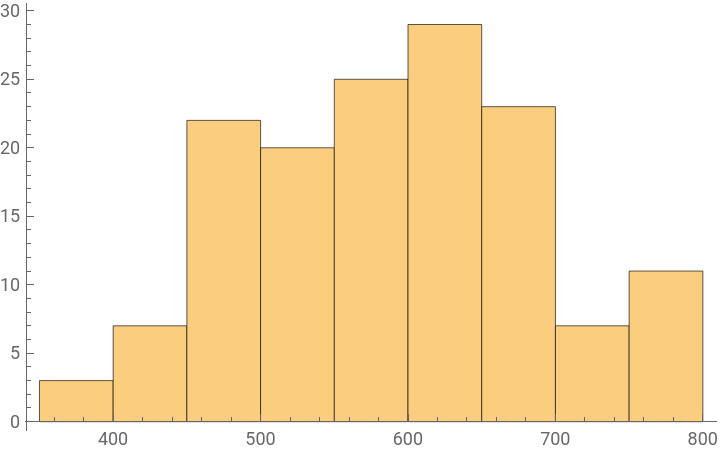
So far, so good. Notice how there are different numbers of entries for each wavelength, but in general there appear to be a few examples for each value and none of the values appears to be extremely different.
In contrast, let’s look at one of the input properties—the number of aromatic rings (AromaticRingCount):
In contrast, let’s look at one of the input properties—the number of aromatic rings (AromaticRingCount):
In[]:=
Histogram[dataset[All,"AromaticRingCount"],PlotRange->All]
Out[]=
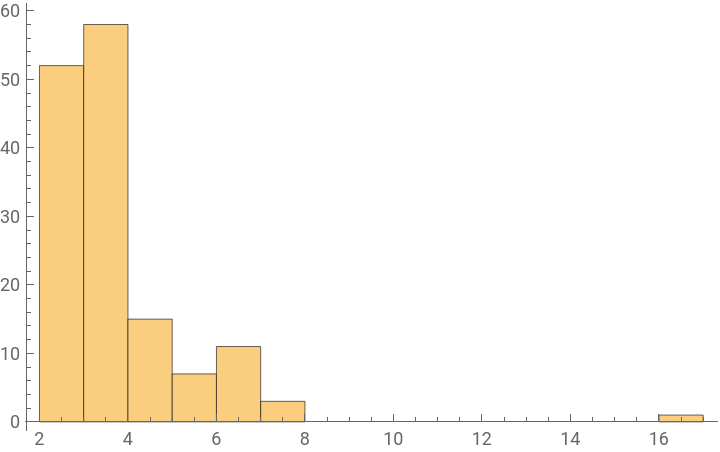
Notice the outlier—there is one example with 16 aromatic rings, which is unlikely to be well represented by the rest of the data, which only have 8 or fewer. Outliers can be the result of errors in the dataset or they may be genuine “exceptional” values. In either case, they will not be well described by the model that you construct, as there are no other examples with which to compare them.
In general, it is a good practice to look through each variable to identify possible outliers and remove these before proceeding. One way to remove the anomalies is to programmatically based on your investigation:
In general, it is a good practice to look through each variable to identify possible outliers and remove these before proceeding. One way to remove the anomalies is to programmatically based on your investigation:
In[]:=
dataset=dataset[Select[#AromaticRingCount<10&]];
We can also automatically process the dataset, analysing it for anomalies, and then resetting the dataset variable to have the “anomaly free” values:
In[]:=
dataset=DeleteAnomalies[dataset]
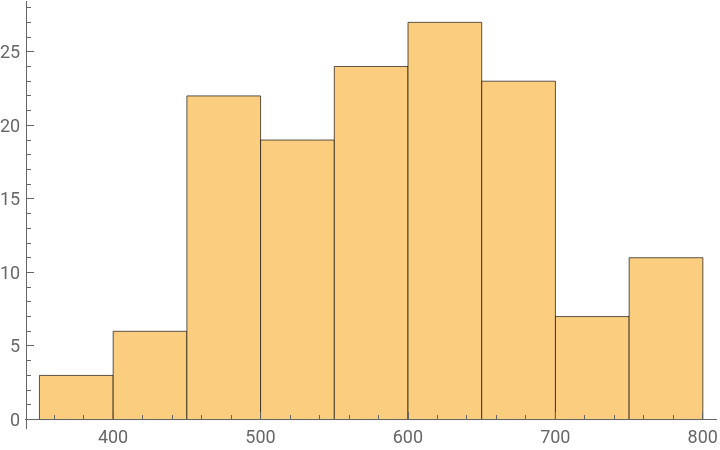
(A companion function, FindAnomalies could be used to extract these anomalies for further investigation and visualization). DeleteAnomalies removes 3 additional anomalous data points after we have removed the outlier previously observed in the histogram:
In[]:=
Histogram[dataset[All,"MaxAbsorbanceWavelength"],PlotRange->All]
Out[]=
Data Selection with Structured Datasets
Data Selection with Structured Datasets
A tabular dataset can be thought of as storing a collection of values in a rectangular “grid.” We can see the size of that grid using the Dimensions function:
In[]:=
Dimensions[dataset](*shapeofdataset?*)
Out[]=
{142,16}
(Note: You can always learn more about built-in Mathematica functions by typing ? followed by the function name. Clicking the “i” button in the upper right hand corner gives more information:
In[]:=
?Dimensions
Out[]=
We will often need to access the values stored in particular positions in a variable. We can do this by specifying the indices corresponding to that position:
◼
variable[[row, column]] extracts the value at the specified row and column.
◼
Note the two square brackets (access the elements in a list of data) as opposed to the single brackets used to specify the arguments to a function.
◼
“;;” species a range of values.
◼
“All” specifies that we should take all of the values along a dimension.
◼
We can also count the indices from the “end” using negative numbers, e.g., variable[[-2]] returns the second-from-last element.
◼
Note that in Mathematica, index values start from 1 (instead of 0 like some other programming languages such as C and Python).
For example:
◼
dataset[[2;;3, 1]] take rows 2 and 3 and the first column
◼
dataset[[ All, 1]] take all rows and the first column
◼
dataset[[All, 3;;5]] take all rows and third through fifth columns
Try the following examples. Can you predict what the output will be?
In[]:=
dataset[[1]](*accessanentrybyitsindices,usingdoublesquarebrackets*)
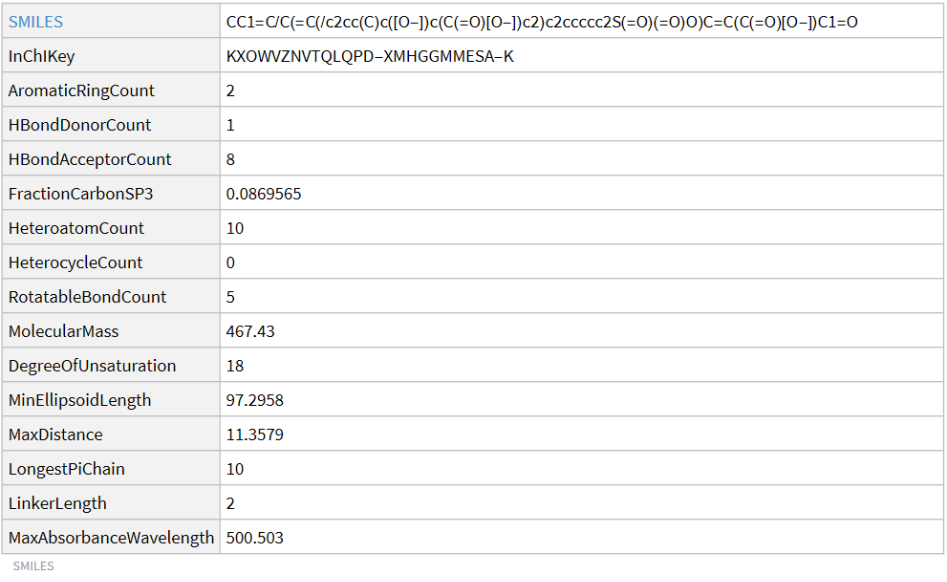
The columns in datasets can also be addressed by name. For example, the SMILES column in the first few rows:
This can also be generalized to select a collection of columns by providing a list as input:
Visualizing molecular structure
Visualizing molecular structure
To continue familiarizing ourselves with the dataset, we can visualize the structures of the different cyanine dyes. Before we do so, let’s first get a quick overview of making and plotting molecules in general in Mathematica. The Molecule function can take input names (either in machine-readable SMILES or human-readable IUPAC name) and covert them into a machine representation:
What do you think MoleculePlot3D does? (After you run the code below, be sure to click and drag the result to rotate the molecule!)
(One caveat: this structure is not necessarily the true 3D structure of the molecule; rather it is the result of a molecular mechanics calculation, selecting a single random conformer.)
Now let’s use these tools to visualize some of the molecules in our dataset. The code block below displays the structure of the molecule in the row of our dataset corresponding to the specified molIdx variable. Try changing molIdx to visualize the structure of a few different molecules:
Now let’s use these tools to visualize some of the molecules in our dataset. The code block below displays the structure of the molecule in the row of our dataset corresponding to the specified molIdx variable. Try changing molIdx to visualize the structure of a few different molecules:
Alternatively, we can display a random sample of molecules in the dataset. Run the first code block below to define an accessory function, then run the second one to display a random selection of 5 molecular structures from the dataset:
Run the code block above to visualize a few different sets of molecular structures; each time you run the code, it will select a different RandomSample. How similar are the molecular structures in the dataset? Are there any common structural features? Do you notice any closely-related molecules in the dataset?
Identifying dependent (y) and independent variables (X)
Identifying dependent (y) and independent variables (X)
Next we need to split our dataset into dependent and independent variables. An independent variable does not depend on other variables, whereas a dependent variable is affected by independent variables and changes accordingly. Independent and dependent variables are commonly indicated as X and y:
◼
X is an array of independent variables
◼
y is the dependent variable
In regression analysis, the dependent variables that we want to predict is referred to as a target value. In our dataset, MaxAbsorbanceWavelength is the target value (i.e., the dependent variable, y), and the 13 features are the independent variables (i.e., X). We will omit the non-numerical variables in our dataset (the SMILES and InChIKey molecular identifiers).
The output is in the form of a list of Association --> value rule pairs. Let us display the first two below:
Split Train & Test Data
Split Train & Test Data
We will use most of our dataset to train our regression models; this portion is the “training” dataset. To evaluate model performance, however, we will need a test dataset. We will randomly split our data into a training and test set; by default this function does an 80/20% split with a random shuffle of the items. (In order to make this reproducible, we define a random number generator “seed” using the SeedRandom function. By calling SeedRandom immediately before we perform the split, we make sure that we get the same random result each time you run the notebook.)
Data Scaling
Data Scaling
Notice that our features span a wide range of different values, from less than 1 to greater than 100. Many machine learning models perform better when the variables are on the same scale, so it’s usually a good practice to rescale features before performing the analysis.
There are many methods that can be used to scale data. Two approaches are:
◼
Scaling: Scale our features in a specified range (e.g., between 0 and 1) without altering the distribution shape
◼
Normalizing: Scale our features, usually altering the distribution shape
For this analysis, let’s scale all of our features to range between 0 and 1, based on the minimum and maximum of the training set. The functions minMaxFit and minMaxTransform, defined below, accomplish this task. You do not need to modify these functions.
We begin by determining the maximum and minimum of each feature:
Then we can apply this to transform the training and test sets to have input features between 0 and 1. (Be careful, as this will replace the values in these datasets with the rescaled versions. You should only run this code once. If you accidentally run it twice, go back and regenerate the training and test sets in the section Split Train & Test Data.)
Note that none of the feature values in the training dataset are smaller than 0 or greater than 1 now.
Building Regression Models
Building Regression Models
Regression analysis is a process of explaining and defining the relationship between dependent and independent variables. In this activity, we will train several regression models to predict our target value, MaxAbsorbanceWavelength (in this section and later in the Penalized Regression and Tree Models sections). We will use different metrics to evaluate how well the models perform (in the Model Evaluation section). By choosing better independent variables (in the Feature Selection section) we can try to improve our model performance. Finally, we can interpret our models and gain insight into what features are important (in the Feature Importance section).
Simple Linear regression
Simple Linear regression
Let’s start with the most basic type of regression model. Simple linear regression is a method that tries to define the relationship between two variables, the dependent variable and a single independent variable.
This relationship can be represented by a well-fitted line that follows:
where:
Now that we know how a simple linear regression model works, let’s train our first machine learning model by selecting one feature from our set of independent variables and plotting the line that best describes the relationship between our selected feature and the dependent variable (Max Absorbance Wavelength).
First let’s define some convenience functions for extracting a single feature. Again, you do not need to modify these functions, but we will use them in the subsequent code:
First let’s define some convenience functions for extracting a single feature. Again, you do not need to modify these functions, but we will use them in the subsequent code:
Because we’ll be working with a few different simple linear regression models, we can use associations (see the Basics of Mathematica section) to store the training and test data for each model, as well as the trained models. First initialize the empty variables (only run this code block once):
Let’s start by choosing the MolecularMass feature and seeing how well it predicts the MaxAbsorbanceWavelength. Run the code block below to select the feature, extract the training and testing data for that feature, and train the regression model. (Note that to run a simple linear regression with another feature, you can simply copy this code block and change the featureName variable.)
It is useful to summarize the quality of our fit by using the PredictorMeasurements function. To get a summary of the model performance, we provide this function with two inputs: the trained regression model and the data (comprised of x-y pairs) on which it is to be evaluated. Let’s start by looking at the performance of the model on the training dataset:
The graph above plots the actual wavelength vs. the predicted wavelength for the training data. If the model could perfectly explain the variation in the training data, all the blue dots would lie along the dashed line. Clearly the model is not perfect.
It can also be useful to examine the correlation between the feature used to the train the regression model and the target value. Let’s plot the actual MaxAbsorbanceWavelength as a function of the value of MolecularMass:
It can also be useful to examine the correlation between the feature used to the train the regression model and the target value. Let’s plot the actual MaxAbsorbanceWavelength as a function of the value of MolecularMass:
If MolecularMass could explain all the variation in MaxAbsorbanceWavelength, the red dots would lie along the blue line. Again we can see that the regression model is not perfect.
Now that we’ve evaluated the model performance with the training dataset, let’s use this model to predict MaxAbsorbanceWavelength for the test dataset and compare our predicted wavelengths to the true values. This is the real test of the model’s performance.
Run the code block below to perform this analysis and generate a plot of actual vs. predicted wavelength.
Now that we’ve evaluated the model performance with the training dataset, let’s use this model to predict MaxAbsorbanceWavelength for the test dataset and compare our predicted wavelengths to the true values. This is the real test of the model’s performance.
Run the code block below to perform this analysis and generate a plot of actual vs. predicted wavelength.
If the model predictions were perfect, all the blue dots would lie along the dashed line. As we saw before, this model is not perfect. There are quantitative ways that we can evaluate the performance of the model, which we’ll discuss soon.
For now, go back to the description of the different molecular features in our dataset. Use your chemical intuition and think about which ones might be correlated with MaxAbsorbanceWavelength. Then write new code to perform and visualize a linear regression for a different variable.
For now, go back to the description of the different molecular features in our dataset. Use your chemical intuition and think about which ones might be correlated with MaxAbsorbanceWavelength. Then write new code to perform and visualize a linear regression for a different variable.
ADD A CODE BLOCK HERE TO PERFORM A SIMPLE LINEAR REGRESSION FOR A DIFFERENT VARIABLE
Multiple Regression
Multiple Regression
When we have more than one independent variable in our dataset, we can make use of a multiple regression model. A multiple regression model can perform better at predicting the value of a dependent variable since the model has more information to use.
The formula is an extension of the single-variable simple linear regression:
where:
As for the single-variable case, perfect model performance would be indicated by all the blue dots lying along the dashed line. Although this model isn’t perfect, its performance looks qualitatively better than the MolecularMass simple linear regression, and the predicted wavelengths span a wider range of values. Thus we can see that providing the model with more information improved the performance, as expected.
Model Evaluation
Model Evaluation
1
.Mean Absolute Error (MAE): MAE is the average of the absolute difference between the actual and predicted values. The lower the error, the better the model performance.
https://en.wikipedia.org/wiki/Mean_absolute_error
https://en.wikipedia.org/wiki/Mean_absolute_error
2
.Mean Squared Error (MSE): MSE is the average of the squared difference between the actual and predicted values. As before, the lower the error, the better the model performance. MSE is one of the most used metrics for this kind of model.
https://en.wikipedia.org/wiki/Mean_squared_error
https://en.wikipedia.org/wiki/Mean_squared_error
3
.Root Mean Squared Error (RMSE): RMSE is the square root of the MSE. As before, the lower the error, the better the model performance. It is conceptually similar to the standard deviation.
https://en.wikipedia.org/wiki/Root-mean-square_deviation
https://en.wikipedia.org/wiki/Root-mean-square_deviation
Although these quantitative metrics are informative, it is a good practice to see how the data behave with our own eyes through data visualization. Sometimes a single number or metric cannot explain the whole picture, or can even be misleading. (Anscombe’s quartet is a famous illustration of that point: https://en.wikipedia.org/wiki/Anscombe%27s_quartet
Mathematica has built-in functions for calculating a number of different metrics. Let’s see what properties are available:
Mathematica has built-in functions for calculating a number of different metrics. Let’s see what properties are available:
We can request a single property using the code below:
We can also request multiple properties at the same time:
Let’s make life easy by defining a convenience function that takes the model and a test set and calculates our four metrics of interest:
Now we can store these results in a variable called metrics and add the results for the simple linear regression and multiple regression models. First initialize the empty metrics variable (only run this code block once):
Then we can add the results for the models tested to the metrics variable. (Note that we have to provide the appropriate test dataset for each model.)
When we compare the MolecularMass simple linear regression and the multiple regression, we can see that multiple regression works better according to both the eye test and the quantitative performance metrics.
Now add a code block below to calculate these performance metrics for a simple linear regression with the single feature that you tested above, add them to the metrics variable, and display the results in table. How did your new model perform?
Now add a code block below to calculate these performance metrics for a simple linear regression with the single feature that you tested above, add them to the metrics variable, and display the results in table. How did your new model perform?
ADD A CODE BLOCK HERE TO CALCULATE THE PERFORMANCE METRICS FOR A SIMPLE LINEAR REGRESSION USING A DIFFERENT VARIABLE AND ADD THEM TO THE METRICS TABLE
Instructor note: If you are using the same single feature that you’ve defined previously (for example in a previous solution), then there is no need to recompute the model and you can proceed directly to model evaluation.
Instructor note: Otherwise, you’ll need to go through the entire process of defining the relevant training and test sets for the feature of interest, training the model, and then performing the model evaluation. For reference, we run a Do-loop over all of the single-feature models to generate reference results.
Avoiding Model Overfitting
Avoiding Model Overfitting
Overfitting refers to a situation when a model has become too specific to the training data and fails to generalize well to new test data. Overfitting generally occurs when there are too many variables in the model compared to the number of observations (i.e., the model is overly complicated and/or the training set is too small).
There are a few ways to avoid overfitting. We’ll try two approaches here:
1
.Identifying the best correlated feature(s)
2
.Using a penalized regression model
Feature Selection
Feature Selection
Feature selection entails choosing better features for the model by eliminating some of the available independent variables. Reducing the number of features can help the algorithm perform better by eliminating misleading variables or preventing overfitting. For an overview, see the following article:
To identify appropriate features for our model, let’s use the Pearson Correlation technique.
Pearson Correlation
Pearson Correlation
The Pearson Correlation Coefficient is one way to determine what values are relevant for our machine learning model. This value ranges from -1 to 1 and can be interpreted as follows:
◼
If the value is exactly 0, it means no correlation at all
◼
If the value is closer to 0, it means weaker correlation
◼
If the value is closer to 1, it means stronger positive correlation
◼
If the value is closer to -1, it means stronger negative correlation
We are only concerned about the absolute value of the correlation as the direction is not relevant for this exercise.
◼
For more information on correlation, see: https://en.wikipedia.org/wiki/Correlation
We can evaluate the Pearson correlation coefficient using the Correlation function, which takes two vectors as inputs.
To get some intuition, let’s create a small example and test the results. What do you think the correlation should be between v1 and the subsequent vectors defined below?
To get some intuition, let’s create a small example and test the results. What do you think the correlation should be between v1 and the subsequent vectors defined below?
The first two vectors should be highly correlated, as they correspond to merely multiplying by 10:
The first and third vectors should be anticorrelated:
We don’t quite know what will happen with the fourth vector, as it is being drawn randomly. However, it should approach zero in the limit of an infinitely long vector
We can see what the behavior is by plotting the list of pairs of points:
Let’s define an accessory function to calculate the Pearson Correlation Coefficient for all 13 features in our dataset with the MaxAbsorbanceWavelength dependent variable, then perform the calculation:
Think about which features show strong positive or negative correlations. Does your chemical intuition say that any of these properties might be physically meaningful in determining cyanine dye absorption?
Applying Pearson Correlation
Applying Pearson Correlation
Now let’s try training a simple linear regression model using only the feature with the highest correlation. Add code blocks below to train the model, plot the actual vs. predicted wavelengths, and generate performance metrics. (Hint: as before, you can do this by copying and modify code blocks from above.) How do the results compare to your previous simple linear regression models?
ADD A CODE BLOCK TO PERFORM A SIMPLE LINEAR REGRESSION FOR A SINGLE HIGHLY CORRELATED VARIABLE, PLOT THE RESULTS, AND CALCULATE PERFORMANCE METRICS
Instructor Note: LinkerLength is the strongest correlated variable; we already performed this calculation in the solution above, but a sample solution is provided here for reference.
Regularized (or Penalized) Regression
Regularized (or Penalized) Regression
Another approach we can take to prevent overfitting is adding a tuning parameter (regularization) that penalizes model complexity. In other words, this penalty tends to keep the model coefficients smaller and minimizes the effect of extreme values in the training dataset. These types of models are referred to as regularized or penalized regression.
There are several types of regularization penalties that can be applied. Let' s test two different types of regularized regression models:
1
.Ridge Regression (a.k.a. L2 regularization)
2
.Lasso Regression (a.k.a. L1 regularization)
Ridge Regression
Ridge Regression
Ridge Regression uses a penalty given by a regularization parameter (which we’ll call alpha) multiplied by the sum of the squared model coefficients:
This penalty is then added to the normal RSS term. Addition of this penalty term has the effect of shrinking the model coefficients, helping to reduce model complexity and prevent overfitting.
Let’s look how Ridge Regression performs using all the features. Note that you can tune the weight of the penalty by adjusting the alphaValueRidge parameter in the code below. Reducing alpha to 0 makes the penalty 0 and turns this model back into a normal multiple regression.
Run the code block below perform Ridge Regression analysis. (Start with the default value of alpha, but later you can test how changing alpha affects the results.)
Run the code block below perform Ridge Regression analysis. (Start with the default value of alpha, but later you can test how changing alpha affects the results.)
It is also possible to let Mathematica attempt to automatically determine the regularization parameter by setting the value of the parameter to Automatic. (By default, if neither regularization option is specified, Mathematica’s default to L2Regularization → Automatic.)
The code block below performs automatic Ridge Regression and displays the performance metrics.
The code block below performs automatic Ridge Regression and displays the performance metrics.
Now let’s plot the actual vs. predicted wavelength for the test dataset with the Ridge Regression model with alphaValueRidge = 1.
From the performance metrics, we can see that the Ridge Regression model performs slightly better than the the Multiple Linear Regression without a penalty in this case.
Now try tuning the value of alpha and see how it affects the results. Add a code block below to train new Ridge Regression models and test different values of alpha.
Now try tuning the value of alpha and see how it affects the results. Add a code block below to train new Ridge Regression models and test different values of alpha.
1
.Test alpha = 0
2
.Test a few intermediate values of alpha
Calculate the performance metrics for each model and compare to the results for an unpenalized multiple linear regression and the Ridge Regression with the highest penalty (alpha = 1). Which model gives the best performance?
ADD CODE BLOCKS HERE TO PERFORM RIDGE REGRESSION ANALYSIS USING DIFFERENT VALUES OF ALPHA. ALSO PLOT THE RESULTS AND CALCULATE PERFORMANCE METRICS.
Instructor note: Define the model and compute the model evaluation metrics for each value of alpha. For simplicity you can just loop over this using a Do (which is more procedural, like the Python version) or a Table or Map (not shown). Note that for this particular choice of the training/test set split there is no advantage to Ridge Regression):
Lasso Regression
Lasso Regression
Lasso Regression uses a penalty given by a regularization parameter (again we’ll call it alpha) multiplied by the absolute value of the model coefficients:
Like for Ridge regression, this penalty term is added to the RSS term and has the effect of shrinking the model coefficients.
The syntax for Lasso Regression is the same as for Ridge Regression, but this time with the “L1Regularization” parameter as the relevant hyperparameter. Try writing a code block to train a Lasso Regression model, plot the actual vs. predicted wavelength, and calculate the performance metrics. Start with the maximum penalty value (alpha = 1) and then test a few different values, as you did for Ridge Regression. (Hint: be sure that you set the “L2Regularization” parameter back to 0.)
ADD A CODE BLOCK BELOW TO TRAIN A LASSO REGRESSION MODEL, PLOT THE RESULTS, AND CALCULATE PERFORMANCE METRICS. THEN DO THE SAME THING FOR A FEW DIFFERENT VALUES OF THE ALPHA PARAMETER. ADD YOUR RESULTS TO THE metrics ASSOCIATION, AS DEMONSTRATED ABOVE.
Model Evaluation
Model Evaluation
Let’s now review all the developed models to see which perform the best.
Ensure that the table above includes all the models that you tested. If it doesn’t, go back and save the missing performance metrics to the metrics variable.
Although the model performance isn’t perfect, you can see that choosing a well-correlated feature can give better results than a poorly-correlated feature, and that using a penalized regression model can often improve on the performance of an unpenalized multiple regression.
Although the model performance isn’t perfect, you can see that choosing a well-correlated feature can give better results than a poorly-correlated feature, and that using a penalized regression model can often improve on the performance of an unpenalized multiple regression.
Feature Importance
Feature Importance
In addition to using a regression model to make quantitative predictions of our target value, we can also use it to gain insight into the system that we are studying. In other words, we can use regression models to generate hypotheses about what factors are important for cyanine dye absorption. One way to do this is to assess which of the independent variables make the largest contribution to determining the predicted result in our regression models. We refer to this property as feature importance.
Feature Importance Using Coefficients
Feature Importance Using Coefficients
There is a simple approach for interpreting feature importance in linear regression models with normalized features, like the ones we’ve used so far. Coefficients with larger magnitudes correspond to features that are playing a larger role in the model. Run the code blocks below to plot the coefficients associated with each feature in the multiple regression model:
To make the results even clearer, we can sort by coefficient value.
You might notice that the features with the highest weights are not the same as the features that were best correlated with the MaxAbsorbanceWavelength according to the Pearson Correlation analysis. That discrepancy can arise because the Pearson Correlation analysis looks at the correlation between each independent variable and the dependent variable separately, whereas this analysis is looking at the contribution of each independent variable to the model that includes all 13 independent variables together. This is an important caveat, and it means that sometimes feature importance analysis based on the coefficients can be misleading.
Now let’s look at the feature importance for the Ridge and Lasso Regression models. Modify the code blocks above to generate plots of the coefficients for each of those models.
Now let’s look at the feature importance for the Ridge and Lasso Regression models. Modify the code blocks above to generate plots of the coefficients for each of those models.
ADD A CODE BLOCK BELOW TO PLOT THE FEATURE COEFFICIENTS FOR THE RIDGE AND LASSO REGRESSION MODELS WITH ALPHA = 1
Instructor Note: The student may have saved the models in a variable in their earlier solutions. To keep this together we will recompute it here
Instructor note: Observe how the different regularization methods result in different coefficients being larger or smaller in the model. The key point is that the number of aromatic rings seems to have the largest negative value and features related to the degree of unsaturation (which combines numbers of aromatic rings and and number of pi bonds, etc.) seem to generally be the largest. You may emphasize to students that the molecular mass will also conflate some of these values.
Gaining Insight from Regression Models
Gaining Insight from Regression Models
Look back at the results of all the regression models that you’ve trained so far. Also consider the Pearson Correlation analysis and the feature importance analysis.
None of our 13 features can fully explain the differences in wavelength of maximum absorbance for all the cyanine dyes in our dataset. But now, use your chemical intuition and try to generate a hypothesis that is grounded in quantum chemistry, using any insight that you can take from the regression models. (Hint: think about the quantum chemistry models that you’ve studied so far in your physical chemistry course.)
None of our 13 features can fully explain the differences in wavelength of maximum absorbance for all the cyanine dyes in our dataset. But now, use your chemical intuition and try to generate a hypothesis that is grounded in quantum chemistry, using any insight that you can take from the regression models. (Hint: think about the quantum chemistry models that you’ve studied so far in your physical chemistry course.)
Part II
Part II
Feature Engineering
Feature Engineering
So far we’ve only considered the 13 features in our dataset. But we can also make combinations of these individual features to try to improve model performance. This process of creating new features from the ones we already have, either combining them or applying other operations, is called feature engineering.
Let’s try making a new feature that is the product of the number of heteroatoms and the number of heterocycles in the molecules and then use that new feature in a model.
The following adds a new feature, named HACxHCC to each row, take the current value of the row (represented by the placeholder Slot variable #) , looking up the value of the named columns in each row.
Now repeat this process by combining two or more features of your choice (by addition, multiplication, subtraction, etc). For example, you could pick two of the features with highest correlation in the Pearson analysis, or you could pick two features that your chemical intuition says might be important. Add a code block below to generate a new feature.
ADD A CODE BLOCK BELOW TO CREATE A NEW FEATURE BY COMBINING FEATURES FROM THE ORIGINAL DATASET
Instructor note: We’ll redefine the expandedDataset variable adding a few extra entries related to the inverse of the LongestPiChain variables, as motivated by our desire to relate this to the 1D-PIB model.(You can’t just take the inverse of the LinkerLength, because some molecules have no linker (length = zero), and this will result in a divide-by-zero error, so add a constant value).
Now try running simple linear regression analyses separately with HACxHCC and your new feature. You will need to go through the preprocessing data steps (separating x and y values, splitting, rescaling, etc) before performing the regression.
ADD A CODE BLOCK BELOW TO REPEAT THE DATA PREPROCESSING, PERFORM A SIMPLE LINEAR REGRESSION FOR THE TWO NEW FEATURES, VISUALIZE THE RESULTS, AND CALCULATE PERFORMANCE METRICS
How well did HACxHCC and your new feature perform?
Instructor note: Remind students that they have to recapitulate the entire process: convert the dataset into x-y pairs, defining training/testing set split, min-max scaling, model construction...
Tree Models
Tree Models
Tree models make decisions using a tree-like structure with nodes, branches, and leaves. They can be used for either regression or classification analyses.
The most common tree-based models for regression problems are:
The most common tree-based models for regression problems are:
1
.Decision Tree
2
.Random Forest
Decision Tree Regression
Decision Tree Regression
The Decision Tree algorithm uses a single tree to make predictions. It models the data in a tree structure in which each leaf node leads to the prediction for the dependent variable. Although easy to implement, Decision Tree models can be prone to overfitting.
The code block below trains a Decision Tree model and visualizes the tree structure. Run this analysis, then add a code block to plot the actual vs. predicted wavelength and to calculate the performance metrics.
Let’s visualize how well this model fits the training data:
Now let’s visualize how well this model predicts the test data:
Now add a code block to include the performance metrics for the Decision Tree regression in our metrics Association.
ADD A CODE BLOCK HERE TO PLOT THE DECISION TREE RESULTS AND CALCULATE PERFORMANCE METRICS
Instructor note: If the students have redefined their train and test variables (when adding new features), then they can get a variety of different results. The results below use the expanded dataset from the instructor solutions.
How well do we do compared to the other models?
Random Forest Regression
Random Forest Regression
Random Forest builds a collection of Decision Trees, where each tree is trained with a random subset of training instances and a random subset of features. The final prediction is determined as the average output among the collection of trees. The Random Forest algorithm is less prone to overfitting data than the Decision Tree algorithm.
To train a Random Forest model, you can simply change the “Method” to “RandomForest” in the Predict function. Add a code block below to train a Random Forest model, plot the actual vs. predicted wavelength, and calculate the performance metrics.
ADD A CODE BLOCK HERE TO TRAIN A RANDOM FOREST MODEL, PLOT THE RESULTS, RESULTS AND CALCULATE PERFORMANCE METRICS
Feature Importance using SHapley Additive exPlanations (SHAP)
Feature Importance using SHapley Additive exPlanations (SHAP)
For the linear regression models in Part I of this activity, we used the coefficients to determine which features were most important in the model. But for non-linear models, like DecisionTree or RandomForest, determining feature importance can be more difficult. There are a few model-specific approaches that can be used, but here we will implement a general approach called SHapley Additive exPlanations (SHAP).
SHAP is a method derived from Game Theory (a topic in Economics) that brings interpretability to machine learning models, showing the contribution of each feature in a model-agnostic way. For more information see:
SHAP is a method derived from Game Theory (a topic in Economics) that brings interpretability to machine learning models, showing the contribution of each feature in a model-agnostic way. For more information see:
◼
Original report (“A Unified Approach to Interpreting Model Predictions” by Scott M. Lundberg and Su-In Lee): https://papers.nips.cc/paper/2017/hash/8a20a8621978632d76c43dfd28b67767-Abstract.html
SHAP Analysis for Decision Tree Regression
SHAP Analysis for Decision Tree Regression
Now let’s try to understand our Decision Tree model using the SHAP approach. The code block below performs SHAP analysis on our Decision Tree model and displays a plot of feature importance:
The plot above can be interpreted by looking at the distance from the Feature Impact = 0 line and the displayed color of each point. The distance from the 0 line reflects how much of an impact the feature had on the model for that particular data point. The displayed color shows whether the feature value was low/more negative (blue) or high/more positive (yellow) for that point. Features with points more distant from the 0 line were more important for the model. When points of the same color cluster on one side of the 0 line, it indicates that the feature value tended to shift the model prediction in a more consistent direction.
It can be simpler to omit the effect direction and just calculate the absolute value of the SHAP value for each feature. We can write a convenience function to extract the SHAP values for each feature, take the absolute values, and calculate the average.
It can be simpler to omit the effect direction and just calculate the absolute value of the SHAP value for each feature. We can write a convenience function to extract the SHAP values for each feature, take the absolute values, and calculate the average.
Now let’s calculate the mean absolute SHAP values for the Decision Tree regression and display them in a bar plot:
SHAP Analysis for Random Forest Regression
SHAP Analysis for Random Forest Regression
Now follow the same approach to interpret our Random Forest model using the SHAP approach. Add a code block below to perform SHAP analysis and plot the results.
ADD A CODE BLOCK HERE TO PERFORM SHAP ANALYSIS FOR THE RANDOM FOREST MODEL AND GENERATE PLOTS OF FEATURE IMPORTANCE
Are these tree models relying on the same features as the linear regression models above?
Instructor note: As noted above, if students redefine the train and test variables when adding their new features, then the models will vary, and these new variables may appear in the analysis. In the solution below we use our feature-expanded dataset to construct the model, so you can see how inverse linker length is selected (as one expects from 1D-PIB model).
Conclusion
Conclusion
This exercise is just one example of how machine learning regression analysis can be applied to chemistry. As you continue in your chemistry studies or research, look for other opportunities to make predictions or generate hypotheses using these types of models!
CITE THIS NOTEBOOK
CITE THIS NOTEBOOK
Machine learning regression analysis for hypothesis generation in physical chemistry lab
by Elizabeth Thrall, Fernando Martinez Lopez, Thomas Egg, Seung Eun Lee, Joshua Schrier ,Yijun Zhao
Wolfram Community, STAFF PICKS, December 15, 2023
https://community.wolfram.com/groups/-/m/t/3084762
by Elizabeth Thrall, Fernando Martinez Lopez, Thomas Egg, Seung Eun Lee, Joshua Schrier ,Yijun Zhao
Wolfram Community, STAFF PICKS, December 15, 2023
https://community.wolfram.com/groups/-/m/t/3084762