Check an introductory post about Wolfram & Raspberry Pi 5 here: https://community.wolfram.com/groups/-/m/t/3558592
Part 1 of this series: https://community.wolfram.com/groups/-/m/t/3577991
Part 2 of this series: https://community.wolfram.com/groups/-/m/t/3578212
Part 1 of this series: https://community.wolfram.com/groups/-/m/t/3577991
Part 2 of this series: https://community.wolfram.com/groups/-/m/t/3578212
Discover how the Raspberry Pi 5 turns into a full STEM lab with free Mathematica. From real-time sensor dashboards to image processing, neural networks and stunning math art, this guide empowers students, teachers, and parents to explore, invent, and visualize science and engineering like never before. CITATION: Bart ter Haar Romeny, Raspberry Pi 5 + Mathematica: A STEM Creativity Powerhouse, Wolfram Technology Conference 2025. https://www.wolfram.com/events/technology-conference/2025/
All applications of this presentation are executed on a Raspberry Pi 5 with 16 GB and 256 GB NVMe.
The world’s easiest coding with Neural Nets
The world’s easiest coding with Neural Nets
Interactive object detection with a camera and Yolo5
Interactive object detection with a camera and Yolo5
The 165 neural networks in the Wolfram Neural Network Repository are an amazing toolkit for neural net experimentation.
In[]:=
Short[NetModel[],5]
Out[]//Short=
{2D Face Alignment Net Trained on 300W Large Pose Data,3D Face Alignment Net Trained on 300W Large Pose Data,3D-Inflated ResNet-50 Trained on Kinetics 400 Data,AdaIN-Style Trained on MS-COCO and Painter by Numbers Data,Ademxapp Model A1 Trained on ADE20K Data,159,YOLO V8 Classify Trained on ImageNet Competition Data,YOLO V8 Detect Trained on MS-COCO Data,YOLO V8 Pose Trained on MS-COCO Data,YOLO V8 Segment Trained on MS-COCO Data,YOLOX Trained on MS-COCO Data}
How many networks are currently available?
In[]:=
Length[NetModel[]]
Out[]=
166
Let’s do object recognition (detection localization, and classification naming) with a regular USB webcam hooked up to our Raspberry Pi 5. Connect it to one of the two blue USB-3 connectors, which are faster.
It will not be real-time, but, as you will see, we get about 1 frame/second on the CPU of the Raspberry Pi 5. Quite nice.
No software and hardware hassle, no expensive AI hat, no complicated camera drivers: it just works!
With just a few lines of code.
With just a few lines of code.
In[]:=
net=NetModel["YOLO V5 Trained on MS-COCO Data"]
Out[]=
NetGraph


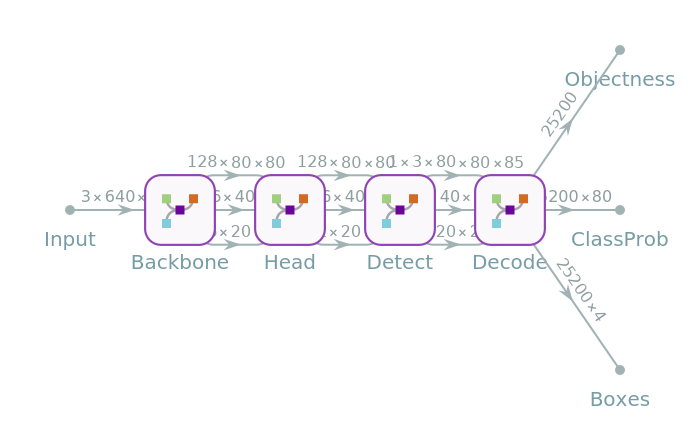

We exploit the code given in the worked-out example on the repository website for this network:
In[]:=
nonMaximumSuppression=ResourceFunction["NonMaximumSuppression"];
In[]:=
labels={"person","bicycle","car","motorcycle","airplane","bus","train","truck","boat","traffic light","fire hydrant","stop sign","parking meter","bench","bird","cat","dog","horse","sheep","cow","elephant","bear","zebra","giraffe","backpack","umbrella","handbag","tie","suitcase","frisbee","skis","snowboard","sports ball","kite","baseball bat","baseball glove","skateboard","surfboard","tennis racket","bottle","wine glass","cup","fork","knife","spoon","bowl","banana","apple","sandwich","orange","broccoli","carrot","hot dog","pizza","donut","cake","chair","couch","potted plant","bed","dining table","toilet","tv","laptop","mouse","remote","keyboard","cell phone","microwave","oven","toaster","sink","refrigerator","book","clock","vase","scissors","teddy bear","hair drier","toothbrush"};
In[]:=
netevaluate[model_,img_,detectionThreshold_:.5,overlapThreshold_:.5]:=Module[{imgSize,classes,coords,obj,scores,bestClass,probable,probableClasses,probableScores,probableBoxes,h,w,max,scale,padding,nms,finals},imgSize=Last@NetExtract[model,{"Input","Output"}];{classes,coords,obj}=Values@model[img];(*eachclassprobabilityisrescaledwiththeboxobjectness*)scores=classes*obj;bestClass=Last@*Ordering/@scores;(*filterbyprobability*)(*verysmallprobabilityarethresholded*)probable=UnitStep[obj-detectionThreshold];{probableClasses,probableBoxes,probableScores}=Map[Pick[#,probable,1]&,{labels[[bestClass]],coords,obj}];If[Length[probableBoxes]==0,Return[{}]];(*transformcoordinatesintorectangularboxes*){w,h}=ImageDimensions[img];max=Max[{w,h}];scale=max/imgSize;padding=imgSize*(1-{w,h}/max)/2;probableBoxes=Apply[Rectangle[scale*({#1-#3/2,imgSize-#2-#4/2}-padding),scale*({#1+#3/2,imgSize-#2+#4/2}-padding)]&,probableBoxes,1];(*gathertheboxesofthesameclassandperformnon-maxsuppression*)nms=nonMaximumSuppression[probableBoxes->probableScores,"Index"];finals=Transpose[{probableBoxes,probableClasses,probableScores}];Part[finals,nms]];
Mathematica’s function CurrentImage[] reads an image from the USB webcam (or any other connected camera)
In[]:=
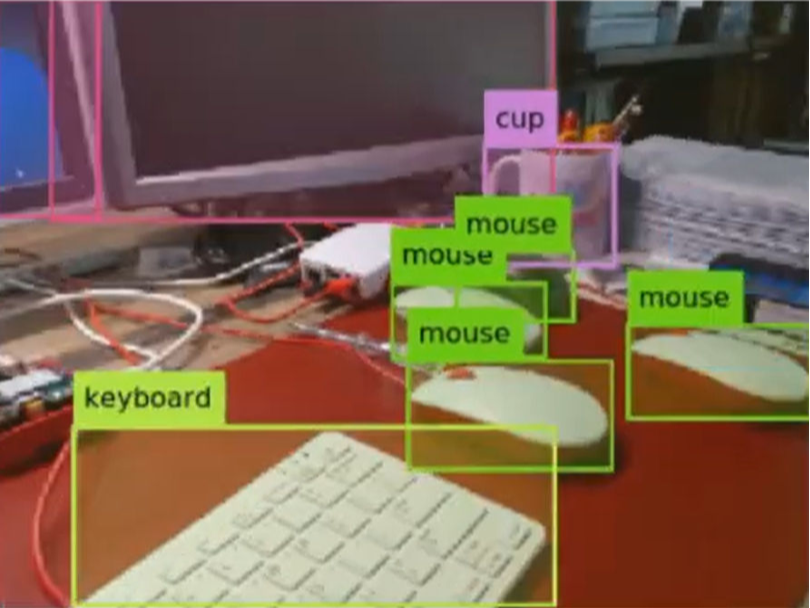
testImage=CurrentImage[];detection=netevaluate[net,testImage]HighlightImage[testImage,GroupBy[detection[[All,1;;2]],Last->First]]
In[]:=
DynamicModule[{currentImage,detection},Manipulate[currentImage=CurrentImage[];detection=netevaluate[net,currentImage];HighlightImage[currentImage,GroupBy[detection[[All,1;;2]],Last->First],ImageSize->Medium],{{Automatic,"Update"},None,"Update"},ControlType->Trigger,TrackedSymbols:>{currentImage}]]
Quite impressive, one full frame detection and classification per second, on your tiny Raspberry Pi 5!
YouTube video: https://youtu.be/zAaxj2KOy1o
Complex Neural Net examples
Complex Neural Net examples
Mathematica has a professional neural network environment. Everything is possible and easy. Here a complex net is constructed by telling how the connect the outputs of the numbered layers to the inputs of other layers, it is intuitive:
In[]:=
NetGraph[{BatchNormalizationLayer[],Tanh,LogisticSigmoid,Tanh,TotalLayer[],TotalLayer[],TotalLayer[],CatenateLayer[],LinearLayer[50]},{12,13,14,25,35,36,46,27,47,58,68,78,89},"Input"20]
Out[]=
NetGraph

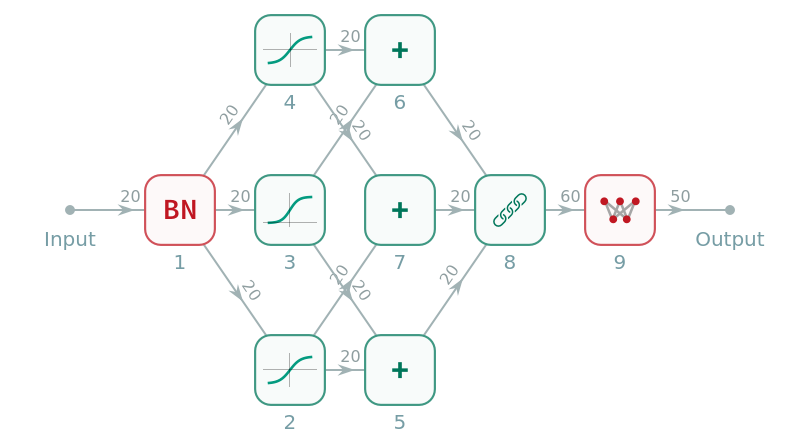
Expand the graph by clicking on the +. Clicking on any network element gives you the full information of what goes in and out, and what is the size of the data there.
And how about this one?
See how fast your RPI5 handles this exquisite task (again click on the + to visualize the network and use the scrollbar on the bottom of the screen)):
Visualize all internal layers of a neural net interactively
Visualize all internal layers of a neural net interactively
If we want to know what is internally represented in the hidden layers of the network, we can easily visualize these layers in Mathematica.
Let’s take as example this neural net, and open the resulting NetChain by pressing the + :
Let’s take as example this neural net, and open the resulting NetChain by pressing the + :
The following command shows the list of internal images, per layer, in a Manipulate function. Click on the + sign to the right of the slider to open the settings, so you can easily do the inspection layer by layer:
The Machine Learning book by Etienne Bernard
The Machine Learning book by Etienne Bernard
This is the best tutorial book on machine learning and neural nets I have seen. Fully interactive, covers a wide range, written by one of the main authors of Neural Nets in the Wolfram Language. All notebook chapters can be downloaded for free.
Computer vision
Computer vision
Smile, Mona Lisa, smile!
Smile, Mona Lisa, smile!
Here I show that you can have fast interactivity on images, which means thousands of pixels, on the RPI-5. We go interactively deform the face of Mona Lisa, by moving points at specific positions, and interpolate smoothly the new deformed area around the shifted point. The method for such a radial interpolation is called ‘radial basis interpolation’, using the ‘radial basis transform’. The code for this transform is given at the end, as initialization cell. Gratitude to Markus van Almsick for the code, who worked for 8 years in my Biomedical Image Analysis group at Eindhoven University of Technology, as PhD student and as postdoc, and later worked for many years as image processing expert at Wolfram research.
This is a DyamicModule, a routine that continuously runs. The ‘sources’ are the locations of the points on her face. These are used in the Manipulate function to move interactively with the Manipulate function ‘Locator’. They are placed as Points, in Red.
This notebook shows that even on a small device as the Raspberry Pi 5 interactive deformation of images is possible.
Cool visualizations
Cool visualizations
Make the famous 3Blue1Brown visualizations with a few lines of code
Make the famous 3Blue1Brown visualizations with a few lines of code
The interactive graphics in the YouTube tutorials of 3Blue1Brown (Gary Grant, www.youtube.com/@3blue1brown) are quite impressive.
His explanations are outstanding, and his lectures have millions of views.
His explanations are outstanding, and his lectures have millions of views.
Here is an example of his graphics:
◼
‘Constrained optimization introduction’: https://youtu.be/vwUV2IDLP8Q
He uses a proprietary package ‘manim’ for his visualizations. These are not easily reproduced, needs an endless and complicated installation, and the code is difficult to read for a non-expert.
Here I show how easy it is to make such complex and interactive graphics in Mathematica.
Mathematica can even much more ...
Mathematica can even much more ...
Note, by the way, that the writing of mathematical formulas is done by hand, something virtually all YouTube authors still do ...
After reading this notebook you will appreciate the notion of ‘computational essay’.
Basic writing style in Mathematica
Basic writing style in Mathematica
A short rehearsal:
Brackets: ( ) for grouping, { } for lists, [ ] for functions.
Mathematica symbols: -^ for superscript, p for π, etc.
Brackets: ( ) for grouping, { } for lists, [ ] for functions.
Mathematica symbols: -^ for superscript, p for π, etc.
To save memory, we do not keep the numbered outputs:
The 3D graphics
The 3D graphics
Rotate every 3D plot with your mouse, and keep the key pressed to zoom, and keep the key pressed to pan.
Check the context-sensitive menu with a right mouse click.
Check the context-sensitive menu with a right mouse click.
We don’t want the Mesh, so we add Options to the ContourPlot3D function:
Use the color picker from the ‘Insert’ menu:
The contour surface also needs Specularity:
Rotate the plot to appreciate the specularities.
Make the cylinder Yellow and Opacity[0.4] :
The line is somewhat coarse, so we need more PlotPoints.
And the boundary is not thick enough. We just add the style Thick.
And the boundary is not thick enough. We just add the style Thick.
The 3 coordinate arrows are made as follows:
Any any set of graphics can be combined into the same coordinate system with the function Show[ ]:
Finally, we do not want Axes, do not want it Boxed, and we want the Background to be Black. We set the opacity α of the cylinder to zero. With SphericalRegion True we don’t get jumping boundaries when we rotate the graphics with the mouse.
So the final code to make this graphic is just a few lines:
Extensions
Extensions
The possibilities in Mathematica are endless.
We can even go a step further, and modify the boundary Line segments into Tube segments.
We now Manipulate the tube radius and the opacity of the cylinder:
It works beautifully! And the graph can smoothly be rotated, zoomed (hold the key) and panned (hold the key) with the mouse. Right-click gives save, print and reset options.
Intermezzo: Explanation of ReplaceAll
Intermezzo: Explanation of ReplaceAll
A bit explanation about the Replace operation:
/. means: ReplaceAll. An example:
The underscore _ means ‘anything’. And x_ means: ‘anything, and we give it the name x’. It is used in functions:
The := means ‘delayed assignment’, i.e. execute the function not at the definition time, but only then when it is called.
Study the difference:
In the same way is a ‘RuleDelayed’. Alias: :>.
(PS: is entered as \[EscapeKey ], without the space. See also: https://reference.wolfram.com/language/tutorial/KeyboardShortcutListing.html).
(PS: is entered as \[EscapeKey ], without the space. See also: https://reference.wolfram.com/language/tutorial/KeyboardShortcutListing.html).
Generating a movie of the slowly rotating graph
Generating a movie of the slowly rotating graph
Of course, a finer time step gives a smoother movie.
Graphical User Interfaces (GUI)
Graphical User Interfaces (GUI)
A fancy GUI for a weather station
A fancy GUI for a weather station
In Mathematica interesting and complex GUIs can be constructed.
Here is an example of a weather station GUI, and of course there are a zillion of other possibilities.
Here is an example of a weather station GUI, and of course there are a zillion of other possibilities.
First we collect weather data with Mathematica’s powerful functions to read external databases and websites:
Fetching all current weather data takes about a minute. This shows what is collected (give the following command a semicolon ; at the end, and no output will be shown).
See Mathematica busy scraping for you:
The following Graphics canvas is Framed with a thick purple border with rounded corners, and filled with a collection of Inset functions, where we can precisely specify its content and location. The whole GUI is updated continuously, while the weather data are scraped every hour. The wind radar is shown as a movie.
Be sure to remove the scheduled task when it’s no longer needed to free up system resources.
Physics
Physics
Mesmerizing bouncing balls - the visible physics of collisions
Mesmerizing bouncing balls - the visible physics of collisions
The source idea comes from a wonderful series of explaining pages by Matthias Müller:
◼
Ten Minute Physics: https://matthias-research.github.io/pages/tenMinutePhysics/index.html
See: 03 - Ball collision handling in 2d, YouTube: https://youtu.be/ThhdlMbGT5g
I asked the Notebook Assistant to convert the HTML code into Wolfram Language code, and the result was pleasing! The names of the variables are such that the code is more or less self-explaining.
Interactive Simulation
Interactive Simulation
Here is the simulation. It runs remarkably well on our tiny computer. The ‘restitution‘ slider determines the amount of energy that is transferred between a bounce.
Impressive commands on a tiny computer
Impressive commands on a tiny computer
Fluid flow simulation with Navier-Stokes equations modeling
Fluid flow simulation with Navier-Stokes equations modeling
The Navier-Stokes equations are a set of partial differential equations that describe the motion of fluid substances such as liquids and gases. These equations account for various physical phenomena, including the effects of viscosity, pressure, and external forces on the fluid flow.
The general form of the Navier-Stokes equations can be expressed for an incompressible fluid as:
1. Momentum Conservation (Vector form):
2. Mass Conservation (Continuity equation for incompressible flow):
These equations are fundamental in fluid mechanics and are used to model weather patterns, ocean currents, water flow in pipes, air flow around wings, and many other applications.
For an explanation of the equations see (for example) this video: https://www.youtube.com/watch?v=Ra7aQlenTb8.
Solving the Navier-Stokes equations can be challenging due to their non-linearity and the complexity of the boundary conditions in practical scenarios.
It is easy in Mathematica:
It is easy in Mathematica:
Specify the geometry for a fluid flow:
Specify the boundary conditions (BC) for a laminar flow that enters at the left-hand channel and exits through the two right-hand channels:
Define the Navier–Stokes equations for u, v and mass conservation (note the beautiful mathematical notation in the input code):
Use the finite element method to solve for the steady flow velocities and pressure.
It is solved in less than a minute on a Raspberry Pi 5:
It is solved in less than a minute on a Raspberry Pi 5:
Pisot numbers: amazing and remarkable
Pisot numbers: amazing and remarkable
Mathematica is very precise:
Note the many consecutive zero's in this remarkable Pisot number.
Conclusion: you can now do EVERYTHING in 21st century coding
Conclusion: you can now do EVERYTHING in 21st century coding
◼
STEM students: get your RPI5 or a student license (cheaper than Netflix)
◼
Parents, retired, schools: give / use a RPI5 for fun and learning
◼
Current LLMs today typically learn Python, C++ and Java. It would be timely to add millions of Mathematica users! Spread the word, start your YouTube channel, set up your school team!
◼
Check the resources:
◼
Documentation (best in the world): fun to keep learning! https://reference.wolfram.com/language/
◼
Public resources: www.wolfram.com/resources/
◼
Thousands of cool demonstrations: https://demonstrations.wolfram.com/
◼
The notebook of this lecture gives much more details
◼
A gentle introduction to Mathematica (in 1 hour) and many applications: www.21stcenturycoding.net,
see also www.youtube.com/@21stcenturycoding
see also www.youtube.com/@21stcenturycoding
A personal note: I have been a STEM student my whole life
A personal note: I have been a STEM student my whole life
◼
I feel privileged I could work with Mathematica notebooks for 35 years,
brain-inspired computing for medical imaging (big data), it made my career
brain-inspired computing for medical imaging (big data), it made my career
Spread the word of these STEM delights
in the Raspberry Pi communities,
social media, schools and beyond!
Spread the word of these STEM delights
in the Raspberry Pi communities,
social media, schools and beyond!
in the Raspberry Pi communities,
social media, schools and beyond!
CITE THIS NOTEBOOK
CITE THIS NOTEBOOK
Wolfram & Raspberry Pi 5 — Part 3: neural networks, image processing, and physics simulations
by Bart ter Haar Romeny
Wolfram Community, STAFF PICKS, November 20, 2025
https://community.wolfram.com/groups/-/m/t/3578728
by Bart ter Haar Romeny
Wolfram Community, STAFF PICKS, November 20, 2025
https://community.wolfram.com/groups/-/m/t/3578728