Having a static visual can be great, but adding subtle animations can enhance your data visualization. The main principle behind this is similar to idle animations in video games. Idles involve slightly moving NPCs (non-playable characters), objects, or your characters and keep the visuals dynamic. I’m going to go over how to make some simple versions of this with GeoGraphics.
GeoGraphics and family
GeoGraphics and family
If you aren’t familiar with GeoGraphics (and family), it is an amazing way to visualize location-based data.
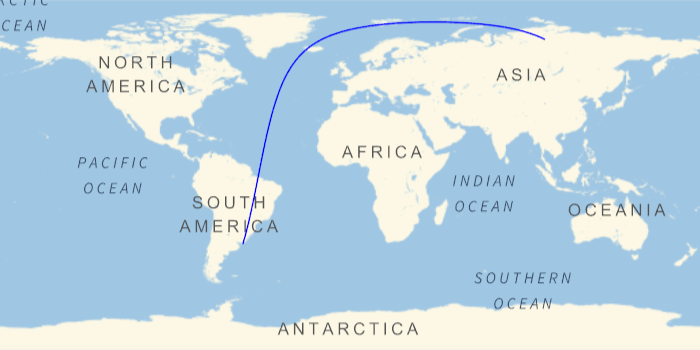
This shows a path on the globe:
In[]:=
With[{locations={GeoPosition[{-35,-55}],GeoPosition[{70,100}]}},GeoGraphics[{{Blue,GeoPath[locations,"Geodesic"]}},GeoRange"World",GeoProjection"Equirectangular"]]
Out[]=
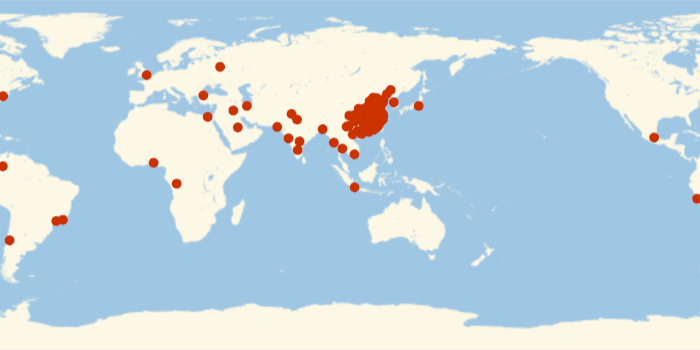
This shows the 100 largest cities (by population):
In[]:=
GeoListPlotGeoPosition/@EntityClass"City",TakeLargest[100]["Coordinates"],GeoProjection->"Equirectangular"
Out[]=
These two visuals can be interesting on their own, but may be even more useful if we incorporate some idle animations.
Idling around in 2D
Idling around in 2D
Idle animations involve something changing slightly over time. Think about an NPC bouncing up and down, waiting for you to interact with it, or a glowing icon.
Here are two GIFs I made that could double for idles:
In[]:=
frames1=
,

;frames2=

,

,

,

,

,

,

,

,

;
In[]:=
sPixel[f_,reps_:10]:=SlideShowVideo[ImageResize[#,500,Resampling->"Nearest"]&/@Flatten[Table[f,reps]],DefaultDuration->10]
GridVideo[{sPixel[frames1],sPixel[frames2]}]
Out[]=
This popular principle of “dynamic but not distracting” is what we will use to make data visualization more interesting.
Built-in functionality:
Built-in functionality:
Let’s first stay within the sphere of built-in functionality and see what we can change with time. The great thing about this method is that you can use all of the usual styling options that comes with GeoBubbleChart and it requires only one extra function: AnimationVideo.
Our sample data will be the population of each US state:
In[]:=
data=#[{"Position","Population"}]&/@["AdministrativeDivisions"];
In[]:=
GeoBubbleChart[data,ChartStyle->4]
Out[]=
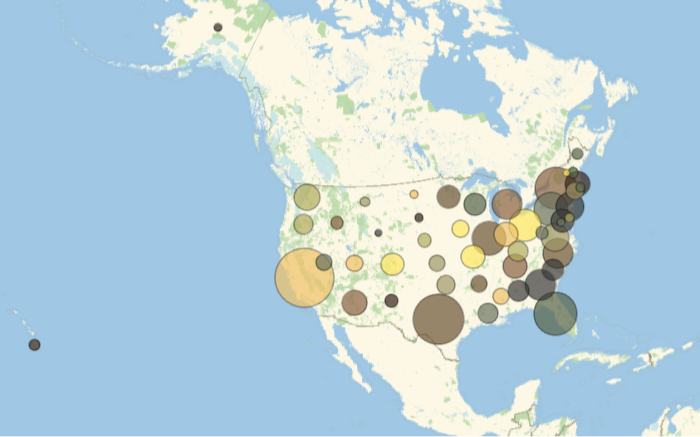
In this case, I want the dynamic element to be the size of the bubbles. By tweaking Sin[x] (or a different periodic function of your choice), you can get a simple idle.
In[]:=
AnimationVideo[GeoBubbleChart[data,ChartStyle->4,BubbleSizes->{0.001,0.1Sin[3x]+0.101}],{x,0,2Pi}]
Out[]=
DIY idles:
DIY idles:
The above method is clean, simple, and works great for a quick visualization. However, there are cases where you want more specialized animations. I created an “echo” around the locations of interest - think of it as a spinoff of a radar scanner that you would see in movies. The first step to making this is creating the animation itself.
To create the echo, I simply used a disk that dilates and contracts with time. You may start to notice a trend with the previous section - I once again used trig functions to make the animations periodic.
Here is the basic animation:
In[]:=
AnimationVideo[ParametricPlot[5*0.02*Cos[s]{Cos[t],Sin[t]},{t,0,2Pi},{s,0.01+width,0.3+width},PlotRange->0.5],{width,0,10}]
Out[]=
This is the function with some extra styling:
Next we need our data. I’m going to take the largest 40 cities, ranked by population:
The last step is to put everything together. Within each frame, the radius of the echo corresponds to the population of that location. Having the echos vary with time just means plopping it all into an AnimationVideo:
Luckily, you don’t have to be constrained to mathematically creating your idle animations each time. If you already have a GIF or video in mind, you can place the frames in a SlideShowVideo or FrameListVideo. For this example I will have GIFs “walking” around Austria. The amount of markers will correspond to the population of that district.
For stylistic purposes, I want to emphasize each area by giving it a unique color. This will correspond to the color of the markers.
Getting the colors for the background of the areas and the GIFs:
Next, I need to get the data. The location of the markers will be random and within the specific administrative division that it represents.
This is the position and quantity that I will need for the markers:
This generates the frames:
Making things pop (in 3D!)
Making things pop (in 3D!)
You may get the gist of 2D by now, but sometimes it can feel a bit... flat. So, let’s put our echos on a globe! If we think of the earth as a unit sphere, we can simply use a texture to get the effect we need:
This is the function with some extra styling:
As a side note, remember that you can use any image as the texture!
We could stop here - running the same 2D code with the texture of the sphere being the frames can give you a pretty decent result. But, I wanted to take advantage of the 3D environment since it can turn into something pretty cool in 3D. The primary change that I will make is that the disks will hover slightly above the sphere so that you can see it over the texture.
Here is the same idle from 2D in 3D:
This is the echo function with some extra styling:
The next major thing to consider is converting latitude and longitude coordinates to spherical coordinates. After that, we can use GeometricTransformation to rotate the disk onto the correct spot on our globe.
This converts the latitude and longitude coordinates to spherical coordinates:
This rotates the disk to the correct the coordinates:
Just to make sure that everything is good, we can “calibrate” everything by putting some disks over some random points. If we are correct with the transformations, everything should line up:
Now to put it into one function. Going back to the concepts at the beginning of the post, there are two dynamic components: the idle animation as well as the camera movement. The camera movement comes from changing the ViewPoint, and the idle animations come from changing the disk. What the camera movement should be is a bit more subjective, and you can adjust the rotation and the path to suit your data.
This creates a frame with the idles around the globe:
This last step puts the function into the AnimationVideo for you:
Now to try it out:
Conclusion
Conclusion
Idle animations and data visualizations can feel like a tedious process - but it is one that can have great rewards. There are two main things to consider: data visualizations within each frame and between the frames. Each frame needs to have sufficient diversity so that the audience can compare and contrast the data. In GeoGraphics, I showed this by changing the radius of the echo and having different GeoMarkers. Between the frames, there needs to be enough movement for the visualization to be engaging but not distracting. Happy coding!
CITE THIS NOTEBOOK
CITE THIS NOTEBOOK
Popping population bubbles: idle animations and GeoGraphics
by Anika Patel
Wolfram Community, STAFF PICKS, July 28, 2023
https://community.wolfram.com/groups/-/m/t/2977989
by Anika Patel
Wolfram Community, STAFF PICKS, July 28, 2023
https://community.wolfram.com/groups/-/m/t/2977989