Recently, I attended on a discussion about the question, “how to import ray files in Mathematica?” https://community.wolfram.com/groups/-/m/t/2404363 The comment I gave is still correct, I think, but not sufficient. Hence, I developed a notebook that can be used to import ray data from ASCII files.
Introduction
Introduction
Ray files are a typical mean to describe the spatial near-field light distribution of LED and other kinds of light sources for optical design purposes. Non-imaging optics for lighting, automotive, medical devices, and other application areas are more or less the standard now for engineering tasks regarding design.
Near-field photometric and or radiometric measurements are done with special equipment from Radiant Vision Systems or TechnoTeam. Both companies have their software products to transform the measured data into application formats for optical design software.
The intention for this notebook is to show a way to import ASCII ray files as distributed by LED manufacturers for their products. The files for specific optic design software are typically stored as binary files without public available format descriptions.
Due to the high documentation level of OSRAM semiconductors, I decided to take a ray file package from this company.
Near-field photometric and or radiometric measurements are done with special equipment from Radiant Vision Systems or TechnoTeam. Both companies have their software products to transform the measured data into application formats for optical design software.
The intention for this notebook is to show a way to import ASCII ray files as distributed by LED manufacturers for their products. The files for specific optic design software are typically stored as binary files without public available format descriptions.
Due to the high documentation level of OSRAM semiconductors, I decided to take a ray file package from this company.
Download OSRAM files for optical simulation
Download OSRAM files for optical simulation
Download of the chosen LED OSRAM ray File package via https://www.osram.com/apps/downloadcenter/?path=%2Fos-files%2FOptical+Simulation%2FLED/OSCONIQ/OSCONIQ%20E/OSCONIQ%20E2835/GW%20QTLQS1.LM. Select an ASCII file (either _ASCII.zip or _TraceProText.zip).
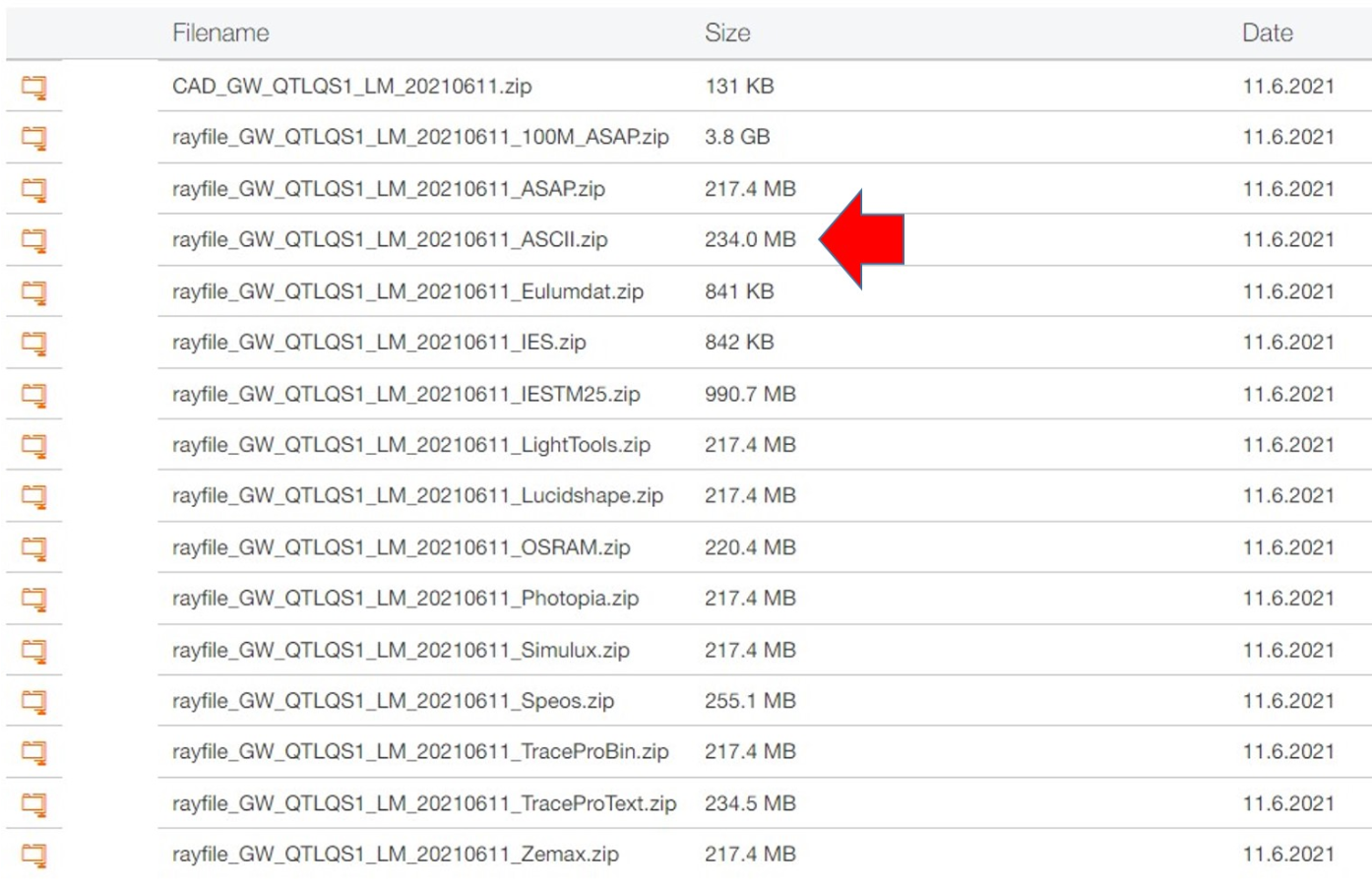
In case the user takes the _TraceProText file, the general process as described below remains the same. The difference is to skip some header lines before the pure data as discussed below can be processed.
The downloaded ASCII Zip-file contains the following datasets:
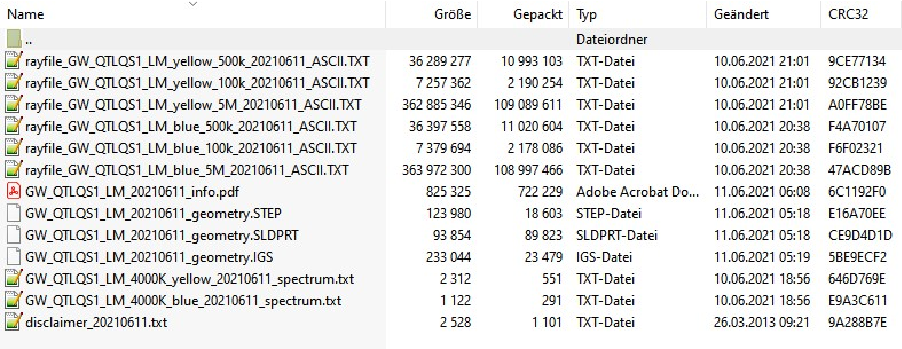
rayfile_GW_QTLQS1...yellow...500k...ASCII - a ray dataset with 500 000 yellow rays in ASCII rayfile_GW_QTLQS1...blue...100k...ASCII - a ray dataset with 100 000 blue rays in ASCII rayfile_GW_QTLQS1...blue...5M...ASCII - a ray dataset with 5 000 000 blue rays in ASCII GW_QTLQS1..._info.pdf - a Pdf file with important technical information about the LEDGW_QTLQS1..._geometry - CAD files with LED geometry in different formatsGW_QTLQS1..._yellow..._spectrum - a spectrum data file of the yellow rays
Import Spectral Intensity Distributions
Import Spectral Intensity Distributions
The spectra of OSRAM Opto Semiconductors white LEDs have at least two local maxima due to the specific generation of white light. The peak in the blue wavelength range has a narrow width and a peak wavelength around 450 nm. The peak in the yellow wavelength range has a wider distribution with a peak wavelength around 540 – 600 nm, depending on the LED type.
Due to the different angular characteristics of rays in the “blue” and “yellow” parts of the spectrum, a separation of the ray model into two parts is necessary.
Therefore, two ray files are delivered with each white LED, one ray file for the blue and one ray file for the yellow part of the spectrum. Both ray files have the same global coordinate origin and must be placed in the simulation software at exactly the same (x,y,z) coordinates. To use the ray files in a simulation, the user has to consider the following points:
Due to the different angular characteristics of rays in the “blue” and “yellow” parts of the spectrum, a separation of the ray model into two parts is necessary.
Therefore, two ray files are delivered with each white LED, one ray file for the blue and one ray file for the yellow part of the spectrum. Both ray files have the same global coordinate origin and must be placed in the simulation software at exactly the same (x,y,z) coordinates. To use the ray files in a simulation, the user has to consider the following points:
1
.“Blue” and “yellow” ray files must be placed at the same (x,y,z) coordinates.
2
.Simulation should run simultaneously for the two ray files, as for two overlapping sources.
3
.The luminous flux contributions of both ray files must be set appropriately.
The peak wavelength is defined as the single wavelength where the radiometric emission spectrum of the light source reaches its maximum. More simply, it does not represent any perceived emission of the light source by the human eye, but rather by photo-detectors.
The peak wavelength is defined as the single wavelength where the radiometric emission spectrum of the light source reaches its maximum. More simply, it does not represent any perceived emission of the light source by the human eye, but rather by photo-detectors.
The dominant wavelength is defined as the single wavelength that is perceived by the human eye. Generally one light source consists of multiple wavelength spectra from the light source rather than one single wavelength. Our brains turn those multiple spectra into a single color of light consistent with a single specific wavelength which is what we see when we look at the light. That’s the light source’s Dominant wavelength.
Import of the “Blue” spectra
Import of the “Blue” spectra
In[]:=
Clear["Global`*"]
In[]:=
(*Pathtobemodified*)spectrumBlue=Import["e:\\Users\\juerg\\Documents\\Mathematica\\Light&Optics\\RayfileImport\\GW_QTLQS1_LM_4000K_blue_20210611_spectrum.txt","Data"];
Find the peak in the “Blue” spectrum. Results are in “Nanometers”
In[]:=
pos=First@Flatten[Position[spectrumBlue,Max[spectrumBlue[[All,2]]]]];
In[]:=
lambdaMaxBlue=spectrumBlue[[pos,1]]
Out[]=
470.
Import of the “Yellow” spectra
Import of the “Yellow” spectra
In[]:=
(*Pathtobemodified*)spectrumYellow=Import["e:\\Users\\juerg\\Documents\\Mathematica\\Light&Optics\\RayfileImport\\GW_QTLQS1_LM_4000K_yellow_20210611_spectrum.txt","Data"];
Find the peak in the “Yellow” spectrum. Results are in “Nanometers”
In[]:=
pos=First@Flatten[Position[spectrumYellow,Max[spectrumYellow[[All,2]]]]];
In[]:=
lambdaMaxYellow=spectrumYellow[[pos,1]]
Out[]=
594.
Spectrum Plot
Spectrum Plot
In[]:=
ListLinePlot[{spectrumBlue,spectrumYellow},PlotLabel"LED spectra",AxesLabel{"Wavelength [nm]","Normalized Intensity"},ImageSizeLarge]
Out[]=
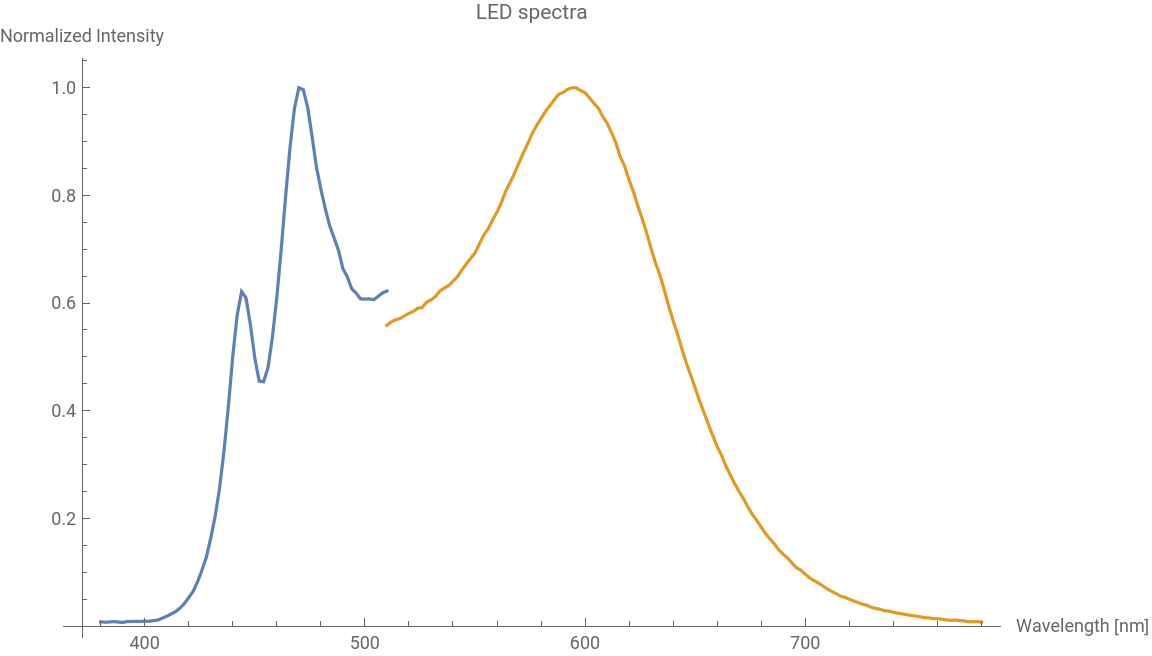
Due to the separate handling of the “Blue” and “Yellow” spectra, in line with a normalization, the result is not acceptable for a full spectrum.
The following image is taken from “GW_QTLQS1_LM_20210611_info.pdf” which is part of the zip-file and shows the full spectrum.
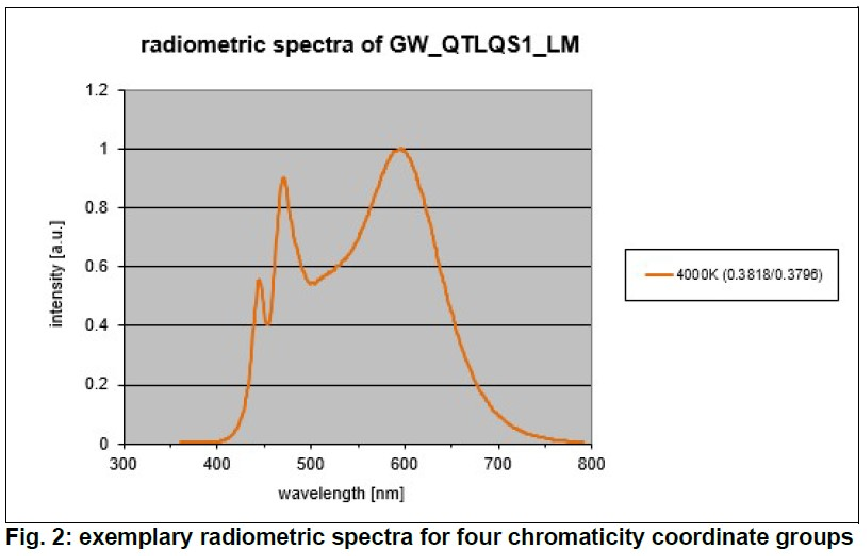
The two spectra have to be aligned with OSRAM picture for a full spectrum, which can be used for further processing.
In[]:=
lastBlue=Last@spectrumBlue
Out[]=
{510.,0.6224}
In[]:=
firstYellow=First@spectrumYellow
Out[]=
{510.,0.5587}
In[]:=
factor=firstYellow[[2]]/lastBlue[[2]]
Out[]=
0.897654
The factor here is finally a correction factor for the spectra alignment.
We multiply the intensities of the blue rays with the factor for alignment.
Now we have a full spectrum of the LED.
Save the ledFullSpectrum as a CSV file and make use of it in a spectrum analysis software/notebook.
Load photometric rays
Load photometric rays
Import Blue-Rays
Import Blue-Rays
The following line of code shows how to import a blue ray dataset with 100k rays. It is not a problem to read the 5M (5 million) ray files as well with Mathematica.
It is not possible to work with underline characters in column names, hence we take them out.
Simplified drawing of a vector from {Xpos,Ypos,Zpos} to {Xvec,Yvec,Zvec}
Simplified drawing of a vector from {Xpos,Ypos,Zpos} to {Xvec,Yvec,Zvec}
Import Blue-Rays Part 2
Import Blue-Rays Part 2
All vector data are scaled, just to make them visible in the 3D graphic below.
Get a blue ray dataset
Import Yellow-Rays
Import Yellow-Rays
All vector data are scaled, just to make them visible in the 3D graphic below.
Get a yellow ray dataset
Household-keeping
Few data from the ray data
Few data from the ray data
The total number of rays loaded:
Energy sum of all yellow rays:
Energy sum of all blue rays:
Import CAD File of the LED Housing
Import CAD File of the LED Housing
Many LED suppliers provide CAD-Files with the geometry of their products. The files are typically available in the following formats:
◼
.SLDPRT - SolidWorks Part file
◼
.IGS - Initial Graphics Exchange Specification
◼
.STEP - Standard for the exchange of product model data
I tried to import the STEP file into Mathematica with the OpenCascadeLink, but unfortunately, I failed. Hence, I imported the CAD-file in Rhino 3D and converted it into the common STL format for import.
3D Graphics
3D Graphics
The rays are already randomly stored in the ray files. Hence, no additional shuffling is needed. For the graphical presentation, only fifty blue and yellow rays are randomly taken.
Summary
Summary
The author shows ways to import rays from ASCII files. Even the import of two times 5M rays was not a constraint to process the data. The next step could be the development of an environment for (forward) ray tracing to use Mathematica in the field of non-imaging optics with non-sequential ray tracing as well.
Resources
Resources
◼
OSRAM Product Page, https://www.osram.com/ecat/OSCONIQ% C2 % AE %20 E %202835 %20 GW %20 QTLQS1.LM/com/en/class_pim_web _catalog _ 103489/prd_pim_device _ 18726922/, Last accessed 11/24/2021
◼
OSRAM RayFile Package for chosen LED, https://www.osram.com/apps/downloadcenter/?path=%2Fos-files%2FOptical+Simulation%2FLED/OSCONIQ/OSCONIQ%20E/OSCONIQ%20E2835/GW%20QTLQS1.LM, select: “rayfile_GW_QTLQS1_LM_20210611_ASCII.zip”, Last accessed 11/24/2021
◼
Wolfram Mathworld, “Direction cosine”, https://mathworld.wolfram.com/DirectionCosine.html, Last accessed 11/24/2021
◼
◼
CITE THIS NOTEBOOK
CITE THIS NOTEBOOK
Importing and visualizing ASCII ray file
by Juergen Kanz
Wolfram Community, STAFF PICKS, November 27, 2021
https://community.wolfram.com/groups/-/m/t/2413724
by Juergen Kanz
Wolfram Community, STAFF PICKS, November 27, 2021
https://community.wolfram.com/groups/-/m/t/2413724