Books as Pixels
I was inspired to do this by the fantastic one-liner on a Mathematica playing card.
In[]:=
Row[Style[#,RandomColor[],RandomInteger[{15,45}]]&/@Characters[StringTake[ExampleData[{"Text","AliceInWonderland"}],200]]]
Out[]=
I--DOWN THE RABBIT-HOLE Alice was beginning to get very tired of sitting by her sister on the bank, and of having nothing to do. Once or twice she had peeped into the book her sister was reading, but
The gist is mapping a list of colors with a list of characters.
To do this with an image and an entire text we need to get the number of pixels to be greater than or equal to the number of characters. If we do some work behind the scenes we can scale an image so we know it will fit the length of the book well. And with the magic of in-line image symbolic programming and database access the function to create the final image is quite compact.
To do this with an image and an entire text we need to get the number of pixels to be greater than or equal to the number of characters. If we do some work behind the scenes we can scale an image so we know it will fit the length of the book well. And with the magic of in-line image symbolic programming and database access the function to create the final image is quite compact.
GridPartitionMapThreadStyle[#1,RGBColor[#2],FontFamily"Judera Ring"]&,Join[Characters[ExampleData[{"Text","AliceInWonderland"}]],Table[" ",9]],FlattenImageMeasurements[#,"Mean"]&/@ImagePartition
,1,1,ImageDimensions[image][[1]],Alignment{Center,Bottom},Spacings{-.1,-.07},BackgroundBlack
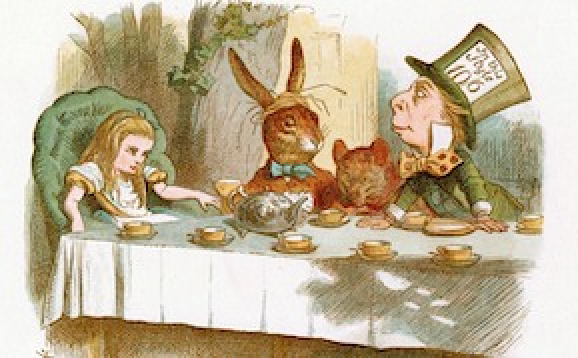
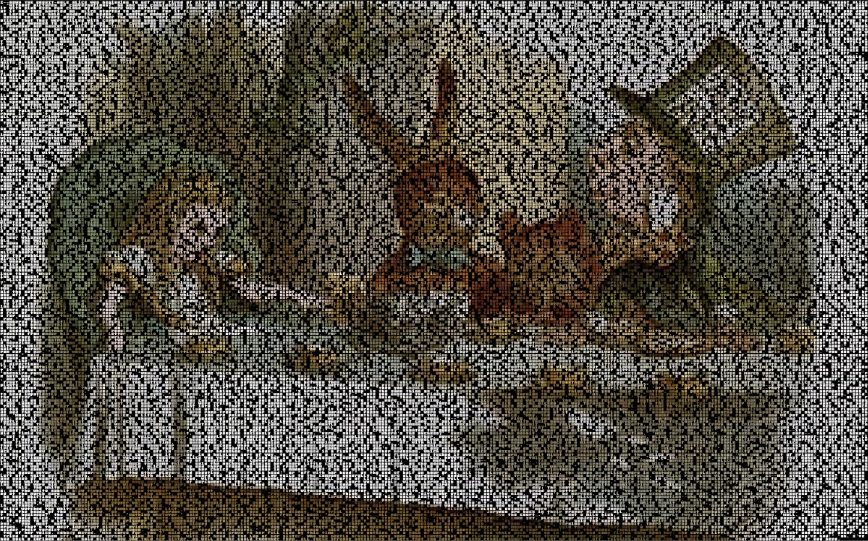
This was the first version of the code I made and it worked well but I recently decided to automate the step of finding the best image size.
Dimension finder
Dimension finder
First we gather all the pieces we need. Note that this image now is not edited and can be any size. (replacing \n with spaces in the text is not needed for ExampleData text but is for other text files you may encounter.)
In[]:=
sourceimage=Import["Alice/alice.jpg"];sourcetext=ExampleData[{"Text","AliceInWonderland"}];textcharacters=ReplaceAll[Characters[sourcetext],"\n"" "];
Here we solve for the closest dimensions that have the exact same aspect ratio of the original image. Since its highly unlikely the aspect ratio will divide out the number of characters evenly these dimensions are decimals.
In[]:=
dimensions=Values[Quiet[Solve[{x*yLength[textcharacters]&&x/yImageDimensions[sourceimage][[1]]/ImageDimensions[sourceimage][[2]]&&x>0.},{x,y}]]]//Flattenh=dimensions[[1]];w=dimensions[[2]];
Out[]=
{287.858,179.679}
We can then use this as a starting point to search around for the integer dimensions that give us the least amount of extra space. Below we start with a list of dimensions around our starting point and the number of extra spaces needed (or over if negative).
In[]:=
reslist=Partition[Flatten[Table[{Ceiling[h]+i,Ceiling[w]+j,(Ceiling[h]+i)*(Ceiling[w]+j)-Length[textcharacters]},{i,-3,3,1},{j,-3,3,1}]],3]
Out[]=
{{285,177,-1277},{285,178,-992},{285,179,-707},{285,180,-422},{285,181,-137},{285,182,148},{285,183,433},{286,177,-1100},{286,178,-814},{286,179,-528},{286,180,-242},{286,181,44},{286,182,330},{286,183,616},{287,177,-923},{287,178,-636},{287,179,-349},{287,180,-62},{287,181,225},{287,182,512},{287,183,799},{288,177,-746},{288,178,-458},{288,179,-170},{288,180,118},{288,181,406},{288,182,694},{288,183,982},{289,177,-569},{289,178,-280},{289,179,9},{289,180,298},{289,181,587},{289,182,876},{289,183,1165},{290,177,-392},{290,178,-102},{290,179,188},{290,180,478},{290,181,768},{290,182,1058},{290,183,1348},{291,177,-215},{291,178,76},{291,179,367},{291,180,658},{291,181,949},{291,182,1240},{291,183,1531}}
We don’t need anything that is under the required number (negative) and using SortBy we can find the set of dimensions with the smallest amount of extra space. There is that 9 you may have notice at the start. With an image this big the bending of the aspect ratio by a little bit is not noticeable in the final image.
In[]:=
newsize=DeleteCases[SortBy[reslist,Last],{___,x_}/;x<0][[1]]
Out[]=
{289,179,9}
Now we can ImageResize to the new dimensions and add the extra space to the character list.
(I found that lightening the image at this stage helps with the color when using a black background during the final image creation)
(I found that lightening the image at this stage helps with the color when using a black background during the final image creation)
In[]:=
newimage=Lighter[ImageResize[sourceimage,{newsize[[1]],newsize[[2]]}],0.6];newcharacters=Join[textcharacters,Table[" ",newsize[[3]]]];
This print is helpful when running all functions at once as it double checks the dimensions match between the new character list and the new image size.
In[]:=
Print["New Size: "<>ToString[newsize]<>"\nPixels: "<>ToString[Length[newcharacters]]<>"\nSize Check: "<>ToString[Length[newcharacters]==ImageDimensions[newimage][[1]]*ImageDimensions[newimage][[2]]]]
New Size: {289, 179, 9}Pixels: 51731Size Check: True
Final Image Creation
Final Image Creation
Now we can extract the list of colors we need. This step can take a while for me if the book is large.
In[]:=
pixelcolors=Flatten[ImageMeasurements[#,"Mean"]&/@ImagePartition[newimage,1],1];(*5sfor50000px,30sfor335000px,56sfor420000px*)
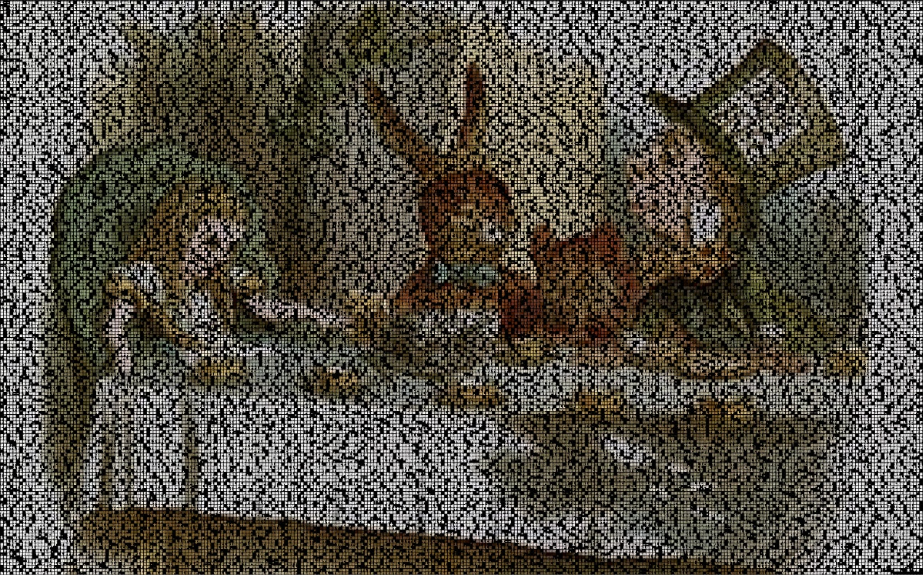
The final image assembly happens here. I’ve tried lots of methods here with Image[], Rasterize[], or Export[] but what I’ve found works best is to treat it as a grid and save the selected cell as a pdf. This give me the best control.
I find that I need to try different Spacings sometimes to give me the best looking image. Background and FontFamily are good to play with but use a small amount of text when testing for speed. The font I’m using, Judera Ring, is not common on computers but can be found online for free. It provides a monospace font that is very thick so it provides the image with a lot of color area.
I find that I need to try different Spacings sometimes to give me the best looking image. Background and FontFamily are good to play with but use a small amount of text when testing for speed. The font I’m using, Judera Ring, is not common on computers but can be found online for free. It provides a monospace font that is very thick so it provides the image with a lot of color area.
In[]:=
finalimagedata=Grid[Partition[MapThread[Style[#1,RGBColor[#2],FontFamily"Judera Ring"]&,{newcharacters,pixelcolors}],newsize[[1]]],Alignment{Center,Bottom},Spacings{-.1,-.07},BackgroundBlack]
Final code
Final code
The final code on its own is still quite compact and just needs to be told where the text and image is coming from. This allows for very easy image generation using any text and any image.
sourceimage=Import["Alice/alice.jpg"];sourcetext=ExampleData[{"Text","AliceInWonderland"}];textcharacters=ReplaceAll[Characters[sourcetext],"\n"" "];dimensions=Values[Quiet[Solve[{x*yLength[textcharacters]&&x/yImageDimensions[sourceimage][[1]]/ImageDimensions[sourceimage][[2]]&&x>0.},{x,y}]]]//Flatten;h=dimensions[[1]];w=dimensions[[2]];reslist=Partition[Flatten[Table[{Ceiling[h]+i,Ceiling[w]+j,(Ceiling[h]+i)*(Ceiling[w]+j)-Length[textcharacters]},{i,-3,3,1},{j,-3,3,1}]],3];newsize=DeleteCases[SortBy[reslist,Last],{___,x_}/;x<0][[1]];newimage=Lighter[ImageResize[sourceimage,{newsize[[1]],newsize[[2]]}],0.6];newcharacters=Join[textcharacters,Table[" ",newsize[[3]]]];pixelcolors=Flatten[ImageMeasurements[#,"Mean"]&/@ImagePartition[newimage,1],1];Print["New Size: "<>ToString[newsize]<>"\nPixels: "<>ToString[Length[newcharacters]]<>"\nSize Check: "<>ToString[Length[newcharacters]==ImageDimensions[newimage][[1]]*ImageDimensions[newimage][[2]]]]
In[]:=
finalimagedata=Grid[Partition[MapThread[Style[#1,RGBColor[#2],FontFamily"Judera Ring"]&,{newcharacters,pixelcolors}],newsize[[1]]],Alignment{Center,Bottom},Spacings{-.1,-.07},BackgroundBlack]
Examples
Examples
The thumbnails seen here will lack the detail to read the text but they can give you an idea for how I have experimented with the code.
If you want to see greater detail I’ve put the Gatsby example on my Artstation: https://www.artstation.com/artwork/58oEVA and also on EasyZoom: https://easyzoom.com/image/238912
If you want to see greater detail I’ve put the Gatsby example on my Artstation: https://www.artstation.com/artwork/58oEVA and also on EasyZoom: https://easyzoom.com/image/238912
Nature by Emerson with a photo I took in California.
Frankenstein using an illustration that appeared in the 1831 edition.
I did this for the 2001: A Space Odyssey movie script.
Using some more ExampleData for Abe.