The aim of this post is to show that a NAO robot can be programmed using Mathematica and the Wolfram Cloud. It will show that NAO can be programmed using Mathematica notebooks and the Python language. The NAO robot comes with a graphical user interface called Choregraphe. This post will also show how Mathematica and the Wolfram Cloud can be integrated into Choregraphe.
In addition to programming a NAO robot from a Mathematica notebook. My intention was to create a system to control external devices to work along side the NAO robot. Imagine having a Mathematica notebook controlling a NAO robot giving a lecture on say, some area of physics and at the same time the notebook is also controlling a related experiment. This is possible as this post will show.
The thinking behind this for myself was to create a robotic lecturer. What I have supplied is a foundation to show that it can be done. I have created a framework to carry out this task. This is not a completed version it is simply a demonstration of what could be done.
The code below allows for the creation of what I call a framework. As a reader works through the post the framework will be constructed. While working through the reader could make suitable changes to the code to suit their needs. One more small point I am using a NAO V5 robot. The idea of this framework would also suit a NAO V6 robot. If the reader is lucky enough to have access to one.
In addition to programming a NAO robot from a Mathematica notebook. My intention was to create a system to control external devices to work along side the NAO robot. Imagine having a Mathematica notebook controlling a NAO robot giving a lecture on say, some area of physics and at the same time the notebook is also controlling a related experiment. This is possible as this post will show.
The thinking behind this for myself was to create a robotic lecturer. What I have supplied is a foundation to show that it can be done. I have created a framework to carry out this task. This is not a completed version it is simply a demonstration of what could be done.
The code below allows for the creation of what I call a framework. As a reader works through the post the framework will be constructed. While working through the reader could make suitable changes to the code to suit their needs. One more small point I am using a NAO V5 robot. The idea of this framework would also suit a NAO V6 robot. If the reader is lucky enough to have access to one.
Part 1. Controlling a NAO V5 humanoid robot using Wolfram Notebooks
Introduction
Introduction
This notebook should assist in creation of a simple framework that can be used to control a NAO robot and external devices. Working through the notebook will introduce the components of the framework and help set up framework usage. The framework created when using this notebook is only a small example of what is possible. Even in its current state a great deal can be achieved. The original idea was to allow the NAO robot to become a lecturer. These lectures would be interactive. Work through the notebook in the order suggested and things should be problem free. The external devices I use are powered by 7.4 volt servos which in turn are powered by mains supply or LiPo batteries. The controller used is a Polulu Maestro Servo Controller 24 channel.
Prerequisites
Prerequisites
This notebook is all about programming a NAO V5 robot. Before use can be made of this notebook certain features must be in place.
1) Install Choregraphe the user friendly GUI supplied with NAO. For NAO V5 this must be Choregraphe 2.1.4.
2) The NAO V5 was created with many SDK’s. One of them being Python. The V5 makes use of Python 2.7 (32-bit edition). So do not attempt to use Python 3 it will not work. The latest NAO robot uses Python 3. This being the NAO V6. After installing Python 2.7 the NAO V5 Python SDK package must be installed.
3) Mathematica must be setup to make use of an external language. Refer to the Mathematica documentation on how to achieve this. It is quite simple. Mathematica requires installation of a package called pyzmq. Use pip to install it in the Python 2.7 (32 bit edition) that is to be used with NAO. Transferring data between Mathematica and Python code in this notebook is done using copy and paste. Copy[] and Paste[] in Mathematica and pyperclip in Python. If this was production code the Wolfram System Transfer Protocol would have been used.
4) Mathematica will be used to program NAO directly using Mathematica notebooks (Part 1). Indirectly through Choregraphe making use of the Wolfram Cloud (Part 2). The code found here also makes use of API’s from openai. To access the API’s a secret key from openai (ChatGPT) will be required. Visit their site to obtain a key.
1) Install Choregraphe the user friendly GUI supplied with NAO. For NAO V5 this must be Choregraphe 2.1.4.
2) The NAO V5 was created with many SDK’s. One of them being Python. The V5 makes use of Python 2.7 (32-bit edition). So do not attempt to use Python 3 it will not work. The latest NAO robot uses Python 3. This being the NAO V6. After installing Python 2.7 the NAO V5 Python SDK package must be installed.
3) Mathematica must be setup to make use of an external language. Refer to the Mathematica documentation on how to achieve this. It is quite simple. Mathematica requires installation of a package called pyzmq. Use pip to install it in the Python 2.7 (32 bit edition) that is to be used with NAO. Transferring data between Mathematica and Python code in this notebook is done using copy and paste. Copy[] and Paste[] in Mathematica and pyperclip in Python. If this was production code the Wolfram System Transfer Protocol would have been used.
4) Mathematica will be used to program NAO directly using Mathematica notebooks (Part 1). Indirectly through Choregraphe making use of the Wolfram Cloud (Part 2). The code found here also makes use of API’s from openai. To access the API’s a secret key from openai (ChatGPT) will be required. Visit their site to obtain a key.
Connecting to NAO
Connecting to NAO
Carry out the steps below before going any further.
1) Switch NAO on and connect to a preferred network.
2) Turn a PC or laptop on and connect to the same network.
3) Start up Choreographe and connect to NAO. Not required at this stage but it is another check.
4) Set up a servo controller and any external devices to be used. Connect a PC or laptop to the controller. In the resources section of this notebook is help with connecting to the servo controller.
5) Create a directory structure as shown below. This will be used to copy code from this notebook to a PC or laptop allowing creation of the framework on any device that supports Mathematica. Name the directory ‘NAO V5 artificial intelligence’. This directory now becomes the root directory for the framework ‘C\:NAO V5 artificial intelligence’. Create the other listed subdirectories and leave them empty for now. A number of files are listed these are the files that will be created when using this notebook.
1) Switch NAO on and connect to a preferred network.
2) Turn a PC or laptop on and connect to the same network.
3) Start up Choreographe and connect to NAO. Not required at this stage but it is another check.
4) Set up a servo controller and any external devices to be used. Connect a PC or laptop to the controller. In the resources section of this notebook is help with connecting to the servo controller.
5) Create a directory structure as shown below. This will be used to copy code from this notebook to a PC or laptop allowing creation of the framework on any device that supports Mathematica. Name the directory ‘NAO V5 artificial intelligence’. This directory now becomes the root directory for the framework ‘C\:NAO V5 artificial intelligence’. Create the other listed subdirectories and leave them empty for now. A number of files are listed these are the files that will be created when using this notebook.
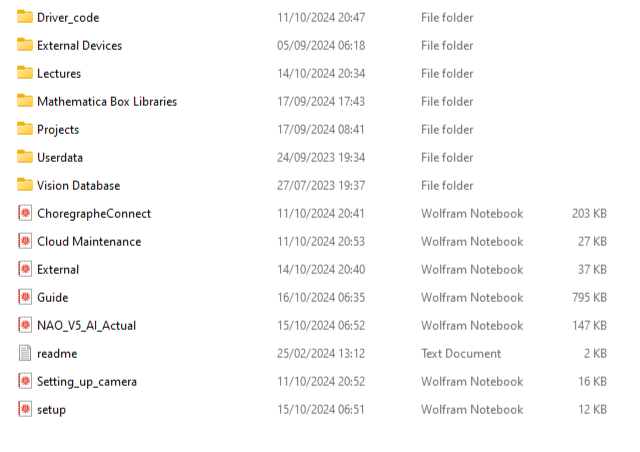
Figure 1. Framework directory structure.
To begin with a connection to the robot being used must be made. Copy the code below into a file and name it setup. Then place this file in the root directory of the framework. Obtain the IP address, port number, robot name and password. Enter this information into the setup notebook. The Mathematica code requires IP address, port number, robot name and password. The Python cell only requires an IP address and port value. Also enter an openai secret key. When the newly created setup notebook is evaluated the values entered should now be available to the notebooks that come next in this Mathematica session. All variables created by evaluation will be present even if the notebook is closed. With the notebook now saved in the ‘C\:NAO V5 artificial intelligence’ directory evaluate it. Then return here and continue.
Setup.nb
Setup.nb
Setting things up
Setting things up
Openai key.
In[]:=
mykey="< Your openai secret key >";
A shared variable to use with images from the camera.
In[]:=
SetSharedVariable[img];
Set up IP address, port number, USER and PWORD for Mathematica. Alter as required to be compatible with the robot being used. IMPORTANT!!! Make alterations before evaluating this notebook.
In[]:=
IP="192.168.16.68";PORT=9559;USER="nao";PWORD="nao";
Set IP and PORT values for Python. Alter as required to be compatible with the robot being used. IMPORTANT!!! Make alterations before evaluating this notebook.
In[]:=
# Imports...
from naoqi import ALProxy
import sys
import os
import time
import qi
import subprocess
import string
import pyperclip
# Set IP and PORT values for Python. Alter as required.
IP = "192.168.16.68"
PORT = 9559
from naoqi import ALProxy
import sys
import os
import time
import qi
import subprocess
import string
import pyperclip
# Set IP and PORT values for Python. Alter as required.
IP = "192.168.16.68"
PORT = 9559
Figure 2. Code for the setup notebook.
The next notebook is the one containing most of the functionality used by NAO. Copy the code below into a file and name it NAO_V5_AI_Actual. Then place this file in the root directory of the framework. It might be worth while taking a look at the code in this notebook. The Python code is simply handling user interaction and basic movement. The Mathematica code is handling high level functionality such as neural networks, image processing and other computationally heavy tasks. More functions could very easily be added. When modifying the code make a copy of the completed framework so that a stable copy is always available. One never knows when disaster could strike. All variables and functions created by evaluation will be present even if the notebook is closed. With the notebook now saved in the ‘C\:NAO V5 artificial intelligence’ directory evaluate it. Then return here and continue. There is a set of driver files to test the functions used in the code below. They can be found in the resources section at the end of this notebook.
NAO_V5_AI_Actual.nb
NAO_V5_AI_Actual.nb
To be used with Python 2.7 speech system with animation
To be used with Python 2.7 speech system with animation
NAO - List of animations and tags available by default can be found below or in the official documentation under the heading ALAnimatedSpeech - AdvancedFor example:“^start(animations/Stand/Gestures/Explain_1) How are you ^wait(animations/Stand/Gestures/Explain_2)”Body language mode^mode( body_language_mode ) Change the body language mode for the current text. body_language_mode can be “disabled”, “random” or “contextual”Animations^run( animation_full_name ) Suspend the speech, run an animation and resume the speech.^start( animation_full_name ) Start an animation.^stop( animation_full_name ) Stop an animation.^wait( animation_full_name ) Suspend the speech, wait for the end of the animation and resume the speech.Tagged animations^runTag( tag_name ) Suspend the speech, run an animation which has the mentioned tag and resume the speech. Chooses randomly the animation which will be started among all the animations which have the mentioned tag.^startTag( tag_name ) Start an animation which has the mentioned tag. Chooses randomly the animation which will be started among all the animations which have the mentioned tag.^stopTag( tag_name ) Stop an animation which has the mentioned tag.^waitTag( tag_name ) Suspend the speech, wait for the end of the animation which has the mentioned tag and resume the speech. NAO - List of tags available by defaultTag Matching animationsaffirmative Yes_1; Yes_2; Yes_3alright Yes_1; Yes_2; Yes_3beg Please_1beseech Please_1body language BodyTalk_1; BodyTalk_1; BodyTalk_10; BodyTalk_10; BodyTalk_11; BodyTalk_11; BodyTalk_12; BodyTalk_12; BodyTalk_13; BodyTalk_14; BodyTalk_15; BodyTalk_16; BodyTalk_17; BodyTalk_18; BodyTalk_19; BodyTalk_2; BodyTalk_2; BodyTalk_20; BodyTalk_21; BodyTalk_22; BodyTalk_3; BodyTalk_3; BodyTalk_4; BodyTalk_4; BodyTalk_5; BodyTalk_5; BodyTalk_6; BodyTalk_6; BodyTalk_7; BodyTalk_7; BodyTalk_8; BodyTalk_8; BodyTalk_9; BodyTalk_9; Explain_1; Explain_10; Explain_11; Explain_2; Explain_3; Explain_4; Explain_5; Explain_6; Explain_7; Explain_8; YouKnowWhat_1; YouKnowWhat_5bow BowShort_1call Hey_1; Hey_6clear Explain_1; Explain_10; Explain_11; Explain_2; Explain_3; Explain_4; Explain_5; Explain_6; Explain_7; Explain_8enthusiastic Enthusiastic_4; Enthusiastic_5entreat Please_1explain Explain_1; Explain_10; Explain_11; Explain_2; Explain_3; Explain_4; Explain_5; Explain_6; Explain_7; Explain_8; YouKnowWhat_1; YouKnowWhat_5happy Enthusiastic_4; Enthusiastic_5hello Hey_1; Hey_6hey Hey_1; Hey_6hi Hey_1; Hey_6I Me_1; Me_2implore Please_1indicate You_1; You_4me Me_1; Me_2my Me_1; Me_2myself Me_1; Me_2negative No_3; No_8; No_9no No_3; No_8; No_9not know IDontKnow_1; IDontKnow_2ok Yes_1; Yes_2; Yes_3oppose No_3; No_8; No_9please Please_1present Explain_1; Explain_10; Explain_11; Explain_2; Explain_3; Explain_4; Explain_5; Explain_6; Explain_7; Explain_8rapturous Enthusiastic_4; Enthusiastic_5raring Enthusiastic_4; Enthusiastic_5refute No_3; No_8; No_9reject No_3; No_8; No_9rousing Enthusiastic_4; Enthusiastic_5show You_1; You_4supplicate Please_1unacquainted IDontKnow_1; IDontKnow_2undetermined IDontKnow_1; IDontKnow_2undiscovered IDontKnow_1; IDontKnow_2unfamiliar IDontKnow_1; IDontKnow_2unknown IDontKnow_1; IDontKnow_2warm Enthusiastic_4; Enthusiastic_5yeah Yes_1; Yes_2; Yes_3yes Yes_1; Yes_2; Yes_3yoo-hoo Hey_1you You_1; You_4your You_1; You_4zestful Enthusiastic_4; Enthusiastic_5NAO - List of animations available by default
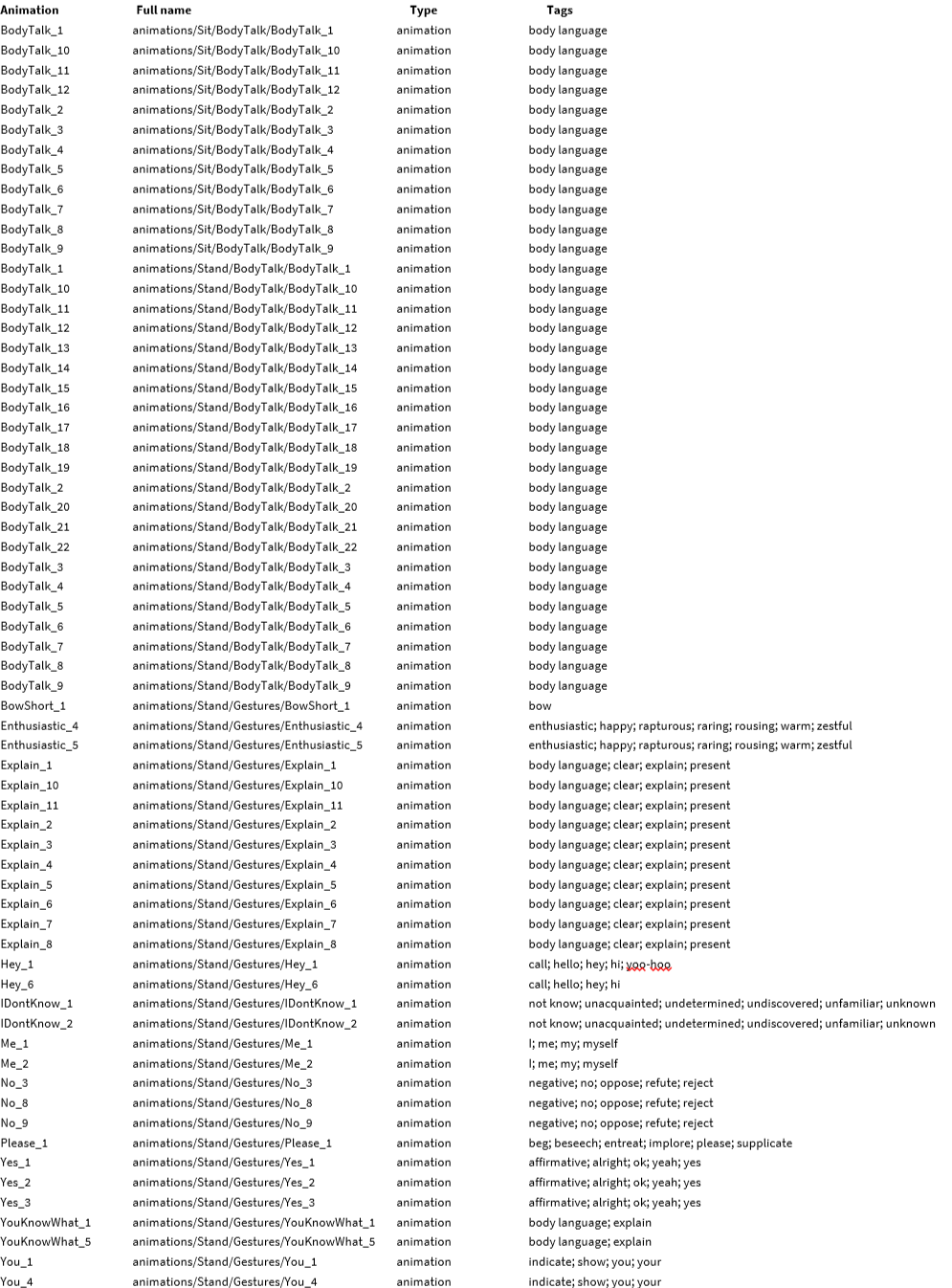
WARNING: All animations which are supplied are either standing or sitting. So you should be aware that if your robot is neither standing nor sitting, it will not execute these moves.
Python 2.7 code used to call the Python 2.7 SDK provided by Softbank. Code can be added or modified here. The code found here allows NAO to interact with its environment. Speech and movement.
In[]:=
# Imports...
from naoqi import ALProxy
import sys
import os
import time
import qi
import subprocess
import string
import pyperclip
##################################################################################################
# Select a camera to use on NAO.
# 1 = top camera 2 = bottom camera.
CAMFLAG = 1
# Local Functions...
# PC globals...
global_str = " "
# Top and bottom camera...
photoCaptureProxy=ALProxy('ALPhotoCapture'.encode('UTF-8'), IP.encode('UTF-8'), PORT)
def top_camera():
# Take a picture using top camera in VGA and store them in /home/nao/recordings/cameras/
photoCaptureProxy.setCameraID(0)
photoCaptureProxy.setResolution(1)
photoCaptureProxy.setPictureFormat("jpg".encode('UTF-8'))
photoCaptureProxy.takePicture("/home/nao/recordings/cameras/".encode('UTF-8'), "image".encode('UTF-8'))
def bottom_camera():
# Take a picture using bottom camera in VGA and store them in /home/nao/recordings/cameras/
photoCaptureProxy.setCameraID(1)
photoCaptureProxy.setResolution(1)
photoCaptureProxy.setPictureFormat("jpg".encode('UTF-8'))
photoCaptureProxy.takePicture("/home/nao/recordings/cameras/".encode('UTF-8'), "image".encode('UTF-8'))
# Pause and continue...
def pause_continue():
# Creates a proxy on the autonomous move module
am = ALProxy('ALAutonomousMoves'.encode('UTF-8'), IP.encode('UTF-8'), PORT)
# Setting autonomous movement expressive listening. False = disabled
am.setExpressiveListeningEnabled(False)
# create proxy on ALMemory
memProxy = ALProxy('ALMemory'.encode('UTF-8'),IP.encode('UTF-8'),PORT)
# Creates a proxy on the speech-recognition module
asr = ALProxy('ALSpeechRecognition'.encode('UTF-8'), IP.encode('UTF-8'), PORT)
asr.setLanguage('English'.encode('UTF-8'))
# Example: Adds "continue", "please continue", "move on" and "quit" to the vocabulary (with wordspotting)
vocabulary = ('continue'.encode('UTF-8'),'please continue'.encode('UTF-8'),'move on'.encode('UTF-8'),'quit'.encode('UTF-8'))
asr.setVocabulary(vocabulary, True)
# Setting visual expression LED's. True = enabled
asr.setVisualExpression(True)
# Start the speech recognition engine with user Test_ASR
asr.subscribe('Test_ASR'.encode('UTF-8'))
# Loop until a registered word is spotted. System is currently using word spotting
flag = True
while flag:
#get data. Val can be int, float, list, string
val = memProxy.getData('WordRecognized'.encode('UTF-8'))
str = val[0]
str = str.replace("<...> ","")
str = str.replace(" <...>","")
if str == "continue":
flag = False
if str == "please continue":
flag = False
if str == "move on":
flag = False
if str == "quit":
flag = False
# Stop speech recognition engine with user Test_ASR
asr.unsubscribe('Test_ASR'.encode('UTF-8'))
# Get a spoken word...
def get_spoken_word():
# Creates a proxy on the autonomous move module
am = ALProxy('ALAutonomousMoves'.encode('UTF-8'), IP.encode('UTF-8'), PORT)
# Setting autonomous movement expressive listening. False = disabled
am.setExpressiveListeningEnabled(False)
# create proxy on ALMemory
memProxy = ALProxy('ALMemory'.encode('UTF-8'),IP.encode('UTF-8'),PORT)
# Creates a proxy on the speech-recognition module
asr = ALProxy('ALSpeechRecognition'.encode('UTF-8'), IP.encode('UTF-8'), PORT)
asr.setLanguage('English'.encode('UTF-8'))
# Example: Adds "continue", "please continue", "move on" and "quit" to the vocabulary (with wordspotting)
vocabulary = ('continue'.encode('UTF-8'),'please continue'.encode('UTF-8'),'move on'.encode('UTF-8'),'quit'.encode('UTF-8'))
asr.setVocabulary(vocabulary, True)
# Setting visual expression LED's. True = enabled
asr.setVisualExpression(True)
# Start the speech recognition engine with user Test_ASR
asr.subscribe('Test_ASR'.encode('UTF-8'))
# Loop until a registered word is spotted. System is currently using word spotting
flag = True
while flag:
global global_str
#get data. Val can be int, float, list, string
val = memProxy.getData('WordRecognized'.encode('UTF-8'))
str = val[0]
str = str.replace("<...> ","")
str = str.replace(" <...>","")
if str == "continue":
flag = False
if str == "please continue":
flag = False
if str == "move on":
flag = False
if str == "quit":
flag = False
# Stop speech recognition engine with user Test_ASR
asr.unsubscribe('Test_ASR'.encode('UTF-8'))
# Copy result to clipboard. To obtain the result in Mathematica use Paste[]
pyperclip.copy(str)
# Postures...
# Crouch, LyingBack, LyingBelly, Sit, SitRelax, Stand, StandInit, StandZero.
postureProxy = ALProxy('ALRobotPosture'.encode('UTF-8'), IP.encode('UTF-8'), PORT)
def postures(pos):
postureProxy.goToPosture(pos.encode('UTF-8'), 0.5)
# NAO Rest...
motionProxy = ALProxy('ALMotion'.encode('UTF-8'), IP.encode('UTF-8'), PORT)
def rest():
motionProxy.rest()
# NAO Wake...
def wake():
motionProxy.wakeUp()
# Get the robot to speak (no animation)...
tts = ALProxy('ALTextToSpeech'.encode('UTF-8'), IP.encode('UTF-8'), PORT)
def speak_text(txt):
sentence = "\RSPD="+ str( '75' ) + "\ "
sentence += "\VCT="+ str( '100') + "\ "
sentence += str(txt)
sentence += "\RST\ "
tts.say(str(sentence.encode('UTF-8')))
# Get the robot to speak (with animation)...
atts = ALProxy('ALAnimatedSpeech'.encode('UTF-8'), IP.encode('UTF-8'), PORT)
def speak_text_animated(txt):
sentence = "\RSPD="+ str( '75' ) + "\ "
sentence += "\VCT="+ str( '100') + "\ "
sentence += str(txt)
sentence += "\RST\ "
atts.say(str(sentence.encode('UTF-8')))
# Set up proxies and move function...
motionProxy = ALProxy('ALMotion'.encode('UTF-8'), IP.encode('UTF-8'), PORT)
postureProxy = ALProxy('ALRobotPosture'.encode('UTF-8'), IP.encode('UTF-8'), PORT)
def move(x,y,theta,tm):
# Wake NAO and go to posture StandInit
motionProxy.wakeUp()
postureProxy.goToPosture('StandInit'.encode('UTF-8'), 0.5)
# Move
motionProxy.moveTo(x.encode('UTF-8'), y.encode('UTF-8'), theta.encode('UTF-8'))
time.sleep(tm)
motionProxy.stopMove()
from naoqi import ALProxy
import sys
import os
import time
import qi
import subprocess
import string
import pyperclip
##################################################################################################
# Select a camera to use on NAO.
# 1 = top camera 2 = bottom camera.
CAMFLAG = 1
# Local Functions...
# PC globals...
global_str = " "
# Top and bottom camera...
photoCaptureProxy=ALProxy('ALPhotoCapture'.encode('UTF-8'), IP.encode('UTF-8'), PORT)
def top_camera():
# Take a picture using top camera in VGA and store them in /home/nao/recordings/cameras/
photoCaptureProxy.setCameraID(0)
photoCaptureProxy.setResolution(1)
photoCaptureProxy.setPictureFormat("jpg".encode('UTF-8'))
photoCaptureProxy.takePicture("/home/nao/recordings/cameras/".encode('UTF-8'), "image".encode('UTF-8'))
def bottom_camera():
# Take a picture using bottom camera in VGA and store them in /home/nao/recordings/cameras/
photoCaptureProxy.setCameraID(1)
photoCaptureProxy.setResolution(1)
photoCaptureProxy.setPictureFormat("jpg".encode('UTF-8'))
photoCaptureProxy.takePicture("/home/nao/recordings/cameras/".encode('UTF-8'), "image".encode('UTF-8'))
# Pause and continue...
def pause_continue():
# Creates a proxy on the autonomous move module
am = ALProxy('ALAutonomousMoves'.encode('UTF-8'), IP.encode('UTF-8'), PORT)
# Setting autonomous movement expressive listening. False = disabled
am.setExpressiveListeningEnabled(False)
# create proxy on ALMemory
memProxy = ALProxy('ALMemory'.encode('UTF-8'),IP.encode('UTF-8'),PORT)
# Creates a proxy on the speech-recognition module
asr = ALProxy('ALSpeechRecognition'.encode('UTF-8'), IP.encode('UTF-8'), PORT)
asr.setLanguage('English'.encode('UTF-8'))
# Example: Adds "continue", "please continue", "move on" and "quit" to the vocabulary (with wordspotting)
vocabulary = ('continue'.encode('UTF-8'),'please continue'.encode('UTF-8'),'move on'.encode('UTF-8'),'quit'.encode('UTF-8'))
asr.setVocabulary(vocabulary, True)
# Setting visual expression LED's. True = enabled
asr.setVisualExpression(True)
# Start the speech recognition engine with user Test_ASR
asr.subscribe('Test_ASR'.encode('UTF-8'))
# Loop until a registered word is spotted. System is currently using word spotting
flag = True
while flag:
#get data. Val can be int, float, list, string
val = memProxy.getData('WordRecognized'.encode('UTF-8'))
str = val[0]
str = str.replace("<...> ","")
str = str.replace(" <...>","")
if str == "continue":
flag = False
if str == "please continue":
flag = False
if str == "move on":
flag = False
if str == "quit":
flag = False
# Stop speech recognition engine with user Test_ASR
asr.unsubscribe('Test_ASR'.encode('UTF-8'))
# Get a spoken word...
def get_spoken_word():
# Creates a proxy on the autonomous move module
am = ALProxy('ALAutonomousMoves'.encode('UTF-8'), IP.encode('UTF-8'), PORT)
# Setting autonomous movement expressive listening. False = disabled
am.setExpressiveListeningEnabled(False)
# create proxy on ALMemory
memProxy = ALProxy('ALMemory'.encode('UTF-8'),IP.encode('UTF-8'),PORT)
# Creates a proxy on the speech-recognition module
asr = ALProxy('ALSpeechRecognition'.encode('UTF-8'), IP.encode('UTF-8'), PORT)
asr.setLanguage('English'.encode('UTF-8'))
# Example: Adds "continue", "please continue", "move on" and "quit" to the vocabulary (with wordspotting)
vocabulary = ('continue'.encode('UTF-8'),'please continue'.encode('UTF-8'),'move on'.encode('UTF-8'),'quit'.encode('UTF-8'))
asr.setVocabulary(vocabulary, True)
# Setting visual expression LED's. True = enabled
asr.setVisualExpression(True)
# Start the speech recognition engine with user Test_ASR
asr.subscribe('Test_ASR'.encode('UTF-8'))
# Loop until a registered word is spotted. System is currently using word spotting
flag = True
while flag:
global global_str
#get data. Val can be int, float, list, string
val = memProxy.getData('WordRecognized'.encode('UTF-8'))
str = val[0]
str = str.replace("<...> ","")
str = str.replace(" <...>","")
if str == "continue":
flag = False
if str == "please continue":
flag = False
if str == "move on":
flag = False
if str == "quit":
flag = False
# Stop speech recognition engine with user Test_ASR
asr.unsubscribe('Test_ASR'.encode('UTF-8'))
# Copy result to clipboard. To obtain the result in Mathematica use Paste[]
pyperclip.copy(str)
# Postures...
# Crouch, LyingBack, LyingBelly, Sit, SitRelax, Stand, StandInit, StandZero.
postureProxy = ALProxy('ALRobotPosture'.encode('UTF-8'), IP.encode('UTF-8'), PORT)
def postures(pos):
postureProxy.goToPosture(pos.encode('UTF-8'), 0.5)
# NAO Rest...
motionProxy = ALProxy('ALMotion'.encode('UTF-8'), IP.encode('UTF-8'), PORT)
def rest():
motionProxy.rest()
# NAO Wake...
def wake():
motionProxy.wakeUp()
# Get the robot to speak (no animation)...
tts = ALProxy('ALTextToSpeech'.encode('UTF-8'), IP.encode('UTF-8'), PORT)
def speak_text(txt):
sentence = "\RSPD="+ str( '75' ) + "\ "
sentence += "\VCT="+ str( '100') + "\ "
sentence += str(txt)
sentence += "\RST\ "
tts.say(str(sentence.encode('UTF-8')))
# Get the robot to speak (with animation)...
atts = ALProxy('ALAnimatedSpeech'.encode('UTF-8'), IP.encode('UTF-8'), PORT)
def speak_text_animated(txt):
sentence = "\RSPD="+ str( '75' ) + "\ "
sentence += "\VCT="+ str( '100') + "\ "
sentence += str(txt)
sentence += "\RST\ "
atts.say(str(sentence.encode('UTF-8')))
# Set up proxies and move function...
motionProxy = ALProxy('ALMotion'.encode('UTF-8'), IP.encode('UTF-8'), PORT)
postureProxy = ALProxy('ALRobotPosture'.encode('UTF-8'), IP.encode('UTF-8'), PORT)
def move(x,y,theta,tm):
# Wake NAO and go to posture StandInit
motionProxy.wakeUp()
postureProxy.goToPosture('StandInit'.encode('UTF-8'), 0.5)
# Move
motionProxy.moveTo(x.encode('UTF-8'), y.encode('UTF-8'), theta.encode('UTF-8'))
time.sleep(tm)
motionProxy.stopMove()
Getting images from NAO’s camera or a webcam. Then place the image in the cloud. The image can then be accessed by Choreographe.
1) Get current image from the cloud.
2) Get an image from NAO. Evaluate the Python function top_camera or bottom_camera first.
3) Get an image via a webcam and store in the cloud. Make sure the webcam connected to your PC is available.
Image manipulation code for use with NAO V5
Image manipulation code for use with NAO V5
Identify an object in an image.
(possibly 10,000 + objects).
Use pyperclip.paste() in Python to retrieve result.
(test using driver code 2.nb)
(possibly 10,000 + objects).
Use pyperclip.paste() in Python to retrieve result.
(test using driver code 2.nb)
Read text from a computer screen or paper.
Use big monitor and notepad.
Use pyperclip.paste() in Python to retrieve result.
(test using driver code 3.nb)
Use big monitor and notepad.
Use pyperclip.paste() in Python to retrieve result.
(test using driver code 3.nb)
Evaluate math text from a computer screen or paper.
Use big monitor and notepad.
For example type into notepad the following text: “The square root of eight”
Use pyperclip.paste() in Python to retrieve result.
(test using driver code 4.nb)
Use big monitor and notepad.
For example type into notepad the following text: “The square root of eight”
Use pyperclip.paste() in Python to retrieve result.
(test using driver code 4.nb)
Solve equation from a computer screen or paper.
Use big monitor and notepad.
For example type into notepad the following text: “Solve[(x+3)*(x-5)==0,x]”
Use pyperclip.paste() in Python to retrieve result.
(test using driver code 5.nb)
Use big monitor and notepad.
For example type into notepad the following text: “Solve[(x+3)*(x-5)==0,x]”
Use pyperclip.paste() in Python to retrieve result.
(test using driver code 5.nb)
Evaluate spoken word text from a computer screen or paper.
Use big monitor and notepad.
For example type into notepad the following text: “The capital of England”
Use pyperclip.paste() in Python to retrieve result.
(test using driver code 6.nb)
Use big monitor and notepad.
For example type into notepad the following text: “The capital of England”
Use pyperclip.paste() in Python to retrieve result.
(test using driver code 6.nb)
WolframAlpha code
WolframAlpha code
NICSoftwareAgent[]
Can be called using the following:
NICSoftwareAgent[“How many planets are there in the solar system”,”Lots of info on the solar system”]
The first parameter is a title. This is also used to query WolframAlpha. The second parameter is text to be spoken by NAO. After calling this function place a pause and continue function in the main program.
Use code similar to that below:
query = ”How many planets are there in the solar system”;
spoken = ”Here is some information about the solar system”;
NICSoftwareAgent[query,spoken]
(test using driver code 7.nb)
Can be called using the following:
NICSoftwareAgent[“How many planets are there in the solar system”,”Lots of info on the solar system”]
The first parameter is a title. This is also used to query WolframAlpha. The second parameter is text to be spoken by NAO. After calling this function place a pause and continue function in the main program.
Use code similar to that below:
query = ”How many planets are there in the solar system”;
spoken = ”Here is some information about the solar system”;
NICSoftwareAgent[query,spoken]
(test using driver code 7.nb)
Perform a web search. For example NAOWebSearch[“Tiger”,”elem”]. Elements are as follows:
“PageTitles”
“Snippets”
”Hyperlinks”
(test using driver code 8.nb)
“PageTitles”
“Snippets”
”Hyperlinks”
(test using driver code 8.nb)
Perform a web image search. For example NAOWebImageSearch[“Tiger”,“Images”]. Elements are as follows:
“Thumbnails”
“Images”
“ImageHyperlinks”
“PageTitles”
“PageHyperlinks”
“FileFormats”
(test using driver code 9.nb)
“Thumbnails”
“Images”
“ImageHyperlinks”
“PageTitles”
“PageHyperlinks”
“FileFormats”
(test using driver code 9.nb)
Answer a question from input text. Data about a subject is entered into variable data and a question about the data into variable question.
Use pyperclip.paste() in Python to retrieve result.
(test using driver code 10.nb)
Use pyperclip.paste() in Python to retrieve result.
(test using driver code 10.nb)
Neural Networks from the Wolfram Neural Network Repository. Some of the most powerful neural networks available can be found in the repository. Code that will predict age and gender from an image are shown below. However to make use of the age and gender networks a resource must be downloaded to the PC running Mathematica. These networks must be used from a PC controlling NAO and not directly from NAO’s PC. Add more non-trivial networks here.
A neural network to predict age.
Obtain image from NAO.
A neural network to predict gender.
Obtain image from NAO.
The code below allows access to openai API’s. gpt-4o
To use these functions you must have an openai API account and a secret key to gain access. Go to openai.com for more information. A driver program is available to demonstrate the functions use.
Remember each time these functions are used it will decrease you token count.
To use these functions you must have an openai API account and a secret key to gain access. Go to openai.com for more information. A driver program is available to demonstrate the functions use.
Remember each time these functions are used it will decrease you token count.
Figure 3. Code for the NAO_V5_AI_Actual notebook.
The next notebook is the one containing the functionality to control external devices used in conjunction with NAO. The notebook is titled External. Copy the code below into a file and name it External. It might be worth while taking a look at the code in this notebook. This notebook contains code to control a Pololu Maestro Servo controller. There are 13 functions in this notebook. A simple example that is looked at later gets NAO to introduce itself and spin a globe. All variables and functions created by evaluation will be present even if the notebook is closed. With the notebook now saved in the ‘C\:NAO V5 artificial intelligence’ directory evaluate it. Then return here and continue. At the beginning of the External notebook is code to connect and disconnect the controller from the PC being used. Both code snippets have been commented out to allow for evaluation.
External.nb
External.nb
Open a serial connection to control external devices via a Pololu Maestro controller
Open a serial connection to control external devices via a Pololu Maestro controller
Important: Before using this note book ensure that the servos and any other devices
connected to the controller are setup correctly in the Maestro Control Center. Range, speed, position etc. For this code to be of use you will require a Maestro 24 channel servo controller and a power source. The servos I use are 12-15kg/cm and use 7.4 volts. The servos are continuous or 180 degree. The commands below can be used to give basic commands to the controller control the types of servos mentioned. Other notebooks can be created that build upon the code found here.
connected to the controller are setup correctly in the Maestro Control Center. Range, speed, position etc. For this code to be of use you will require a Maestro 24 channel servo controller and a power source. The servos I use are 12-15kg/cm and use 7.4 volts. The servos are continuous or 180 degree. The commands below can be used to give basic commands to the controller control the types of servos mentioned. Other notebooks can be created that build upon the code found here.
Close device.
Settings for a continuous rotation servo in microseconds.
0 or 1440 = stop
1440 > clockwise
1440 < counter clockwise
0 or 1440 = stop
1440 > clockwise
1440 < counter clockwise
Code for continuous servo rotation.
Settings for a 180 degree rotation servo.
0-180 degrees has a range of 550 -2000. These values can be altered to give greater accuracy if required.
0-180 degrees has a range of 550 -2000. These values can be altered to give greater accuracy if required.
Code for 180 degree rotation servo. Enter angles (RotateServo180) or microseconds (RotateServo180ms).
Code for getting servo position.
Compact protocol: 0x90, channel number
Pololu protocol: 0xAA, device number, 0x10, channel number
Response: position low 8 bits, position high 8 bits
This command allows the device communicating with the Maestro to get the position value of a channel. The position is sent as a two-byte response immediately after the command is received.
If the specified channel is configured as a servo, this position value represents the current pulse width that the Maestro is transmitting on the channel, reflecting the effects of any previous commands, speed and acceleration limits, or scripts running on the Maestro. If the channel is configured as a digital output, a position value less than 6000 means the Maestro is driving the line low, while a position value of 6000 or greater means the Maestro is driving the line high. If the channel is configured as an input, the position represents the voltage measured on the channel. The inputs on channels 0–11 are analog: their values range from 0 to 1023, representing voltages from 0 to 5 V. The inputs on channels 12–23 are digital: their values are either exactly 0 or exactly 1023. Note that the formatting of the position in this command differs from the target/speed/acceleration formatting in the other commands. Since there is no restriction on the high bit, the position is formatted as a standard little-endian two-byte unsigned integer. For example, a position of 2567 corresponds to a response 0x07, 0x0A. Note that the position value returned by this command is equal to four times the number displayed in the Position box in the Status tab of the Maestro Control Center.
Compact protocol: 0x90, channel number
Pololu protocol: 0xAA, device number, 0x10, channel number
Response: position low 8 bits, position high 8 bits
This command allows the device communicating with the Maestro to get the position value of a channel. The position is sent as a two-byte response immediately after the command is received.
If the specified channel is configured as a servo, this position value represents the current pulse width that the Maestro is transmitting on the channel, reflecting the effects of any previous commands, speed and acceleration limits, or scripts running on the Maestro. If the channel is configured as a digital output, a position value less than 6000 means the Maestro is driving the line low, while a position value of 6000 or greater means the Maestro is driving the line high. If the channel is configured as an input, the position represents the voltage measured on the channel. The inputs on channels 0–11 are analog: their values range from 0 to 1023, representing voltages from 0 to 5 V. The inputs on channels 12–23 are digital: their values are either exactly 0 or exactly 1023. Note that the formatting of the position in this command differs from the target/speed/acceleration formatting in the other commands. Since there is no restriction on the high bit, the position is formatted as a standard little-endian two-byte unsigned integer. For example, a position of 2567 corresponds to a response 0x07, 0x0A. Note that the position value returned by this command is equal to four times the number displayed in the Position box in the Status tab of the Maestro Control Center.
Compact protocol: 0x87, channel number, speed low bits, speed high bits
Pololu protocol: 0xAA, device number, 0x07, channel number, speed low bits, speed high bits
This command limits the speed at which a servo channel’s output value changes. The speed limit is given in units of (0.25 μs)/(10 ms), except in special cases (see Section 4.b). For example, the command 0x87, 0x05, 0x0C, 0x01 sets the speed of servo channel 5 to a value of 140, which corresponds to a speed of 3.5 μs/ms. What this means is that if you send a Set Target command to adjust the target from, say, 1000 μs to 1350 μs, it will take 100 ms to make that adjustment. A speed of 0 makes the speed unlimited. Setting the target of a channel that has a speed of 0 and an acceleration 0 will immediately affect the channel’s position. Note that the actual speed at which your servo moves is also limited by the design of the servo itself, the supply voltage, and mechanical loads; this parameter will not help your servo go faster than what it is physically capable of. At the minimum speed setting of 1, the servo output takes 40 seconds to move from 1 to 2 ms. The speed setting has no effect on channels configured as inputs or digital outputs.
Pololu protocol: 0xAA, device number, 0x07, channel number, speed low bits, speed high bits
This command limits the speed at which a servo channel’s output value changes. The speed limit is given in units of (0.25 μs)/(10 ms), except in special cases (see Section 4.b). For example, the command 0x87, 0x05, 0x0C, 0x01 sets the speed of servo channel 5 to a value of 140, which corresponds to a speed of 3.5 μs/ms. What this means is that if you send a Set Target command to adjust the target from, say, 1000 μs to 1350 μs, it will take 100 ms to make that adjustment. A speed of 0 makes the speed unlimited. Setting the target of a channel that has a speed of 0 and an acceleration 0 will immediately affect the channel’s position. Note that the actual speed at which your servo moves is also limited by the design of the servo itself, the supply voltage, and mechanical loads; this parameter will not help your servo go faster than what it is physically capable of. At the minimum speed setting of 1, the servo output takes 40 seconds to move from 1 to 2 ms. The speed setting has no effect on channels configured as inputs or digital outputs.
Compact protocol: 0x89, channel number, acceleration low bits, acceleration high bits
Pololu protocol: 0xAA, device number, 0x09, channel number, acceleration low bits, acceleration high bits
This command limits the acceleration of a servo channel’s output. The acceleration limit is a value from 0 to 255 in units of (0.25 μs)/(10 ms)/(80 ms), except in special cases (see Section 4.b). A value of 0 corresponds to no acceleration limit. An acceleration limit causes the speed of a servo to slowly ramp up until it reaches the maximum speed, then to ramp down again as position approaches target, resulting in a relatively smooth motion from one point to another. With acceleration and speed limits, only a few target settings are required to make natural-looking motions that would otherwise be quite complicated to produce. At the minimum acceleration setting of 1, the servo output takes about 3 seconds to move smoothly from a target of 1 ms to a target of 2 ms.
The acceleration setting has no effect on channels configured as inputs or digital outputs.
Pololu protocol: 0xAA, device number, 0x09, channel number, acceleration low bits, acceleration high bits
This command limits the acceleration of a servo channel’s output. The acceleration limit is a value from 0 to 255 in units of (0.25 μs)/(10 ms)/(80 ms), except in special cases (see Section 4.b). A value of 0 corresponds to no acceleration limit. An acceleration limit causes the speed of a servo to slowly ramp up until it reaches the maximum speed, then to ramp down again as position approaches target, resulting in a relatively smooth motion from one point to another. With acceleration and speed limits, only a few target settings are required to make natural-looking motions that would otherwise be quite complicated to produce. At the minimum acceleration setting of 1, the servo output takes about 3 seconds to move smoothly from a target of 1 ms to a target of 2 ms.
The acceleration setting has no effect on channels configured as inputs or digital outputs.
Rotate multiple servos. Set channel to a value between 0 and 22. Then select one of the functions below based on how many contiguous servos are required.
Pulse Width Modulation. Channel 8 on 12 channel Maestro, channel 12 on 12, 18 24 Maestro.
Figure 4a. Code for the External notebook.
I have included this short piece of code below as it acts as a very simple animator when used in conjunction with the Maestro Control Center or the Mathematica version shown below. The control center is available for download from the Pololu website. It is a good to tool that helps support work with Mathematica. Figure 4c shows a Mathematica implementation for a 24 channel servo controller. Note that all the Mathematica version does is move servos. It could be extended to have similar features but that would take more time. I simply added it to show that it can be done. Probably better to use the Maestro Control Center.
Animate.nb
Animate.nb
Animate servos
Animate servos
This notebook is to be used in conjunction with the Maestro Control Center or the servo controller below. They allow the creation of complex movement.
1). Create a servo positions vector and set the number of channels available being used. The start point can also be moved to allow for different configurations.
2). Store all current position settings in the servo positions vector.
3). Copy and paste values from above into whatever code you might be creating.
Figure 4b. Additional code to support animation of servos (sort of).
Servo Controller.nb
Mathematica Manipulate Servo controller
Mathematica Manipulate Servo controller
WARNING: Do not use this servo controller without making sure that all servo limits have been set in the Pololu Control Center. This ensures that the limits of your servos cannot be exceeded. Mathematica cannot over ride the values set in the Pololu Control center. Do not use this servo controller in conjunction with the Pololu Control Center. The reason for this problem is simple. If this servo controller makes changes these changes are then made in the Pololu Control Center. However if changes are made in the Pololu Control Center the changes are not reflected in Mathematica and this servo controller. The two systems are now out of sync. Use either this servo controller or the Pololu Control Center. Not both.
One final note all the settings in this Manipulate command relate to micro seconds. All channels are set to a minimum value of 992 micro seconds. All maximum values are set to 2000 micro seconds. The default positions for each channel is set to 1500 micro seconds. It is unlikely these settings will be correct for your application. Make sure all the settings found here are the same as those found in the Polulu Control Center. Or simply just always use the Pololu Control Center. Thank you.
Once you have connected to the Maestro execute the following code. The code below will allow up to 24 servos to be manipulated by the controller.
One final note all the settings in this Manipulate command relate to micro seconds. All channels are set to a minimum value of 992 micro seconds. All maximum values are set to 2000 micro seconds. The default positions for each channel is set to 1500 micro seconds. It is unlikely these settings will be correct for your application. Make sure all the settings found here are the same as those found in the Polulu Control Center. Or simply just always use the Pololu Control Center. Thank you.
Once you have connected to the Maestro execute the following code. The code below will allow up to 24 servos to be manipulated by the controller.
Figure 4c. Additional code that moves a number of servos ready for animation.
Start Lecture. To start the lecture wait until NAO robot has blue eyes then say “Continue”
Start Lecture. To start the lecture wait until NAO robot has blue eyes then say “Continue”
# Introduction...
# Wake NAO up...
wake()
# Prompt user to start the lecture
pause_continue()
# Get user's name...
speak_text_animated('Hi there how are you')
speak_text_animated('Could you enter your name into the dialog box please')
postures('Stand')
# Wake NAO up...
wake()
# Prompt user to start the lecture
pause_continue()
# Get user's name...
speak_text_animated('Hi there how are you')
speak_text_animated('Could you enter your name into the dialog box please')
postures('Stand')
Get user name
Get user name
In[]:=
# Thank the user for name input then start the lecture...
name = pyperclip.paste()
speak_text_animated('Thank you ' + name + ' Let us begin')
# Move NAO to standing position...
postures('Stand')
name = pyperclip.paste()
speak_text_animated('Thank you ' + name + ' Let us begin')
# Move NAO to standing position...
postures('Stand')
Introduction
Introduction
In[]:=
# NAO introduction...
speak_text_animated('My name is now I am a humanoid robot from softbank robotics' + name )
# Move NAO to standing position...
postures('Stand')
speak_text_animated('My name is now I am a humanoid robot from softbank robotics' + name )
# Move NAO to standing position...
postures('Stand')
Close notebook and send NAO to rest. End of lecture.
Close notebook and send NAO to rest. End of lecture.
In[]:=
# Thank the user close the lecture...
speak_text_animated('Thank you ' + name + ' now you have finished the checks and all is well you can start a lecture')
rest()
speak_text_animated('Thank you ' + name + ' now you have finished the checks and all is well you can start a lecture')
rest()
Figure 5. Code for the test1 notebook.
Start Lecture. To start the lecture wait until NAO robot has blue eyes then say “Continue”.
Start Lecture. To start the lecture wait until NAO robot has blue eyes then say “Continue”.
In[]:=
# Introduction...
# Wake NAO up...
wake()
# Prompt user to start the lecture
pause_continue()
# Get user's name...
speak_text_animated('Hi there how are you')
speak_text_animated('Could you enter your name into the dialog box please')
postures('Stand')
# Wake NAO up...
wake()
# Prompt user to start the lecture
pause_continue()
# Get user's name...
speak_text_animated('Hi there how are you')
speak_text_animated('Could you enter your name into the dialog box please')
postures('Stand')
Get user name
Get user name
In[]:=
# Thank the user for name input then start the lecture...
name = pyperclip.paste()
speak_text_animated('Thank you ' + name + ' Let us begin')
# Move NAO to standing position...
postures('Stand')
name = pyperclip.paste()
speak_text_animated('Thank you ' + name + ' Let us begin')
# Move NAO to standing position...
postures('Stand')
Make a connection to the servo controller. Stop the globe moving initially.
Make a connection to the servo controller. Stop the globe moving initially.
Check the documentation for correct use DeviceOpen[]
Start the globe turning
Start the globe turning
In[]:=
# A simple test to check that all is well...
speak_text_animated('To begin with ' + name + ' let us start the globe turning')
# Move NAO to standing position...
postures('Stand')
speak_text_animated('To begin with ' + name + ' let us start the globe turning')
# Move NAO to standing position...
postures('Stand')
Prompt user to Stop the globe
Prompt user to Stop the globe
In[]:=
# Prompt the user...
speak_text_animated('Say quit to stop the globe turning')
postures('Stand')
pause_continue()
speak_text_animated('Say quit to stop the globe turning')
postures('Stand')
pause_continue()
Stop the globe and disconnect from the servo controller.
Stop the globe and disconnect from the servo controller.
Close notebook and send NAO to rest. End of lecture.
Close notebook and send NAO to rest. End of lecture.
In[]:=
# Thank the user close the lecture...
speak_text_animated('Thank you ' + name + ' now you have finished the checks and all is well you can start a lecture')
rest()
speak_text_animated('Thank you ' + name + ' now you have finished the checks and all is well you can start a lecture')
rest()
Figure 6. Code for the test2 notebook.
Although the above example is trivial imagine what could be done when the controller is connected to say twenty servos. Controlling a complex experiment that works along side NAO. Using only a Mathematica notebook This is now possible. I know this because that is what I am currently working on. A NAO robot and twenty servos I can only imagine the projects I could create. For example write down the steps that a lecture might go through in a notebook. Then simply bring the lecture to life by making use of the code found here. To create a lecture in a notebook is almost like writing a story using the framework. The framework itself is still growing I have just provided a simple version to allow the reader to see that it is possible. There are two more small examples to follow that make use of framework one of them makes use of API’s from openai (chatGPT). All files when copied can be placed in the lectures directory. The first should be titled ‘ Practice Math’. The second example contains two files one of which is simply an image of the periodic table. The first example allows entry of a mathematical expression and NAO speaks the result. The second example creates a system that prompts for entry of a chemical symbol into a dialog box and once again NAO speaks the result. This example uses openai to retrieve a result. Examine the code in both its worth while.
Practice Math
Practice Math
Enter any Mathematical expression to get NAO to speak the result. Then evaluate the notebook. There is Python could below that allows NAO to speak the result.
In[]:=
import pyperclip
s = pyperclip.paste()
speak_text_animated('The result of evaluation is '+ s)
postures('Stand')
s = pyperclip.paste()
speak_text_animated('The result of evaluation is '+ s)
postures('Stand')
Figure 7. Code for the Practice Math notebook.
Using the code above it is possible to use a writing tablet in conjunction with the MathInput program that allows entry of expression that has been hand written. Use this in conjunction with the basic math pallette and some very complex expressions can be entered and evaluated. The example below lets NAO prompt for entry of a chemical symbol. Then returns an explanation of that selected symbol.
Periodic Table
Periodic Table
Start Lecture. To start the lecture wait until NAO robot has blue eyes then say “Continue”.
Start Lecture. To start the lecture wait until NAO robot has blue eyes then say “Continue”.
# Introduction...
# Wake NAO up...
wake()
# Prompt user to start the lecture
pause_continue()
# Get user's name...
speak_text_animated('Hi there how are you')
speak_text_animated('Using the Periodic Table now displayed enter a elements name into the dialog box please')
speak_text_animated('Or enter quit to stop the lecture. Thank you.')
postures('Stand')
# Wake NAO up...
wake()
# Prompt user to start the lecture
pause_continue()
# Get user's name...
speak_text_animated('Hi there how are you')
speak_text_animated('Using the Periodic Table now displayed enter a elements name into the dialog box please')
speak_text_animated('Or enter quit to stop the lecture. Thank you.')
postures('Stand')
s = pyperclip.paste()
speak_text_animated(s)
postures('Stand')
speak_text_animated(s)
postures('Stand')
Figure 8. Code for the Periodic Table notebook.
In a production environment there would be a large amount of error trapping. However as the framework is more about proof of concept than producing a production model this could be added when required. As stated above all I am doing is proving that it can be done. I am currently developing my framework to suit that which I have planned. After taking a look at the two examples above this will complete the first step of controlling NAO robot using Mathematica notebooks. I have shown that this is possible. At the end of this notebook is more code that is used as driver code to test the functions created in the notebooks above. Save this code in the driver directory of the root directory of the framework. There are other directories that are used to store data. For example the userdata directory is where the WolframAlpha code saves its files. The vision database directory is where Choregraphe saves it vision files. The projects directory is where project files are saved. The Mathematica Box Library is used to store box library files. A box library is created in the part 2.
The next step will be to integrate Mathematica into Choregraphe. I covered this briefly in a previous post seven years ago post but here I will examine it in much more detail. Two more notebooks are present in the root directory of the framework. One is used to perform cloud maintenance. The other is used to set up camera usage when using Choregraphe. Both files can be copied from here to the root directory of the framework.
The next step will be to integrate Mathematica into Choregraphe. I covered this briefly in a previous post seven years ago post but here I will examine it in much more detail. Two more notebooks are present in the root directory of the framework. One is used to perform cloud maintenance. The other is used to set up camera usage when using Choregraphe. Both files can be copied from here to the root directory of the framework.
Cloud Maintenance
Cloud Maintenance
1). Check cloud credits.
1). Check cloud credits.
2). Use this cell to delete cloud objects.
2). Use this cell to delete cloud objects.
3). Display a list of cloud objects below.
3). Display a list of cloud objects below.
4). Delete all of the cloud objects shown above.
4). Delete all of the cloud objects shown above.
Figure 9. Code for the Cloud maintenance notebook.
Setting up camera
Setting up camera
Getting an image ready for image manipulation using NAO’s built in cameras or a webcam
Get an image from NAO or a webcam and store in the cloud. Store the image in the cloud to allow the virtual robot or NAO in Choregraphe to access it via box libraries. Take these steps before using the Mathematica box library.
I would use the code found here to test functionality of code contained in Python boxes.
N.B. Placing an image in the cloud is a slow process. Please be patient.
I would use the code found here to test functionality of code contained in Python boxes.
N.B. Placing an image in the cloud is a slow process. Please be patient.
1) Get current image from the cloud.
1) Get current image from the cloud.
2) Get an image from NAO. Evaluate the Python function top_camera() or bottom_camera() first.
2) Get an image from NAO. Evaluate the Python function top_camera() or bottom_camera() first.
In[]:=
top_camera()
3) Get an image via a webcam and store in the cloud. Evaluate this cell individually. Make sure the webcam connected to your PC is available.
3) Get an image via a webcam and store in the cloud. Evaluate this cell individually. Make sure the webcam connected to your PC is available.
4) Create buttons for use with Choregraphe. Regenerate “NAO to the cloud” button when IP address changes.
The code below creates a small dialog box that can be used in conjunction with Choregraphe.
4) Create buttons for use with Choregraphe. Regenerate “NAO to the cloud” button when IP address changes.
The code below creates a small dialog box that can be used in conjunction with Choregraphe.
The code below creates a small dialog box that can be used in conjunction with Choregraphe.
Figure 10. Code for the Set up camera notebook.
Part 2. Integrating Mathematica into Choregraphe using the Wolfram Cloud.
Choregraphe Connect
Choregraphe Connect
Box library component for chatGPT gpt-4o. Creating this first python box involves five steps.
1). Create a function in Mathematica.
2). Test the function in Mathematica.
3). Embed the function in the cloud.
4). Copy the code from step 3 into a Python cell in a Mathematica notebook. If it works continue to step 5. If not modify your code until it works.
5). Enter the code into a Python box. Entering the code created by Mathematica will probably differ for every function. Read the Choreographe documentation for more information.
The code shown below contains two areas that are fundamental to the framework. The first is the openai code the second is the image manipulation. These provide a great amount of power to the NAO robot. The mathematics code would be more reliant on the readers plans. The are many more features outside of the core mathematics that Mathematica can supply. Have some fun trying to apply these features.
1). Create a function in Mathematica.
2). Test the function in Mathematica.
3). Embed the function in the cloud.
4). Copy the code from step 3 into a Python cell in a Mathematica notebook. If it works continue to step 5. If not modify your code until it works.
5). Enter the code into a Python box. Entering the code created by Mathematica will probably differ for every function. Read the Choreographe documentation for more information.
The code shown below contains two areas that are fundamental to the framework. The first is the openai code the second is the image manipulation. These provide a great amount of power to the NAO robot. The mathematics code would be more reliant on the readers plans. The are many more features outside of the core mathematics that Mathematica can supply. Have some fun trying to apply these features.
1) Create a function.
1) Create a function.
The longer this post is present the greater the chances that the models used by openai will change. Be aware of this fact. Then all that is required is to change the model value shown below. At creation of this notebook the model was “model”->”gpt-4o”.
2) Test the function
2) Test the function
3) Embed the function in the cloud
3) Embed the function in the cloud
4). Test the function by calling it from a Python cell in a Mathematica notebook
4). Test the function by calling it from a Python cell in a Mathematica notebook
from urllib import urlencode
from urllib2 import urlopen
class WolframCloud:
def wolfram_cloud_call(self, **kwargs):
result = urlopen('http://www.wolframcloud.com/obj/74b73969-7150-41a9-8284-2a8372479da4', urlencode(kwargs))
return result.read()
def gpt4o(self, prompt, key):
textresult = self.wolfram_cloud_call(prompt=prompt, key=key)
return textresult
wolframcloud = WolframCloud()
wolframcloud.gpt4o('Who is Ada Lovelace. Give the answer in pure text. No lists, tables, images or mathematical expressions. Remove newline characters. ','Your api key')
from urllib2 import urlopen
class WolframCloud:
def wolfram_cloud_call(self, **kwargs):
result = urlopen('http://www.wolframcloud.com/obj/74b73969-7150-41a9-8284-2a8372479da4', urlencode(kwargs))
return result.read()
def gpt4o(self, prompt, key):
textresult = self.wolfram_cloud_call(prompt=prompt, key=key)
return textresult
wolframcloud = WolframCloud()
wolframcloud.gpt4o('Who is Ada Lovelace. Give the answer in pure text. No lists, tables, images or mathematical expressions. Remove newline characters. ','Your api key')
5). Enter the code into a Python box.
5). Enter the code into a Python box.
Entering the code created by Mathematica will probably differ for every function. Read the Choreographe documentation for more information.
# This box is a test to connect to an openai API 4.0...
from urllib import urlencode
from urllib2 import urlopen
class WolframCloud:
def wolfram_cloud_call(self, **kwargs):
result = urlopen('http://www.wolframcloud.com/obj/908be7fe-328f-4e5f-9785-f3d398a14e77', urlencode(kwargs))
return result.read()
def gpt4(self, prompt, key):
textresult = self.wolfram_cloud_call(prompt=prompt, key=key)
return textresult
class MyClass(GeneratedClass):
def __init__(self):
GeneratedClass.__init__(self)
def onLoad(self):
#put initialization code here
pass
def onUnload(self):
#put clean-up code here
pass
def onInput_onStart(self,p):
#self.onStopped() #activate the output of the box
key = self.getParameter("myapikey")
wolframcloud = WolframCloud()
str = wolframcloud.gpt4(p + ' Give the answer in pure text. No lists, tables, images or mathematical expressions. Remove newline characters. ',key)
# Send answer to output box result and send stop signal
self.result(str)
self.onStopped() #activate the output of the box
#activate the output of the box
self.onStopped()
pass
def onInput_onStop(self):
self.onUnload() #it is recommended to reuse the clean-up as the box is stopped
self.onStopped() #activate the output of the box
from urllib import urlencode
from urllib2 import urlopen
class WolframCloud:
def wolfram_cloud_call(self, **kwargs):
result = urlopen('http://www.wolframcloud.com/obj/908be7fe-328f-4e5f-9785-f3d398a14e77', urlencode(kwargs))
return result.read()
def gpt4(self, prompt, key):
textresult = self.wolfram_cloud_call(prompt=prompt, key=key)
return textresult
class MyClass(GeneratedClass):
def __init__(self):
GeneratedClass.__init__(self)
def onLoad(self):
#put initialization code here
pass
def onUnload(self):
#put clean-up code here
pass
def onInput_onStart(self,p):
#self.onStopped() #activate the output of the box
key = self.getParameter("myapikey")
wolframcloud = WolframCloud()
str = wolframcloud.gpt4(p + ' Give the answer in pure text. No lists, tables, images or mathematical expressions. Remove newline characters. ',key)
# Send answer to output box result and send stop signal
self.result(str)
self.onStopped() #activate the output of the box
#activate the output of the box
self.onStopped()
pass
def onInput_onStop(self):
self.onUnload() #it is recommended to reuse the clean-up as the box is stopped
self.onStopped() #activate the output of the box
The steps taken above are the same for all the functions created in the notebook ChoreograheConnect. After examination copy this notebook to the root directory of the framework.
Box library components for neural network. Add more non-trivial networks here.
Neural Networks for use with Choreographe and NAO
Neural Networks for use with Choreographe and NAO
Place all neural networks in this notebook.
Setting up neural networks in the cloud to be accessed by NAO. The neural net below is trivial and is provided to give guidance.
1). Create and initialise a neural net.
1). Create and initialise a neural net.
2). Test it with simple input.
3). Embed an APIFunction containing net[{ data}] in the cloud.
3). Embed an APIFunction containing net[{ data}] in the cloud.
Copy the code below to a Choreographe Python box as required.
4). To test use a Python code cell.
4). To test use a Python code cell.
from urllib import urlencode
from urllib2 import urlopen
class WolframCloud:
def wolfram_cloud_call(self, **kwargs):
result = urlopen('http://www.wolframcloud.com/obj/e8ca2deb-c14b-41f1-b4d6-123bda0c2a4f', urlencode(kwargs))
return result.read()
return textresult
wolframcloud = WolframCloud()
wolframcloud.net(2,6)
from urllib2 import urlopen
class WolframCloud:
def wolfram_cloud_call(self, **kwargs):
result = urlopen('http://www.wolframcloud.com/obj/e8ca2deb-c14b-41f1-b4d6-123bda0c2a4f', urlencode(kwargs))
return result.read()
return textresult
wolframcloud = WolframCloud()
wolframcloud.net(2,6)
5). Place the code below into a Python box.
5). Place the code below into a Python box.
# This Python box returns the result of input to a neural network.
# This network is trivial. 2-input 3-output. (floats)
from urllib import urlencode
from urllib2 import urlopen
class WolframCloud:
def wolfram_cloud_call(self, **kwargs):
result = urlopen('http://www.wolframcloud.com/obj/e8ca2deb-c14b-41f1-b4d6-123bda0c2a4f', urlencode(kwargs))
return result.read()
def net(self, r1, r2):
textresult = self.wolfram_cloud_call(r1=r1, r2=r2)
return textresult
class MyClass(GeneratedClass):
def __init__(self):
GeneratedClass.__init__(self)
def onLoad(self):
#put initialization code here
pass
def onUnload(self):
#put clean-up code here
pass
def onInput_onStart(self):
# Get Parameters
a = self.getParameter("a")
b = self.getParameter("b")
# Call to a Mathematica function Integrate[f(x),{x,min,max}]
wolframcloud = WolframCloud()
str = wolframcloud.net(a, b)
# Send answer to output box result and send stop signal
self.result(str)
self.onStopped() #activate the output of the box
def onInput_onStop(self):
self.onUnload() #it is recommended to reuse the clean-up as the box is stopped
self.onStopped() #activate the output of the box
# This network is trivial. 2-input 3-output. (floats)
from urllib import urlencode
from urllib2 import urlopen
class WolframCloud:
def wolfram_cloud_call(self, **kwargs):
result = urlopen('http://www.wolframcloud.com/obj/e8ca2deb-c14b-41f1-b4d6-123bda0c2a4f', urlencode(kwargs))
return result.read()
def net(self, r1, r2):
textresult = self.wolfram_cloud_call(r1=r1, r2=r2)
return textresult
class MyClass(GeneratedClass):
def __init__(self):
GeneratedClass.__init__(self)
def onLoad(self):
#put initialization code here
pass
def onUnload(self):
#put clean-up code here
pass
def onInput_onStart(self):
# Get Parameters
a = self.getParameter("a")
b = self.getParameter("b")
# Call to a Mathematica function Integrate[f(x),{x,min,max}]
wolframcloud = WolframCloud()
str = wolframcloud.net(a, b)
# Send answer to output box result and send stop signal
self.result(str)
self.onStopped() #activate the output of the box
def onInput_onStop(self):
self.onUnload() #it is recommended to reuse the clean-up as the box is stopped
self.onStopped() #activate the output of the box
Put other real non-trivial neural networks here.
Box library components for image manipulation
Box library components for image manipulation
Image manipulation code follows: Warning set up the camera and store an image in the cloud before using the following code.
Read text from computer screen or paper.
In[]:=
from urllib import urlencode
from urllib2 import urlopen
class WolframCloud:
def wolfram_cloud_call(self, **kwargs):
result = urlopen('http://www.wolframcloud.com/obj/c9c5bb74-8a54-4753-9053-1df117f3da5b', urlencode(kwargs))
return result.read()
def readtext(self, ):
textresult = self.wolfram_cloud_call()
return textresult
wc = WolframCloud()
wc.readtext()
from urllib2 import urlopen
class WolframCloud:
def wolfram_cloud_call(self, **kwargs):
result = urlopen('http://www.wolframcloud.com/obj/c9c5bb74-8a54-4753-9053-1df117f3da5b', urlencode(kwargs))
return result.read()
def readtext(self, ):
textresult = self.wolfram_cloud_call()
return textresult
wc = WolframCloud()
wc.readtext()
Place the code below into a Python box.
# Reading text module
from urllib import urlencode
from urllib2 import urlopen
class WolframCloud2:
def wolfram_cloud_call(self, **kwargs):
result = urlopen('http://www.wolframcloud.com/obj/c9c5bb74-8a54-4753-9053-1df117f3da5b', urlencode(kwargs))
return result.read()
def readtext(self, ):
textresult = self.wolfram_cloud_call()
return textresult
class MyClass(GeneratedClass):
def __init__(self):
GeneratedClass.__init__(self)
def onLoad(self):
#put initialization code here
pass
def onUnload(self):
#put clean-up code here
pass
def onInput_onStart(self):
wolframcloud = WolframCloud2()
str = wolframcloud.readtext()
# Get the robot to speak the input from above
tts = ALProxy("ALTextToSpeech")
tts.say('The written text is ')
# Get the robot to speak the input from above
self.result(str)
self.onStopped() #activate the output of the box
pass
def onInput_onStop(self):
self.onUnload() #it is recommended to reuse the clean-up as the box is stopped
self.onStopped() #activate the output of the box
from urllib import urlencode
from urllib2 import urlopen
class WolframCloud2:
def wolfram_cloud_call(self, **kwargs):
result = urlopen('http://www.wolframcloud.com/obj/c9c5bb74-8a54-4753-9053-1df117f3da5b', urlencode(kwargs))
return result.read()
def readtext(self, ):
textresult = self.wolfram_cloud_call()
return textresult
class MyClass(GeneratedClass):
def __init__(self):
GeneratedClass.__init__(self)
def onLoad(self):
#put initialization code here
pass
def onUnload(self):
#put clean-up code here
pass
def onInput_onStart(self):
wolframcloud = WolframCloud2()
str = wolframcloud.readtext()
# Get the robot to speak the input from above
tts = ALProxy("ALTextToSpeech")
tts.say('The written text is ')
# Get the robot to speak the input from above
self.result(str)
self.onStopped() #activate the output of the box
pass
def onInput_onStop(self):
self.onUnload() #it is recommended to reuse the clean-up as the box is stopped
self.onStopped() #activate the output of the box
Evaluate text from computer screen or paper.
In[]:=
from urllib import urlencode
from urllib2 import urlopen
class WolframCloud:
def wolfram_cloud_call(self, **kwargs):
result = urlopen('http://www.wolframcloud.com/obj/a961ee35-d345-41ec-981e-10d058917977', urlencode(kwargs))
return result.read()
def evaltext(self, ):
textresult = self.wolfram_cloud_call()
return textresult
wolframcloud = WolframCloud()
wolframcloud.evaltext()
from urllib2 import urlopen
class WolframCloud:
def wolfram_cloud_call(self, **kwargs):
result = urlopen('http://www.wolframcloud.com/obj/a961ee35-d345-41ec-981e-10d058917977', urlencode(kwargs))
return result.read()
def evaltext(self, ):
textresult = self.wolfram_cloud_call()
return textresult
wolframcloud = WolframCloud()
wolframcloud.evaltext()
Place the code below into a Python box.
# Evaluating text module
from urllib import urlencode
from urllib2 import urlopen
class WolframCloud4:
def wolfram_cloud_call(self, **kwargs):
result = urlopen('http://www.wolframcloud.com/obj/a961ee35-d345-41ec-981e-10d058917977', urlencode(kwargs))
return result.read()
def evaltext(self, ):
textresult = self.wolfram_cloud_call()
return textresult
class MyClass(GeneratedClass):
def __init__(self):
GeneratedClass.__init__(self)
def onLoad(self):
#put initialization code here
pass
def onUnload(self):
#put clean-up code here
pass
def onInput_onStart(self):
wolframcloud = WolframCloud4()
str = wolframcloud.evaltext()
# Get the robot to speak the input from above
tts = ALProxy("ALTextToSpeech")
tts.say('The result of text evaluation is ')
self.output(str)
self.onStopped() #activate the output of the box
pass
def onInput_onStop(self):
self.onUnload() #it is recommended to reuse the clean-up as the box is stopped
self.onStopped() #activate the output of the box
from urllib import urlencode
from urllib2 import urlopen
class WolframCloud4:
def wolfram_cloud_call(self, **kwargs):
result = urlopen('http://www.wolframcloud.com/obj/a961ee35-d345-41ec-981e-10d058917977', urlencode(kwargs))
return result.read()
def evaltext(self, ):
textresult = self.wolfram_cloud_call()
return textresult
class MyClass(GeneratedClass):
def __init__(self):
GeneratedClass.__init__(self)
def onLoad(self):
#put initialization code here
pass
def onUnload(self):
#put clean-up code here
pass
def onInput_onStart(self):
wolframcloud = WolframCloud4()
str = wolframcloud.evaltext()
# Get the robot to speak the input from above
tts = ALProxy("ALTextToSpeech")
tts.say('The result of text evaluation is ')
self.output(str)
self.onStopped() #activate the output of the box
pass
def onInput_onStop(self):
self.onUnload() #it is recommended to reuse the clean-up as the box is stopped
self.onStopped() #activate the output of the box
from urllib import urlencode
from urllib2 import urlopen
class WolframCloud:
def wolfram_cloud_call(self, **kwargs):
result = urlopen('http://www.wolframcloud.com/obj/26fb6906-bb72-452f-8c42-427220d96076', urlencode(kwargs))
return result.read()
def IdentifyObject(self, ):
textresult = self.wolfram_cloud_call()
return textresult
wolframcloud = WolframCloud()
wolframcloud.IdentifyObject()
from urllib2 import urlopen
class WolframCloud:
def wolfram_cloud_call(self, **kwargs):
result = urlopen('http://www.wolframcloud.com/obj/26fb6906-bb72-452f-8c42-427220d96076', urlencode(kwargs))
return result.read()
def IdentifyObject(self, ):
textresult = self.wolfram_cloud_call()
return textresult
wolframcloud = WolframCloud()
wolframcloud.IdentifyObject()
Place the code below into a Python box.
# Identify object module
from urllib import urlencode
from urllib2 import urlopen
class WolframCloud3:
def wolfram_cloud_call(self, **kwargs):
result = urlopen('http://www.wolframcloud.com/obj/26fb6906-bb72-452f-8c42-427220d96076', urlencode(kwargs))
return result.read()
def identifyobject(self, ):
textresult = self.wolfram_cloud_call()
return textresult
class MyClass(GeneratedClass):
def __init__(self):
GeneratedClass.__init__(self)
def onLoad(self):
#put initialization code here
pass
def onUnload(self):
#put clean-up code here
pass
def onInput_onStart(self):
wolframcloud = WolframCloud3()
str = wolframcloud.identifyobject()
# Get the robot to speak the input from above
tts = ALProxy("ALTextToSpeech")
tts.say('The object in the image is ')
self.output(str)
self.onStopped() #activate the output of the box
pass
def onInput_onStop(self):
self.onUnload() #it is recommended to reuse the clean-up as the box is stopped
self.onStopped() #activate the output of the box
from urllib import urlencode
from urllib2 import urlopen
class WolframCloud3:
def wolfram_cloud_call(self, **kwargs):
result = urlopen('http://www.wolframcloud.com/obj/26fb6906-bb72-452f-8c42-427220d96076', urlencode(kwargs))
return result.read()
def identifyobject(self, ):
textresult = self.wolfram_cloud_call()
return textresult
class MyClass(GeneratedClass):
def __init__(self):
GeneratedClass.__init__(self)
def onLoad(self):
#put initialization code here
pass
def onUnload(self):
#put clean-up code here
pass
def onInput_onStart(self):
wolframcloud = WolframCloud3()
str = wolframcloud.identifyobject()
# Get the robot to speak the input from above
tts = ALProxy("ALTextToSpeech")
tts.say('The object in the image is ')
self.output(str)
self.onStopped() #activate the output of the box
pass
def onInput_onStop(self):
self.onUnload() #it is recommended to reuse the clean-up as the box is stopped
self.onStopped() #activate the output of the box
Box library components for mathematics
Box library components for mathematics
The math functions found here are examples of how API functions can be created and used. Some of the examples below have the function returning a numerical value represented as a string. Others return the result in spoken English. The inputs and the outputs must match the requirements of the goals trying to be achieved. Using API functions allows for a great deal of flexibility in the coding. It also allows for the creation of box libraries. The functions below may have limited use however they show what is possible. Most of the functionality of Mathematica can be placed into a Python box and stored in a box library. The power this gives NAO is nothing less than amazing.
Finding the square of the input. Tester module
In[]:=
from urllib import urlencode
from urllib2 import urlopen
class WolframCloud:
def wolfram_cloud_call(self, **kwargs):
result = urlopen('http://www.wolframcloud.com/obj/60e00a07-a741-47b5-abad-a72d093f95cb', urlencode(kwargs))
return result.read()
def square(self, x):
textresult = self.wolfram_cloud_call(x=x)
return textresult
wolframcloud = WolframCloud()
wolframcloud.square(6)
from urllib2 import urlopen
class WolframCloud:
def wolfram_cloud_call(self, **kwargs):
result = urlopen('http://www.wolframcloud.com/obj/60e00a07-a741-47b5-abad-a72d093f95cb', urlencode(kwargs))
return result.read()
def square(self, x):
textresult = self.wolfram_cloud_call(x=x)
return textresult
wolframcloud = WolframCloud()
wolframcloud.square(6)
Place the code below into a Python box.
# This box is a simple test to check if everything is working...
# It simply squares the input...
from urllib import urlencode
from urllib2 import urlopen
class WolframCloud:
def wolfram_cloud_call(self, **kwargs):
result = urlopen('http://www.wolframcloud.com/obj/60e00a07-a741-47b5-abad-a72d093f95cb', urlencode(kwargs))
return result.read()
def square(self, x):
textresult = self.wolfram_cloud_call(x=x)
return textresult
class MyClass(GeneratedClass):
def __init__(self):
GeneratedClass.__init__(self)
def onLoad(self):
#put initialization code here
pass
def onUnload(self):
#put clean-up code here
pass
def onInput_onStart(self):
wolframcloud = WolframCloud()
str = wolframcloud.square(3)
# Get the robot to speak the input from above
tts = ALProxy("ALTextToSpeech")
tts.say("The result is " + str)
self.onStopped() #activate the output of the box
pass
def onInput_onStop(self):
self.onUnload() #it is recommended to reuse the clean-up as the box is stopped
self.onStopped() #activate the output of the box
# It simply squares the input...
from urllib import urlencode
from urllib2 import urlopen
class WolframCloud:
def wolfram_cloud_call(self, **kwargs):
result = urlopen('http://www.wolframcloud.com/obj/60e00a07-a741-47b5-abad-a72d093f95cb', urlencode(kwargs))
return result.read()
def square(self, x):
textresult = self.wolfram_cloud_call(x=x)
return textresult
class MyClass(GeneratedClass):
def __init__(self):
GeneratedClass.__init__(self)
def onLoad(self):
#put initialization code here
pass
def onUnload(self):
#put clean-up code here
pass
def onInput_onStart(self):
wolframcloud = WolframCloud()
str = wolframcloud.square(3)
# Get the robot to speak the input from above
tts = ALProxy("ALTextToSpeech")
tts.say("The result is " + str)
self.onStopped() #activate the output of the box
pass
def onInput_onStop(self):
self.onUnload() #it is recommended to reuse the clean-up as the box is stopped
self.onStopped() #activate the output of the box
Numeric Definite Integration with parameters. Perform numeric definite integration on a single variable. No more Python box code is included. There are just a few more examples of math code that might be useful
from urllib import urlencode
from urllib2 import urlopen
class WolframCloud:
def wolfram_cloud_call(self, **kwargs):
result = urlopen('http://www.wolframcloud.com/obj/bb35ec70-8c13-4fd5-a1e3-8537717cce7d', urlencode(kwargs))
return result.read()
def numeric(self, f, a, b):
textresult = self.wolfram_cloud_call(f=f, a=a, b=b)
return textresult
f = "x^5"
a = 0
b = 2
wolframcloud = WolframCloud()
wolframcloud.numeric(f, a, b)
from urllib2 import urlopen
class WolframCloud:
def wolfram_cloud_call(self, **kwargs):
result = urlopen('http://www.wolframcloud.com/obj/bb35ec70-8c13-4fd5-a1e3-8537717cce7d', urlencode(kwargs))
return result.read()
def numeric(self, f, a, b):
textresult = self.wolfram_cloud_call(f=f, a=a, b=b)
return textresult
f = "x^5"
a = 0
b = 2
wolframcloud = WolframCloud()
wolframcloud.numeric(f, a, b)
Symbolic Integration. Perform symbolic integration with parameters on a single variable
In[]:=
from urllib import urlencode
from urllib2 import urlopen
class WolframCloud:
def wolfram_cloud_call(self, **kwargs):
result = urlopen('http://www.wolframcloud.com/obj/e36b6571-ad6b-4c54-935f-a3d5c1bd1b71', urlencode(kwargs))
return result.read()
def symbolic(self, f):
textresult = self.wolfram_cloud_call(f=f)
return textresult
f = "x^5"
wolframcloud = WolframCloud()
wolframcloud.symbolic(f)
from urllib2 import urlopen
class WolframCloud:
def wolfram_cloud_call(self, **kwargs):
result = urlopen('http://www.wolframcloud.com/obj/e36b6571-ad6b-4c54-935f-a3d5c1bd1b71', urlencode(kwargs))
return result.read()
def symbolic(self, f):
textresult = self.wolfram_cloud_call(f=f)
return textresult
f = "x^5"
wolframcloud = WolframCloud()
wolframcloud.symbolic(f)
Definite Integration with parameters. Perform definite integration on a single variable
from urllib import urlencode
from urllib2 import urlopen
class WolframCloud:
def wolfram_cloud_call(self, **kwargs):
result = urlopen('http://www.wolframcloud.com/obj/7914ec24-eee8-4ed3-8550-81a3261d7f6f', urlencode(kwargs))
return result.read()
def definate_int_param(self, f, a, b):
textresult = self.wolfram_cloud_call(f=f, a=a, b=b)
return textresult
f = "x^2"
a = 1.3
b = 6
wolframcloud = WolframCloud()
wolframcloud.definate_int_param(f,a,b)
from urllib2 import urlopen
class WolframCloud:
def wolfram_cloud_call(self, **kwargs):
result = urlopen('http://www.wolframcloud.com/obj/7914ec24-eee8-4ed3-8550-81a3261d7f6f', urlencode(kwargs))
return result.read()
def definate_int_param(self, f, a, b):
textresult = self.wolfram_cloud_call(f=f, a=a, b=b)
return textresult
f = "x^2"
a = 1.3
b = 6
wolframcloud = WolframCloud()
wolframcloud.definate_int_param(f,a,b)
Numerical approximation to the multiple integral.
from urllib import urlencode
from urllib2 import urlopen
class WolframCloud:
def wolfram_cloud_call(self, **kwargs):
result = urlopen('http://www.wolframcloud.com/obj/69e896ec-6886-4816-bf28-ebecf571f083', urlencode(kwargs))
return result.read()
def numeric_approx(self, f, a, b, c, d):
textresult = self.wolfram_cloud_call(f=f, a=a, b=b, c=c, d=d)
return textresult
f = "x^3"
a = 0
b = 1
c = 0
d = 1
wolframcloud = WolframCloud()
wolframcloud.numeric_approx(f,a,b,c,d)
from urllib2 import urlopen
class WolframCloud:
def wolfram_cloud_call(self, **kwargs):
result = urlopen('http://www.wolframcloud.com/obj/69e896ec-6886-4816-bf28-ebecf571f083', urlencode(kwargs))
return result.read()
def numeric_approx(self, f, a, b, c, d):
textresult = self.wolfram_cloud_call(f=f, a=a, b=b, c=c, d=d)
return textresult
f = "x^3"
a = 0
b = 1
c = 0
d = 1
wolframcloud = WolframCloud()
wolframcloud.numeric_approx(f,a,b,c,d)
from urllib import urlencode
from urllib2 import urlopen
class WolframCloud:
def wolfram_cloud_call(self, **kwargs):
result = urlopen('http://www.wolframcloud.com/obj/ba9832d4-fdb2-4f96-be53-54bebbf60d3c', urlencode(kwargs))
return result.read()
def symbolic_diff(self, f, n):
textresult = self.wolfram_cloud_call(f=f, n=n)
return textresult
f = "x^4"
n = 1
wolframcloud = WolframCloud()
wolframcloud.symbolic_diff(f,n)
from urllib2 import urlopen
class WolframCloud:
def wolfram_cloud_call(self, **kwargs):
result = urlopen('http://www.wolframcloud.com/obj/ba9832d4-fdb2-4f96-be53-54bebbf60d3c', urlencode(kwargs))
return result.read()
def symbolic_diff(self, f, n):
textresult = self.wolfram_cloud_call(f=f, n=n)
return textresult
f = "x^4"
n = 1
wolframcloud = WolframCloud()
wolframcloud.symbolic_diff(f,n)
Find best fit. Supply some data in the Python code with an expression and chosen variables as shown in the example below.
data = “{2, 3, 5, 7, 11, 13, 17, 19, 23, 29, 31, 37, 41, 43, 47, 53, 59, 61,67,71}”
exp = “a*x*Log[b + c*x]”
var = “{a,b,c}”
wolframcloud = WolframCloud()
wolframcloud.call(data, exp, var)
Resulting in {a -> 1.4746239333141973, b -> 1.7437679501789183, c -> 0.48394573346336084}
data = “{2, 3, 5, 7, 11, 13, 17, 19, 23, 29, 31, 37, 41, 43, 47, 53, 59, 61,67,71}”
exp = “a*x*Log[b + c*x]”
var = “{a,b,c}”
wolframcloud = WolframCloud()
wolframcloud.call(data, exp, var)
Resulting in {a -> 1.4746239333141973, b -> 1.7437679501789183, c -> 0.48394573346336084}
In[]:=
from urllib import urlencode
from urllib2 import urlopen
class WolframCloud:
def wolfram_cloud_call(self, **kwargs):
result = urlopen('http://www.wolframcloud.com/obj/be692538-d64a-42e1-b923-6ae2ec4b868c', urlencode(kwargs))
return result.read()
def findfit(self, data, exp, var):
textresult = self.wolfram_cloud_call(data=data, exp=exp, var=var)
return textresult
data = "{2, 3, 5, 7, 11, 13, 17, 19, 23, 29, 31, 37, 41, 43, 47, 53, 59, 61,67,71}"
exp = "a*x*Log[b + c*x]"
var = "{a,b,c}"
wolframcloud = WolframCloud()
wolframcloud.findfit(data, exp, var)
from urllib2 import urlopen
class WolframCloud:
def wolfram_cloud_call(self, **kwargs):
result = urlopen('http://www.wolframcloud.com/obj/be692538-d64a-42e1-b923-6ae2ec4b868c', urlencode(kwargs))
return result.read()
def findfit(self, data, exp, var):
textresult = self.wolfram_cloud_call(data=data, exp=exp, var=var)
return textresult
data = "{2, 3, 5, 7, 11, 13, 17, 19, 23, 29, 31, 37, 41, 43, 47, 53, 59, 61,67,71}"
exp = "a*x*Log[b + c*x]"
var = "{a,b,c}"
wolframcloud = WolframCloud()
wolframcloud.findfit(data, exp, var)
In[]:=
from urllib import urlencode
from urllib2 import urlopen
class WolframCloud:
def wolfram_cloud_call(self, **kwargs):
result = urlopen('http://www.wolframcloud.com/obj/8a2870b8-c3ff-4c4c-bae2-99faa2da6742', urlencode(kwargs))
return result.read()
def solve_diff(self, f):
textresult = self.wolfram_cloud_call(f=f)
return textresult
f = "y '[x] + y[x] == a * Sin[x]"
wolframcloud = WolframCloud()
wolframcloud.solve_diff(f)
from urllib2 import urlopen
class WolframCloud:
def wolfram_cloud_call(self, **kwargs):
result = urlopen('http://www.wolframcloud.com/obj/8a2870b8-c3ff-4c4c-bae2-99faa2da6742', urlencode(kwargs))
return result.read()
def solve_diff(self, f):
textresult = self.wolfram_cloud_call(f=f)
return textresult
f = "y '[x] + y[x] == a * Sin[x]"
wolframcloud = WolframCloud()
wolframcloud.solve_diff(f)
This is just a small sample of the code that could be created to enhance NAO within Choreographe. The functions you require would be specific to your task. But you will have many thousands of options.
Part 3. Resources
Driver code
Driver code
NAO V5 driver code 1
NAO V5 driver code 1
Driver notebooks are used to test code found in the ‘NAO V5 artificial intelligence.nb’ notebook.
Getting a users name. To begin with wait until NAO robot has blue eyes then say “Continue”.
# Introduction...
# Wake NAO up...
wake()
# Prompt user to start the lecture
pause_continue()
# Get user's name...
speak_text_animated('Hi there how are you')
speak_text_animated('Could you enter your name into the dialog box please')
postures('Stand')
# Wake NAO up...
wake()
# Prompt user to start the lecture
pause_continue()
# Get user's name...
speak_text_animated('Hi there how are you')
speak_text_animated('Could you enter your name into the dialog box please')
postures('Stand')
# Thank the user for name input then start the lecture...
name = pyperclip.paste()
speak_text_animated('Thank you ' + name )
# Move NAO to standing position...
postures('Stand')
name = pyperclip.paste()
speak_text_animated('Thank you ' + name )
# Move NAO to standing position...
postures('Stand')
NAO V5 driver code 2
NAO V5 driver code 2
Driver notebooks are used to test code found in the ‘NAO V5 artificial intelligence.nb’ notebook.
Identify an object in an image.
(possibly 10,000 + objects).
Use pyperclip.paste() in Python to retrieve result.
(possibly 10,000 + objects).
Use pyperclip.paste() in Python to retrieve result.
# Tell the user the object that was observed...
obj = pyperclip.paste()
speak_text_animated(obj)
# Move NAO to standing position...
#postures('Stand')
obj = pyperclip.paste()
speak_text_animated(obj)
# Move NAO to standing position...
#postures('Stand')
NAO V5 driver code 3
NAO V5 driver code 3
Driver notebooks are used to test code found in the ‘NAO V5 artificial intelligence.nb’ notebook.
Read text from a computer screen or paper.
Use big monitor and notepad.
Use pyperclip.paste() in Python to retrieve result.
Use big monitor and notepad.
Use pyperclip.paste() in Python to retrieve result.
In[]:=
# Tell the user the text that was observed...
word = pyperclip.paste()
speak_text_animated(word)
# Move NAO to standing position...
#postures('Stand')
word = pyperclip.paste()
speak_text_animated(word)
# Move NAO to standing position...
#postures('Stand')
NAO V5 driver code 4
NAO V5 driver code 4
Driver notebooks are used to test code found in the ‘NAO V5 artificial intelligence.nb’ notebook.
Evaluate math text. Use big monitor and notepad.
For example type into notepad the following text: “The square root of eight”
Use pyperclip.paste() in Python to retrieve result.
For example type into notepad the following text: “The square root of eight”
Use pyperclip.paste() in Python to retrieve result.
# Tell the user the text that was observed...
word = pyperclip.paste()
speak_text_animated(word)
# Move NAO to standing position...
#postures('Stand')
word = pyperclip.paste()
speak_text_animated(word)
# Move NAO to standing position...
#postures('Stand')
NAO V5 driver code 5
NAO V5 driver code 5
Driver notebooks are used to test code found in the ‘NAO V5 artificial intelligence.nb’ notebook.
Solve equations Use big monitor and notepad.
For example type into notepad the following text: “Solve[(x+3)*(x-5)==0,x]”
Use pyperclip.paste() in Python to retrieve result.
For example type into notepad the following text: “Solve[(x+3)*(x-5)==0,x]”
Use pyperclip.paste() in Python to retrieve result.
# Tell the user the text that was observed...
word = pyperclip.paste()
speak_text_animated(word)
# Move NAO to standing position...
#postures('Stand')
word = pyperclip.paste()
speak_text_animated(word)
# Move NAO to standing position...
#postures('Stand')
NAO V5 driver code 6
NAO V5 driver code 6
Driver notebooks are used to test code found in the ‘NAO V5 artificial intelligence.nb’ notebook.
Evaluate text from a computer screen or paper. Use big monitor and notepad.
For example type into notepad the following text: “The capital of England”
Use pyperclip.paste() in Python to retrieve result.
For example type into notepad the following text: “The capital of England”
Use pyperclip.paste() in Python to retrieve result.
# Tell the user the text that was observed...
word = pyperclip.paste()
speak_text_animated(word)
# Move NAO to standing position...
#postures('Stand')
word = pyperclip.paste()
speak_text_animated(word)
# Move NAO to standing position...
#postures('Stand')
NAO V5 driver code 7
NAO V5 driver code 7
Driver notebooks are used to test code found in the ‘NAO V5 artificial intelligence.nb’ notebook.
NICSoftwareAgent[]
Can be called using the following. NICSoftwareAgent[“How many planets are there in the solar system”,”Lots of info on the solar system”]
The first parameter is a title. This is also used to query WolframAlpha. The second parameter is text to be spoken by the software agent or NAO.
After calling this function place a pause and continue function in the main program.
Use code similar to that below:
query = “How many planets are there in the solar system”;
spoken = “Here is some information about the solar system”;
NICSoftwareAgent[query,spoken]
Can be called using the following. NICSoftwareAgent[“How many planets are there in the solar system”,”Lots of info on the solar system”]
The first parameter is a title. This is also used to query WolframAlpha. The second parameter is text to be spoken by the software agent or NAO.
After calling this function place a pause and continue function in the main program.
Use code similar to that below:
query = “How many planets are there in the solar system”;
spoken = “Here is some information about the solar system”;
NICSoftwareAgent[query,spoken]
NAO V5 driver code 8
NAO V5 driver code 8
Driver notebooks are used to test code found in the ‘NAO V5 artificial intelligence.nb’ notebook.
Perform a web search. For example NAOWebSearch[“Tiger”,”elem”]. Elements are as follows:
“PageTitles”
“Snippets”
“Hyperlinks”
“PageTitles”
“Snippets”
“Hyperlinks”
NAO V5 driver code 9
NAO V5 driver code 9
Driver notebooks are used to test code found in the ‘NAO V5 artificial intelligence.nb’ notebook.
Perform a web image search. For example NAOWebImageSearch[“Tiger”,”Images”]. Elements are as follows:
“Thumbnails”
“Images”
“ImageHyperlinks”
“PageTitles”
“PageHyperlinks”
“FileFormats”
“Thumbnails”
“Images”
“ImageHyperlinks”
“PageTitles”
“PageHyperlinks”
“FileFormats”
NAO V5 driver code 10
NAO V5 driver code 10
Driver notebooks are used to test code found in the ‘NAO V5 artificial intelligence.nb’ notebook.
Answer a question from input text. Data about a subject is entered into variable data and a question about the data into variable ans.
Use pyperclip.paste() in Python to retrieve result.
Use pyperclip.paste() in Python to retrieve result.
Testing chatGPT
Testing chatGPT
The code below allows access to openai API’s. gpt-4o. Enter your prompt and key below. Then evaluate.
In[]:=
s = pyperclip.paste()
speak_text(s)
speak_text(s)
Having problems connecting to the Maestro
Having problems connecting to the Maestro
■
A Pololu Maestro servo controller.
■
A suitable power supply for the servo(s) being used.
■
A number of servos with a minimum torque of 12-15kg/cm and rotation capabilities of 180∘ and some continuous rotation servos. It would be an advantage if the servos you use are capable of returning their current position to the controller. Technically speaking the servo must contain a potentiometer.
■
A USB cable to connect the Maestro to a PC or laptop.
■
The image below shows a simple configuration that will work with this system initially. Obviously more servos and sensors will be added later.
Figure 1. A simple configuration.
The configuration shown above is all that is required to get started. Let’s look at this configuration in detail. On the right there is a servo. This particular servo can rotate through 180∘. Later on the angle reference will be referred to in microseconds (μ=microseconds). The use of microseconds will be explained later.
In the middle of the configuration is the Pololu Maestro 24-channel servo controller. A USB cable is present for connection to any USB compatible PC or laptop. In the simple configuration image the servo is connected to channel 0. Correct servo connection is vital. Study the two images ( figure 1.2 and figure 1.3) below to ensure correct connection of servos to the Maestro.
In the middle of the configuration is the Pololu Maestro 24-channel servo controller. A USB cable is present for connection to any USB compatible PC or laptop. In the simple configuration image the servo is connected to channel 0. Correct servo connection is vital. Study the two images ( figure 1.2 and figure 1.3) below to ensure correct connection of servos to the Maestro.
Figure 1.2 Pololu Maestro 24-channel servo controller.
Figure 1.3 Servo connector types.
Finally on the left is the power supply. In the simple configuration image the power supply is a lithium polymer rechargeable battery. It goes without saying that if you have 7.4 volt servo like the one shown above you will require a 7.4 volt lithium polymer battery. It is also possible to connect to a power supply unit connected to the mains. D.C. mains power supplies can be very expensive. Its cheaper to use rechargeable lithium polymer batteries. These batteries are capable of dealing with the power that the servos may require when put under load. When using lithium polymer batteries please make sure you understand how to use the batteries safely. There are some risks if correct use is not adhered to.
Making a Connection (For Windows users only)
Making a Connection (For Windows users only)
Make use of the following text if you are having problems connecting to the Maestro
Using the information from above create a similar configuration to the one shown in the simple configuration image. Then connect it to your PC or laptop. Go to the Pololu website and download the Pololu Maestro Control Centre software from https://www.pololu.com/docs/0J40/3.a. Start up the software and select the Serial Settings option. Then under serial mode option select the USB Dual Port option. From the control centre select the Status option. Enable servo 0. You can now move the servo connected to channel 0 by moving the slider. At this point the if the configuration works using the Maestro Control Centre Software. You should be ready to try connection to Mathematica. If connection to the Maestro is not happening after carrying out the above tasks then it is likely the device may be faulty.
Using the information from above create a similar configuration to the one shown in the simple configuration image. Then connect it to your PC or laptop. Go to the Pololu website and download the Pololu Maestro Control Centre software from https://www.pololu.com/docs/0J40/3.a. Start up the software and select the Serial Settings option. Then under serial mode option select the USB Dual Port option. From the control centre select the Status option. Enable servo 0. You can now move the servo connected to channel 0 by moving the slider. At this point the if the configuration works using the Maestro Control Centre Software. You should be ready to try connection to Mathematica. If connection to the Maestro is not happening after carrying out the above tasks then it is likely the device may be faulty.
As stated above if connection has been made using the Pololu Control Center Software it is time to check for presence of Pololu Maestro servo controller in Mathematica. Go to the Control Panel -> Hardware and Sound -> Device Manager. Then select Ports (COM & LPT).
The port name corresponding to Controller Command Port should be entered as shown below. If the virtual com port is for example “COM6” then modify the code above to look like the following. The com port on your system may not be “COM6”.
dev=DeviceOpen[“Serial”,”COM6”]
The DeviceObject will show when a connection is made to the Maestro. It will also show when there is no connection. It is important to have the code shown above set up correctly. As the System will make reference to this connection through the dev variable.
The port name corresponding to Controller Command Port should be entered as shown below. If the virtual com port is for example “COM6” then modify the code above to look like the following. The com port on your system may not be “COM6”.
dev=DeviceOpen[“Serial”,”COM6”]
The DeviceObject will show when a connection is made to the Maestro. It will also show when there is no connection. It is important to have the code shown above set up correctly. As the System will make reference to this connection through the dev variable.
Please read the following carefully if you plan to program a Maestro using Mathematica or C/C++. It is a copy of the Pololu on-line documentation
Pololu Control Commands (A direct copy from the Pololu on-line documentation)
Set Target
Compact protocol: 0x84, channel number, target low bits, target high bits
The lower 7 bits of the third data byte represent bits 0–6 of the target (the lower 7 bits), while the lower 7 bits of the fourth data byte represent bits 7–13 of the target. The target is a non-negative integer. If the channel is configured as a servo, then the target represents the pulse width to transmit in units of quarter-microseconds. A target value of 0 tells the Maestro to stop sending pulses to the servo. If the channel is configured as a digital output, values less than 6000 tell the Maestro to drive the line low, while values of 6000 or greater tell the Maestro to drive the line high. For example, if channel 2 is configured as a servo and you want to set its target to 1500 µs (1500×4 = 6000 = 01011101110000 in binary), you could send the following byte sequence:
in binary: 10000100, 00000010, 01110000, 00101110
in hex: 0x84, 0x02, 0x70, 0x2E
in decimal: 132, 2, 112, 46
Here is some example C code that will generate the correct serial bytes, given an integer “channel” that holds the channel number, an integer “target” that holds the desired target (in units of quarter microseconds if this is a servo channel) and an array called serialBytes:
serialBytes[0] = 0x84; // Command byte: Set Target.
serialBytes[1] = channel; // First data byte holds channel number.
serialBytes[2] = target & 0x7F; // Second byte holds the lower 7 bits of target.
serialBytes[3] = (target >> 7) & 0x7F; // Third data byte holds the bits 7-13 of target.
Set Speed
Compact protocol: 0x87, channel number, speed low bits, speed high bits
This command limits the speed at which a servo channel’s output value changes. The speed limit is given in units of (0.25 μs)/(10 ms), except in special cases . For example, the command 0x87, 0x05, 0x0C, 0x01 sets the speed of servo channel 5 to a value of 140, which corresponds to a speed of 3.5 μs/ms. What this means is that if you send a Set Target command to adjust the target from, say, 1000 μs to 1350 μs, it will take 100 ms to make that adjustment. A speed of 0 makes the speed unlimited, so that setting the target will immediately affect the position. Note that the actual speed at which your servo moves is also limited by the design of the servo itself, the supply voltage, and mechanical loads; this parameter will not help your servo go faster than what it is physically capable of. At the minimum speed setting of 1, the servo output takes 40 seconds to move from 1 to 2 ms. The speed setting has no effect on channels configured as inputs or digital outputs.
Set Acceleration
Compact protocol: 0x89, channel number, acceleration low bits, acceleration high bits
This command limits the acceleration of a servo channel’s output. The acceleration limit is a value from 0 to 255 in units of (0.25 μs)/(10 ms)/(80 ms), except in special cases (see Section 4.e). A value of 0 corresponds to no acceleration limit. An acceleration limit causes the speed of a servo to slowly ramp up until it reaches the maximum speed, then to ramp down again as position approaches target, resulting in a relatively smooth motion from one point to another. With acceleration and speed limits, only a few target settings are required to make natural-looking motions that would otherwise be quite complicated to produce. At the minimum acceleration setting of 1, the servo output takes about 3 seconds to move smoothly from a target of 1 ms to a target of 2 ms. The acceleration setting has no effect on channels configured as inputs or digital outputs.
Get Position
Compact protocol: 0x90, channel number
Response: position low 8 bits, position high 8 bits
This command allows the device communicating with the Maestro to get the position value of a channel. The position is sent as a two-byte response immediately after the command is received. If the specified channel is configured as a servo, this position value represents the current pulse width that the Maestro is transmitting on the channel, reflecting the effects of any previous commands, speed and acceleration limits, or scripts running on the Maestro. If the channel is configured as a digital output, a position value less than 6000 means the Maestro is driving the line low, while a position value of 6000 or greater means the Maestro is driving the line high. If the channel is configured as an input, the position represents the voltage measured on the channel. The inputs on channels 0–11 are analog: their values range from 0 to 1023, representing voltages from 0 to 5 V. The inputs on channels 12–23 are digital: their values are either exactly 0 or exactly 1023. Note that the formatting of the position in this command differs from the target/speed/acceleration formatting in the other commands. Since there is no restriction on the high bit, the position is formatted as a standard little-endian two-byte unsigned integer. For example, a position of 2567 corresponds to a response 0x07, 0x0A. Note that the position value returned by this command is equal to four times the number displayed in the Position box in the Status tab of the Maestro Control Center.
Set PWM (Mini Maestro 12, 18, and 24 only)
Compact protocol: 0x8A, on time low bits, on time high bits, period low bits, period high bits
This command sets the PWM output to the specified on time and period, in units of 1/48 μs. The on time and period are both encoded with 7 bits per byte in the same way as the target in command 0x84, above. For more information on PWM, see Section 4.a. The PWM output is not available on the Micro Maestro.
From above it can be seen that to move a servo to a particular position requires four data bytes. The first of these data bytes tells the controller what command to execute (132 dec, 84 hex). This value tells the controller to set the position of the servo. The second data byte determines the servo the controller will move (1-24). The third and fourth data byte corresponds to servo position in 1/4 microseconds. So for 1500 microseconds the third and fourth data byte must hold a value of 6000. Below is an example of the data bytes required to position a servo to 1500 microseconds. This often represents a movement of 90 degrees if the servo was initially positioned at 1000 microseconds.
in binary: 10000100, 00000010, 01110000, 00101110
in hex: 0x84, 0x02, 0x70, 0x2E
in decimal: 132, 2, 112, 46
In general the command used to send data from Mathematica to the Maestro is as follows:
DeviceWriteBuffer[device,{databyte1,databyte2,databyte3....databyteN}]
So to send data from Mathematica to the Maestro use the following:
DeviceWriteBuffer[dev,{132,0,BitAnd[a*4,127],BitAnd[BitShiftRight[(a*4),7] ,127]}] where (a) is the position value in microseconds. It is important that you read all the text above as it will explain the meaning behind the BitShiftRight and BitAnd in the third and fourth data bytes. It will also give some insight into how microseconds are used instead of angles.
Take some time to study the line of code above. It will save you time later. It might be a bit tough but it will be worth it in the end.
Set Target
Compact protocol: 0x84, channel number, target low bits, target high bits
The lower 7 bits of the third data byte represent bits 0–6 of the target (the lower 7 bits), while the lower 7 bits of the fourth data byte represent bits 7–13 of the target. The target is a non-negative integer. If the channel is configured as a servo, then the target represents the pulse width to transmit in units of quarter-microseconds. A target value of 0 tells the Maestro to stop sending pulses to the servo. If the channel is configured as a digital output, values less than 6000 tell the Maestro to drive the line low, while values of 6000 or greater tell the Maestro to drive the line high. For example, if channel 2 is configured as a servo and you want to set its target to 1500 µs (1500×4 = 6000 = 01011101110000 in binary), you could send the following byte sequence:
in binary: 10000100, 00000010, 01110000, 00101110
in hex: 0x84, 0x02, 0x70, 0x2E
in decimal: 132, 2, 112, 46
Here is some example C code that will generate the correct serial bytes, given an integer “channel” that holds the channel number, an integer “target” that holds the desired target (in units of quarter microseconds if this is a servo channel) and an array called serialBytes:
serialBytes[0] = 0x84; // Command byte: Set Target.
serialBytes[1] = channel; // First data byte holds channel number.
serialBytes[2] = target & 0x7F; // Second byte holds the lower 7 bits of target.
serialBytes[3] = (target >> 7) & 0x7F; // Third data byte holds the bits 7-13 of target.
Set Speed
Compact protocol: 0x87, channel number, speed low bits, speed high bits
This command limits the speed at which a servo channel’s output value changes. The speed limit is given in units of (0.25 μs)/(10 ms), except in special cases . For example, the command 0x87, 0x05, 0x0C, 0x01 sets the speed of servo channel 5 to a value of 140, which corresponds to a speed of 3.5 μs/ms. What this means is that if you send a Set Target command to adjust the target from, say, 1000 μs to 1350 μs, it will take 100 ms to make that adjustment. A speed of 0 makes the speed unlimited, so that setting the target will immediately affect the position. Note that the actual speed at which your servo moves is also limited by the design of the servo itself, the supply voltage, and mechanical loads; this parameter will not help your servo go faster than what it is physically capable of. At the minimum speed setting of 1, the servo output takes 40 seconds to move from 1 to 2 ms. The speed setting has no effect on channels configured as inputs or digital outputs.
Set Acceleration
Compact protocol: 0x89, channel number, acceleration low bits, acceleration high bits
This command limits the acceleration of a servo channel’s output. The acceleration limit is a value from 0 to 255 in units of (0.25 μs)/(10 ms)/(80 ms), except in special cases (see Section 4.e). A value of 0 corresponds to no acceleration limit. An acceleration limit causes the speed of a servo to slowly ramp up until it reaches the maximum speed, then to ramp down again as position approaches target, resulting in a relatively smooth motion from one point to another. With acceleration and speed limits, only a few target settings are required to make natural-looking motions that would otherwise be quite complicated to produce. At the minimum acceleration setting of 1, the servo output takes about 3 seconds to move smoothly from a target of 1 ms to a target of 2 ms. The acceleration setting has no effect on channels configured as inputs or digital outputs.
Get Position
Compact protocol: 0x90, channel number
Response: position low 8 bits, position high 8 bits
This command allows the device communicating with the Maestro to get the position value of a channel. The position is sent as a two-byte response immediately after the command is received. If the specified channel is configured as a servo, this position value represents the current pulse width that the Maestro is transmitting on the channel, reflecting the effects of any previous commands, speed and acceleration limits, or scripts running on the Maestro. If the channel is configured as a digital output, a position value less than 6000 means the Maestro is driving the line low, while a position value of 6000 or greater means the Maestro is driving the line high. If the channel is configured as an input, the position represents the voltage measured on the channel. The inputs on channels 0–11 are analog: their values range from 0 to 1023, representing voltages from 0 to 5 V. The inputs on channels 12–23 are digital: their values are either exactly 0 or exactly 1023. Note that the formatting of the position in this command differs from the target/speed/acceleration formatting in the other commands. Since there is no restriction on the high bit, the position is formatted as a standard little-endian two-byte unsigned integer. For example, a position of 2567 corresponds to a response 0x07, 0x0A. Note that the position value returned by this command is equal to four times the number displayed in the Position box in the Status tab of the Maestro Control Center.
Set PWM (Mini Maestro 12, 18, and 24 only)
Compact protocol: 0x8A, on time low bits, on time high bits, period low bits, period high bits
This command sets the PWM output to the specified on time and period, in units of 1/48 μs. The on time and period are both encoded with 7 bits per byte in the same way as the target in command 0x84, above. For more information on PWM, see Section 4.a. The PWM output is not available on the Micro Maestro.
From above it can be seen that to move a servo to a particular position requires four data bytes. The first of these data bytes tells the controller what command to execute (132 dec, 84 hex). This value tells the controller to set the position of the servo. The second data byte determines the servo the controller will move (1-24). The third and fourth data byte corresponds to servo position in 1/4 microseconds. So for 1500 microseconds the third and fourth data byte must hold a value of 6000. Below is an example of the data bytes required to position a servo to 1500 microseconds. This often represents a movement of 90 degrees if the servo was initially positioned at 1000 microseconds.
in binary: 10000100, 00000010, 01110000, 00101110
in hex: 0x84, 0x02, 0x70, 0x2E
in decimal: 132, 2, 112, 46
In general the command used to send data from Mathematica to the Maestro is as follows:
DeviceWriteBuffer[device,{databyte1,databyte2,databyte3....databyteN}]
So to send data from Mathematica to the Maestro use the following:
DeviceWriteBuffer[dev,{132,0,BitAnd[a*4,127],BitAnd[BitShiftRight[(a*4),7] ,127]}] where (a) is the position value in microseconds. It is important that you read all the text above as it will explain the meaning behind the BitShiftRight and BitAnd in the third and fourth data bytes. It will also give some insight into how microseconds are used instead of angles.
Take some time to study the line of code above. It will save you time later. It might be a bit tough but it will be worth it in the end.
CITE THIS NOTEBOOK
CITE THIS NOTEBOOK
Interactive NAO V5 robot programming: movement, problem solving & AI
by Terence Smith
Wolfram Community, STAFF PICKS, November 5, 2024
https://community.wolfram.com/groups/-/m/t/3314481
by Terence Smith
Wolfram Community, STAFF PICKS, November 5, 2024
https://community.wolfram.com/groups/-/m/t/3314481