CITE THIS NOTEBOOK: Dataset quick start: queries by example by Dave Middleton. Wolfram Community April 4 2023.
This notebook started as my personal guide about Dataset queries based on my own use cases I created for two ExampleData datasets i.e. Planets and Titanic. In this Quick Start guide you will find a number of completed examples of queries for nested Datasets. The title of each example defines a use case. The examples are presented in no particular order and their level of complexity may vary.
Introduction
Introduction
When I started with Datasets in 2018, I worked with them by trial-and-a-lot-of-error. The examples in the Wolfram Language Documentation Center adequately show you how to achieve certain results, but they were not sufficient for me to explain the magic behind the Dataset concept. That was the case until I read Seth Chandler’s “A Primer on Association and Dataset”.
The nested Dataset notation you often find in the Wolfram Language Documentation Center or the Wolfram-U course “Elementary Introduction” just did not work well for me. I find the nested notation hard to read and convoluted. Having seen examples of in-line Dataset operations with queries as in e.g Seth Chandler’s post or in the works of Alan Calvitti, was an eye opener.
It may come as no surprise that in-line composition of Dataset queries is my modus operandi. The in-line, serialized operator composition is modular; you can add or subtract operations. This allows me to achieve my objectives in incremental steps and test each one of them before I continue on to the next one. Its composition follows logic and meaning of each operation, so it’s easier to understand what is being achieved.
This is my dataset workflow:
It may come as no surprise that in-line composition of Dataset queries is my modus operandi. The in-line, serialized operator composition is modular; you can add or subtract operations. This allows me to achieve my objectives in incremental steps and test each one of them before I continue on to the next one. Its composition follows logic and meaning of each operation, so it’s easier to understand what is being achieved.
This is my dataset workflow:
1
.I process Datasets with serial composition of query operations.
2
.Where possible, I like to prioritize descending (over ascending) operations to keep the low-level data structure intact;
3
.I use nested Dataset notation only for single-value extractions e.g. to determine the value of a constant from a Dataset. Nested notation is certainly more compact.
My ability to successfully work with Datasets was a game changer. Datasets in notebooks have replaced all my data analysis I used to perform in Microsoft Excel workbooks. So no more pivot tables, slices, VBA and hidden worksheets or opaque formulas hidden in cells. I now work with Datasets and queries and all of it is documented so that each step is transparent.
Working with datasets is fun and as with everything in the Wolfram Language, you can achieve your Dataset goals in many and varied ways. I am sure I will return to this guide in future to update it with new practical examples or just to refresh my knowledge on how to use Datasets. I share this notebook with the Wolfram Community, hoping that it will be useful for anyone who wants to learn about Dataset queries.
Working with datasets is fun and as with everything in the Wolfram Language, you can achieve your Dataset goals in many and varied ways. I am sure I will return to this guide in future to update it with new practical examples or just to refresh my knowledge on how to use Datasets. I share this notebook with the Wolfram Community, hoping that it will be useful for anyone who wants to learn about Dataset queries.
Planets ExampleData
Planets ExampleData
In[]:=
planets=ExampleData[{"Dataset","Planets"}]
Out[]=
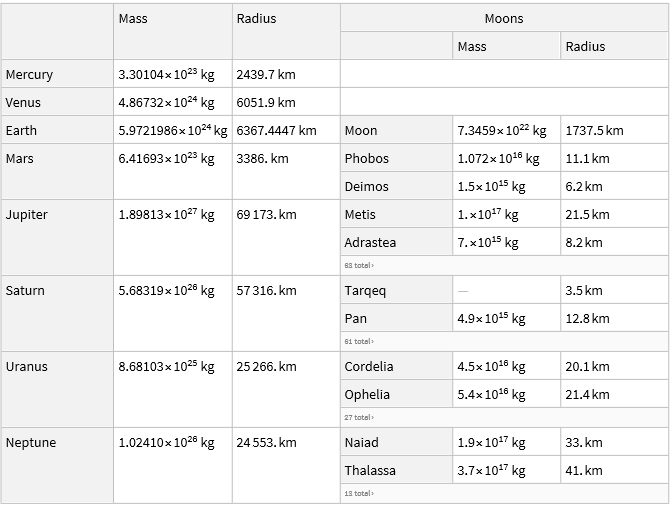
This Dataset is based on an Association of Associations (AoA) with row-keys and column-keys. The Planets ExampleData is also nested: the Moons column comprises of another Association of Associations with its own row-keys and column-keys.
1 Create a separate dataset of all Moons Properties
1
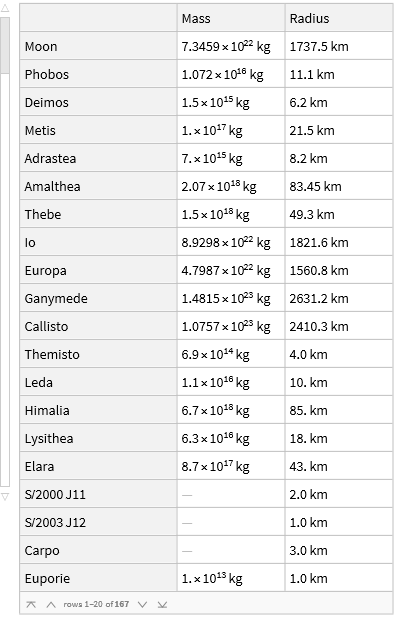
Create a separate dataset of all Moons PropertiesThe Dataset has Association boundaries because they are grouped by planet . To create one contiguous Dataset, we have to remove any sub-Association boundaries by applying Join. Join will also remove the empty associations of the Mercury and Venus moons.
In[]:=
Join@@Query[Values,"Moons"]@planets
Out[]=
2 Create a Dataset with a list of all moons per planet
2
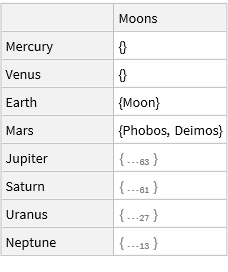
Create a Dataset with a list of all moons per planetWe will use the curly braces to keep the column heading “Moons” to create a tagged Dataset listing all moons:
In[]:=
Query[All,{"Moons"},Keys]@planets
Out[]=
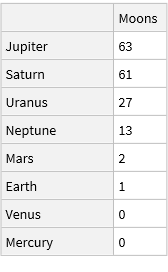
3 Create a sorted Dataset with the number of moons per planet
3
Create a sorted Dataset with the number of moons per planetCreate a sorted list of the number of moons per planet:
In[]:=
ReverseSort@Query[All,{"Moons"},Length]@planets
Out[]=
4 Create a sorted Dataset with the total moon mass per planet
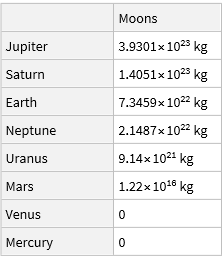
4
Create a sorted Dataset with the total moon mass per planetIn[]:=
ReverseSortBy[#Moons&]@Query[All,{"Moons"},Total@*Values,"Mass"]@planets
Out[]=
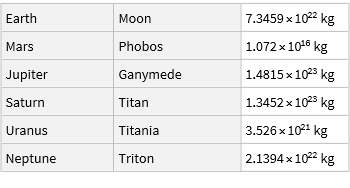
5 Select the heaviest moons per planet
5
Select the heaviest moons per planetWe have to remove the empty associations first if we want to use TakeLargest
In[]:=
Query[All,Query[TakeLargest[#,1]&,"Mass"]@#Moons&]@Select[Keys@#Moons!={}&]@planets
Out[]=
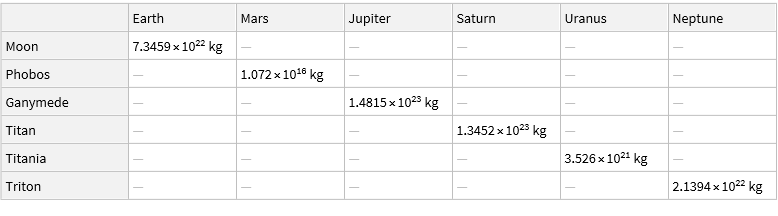
Another way to display the result is transposed.
In[]:=
Query[Transpose,Query[TakeLargest[#,1]&,"Mass"]@#Moons&]@Select[Keys@#Moons!={}&]@planets
Out[]=
Alternatively, we can also get the result as follows:
Add a column named “Density” to the planets Dataset, placed after the planet “Radius” column. Assume that each planet volume is that of a perfect sphere. Name the new Dataset e3.
Use Dataset e3 to create one with column named “relativeDensity” - the density relative to Earth.
Use Dataset e3 and the density of water at standard Earth conditions to calculate each planet’s relative density to water in a separate column named “RelativeDensity”.
Note: Saturn is 30% less dense than water on earth.
Let’s convert Jupiter’s moons into radii relative to Earth’s moon. We will replace the values in the “planets” Dataset.
To see the conversion in detail, let’s select the column:
We’ll do the same for Mars’ moons’ mass and radius.
Replace all radii in the “planets” Dataset.
We will re-use the e3 Dataset where we added the planets’ density column and name the new Dataset e4. This example makes use of nested Query operations where we need to make sure we add the “ &” symbols in the required places! If we fail to do so, the Query cannot determine the correct context of the “Mass” and “Radius” keys. Moreover, their names are shared between planets and moons.
Use the e4 Dataset to create a separate Dataset with al moon names and densities relative to Earth’s moon.
Use Extract, the “shopping cart function for Datasets”. Note we need curly braces for the moons’ names to ensure we keep the column headers.
Create a Dataset with moons that have a mass larger than Earth’s Moon:
Alternatively, we can select only the name of the moons:
Change the planet column-keys to “PlanetMass” and “PlanetRadius”. Leave the moon’s mass and radius keys intact. Use the “planets” Dataset.
18 Replace the Moons’ mass and radius column headers
18 Replace the Moons’ mass and radius column headers
Do the same for the moons’ mass and radius column headers.
Rename the names of planets into Latin ones. Planet names are tagged by row-keys, so we have to use KeyMap to replace their names.
20 Rename the two Mars moons to “satellite” 1 and 2
20 Rename the two Mars moons to “satellite” 1 and 2
Idem for the names of Mars’ moons; rename them “Satellite 1” and “Satellite 2”. Similar to the planets, the moons names are tagged by row-keys, so we have to use KeyMap. Use the “planets” Dataset.
The planets are tagged by row-keys so instead of using Select, we can use KeyTake to selectively create a subset of all properties
An alternative method requires a longer expression e.g.
The planets are tagged by row-keys, so we have to remove the keys using KeyDrop.
23 Remove Saturn’s moons
23 Remove Saturn’s moons
Remove all of Saturn’s 63 moons in-place. Use the “planets” Dataset.
First we need to create a list of all Saturn’s moons:
First we need to create a list of all Saturn’s moons:
Then we use the list to remove the Moons’ row-keys:
Remove the planets’ mass column. Use the “planets” Dataset.
25 Remove the entire Moons’ mass column
25 Remove the entire Moons’ mass column
Idem for all moons’ mass column. Use the “planets” Dataset.
This example demonstrates the use of ReplacePart as opposed to Delete to remove values in-place. Delete is not recommended for this purpose as it will remove key-value pairs which will result in a change of the Dataset structure.
Note: ReplacePart works well to replace each element with its own expression, whereas MapAt will replace all elements the same way. In this case, we can use either expression.
Note: ReplacePart works well to replace each element with its own expression, whereas MapAt will replace all elements the same way. In this case, we can use either expression.
Note:
Delete will change the Dataset structure, see for yourself:
Delete will change the Dataset structure, see for yourself:
28 Filter the planets Dataset by a moon mass criterion
28 Filter the planets Dataset by a moon mass criterion
The result can be cleaned up by removing the empty moon mass rows:
29 Sort the planets by name
29 Sort the planets by name
Sort the names of planets. Use the “Planets” Dataset.
30 Sort the moons by name
30 Sort the moons by name
Next sort the moons name column.
31 Swap the planets’ mass and radius columns
31 Swap the planets’ mass and radius columns
Swap the planets’ mass and radius columns. Use the “planets” Dataset.
32 Swap the moons’ mass and radius columns
32 Swap the moons’ mass and radius columns
Next swap the moons’ mass and radius columns. Use the “planets” Dataset.
33 Swap the row keys of Uranus and Saturn
33 Swap the row keys of Uranus and Saturn
Although there is no strong use case for swapping rows, this exercise will show you how to do this.
Swap the Uranus and Saturn rows. Use the “planets” Dataset.
Swap the Uranus and Saturn rows. Use the “planets” Dataset.
34 Swap the row keys of Phobos and Deimos
34 Swap the row keys of Phobos and Deimos
At last. swap the rows of Mars’ moons Phobos and Deimos.
Titanic ExampleData
Titanic ExampleData
The Titanic example Dataset structure is based on list of associations (LoA).
1 Nest two keyed columns into a new column
1 Nest two keyed columns into a new column
This will create a nested column in the Titanic Dataset i.e. if we aggregate the “sex” and “age” columns in a”demographics” column.
Let’s name the new Dataset e5 (example 5).
Let’s name the new Dataset e5 (example 5).
2 Sort the demographics column by gender
2 Sort the demographics column by gender
Sort the demographics column by gender. Use the e5 Dataset.
3 Group the new Dataset by gender
3 Group the new Dataset by gender
Let’s group by gender using the last Dataset and name it e6. Use the e5 Dataset.
4 Remove the redundant gender column from the previous Dataset
4 Remove the redundant gender column from the previous Dataset
The “gender” column in the previous Dataset has become redundant, so we want to remove this column and rename the now redundant “demographics” key and name it “age” in this step as well:
Note: although the objectives are similar as in the Planets ExampleData use cases, the details of the operations are different.
5 Collapse the demographics column into a single age column
5 Collapse the demographics column into a single age column
The previous Dataset has a redundant key “demographics” which we will replace by the”age” key. Note that this example is all for the purpose of demonstration, because we could simplify the whole operation by reverting to the initial Titanic Dataset. Use the previous Dataset.
6 Select age according to a criterion
6 Select age according to a criterion
Use the first Dataset e5 to select all ages over 70. Use the e5 Dataset.
Alternative notations available:
8 Select all non-empty age cells
8 Select all non-empty age cells
Instead of removing empty values, I prefer to select the non-empty ones instead. Use the e5 Dataset.
7 Delete Missing age values
7 Delete Missing age values
Delete the missing keys and group the ages column by class from the initial titanic Dataset.
Alternative notations:
This one uses Query to act on a level deeper (an ascending operator):
This one uses Query to act on a level deeper (an ascending operator):
7 Select all ages
7 Select all ages
Use e5 to get a list of all ages.
Joining two Datasets
Joining two Datasets
1 Shared column-keys, different row-keys (AoA)
1 Shared column-keys, different row-keys (AoA)
The following two Datasets have to be joined i.e. Dataset2 should be joined with Dataset1.
2 Shared row-keys, different column-keys (AoA)
2 Shared row-keys, different column-keys (AoA)
The following two Datasets are created by the Entity Framework. Let’s recreate the Planets Example Dataset by joining the two.
3 One shared column-key (LoA)
3 One shared column-key (LoA)
This is an example where we have two different Datasets that share the same row-keys, but we want to extened the number of columns. Let’s join the two Datasets to expand the columns with the JoinAcross and Join functions.
We share the same “Planet” key, so we need to apply JoinAcross using this key.
The same can be achieved in a simpler manner i.e. with Join. This works if all row-keys are the same in terms of key- names and -order.
Tips and Tricks
Tips and Tricks
References
References