
When we are listening to music, we can easily tap along with the beat of the music. The built-in PitchRecognize can recognize the pitch in audio. I tried to recognize the tempo in audio using Wolfram Language. The following implementation was based on the book, Fundamentals of Music Processing.
Sample audio (bass)
Sample audio (bass)
The following is the bass audio for tempo 110, created by GarageBand for iPad.
In[]:=
audio=Audio
Out[]=
Plot the waveform.
In[]:=
AudioPlotAudioChannelSeparate[audio][[1]],
Out[]=
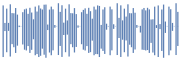
Each property is show below.
In[]:=
AudioMeasurements[audio,{"Channels","Duration","Length","SampleRate","Type"},"Dataset"]
Out[]=
Split into frames
Split into frames
To track the tempo, split the audio into frames and compute the volume and the volume difference for each frame. Here, the number of samples per frame is set to 882. This is 0.02 seconds as the sample rate is 44100Hz.
In[]:=
samplerate=QuantityMagnitude@AudioSampleRate[audio]
Out[]=
44100
In[]:=
frameLenth=Round[samplerate*0.02]
Out[]=
882
Extract the data from one channel. In this case, the number of frames is below.
In[]:=
data=AudioData[audio,"SignedInteger16"][[1]];frameNo=Floor[Length[data]/frameLenth]
Out[]=
658
Onset detection
Onset detection
To approach to automated tempo tracking, the first step is to estimate the positions of note onsets within the music signal. This task, which is also referred to as onset detection. So compute the volume as the RMS value(Root Mean Square value) of the amplitude for each frame.
In[]:=
vol=RootMeanSquare/@(Partition[data,frameLenth]);
Plot the volumes for each frame.
In[]:=
ListPlotvol,
Out[]=
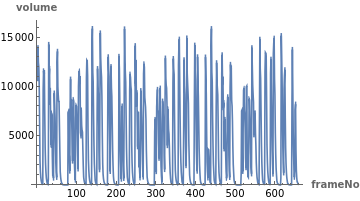
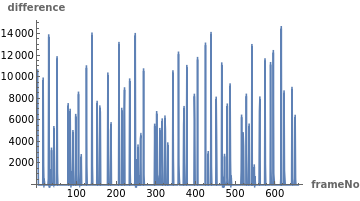
Compute the difference between two subsequent volumes. Furthermore, since we are interested in volume increases (and not decreases), we keep only the positive differences while setting the negative differences to zero.
In[]:=
diff=Join[{vol[[1]]},N[Differences[vol]]/._?Negative0];
Plot the volume difference for each frame.
In[]:=
ListPlotdiff,
Out[]=
Tempo analysis
Tempo analysis
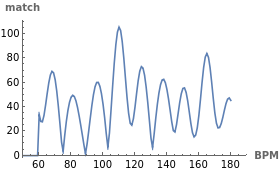
Using Fourier analysis, I track a tempo by comparing the volume differences with templates that consist of sinusoids, each representing a specific frequency or tempo. Usually the BPM of the music I listen to is between 60 and 180, and I adopted this range to reduce the amount of calculation. Compute the match of each BPM by comparing the frequency components as the basic pattern in units of 1 BPM. In addition, use HannWindow function and smooth data.
In[]:=
(*matchtable*)match=ConstantArray[0,180];(*HannWindowtable*)hw=Table[HannWindow[(k-frameNo/2)/frameNo],{k,1,frameNo}];(*computethematchof60-180BPM*)Table[exp=Table[Exp[-2π(bpm/60)*k*frameLenth/samplerate],{k,1,frameNo}];match[[bpm]]=Abs@*Mean@(diff*exp*hw);,{bpm,60,180}];
Plot the match of each BPM .
In[]:=
ListLinePlotmatch,
Out[]=
Detect peaks in match
Detect peaks in match
Use FindPeaks function and the top three peaks in match are detected and visualized.
In[]:=
peaks=FindPeaks[match//N];peak3=Sort[peaks,#1[[2]]>#2[[2]]&][[;;3]];ListLinePlot{match,Callout[#,ToString@#1〚1〛<>" BPM",Above]&/@peak3},
Out[]=
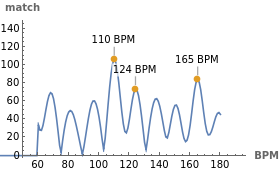
The estimated top is 110 BPM, which matches the tempo 110 specified when it was created by GarageBand.
In[]:=
peak3[[1,1]]
Out[]=
110
Another sample audio (drum)
Another sample audio (drum)
The following is the drum audio for tempo 127, created by Ableton.
In[]:=
audio=Audio
Out[]=
In[]:=
AudioPlotAudioChannelSeparate[audio][[1]],
Out[]=
Define the above sequence of operations as a function, TempoRecognize.
In[]:=
TempoRecognize[audio_Audio]:=Module,
The estimated top is 127 BPM, which matches the tempo 127 specified when it was created.
In[]:=
TempoRecognize[audio]
Conclusion
Conclusion
It may be possible to create the musical score from audio data by combining the built-in PitchRecognize and this TempoRecognize. However, this post is the most basic case of a single instrument repeating a simple tempo . The actual music is much more complex, and the tempo can vary wildly.