A few years ago I gave a talk at the Wolfram Technology Conference on genealogy with the Wolfram Language. Since then the package has underdone a major rewrite and is now available from the Wolfram Cloud. In this Community post I would like to show how to use the functions in the package to import GEDCOM genealogical data files and explore and analyze the data.
From the outset, my goal has been to provide capabilities not usually found in typical genealogical software. Nearly all of my experience has been with Ancestry.com, so there are likely some features in other software that I am not aware of. I rely on the genealogical software to do most of the searching for new members of a family tree, linking them into an existing family tree, and documenting events, facts, and attributes of individuals in a family tree. When I'm working on my family tree in Ancestry.com, I often want to know who is missing some vital datum, such as a birth date for an individual or a marriage date for a family, so I can go looking for it. That's not easily done, except for very small family trees that can be visualized in their entirety in the Tree view. By exporting the family tree to a GEDCOM format file and importing it into Mathematica, I can now query for individuals or families that are missing particular data and make check lists that help me keep track of what searches I need to do in Ancestry.com.
I can also do some sophisticated family tree editing, such as splitting into connected components for disconnected family trees, splitting a connected family tree at one or more individuals, or taking individuals and families from a family tree and copying them to a new family tree.
The basic birth, death, marriage, and family connection data present in even the simplest family trees allows one to do some interesting computations and make some useful sociological visualizations with the Wolfram Language. Once one starts linking documentary sources to individuals in a family tree, even more kinds of data become available for analysis in the Wolfram Language.
This post is divided into two major sections. In the first part I'll show how the functions in the package are used for the genealogists, and in the second part I'll go into the details of the implementation for the coders. I made a family tree of the Roosevelts (including the 26-th and 32-nd US Presidents who are 5-th cousins) for demonstration purposes. To the best of my knowledge, there are no living people in this family tree for privacy reasons.
I made the Roosevelt family tree in three steps (see the section FamilyTree Editing for the first step). First, I imported a large family tree of US Presidents and their ancestors using the package, and extracted the immediate neighborhoods (in a graph theoretical sense) of Theodore and Franklin Roosevelt from it. The original US Presidents family tree actually consisted of 36 disconnected subtrees. Theodore and Franklin were in the same subtree, however they were not connected by blood relations, but through marriage (affinity). I then exported that portion of the family tree to a GEDCOM format file and uploaded it to my account Ancestry.com. The second stage involved linking documentary evidence about the individuals to the family tree and adding ancestors in the hope of connecting the two Presidents through a common ancestor. I relied solely on US census records, published family histories, church records, and newspaper accounts of weddings and deaths that are available in Ancestry.com to keep the task manageable over a few weekends. Even after adding dozens of ancestors and descendants, Theodore and Franklin were still not connected. Referring to Wikipedia, I found the missing links, and manually added them to the family tree. At this point I exported the family tree as a GEDCOM format file and imported it into Mathematica to do a quick quality control check. Armed with lists of individuals and families with missing vital data, I embarked on the third stage and made another foray into Ancestry.com's data to find the missing dates, and to add more ancestors as they were discovered (it’s addictive!).
While this notebook is easily viewed in the Wolfram Cloud, it's a good idea to download and evaluate it on the desktop.
Behind the Wheel
Loading the package
Loading the package
The package Genealogy.wl is publically available from the Wolfram Cloud, and can be loaded with
In[]:=
Get@CloudObject["https://www.wolframcloud.com/obj/r.b.nachbar/Published/Genealogy.wl"]
Most of the functions fall into three categories: those for family trees, those for families, and those for individuals. The functions are named accordingly, such as FamilyTreeGraph or IndividualSummary. There are also four kinds of data objects that behave like entities in the Wolfram Language. These are FamilyTree, Family, Individual, and GenealogicalProperty (the much shorter symbol Property is already in use by WL). Like entities, they are really handles to the real data that are stored in a hierarchical database in the Kernel's memory, and are a convenient way to refer to chunks of data that can be quite large.
Importing a GEDCOM File
Importing a GEDCOM File
Genealogical data in GEDCOM format are imported into Wolfram Language with the ReadGEDCOM function. Let's import the three Roosevelt family trees:
ReadGEDCOM[CloudObject["https://www.wolframcloud.com/obj/r.b.nachbar/Published/Roosevelts.ged"],"Roosevelts-1"]
Out[]=
FamilyTree


ReadGEDCOM[CloudObject["https://www.wolframcloud.com/obj/r.b.nachbar/Published/Roosevelts--2021-02-28.ged"],"Roosevelts-2"]
Out[]=
FamilyTree
ReadGEDCOM[CloudObject["https://www.wolframcloud.com/obj/r.b.nachbar/Published/Roosevelts--2021-03-26.ged"],"Roosevelts-3"]
Out[]=
FamilyTree
The summary boxes provide a quick idea of the size of the family tree, and the function FamilyTreeSummary reveals much more:
FamilyTree/*FamilyTreeSummary/@{"Roosevelts-1","Roosevelts-2","Roosevelts-3"}//Column
Out[]=
| |||||||||||||||||||||||||||
| |||||||||||||||||||||||||||
|
Notice that the summary table for the "Roosevelts-3" family tree has a bold frame. It is the current family tree, and the functions of the package will use that family tree in the database by default. The function SetCurrentFamilyTree without an argument returns the FamilyTree object for the current family tree:
SetCurrentFamilyTree[]
Out[]=
FamilyTree

Let's change the default family tree:
SetCurrentFamilyTree["Roosevelts-1"]
Out[]=
FamilyTree
The function ListFamilyTrees returns a list of the family tree objects in the database:
ListFamilyTrees[]
Out[]=
FamilyTree,FamilyTree,FamilyTree

There are four other database maintenance functions: FamilyTreeExistsQ, FamilyTreeRename, FamilyTreeDelete, and FamilyTreeValidQ. While the GEDCOM file format is quite explicit in terms of structure (syntax), the data contained can be very "dirty" (semantics). The function FamilyTreeValidQ performs a number of checks on the data and emits messages for each issue found. It returns True only if no issues are found.
FamilyTreeValidQFamilyTree

Out[]=
True
FamilyTree
FamilyTree
So, what can one do with a FamilyTree object? One can refer to them either with the summary box form or an InputForm:
FamilyTree["Properties"]
FamilyTree["Roosevelts-1"]["Properties"]
The "Families", "Individuals", "MultimediaObjects", "Notes", "Repositories", and "Sources" properties will return lists of those objects. Each of these kinds of objects are stored as an Association in the database and can be quite large. The first two have an entity-like behavior and their own Heads with summary boxes.
FamilyTree["Roosevelts-1"]["Families"]//Take[#,UpTo[5]]&
FamilyTree["Roosevelts-1"]["Individuals"]//Take[#,UpTo[5]]&
Individual
Individual
Family
Family
The FindFamily function can be used to quickly find the Family object of interest.
?FindFamily
Out[]=
All Family’s matching the input criteria are returned.
Length[FindFamily["Roosevelt"]]
Out[]=
45
Let's narrow down the search to those of the 26-th US president:
FindFamilyIndividual

Out[]=
Family,Family

Family objects also have properties:
Family["Properties"]

Out[]=
{ChildRelationships,Children,CousinMarriageQ,Dataset,FamilyTree,Husband,Marriage,MarriageDate,Wife}
The “Marriage” property has properties:
Family["Marriage"]["Properties"]
Out[]=
{Dataset,Date,Family,FamilyTree,Place,Properties}
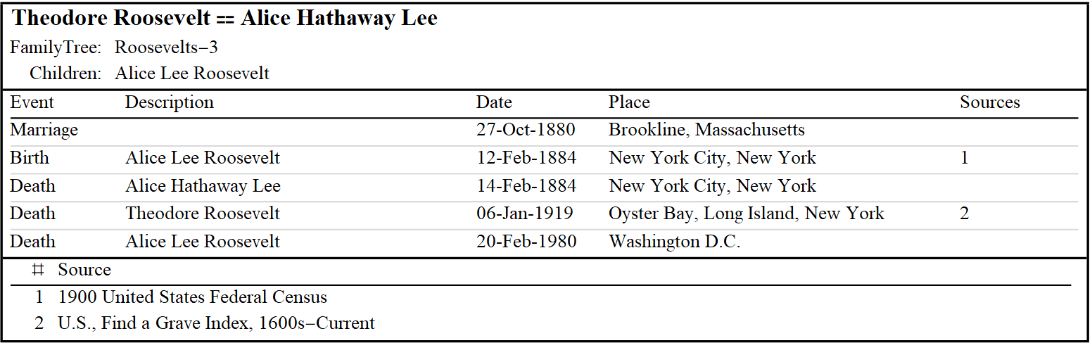
And Family objects can be neatly summarized:
FamilySummaryFamily
Out[]=
WL as Research Assistant
WL as Research Assistant
Because we can generate lists of individuals and families based on arbitrary criteria, WL becomes a useful research assistant for the genealogist. One thing that I find very helpful when I’m researching a particular branch of my family is to create a check list that I can use to ensure I don’t overlook someone in the family tree. For example, let say I’m working on filling missing vital data (birth, death, surname, and gender). This is how it could be done (showing only the first five for brevity):
Or, perhaps I’m working on family data. Besides missing marriage data, it’s very easy for the wife to be added to the family tree with the same surname as the husband. This code finds those cases:
The first Family in the list above is Franklin Roosevelt and Eleanor Roosevelt, and in this case the last name of the wife is correct because she is Franklin’s 5-th cousin once removed, and was born a Roosevelt.
In obituaries from newspapers, the married daughters of the deceased are reported with their married names, and often without the name of the husband. When I add these new individuals to the family tree I will enter the surname as the one at birth and include the married name parenthetically. I can go back later to search for the husbands in census or marriage records. To make the check list for that task, I can use:
Kindred Relationships
Kindred Relationships
So, how did I know the kindred relationship between Franklin and Eleanor? I compute it!
Reversing the order give the complementary result:
By default, the affinity relationships are computed first, and if none are found then blood relationships are computed. We can skip the affinity relationships by including “Blood” as the second argument:
The function is quite robust and can determine half-siblings and in-laws:
Visualization
Visualization
Visualization of family trees is a challenging problem, and only the simplest ones can be shown in their entirety without any edge crossing. I have not put a lot of effort into this problem yet, but WL goes a long way to provide useful Graph objects that are computable.
KindredGraph
KindredGraph
The graphs of blood relations are by definition trees, and are the easiest to draw. Here are the ancestors and descendants of Theodore Roosevelt:
There is a tooltip on each vertex, and clicking on a vertex copies that Individual to the clipboard so you can paste it into your notebook for further work. Clicking on the topmost red vertex in the ancestor tree (on the left), and pasting gives:
KindredTreePlot
KindredTreePlot
While the kindred graph is a useful computational object for the genealogist, the KindredTreePlot function produces something you can send to your cousin:
One can adjust the sliders to find a pleasing spacing, and then click the Export button to produce a JPEG file.
FamilyTreeGraph
FamilyTreeGraph
The FamilyTreeGraph function generates a Graph object that, while visually may not be optimal, it is never the less quite useful for computation. The input is flexible, from a single FamilyTree object to a list of one or more Individual and/or Family objects. Here are the three family trees I made for this post:
Let’s look at a simpler one to discovers some of the features:
The two vertices at the top are the husband (blue) and wife (red) Individuals, the green vertex in the middle is the Family (and is click-copiable), and the vertices at the bottom are the children Individuals.
When generating the family tree graph from a single Individual object, parents, siblings, spouses, and children are automatically included:
We can also do the usual graph operations, such as choose a different layout:
Or highlighting paths in the "Roosevelts-2" family tree. Because the family tree graph is a directed graph, we need to find the common ancestor and generate two paths from that Individual to each President Individual. First we'll make the family tree graph so we can pick the two Presidents to make computing the common ancestor easier:
Analysis
Analysis
This is the fun part and sometimes leads to interesting discoveries about the people and families in a family tree. In this section I’ll show how one can compute simple “statistics” on the family tree. The material is presented as a set of exercises.
Individuals
Individuals
1
.How many men and women are in the family tree?
2
.What’s the distribution of surnames?
2
.1
.Make a bar chart of the most common ones.
3
.Do the same for first names.
3
.1
.Generate a breakdown by gender.
4
.What is the distribution of marriages by individuals?
4
.1
.Make a bar chart.
From a sociological perspective, these counts are very biased because I deliberately did not do exhaustive searching for spouses. However, it was quite unexpected that there were four individuals that were married three or more times, and that the most number of marriages is five.
5
.Let’s look at some more biology. What is the distribution of age at death? How old was the oldest person?
5
.1
.What is the breakdown by gender?
It looks like the women generally lived longer than the men.
Families
Families
1
.What is the distribution of family size?
Again, the results are skewed because I did not search for children of the youngest generation. However, there are some rather large families.
1
.1
.Is there a correlation with the date of marriage of the parents?
2
.What’s the ratio of boys to girls born in the families?
The diagonal “grid lines” show the level set number of children in a family, the diameter of a circle is proportional to the number of families with that boy-girl ratio, and the color ranges from blue for boys:girls::n:0 to red for boys:girls::0:n.
3
.Back to sociology (or anthropology). What’s the distribution of ages for grooms and brides? What’s the oldest age at marriage?
The diagonal line represents equal ages, and all the points below that line are for marriages in which the groom is older, often much older, than the bride.
Geography
Geography
GeoGraphics in WL allows one to map almost anything, so let’s see where the family originated and then dispersed over time. To get started, we’ll first look at the residence data of Theodore Roosevelt:
As mentioned earlier, the census ward and district information confound the geolocation computation, but we can take care of that with a little in-line editing:
Much better. We’ll use the “Descendants” of the common “Ancestors” of Theodore and Franklin Roosevelt:
Place data are contained in residence, birth, death, and marriage data (among others).
Marriage data are located in Family objects, so we need to get the “SpouseFamilies” property first:
Now, combine these data and keep only those with both a date and a place:
Computing the geolocation data takes a little while, so be patient:
The map data will be just the dates and geolocations:
We need to choose a time resolution for grouping the data, and a quarter century looks reasonable:
Group the data by quarter century and map the locations:
Clicking on the map will advance to the next time period.
FamilyTree Editing
FamilyTree Editing
This section was saved for last because the main focus of the package has been to provide analysis of genealogical data. However, there are some editing operations that genealogy applications, such as Ancestry.com, cannot do and WL provides the means to carry them out. The editing functions are: FamilyDelete, FamilyTreeSplit, FamilyTreeTake, IndividualDelete.
There will be additional editing functions in the future, such as FamilyTreeJoin and FamilyTreeCopy. FamilyTreeSplit and FamilyTreeTake are the most useful.
I used FamilyTreeSplit on the family tree of US Presidents as the starting point for this post. First, import the US Presidents family tree from the web:
Opening the Subtree section in the summary table will reveal a table of Individual and Family counts in each of the connected components of the full family tree. Let’s split the full family tree, and then find the component(s) that contains the 26-th and 32-nd US Presidents.
Now, let’s find the two Roosevelt Presidents:
Using these two Individuals as seeds, we’ll grow successively larger family tree graphs, and choose an appropriate one for generating a new FamilyTree.
Mousing over the vertices of the oldest generations shows that the third and fourth graphs are not adding more Roosevelts, so the second graph is the one we want. The vertices of that graph are the Individual and Family objects that we can give to FamilyTreeTake to generate a new FamilyTree object.
Finally, we export the the FamilyTree object to a GEDCOM format file:
Under the Hood
Genealogy.wl
Genealogy.wl
The package has been under sporadic development for almost 10 years. It’s currently at version 3.3:
Please report any bugs you find while using the code, and offer suggestions as well (I certainly haven’t thought of everything ☺).
The GEDCOM File Format
The GEDCOM File Format
The GEDCOM version 5.5 file format is fully described here. It is a serialized hierarchy, where the hierarchy level is specified by a number at the start of each record. If the number on a record is greater than on the previous record then it is an element of the previous record. Each record has the same format consisting of the level, a data type tag, and the data. There is one special type of datum known as a “pointer” which is used to reference unique entities, such as individuals, families, sources, notes, multimedia objects, and repositories. The format of a pointer is has this StringExpression pattern:
The characters between the “@” must be unique across all the entity types.
Here is a short GEDCOM format file that has several of the elements of much larger files:
The database used by the Genealogy.wl package mirrors this structure by using nested Associations. The keys are entity type tags or pointers. When the GEDCOM format file is read, items with the same key within a given level (such as “RESI” for residence) are first collected into a list of Rules, the keys are replaced with sequential integers, the List is converted to an Association, and then the Association is used as the value for the original key.
ReadGEDCOM
ReadGEDCOM
A finite state automaton is used to process the records of a GEDCOM format file to construct the nested Association object in the database. In the process, “LinkedList”, “Deque”, and “Stack” DataStructure objects are used to manage the data.
The time complexity to read and process a GEDCOM format file is approximately quadratic in the number of lines in the file:
Entities
Entities
There are four type of entities defined at this time: FamilyTree, Individual, Family, and GenealogicalProperty. Each of them is a reference into the database, and their FullForm structure is quite simple:
The GenealogicalProperty entity is generic and is used for a variety of types of data, such as residence, occupation, date, place, etc.
Additional entities will be defined in the future, for example, for sources and multimedia objects.
Summary Boxes and Tables
Summary Boxes and Tables
The information displayed in a summary box is derived from the entity it represents. An asterisk (*) following a person’s name indicates that the Individual has more than one “NAME” record in the GEDCOM data. Likewise, an asterisk following a birth or death date means that there was more than one “BIRT” or “DEAT” record. In Ancestry.com, primacy is given to the first such record encountered, and subsequent ones are treated as alternate facts.
A question mark (?) means that the particular element is missing. A question mark in a name means that part of the name is missing.
Entity Properties
Entity Properties
Every entity has the minimal set of properties:
The other properties consist of data elements possessed by the given entity, such as “Residence”, “Date”, “Place”, etc., or useful ones that can be computed from the entity, such as “Mother” or “BirthDate” for an Individual entity.
The “Dataset” Property
The “Dataset” Property
The “Dataset” property allows one to see all the data stored at a particular location in the database in all its gory detail (as a copy). Here is an example for a very small FamilyTree object:
Here is an Individual:
Here is a Family:
Here is a GenealogicalProperty:
You can easily drill down into the data with the dynamic Dataset interface.
CITE THIS NOTEBOOK
CITE THIS NOTEBOOK
Computational genealogy with the Wolfram Language
by Robert Nachbar
Wolfram Community, STAFF PICKS, April 11, 2021
https://community.wolfram.com/groups/-/m/t/2241480
by Robert Nachbar
Wolfram Community, STAFF PICKS, April 11, 2021
https://community.wolfram.com/groups/-/m/t/2241480