The API of OpenAI offers the possibility to upload and then analyse files. If done correctly GPT can even use built-in sandbox to run code. This is very powerful for automated data analysis from within the Wolfram Language. Using this GPT can use the built in Python environment in the sandbox and generate files and code. You can upload a data file (there was a problem with some xls files; I will show it here with csv files.
I will first develop a rather large number of helper functions and then two main functions that allow for a (more or less) interactive exploration of data using GPT from within Mathematica.
I will first develop a rather large number of helper functions and then two main functions that allow for a (more or less) interactive exploration of data using GPT from within Mathematica.
Helper functions and basic structure of the interaction
Helper functions and basic structure of the interaction
The basic idea is that we will upload a file and then create an assistant and a thread for our discussion with GPT. After that we need to add a message to the thread (our question or instruction). We then run the assistant and when the processing is finished, we download the result. We will then be able to add messages to the thread and re-analyse the data given the new query.
I will then develop two superfunctions to perform the original analysis, creation of threads etc and another one to continue the discussion.
Finally, I will develop two functions to list all uploaded files and to allow me to delete them programmatically. All functions have been programmed by GPT-4. I have basically said what I wanted, run the code, returned potential error codes to GPT. Occasionally, I have provided GPT with a page from the API documentation.
I will then develop two superfunctions to perform the original analysis, creation of threads etc and another one to continue the discussion.
Finally, I will develop two functions to list all uploaded files and to allow me to delete them programmatically. All functions have been programmed by GPT-4. I have basically said what I wanted, run the code, returned potential error codes to GPT. Occasionally, I have provided GPT with a page from the API documentation.
We will need our apiKey (a lot!). I will be assuming that it is in the SystemCredentials.
In[]:=
myAPIKey=SystemCredential["OPENAI_API_KEY"];
If it is not in the credentials you can always add it using:
SystemCredential["OPENAI_API_KEY"]="YOUR API KEY GOES HERE"
The first function will allow us to upload a data file to OpenAI:
uploadFileToOpenAI[filePath_,myAPIKey_]:=Module[{file,myRequest,jsonResponse,boundary,body,headers},(*Readthefile*)file=BinaryReadList[filePath];(*Defineaboundaryformultipart/form-data*)boundary="----WebKitFormBoundary"<>StringJoin[RandomChoice[CharacterRange["0","9"]~Join~CharacterRange["a","z"],16]];(*Preparethebodyoftherequest*)body=StringJoin["--",boundary,"\r\n","Content-Disposition: form-data; name=\"purpose\"\r\n\r\n","assistants","\r\n","--",boundary,"\r\n","Content-Disposition: form-data; name=\"file\"; filename=\"",FileNameTake[filePath],"\"\r\n","Content-Type: application/octet-stream\r\n\r\n",FromCharacterCode[file],"\r\n","--",boundary,"--"];(*Preparetheheaders*)headers={"Authorization"->"Bearer "<>myAPIKey,"Content-Type"->"multipart/form-data; boundary="<>boundary};(*CreatetheHTTPrequest*)myRequest=HTTPRequest["https://api.openai.com/v1/files",<|"Method"->"POST","Headers"->headers,"Body"->body,"ContentType"->"multipart/form-data"|>];(*ExecutetherequestandgettheJSONresponse*)jsonResponse=URLExecute[myRequest];(*Convertthelistofrulestoanassociation*)jsonResponse=Replace[jsonResponse,l_List:>Association[l],{0,Infinity}];(*Checkiftheresponsecontainstheexpected'id'key*)If[!KeyExistsQ[jsonResponse,"id"],Return[$Failed]];(*ReturnthefileID*)jsonResponse["id"]]
There were some issues with xls files, but csv works just fine. The function will return an ID for the file, which we will need later.
Next, we create an assistant.
createAssistant[myAPIKey_,fileID_]:=Module[{jsonBody,myRequest,jsonResponse},jsonBody=ExportString[{"instructions"->"Assistant for analyzing file data.","tools"->{{"type"->"code_interpreter"}},"model"->"gpt-4-1106-preview","file_ids"->{fileID}},"JSON"];myRequest=HTTPRequest["https://api.openai.com/v1/assistants",<|"Method"->"POST","Body"->jsonBody,"ContentType"->"application/json","Headers"->{"Authorization"->"Bearer "<>myAPIKey,"OpenAI-Beta"->"assistants=v1"}|>];jsonResponse=URLExecute[myRequest];Replace[jsonResponse,l_List:>Association[l],{0,Infinity}]]
This will require the file ID from the previous step. As you see I create the GPT assistant here using gpt-4-1106-preview.
Next, we need to create a thread. This does not require the assistant ID.
createThread[myAPIKey_]:=Module[{myRequest,jsonResponse},myRequest=HTTPRequest["https://api.openai.com/v1/threads",<|"Method"->"POST","Headers"->{"Authorization"->"Bearer "<>myAPIKey,"OpenAI-Beta"->"assistants=v1","Content-Type"->"application/json"}|>];jsonResponse=URLExecute[myRequest];Replace[jsonResponse,l_List:>Association[l],{0,Infinity}]]
Then, we need to be able to send “messages”, i.e. queries, to the thread.
sendMessageToThread[myAPIKey_,threadID_,query_,fileIDs_:{}]:=Module[{},(*EnsurefileIDsisalwaysalist*)jsonBody=ExportString[{"role"->"user","content"->query,"file_ids"->If[fileIDs==={},{},{fileIDs}](*EnsuresfileIDsisalist*)},"JSON"];myRequest=HTTPRequest["https://api.openai.com/v1/threads/"<>threadID<>"/messages",<|"Method"->"POST","Body"->jsonBody,"ContentType"->"application/json","Headers"->{"Authorization"->"Bearer "<>myAPIKey,"OpenAI-Beta"->"assistants=v1"}|>];jsonResponse=URLExecute[myRequest];Replace[jsonResponse,l_List:>Association[l],{0,Infinity}]]
When this is done, we are ready to run the assistant:
executeAssistant[myAPIKey_,threadID_,assistantID_]:=Module[{},jsonBody=ExportString[{"assistant_id"->assistantID,"instructions"->""},"JSON"];myRequest=HTTPRequest["https://api.openai.com/v1/threads/"<>threadID<>"/runs",<|"Method"->"POST","Body"->jsonBody,"ContentType"->"application/json","Headers"->{"Authorization"->"Bearer "<>myAPIKey,"OpenAI-Beta"->"assistants=v1"}|>];jsonResponse=URLExecute[myRequest];Replace[jsonResponse,l_List:>Association[l],{0,Infinity}]]
One of the issues is that this analysis can take tens of seconds so we need to be able to check the status.
checkRunStatus[myAPIKey_,threadID_,runID_]:=Module[{},myRequest=HTTPRequest["https://api.openai.com/v1/threads/"<>threadID<>"/runs/"<>runID,<|"Headers"->{"Authorization"->"Bearer "<>myAPIKey,"OpenAI-Beta"->"assistants=v1"}|>];jsonResponse=URLExecute[myRequest];Replace[jsonResponse,l_List:>Association[l],{0,Infinity}]]
Finally, we read the response like so:
receiveThreadResponse[myAPIKey_,threadID_]:=Module[{myRequest,jsonResponse,assistantMessages},myRequest=HTTPRequest["https://api.openai.com/v1/threads/"<>threadID<>"/messages",<|"Headers"->{"Authorization"->"Bearer "<>myAPIKey,"OpenAI-Beta"->"assistants=v1","Content-Type"->"application/json"}|>];jsonResponse=URLExecute[myRequest];{#[[1,2]],#[[2,2,1,2,2,1,2]]}&/@jsonResponse[[2,2,All,{5,6}]]]
These are all the functions we need to run the assistant. Obviously, there are many steps and there is quite some stuff going on behind the scenes. Let’s look at the two superfunctions to run this easily.
Superfunctions to run automated data analysis
Superfunctions to run automated data analysis
First, we generate a function to start a new discussion. It will create the thread and assistant automatically and it will also upload the file we want to analyse. I will let some of the variables leak on purpose.
runFullFileAnalysis[myAPIKey_,filePath_,question_]:=Module[(*{fileID,assistantID,threadID,runID,status,response}*){},(*UploadthefileandgetthefileID*)fileID=uploadFileToOpenAI[filePath,myAPIKey];If[fileID===$Failed,Return["File upload failed"]];(*Createanassistant*)assistantID=createAssistant[myAPIKey,fileID]["id"];If[MissingQ[assistantID],Return["Assistant creation failed"]];(*Createathread*)threadID=createThread[myAPIKey]["id"];If[MissingQ[threadID],Return["Thread creation failed"]];(*Sendthequerytothethread*)sendMessageToThread[myAPIKey,threadID,question,fileID];(*Executetheassistant*)runID=executeAssistant[myAPIKey,threadID,assistantID]["id"];If[MissingQ[runID],Return["Assistant execution failed"]];(*Checkrunstatusperiodically*)Do[status=checkRunStatus[myAPIKey,threadID,runID]["status"];If[status==="completed",Break[],Pause[5]],{60}(*Checkstatusforupto1minute*)];If[status=!="completed",Return["Run did not complete in time"]];(*Receivetheresponsefromthethread*)response=receiveThreadResponse[myAPIKey,threadID];response]
Second, we create a function to add to an existing thread with a new query:
addToExistingThread[myAPIKey_,threadID_,newQuestion_,fileID_,assistantID_]:=Module[{response},(*Sendthenewquestiontothethread*)sendMessageToThread[myAPIKey,threadID,newQuestion,fileID];(*ExecuteAssistant*)runID=executeAssistant[myAPIKey,threadID,assistantID]["id"];(*Checkrunstatusperiodically*)Do[status=checkRunStatus[myAPIKey,threadID,runID]["status"];If[status==="completed",Break[],Pause[5]],{60}(*Checkstatusforupto1minute*)];If[status=!="completed",Return["Run did not complete in time"]];(*Receivetheupdatedresponsefromthethread*)response=receiveThreadResponse[myAPIKey,threadID];response]
This is basically all we need to do. Let’s see the whole thing in action.
Analysis of a simple dataset
Analysis of a simple dataset
In order to show how the system works so far, we will use a simple dataset that is also attached to this post. Let’s have a quick look at it:
In[]:=
TableView[Import["/Users/thiel/Desktop/All ages population.csv"]]
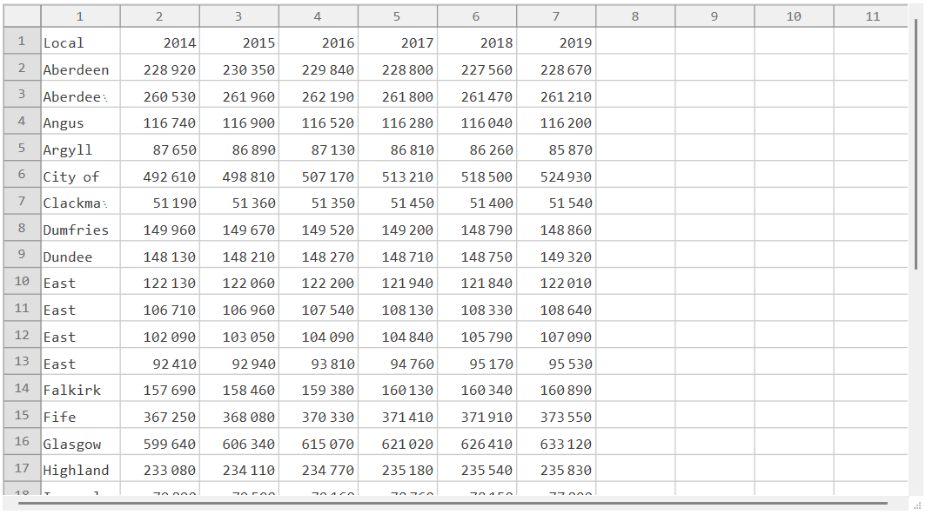
It shows different administrative regions in Scotland and the total population from 2014 to 2019. I will use the attached wl package to import all functions.
Ok, from here on everything is quite straight forward. I will use Reverse to read the discussion from top to bottom and I out everything in a table.
This worked ok. Note that the process can run for a minute or two. The automatic analysis gives a good overview of the main increases and decreases of population. Let’s keep this discussion going and ask for the percentage changes.
That is not too shabby. We see that the “discussion” is getting longer. Clearly GPT can perform calculations. Let’s ask for something that needs more background information:
Ok, it wants more information. In principle, I can upload multiple files, but I don’t think that will work with the current functions directly. Let’s ask one more question:
So now it responds with two files. In order so display them we will need another function:
Let’s have a look at the first file:
And then the second file:
So this worked rather well. GPT fitted a curve to the data and we can see the line and the function. In the background GPT was running Python code.
Cleaning up
Cleaning up
Using these functions we upload an increasing number of files. For basic house-keeping we need the following two functions:
This one will list all files I have uploaded or generated.
We can now use the final function
To delete old files. We only need our API key and the file ID:
Let’s check whether this worked:
Great! We can now control the files programmatically from within the Wolfram Language.
Conclusion
Conclusion
In this post I have discussed how to build functionality to interact with the Advanced Coding/Data Analysis GPT of OpenAI’s GPT. There is a lot of functionality involved but at the end, It is possible to use this tool based on mainly two functions: runFullFileAnalysis and addToExistingThread.
This is only the first step and we can certainly add much more functionality. I think that this LLM based analysis together with the advanced algorithms of the Wolfram Language can facilitated our work and speed up the workflow.
I attach the wl file with all functions. I also attach the data file that I have been using in this post.
This is only the first step and we can certainly add much more functionality. I think that this LLM based analysis together with the advanced algorithms of the Wolfram Language can facilitated our work and speed up the workflow.
I attach the wl file with all functions. I also attach the data file that I have been using in this post.
CITE THIS NOTEBOOK
CITE THIS NOTEBOOK
GPT-4: Automated Data Analysis of Uploaded Files
by Marco Thiel
Wolfram Community, STAFF PICKS, December 18, 2023
https://community.wolfram.com/groups/-/m/t/3086522
by Marco Thiel
Wolfram Community, STAFF PICKS, December 18, 2023
https://community.wolfram.com/groups/-/m/t/3086522