Introduction
Introduction
Every semester or two, students ask me about the implications of re-compression, especially of JPEG files.
Losless vs. Lossy
Losless vs. Lossy
Compression comes in two main kinds — Lossless, which is completely invertible, meaning you get exactly what you put in when you decompress, and Lossy which ‘throws out’ things deemed unimportant in some way, so that when you decompress, you get something that is almost the same and is usually good enough.
In the case of JPEG, it throws out information deemed perceptually unimportant, from the point of view of the human visual system. MPEG and friends throw out information you can’t see due to motion, and things you can’t quite hear.
Like all these things, the ‘what you can’t perceive’ is based on theoretical limits and, in fact, you can almost always see/hear artifacts of the compression.
JPEG
JPEG
If you’d like to see a nice demonstration of how the JPEG algorithm works, have a look at the Wolfram Demonstration at https://demonstrations.wolfram.com/JPEGCompressionAlgorithm
Basically, the system starts by breaking an image into 8x8 pixel blocks. Here’s a familiar face, scaled to 64x64, and broken into chunks —
In[]:=
GraphicsGrid@ImagePartition
,{8,8}

Out[]=
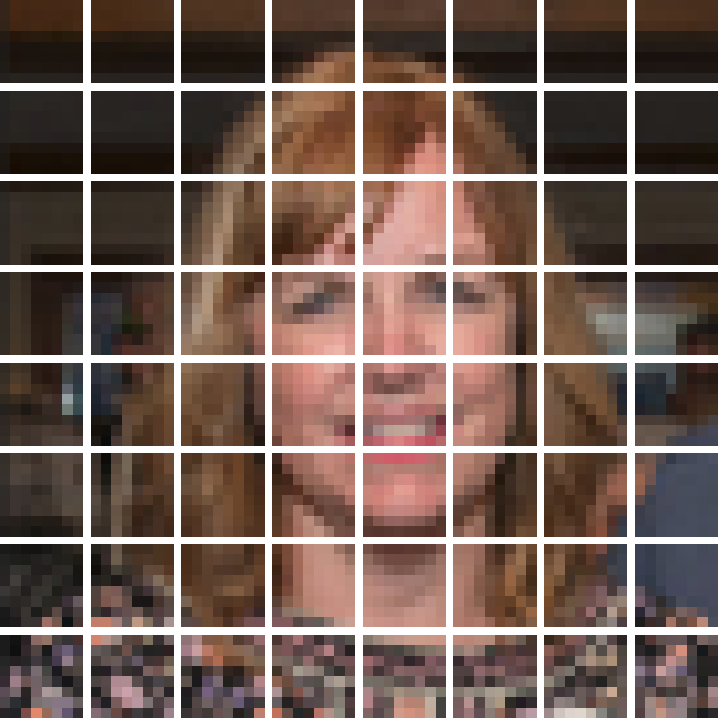
and here are a set of ‘basis functions’ derived from the DCT (Discrete Cosine Transform)
DCT svu coefficients code
DCT svu coefficients code
In[]:=
GraphicsGrid[Reverse@Table[ArrayPlot[svuCoefs[u,v],PlotRange{-1,1},FrameFalse],{u,1,8},{v,1,8}]]
Out[]=
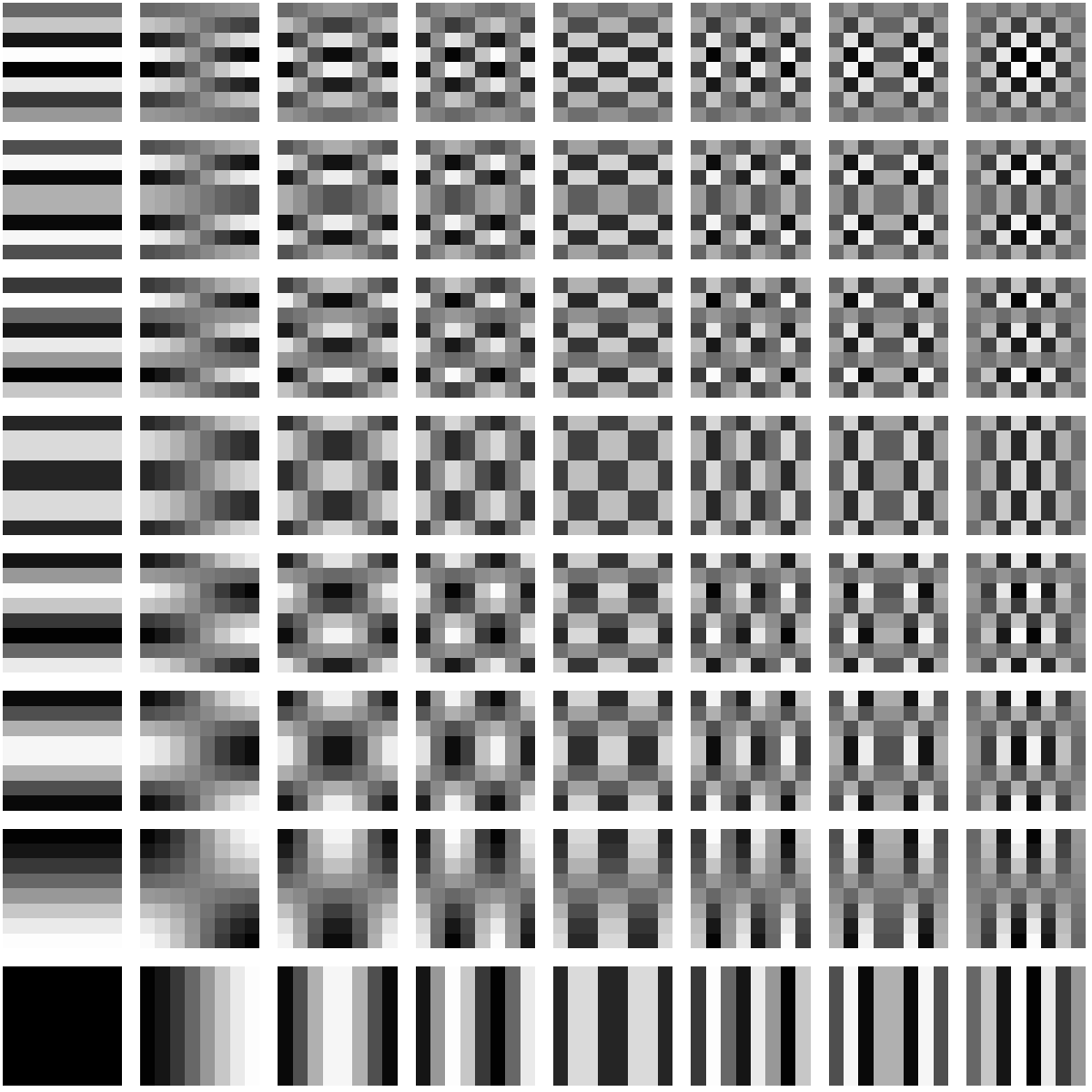
Basically, the x axis is increasing in ‘u’ - horizontal spatial frequency, and the y axis increases in ‘v’ - vertical spatial frequency. Black is ‘-1’ and white is ‘1’. Each 8x8 block of our image is multiplied by each one of -these- 8x8 blocks, pixel by pixel, and a coefficient is calculated by summing up the result. (It’s a little more complicated than that, but basically...)
So, now you have an 8x8 image, and 8x8 coefficients, so, really, no compression is going on. So, what’s the trick?
Imagine you have an image of just a constant color. When you multiply it by all of the striped/checkered images, the positive and negative values will eventually sum to 0. A coefficient of 0 means that there is none of that pattern in the image. The ‘solid’ pattern (u=1,v=1) will have a ‘high’ coefficient, so, we make a note of the patterns that are ‘important’ and throw away those that aren’t - so for a constant image, there’s only 1 important pattern (the solid one) and we can ‘throw away’ the other 63 coefficients! That means that, for an 8x8 group of pixels, we can represent them with a single number, a 64:1 compression.
For a more complex image, each pattern will have a coefficient that gives the ‘strenght’ of that pattern in the given 8x8 block.The ‘threshold’ of coefficient strength that you throw away is, essentially, the ‘compression’. The more coefficients you throw away (a high threshold) the more compressed you get. The lower the threshold, the less compression (but the larger the file).
To reconstruct the image we do the inverse, multiply the coefficient stored by the pattern above and assemble the blocks in to the image.
Recompression
Recompression
So, what happens if we 1) take an image, 2) compress it, 3) reconstruct it and then 4) compress that image?
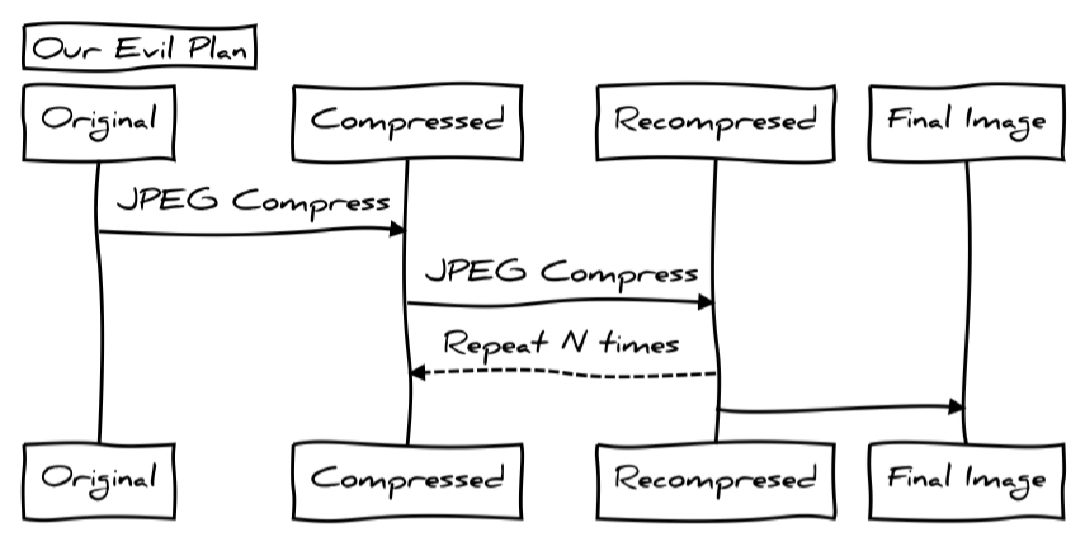
What if we do that over and over, N times?
Compression and recompression
Compression and recompression
Here’s a ‘recompression’ function that takes an image in, saves it with some amount of compression, reads it back in, and returns it -
In[]:=
jpegCompress[i_,compression_]:=Import[Export["/tmp/ix.jpg",i,"JPEG",CompressionLevelcompression]]
Let’s take an input image, compress it with a very small compression of .1, and compare it to the result.
In[]:=
GraphicsRowin=
,out=jpegCompress[in,.1]

Out[]=

On the left, the original, on the right the compressed. They look pretty similar (they don’t look different to me at all!).
But, we can do better than our eyes. Let’s compute at the pixel differences. Here, black = 0 = no difference. Colors = differences in RGB levels. (When we JPEG compress an image we do each channel, Red, Green, Blue, separately and recombine them. ) So, if there’s a lot of difference in the green channel image, the pixel will have a large value (1-ish) and the resulting pixel will be green-ish. If all three channels are very different, then all three channels will be 1-ish, and the pixel will be white-ish.
So, let’s compute the differences-
In[]:=
diff=ImageDifference[in,out]
Out[]=

That image looks black, which is probably good, since it means that, overall, pixels weren’t changed much.
Let's use a histogram to see what's going on -
So, like we guessed, the magnitude of the changes were small, around than .005 or .5%.
To make the differences clearer, we could make the image brighter –
To make the differences clearer, we could make the image brighter –
So, you can see a lot of the pixels were modified. The pixels in the background and face, less so, the shirt, hair, teeth and eyes, more so.
Since we’re not interested so much in ‘how much’ change there is, just where the changes are, we can threshold / binarize the image. That means we’ll pick a level between 0-1 and turn all the pixels ‘white’ if the level is above that and set it to ‘black’ if it is equal or below .
If we set the threshold to 0 then the only black pixels will be where there is no difference between the original and compressed image -
There’s a lot of ‘white’ (1) in that image and not much ‘black’ (0) in there. That means that almost all the pixels changed a little bit. We can count them up —
So, for something more meaningful / interesting, we need to pick a different threshold. We could do it manually — e.g., hunt for the right number -
but that' s going to be tough and/or annoying. There are a whole bunch of principled methods for finding the right threshold. One super-simple way is to just use the mean value of pixels - turn everything ‘above’ that mean white, and below leave black -
So, like we observed above, lots in the hair, eyes, and shirt, less in the skin and background. (Can you think of why?)
All together
All together
Let’s combine both operations into a single function for visualization, and add a ‘blowup’ of the differences for a part of the image.
That’s for a very light compression, .1.
What if we increase the compression?
A lot more pixels being changed! Let’s really crank it up -
The difference image is almost totally white - the compression had an effect on every pixel! It’s easy to tell when looking at the re-compressed image too!
Recompression
Recompression
So - what happens if we compress an image and keep re-compressing it, over and over again?
First, lets make a compressed image at .5 -
and feed that into the compress and compare, requesting the same compression level
Now the comparison image is black! (Almost entirely, except for the edge artifacts.) This means there is no difference.
To reiterate, we took an image, compressed it by .5, then tried to compress that image by .5 and it didn't change anything! So the compression is a sort of absolute thing - compressing something that is already compressed (in this particular way, the JPEG way) doesn't do any more compressing.
Just for fun, let’s compress it 500 times — that is, take the image, compress it, compress that, compress that... 500x
and let’s compare it to the ‘just compressed once to .5’ and see what happens -
Only the edges have been modified (and, again, that’s an artifact of the compression algorithm).
So, recompression doesn’t do anything!
Why?
Why?
The reason this happens is that JPEG breaks the image into 8x8 ‘blocks’ and uses a DCT (discrete cosine transform) to encode the data. The image is stored as a bunch of ‘coefficients’ that describe that 8x8 block. So, when you reconstruct (e.g., display) the image, it uses those coefficients. When you re-compress it, you’re just reversing the determination of the coefficients - but - since you’re doing that on an image created using those coefficients you just get the original ones back!
The reason for the bottom and edge of the differences being there is likely due to the fact that the image we compressed isn’t a multiple of 8 in size.
Destruction
Destruction
How do we really destroy an image then?
How do we really destroy an image then?
So, remember we said that the JPEG compression algorithm works on 8x8 blocks. The reason it isn’t re-compressible is that it uses the same coefficients to both reconstruct the image and to compress the image...
What if we take the resulting compressed image and shift it by a few pixels, then re-compress it?
If we do that, the 8x8 blocks used by the JPEG algorithm aren’t ‘aligned’ with the reconstruction filter, we’ve moved them just a tad. Should it matter that much since pixels are tiny, we visually ‘average’ them and all that?
Well, to the human visual system, probably not. But - to the compression algorithm... oooof!
Let’s introduce a very very simple transformation - one that shifts an image by some number of pixels to the right (left) and down (up) some positive (negative) number of pixels -
I took a random image and shifted it down and to the right by one pixel. (You can validate this by looking at the pink pixel in the upper left of the original image and see where it is on the result.) The image ‘wraps around’ so that the rightmost column gets put on the left of the result and the bottom row gets put to the top.
Here' s a new function similar to jpegCompress called jpegDestroy. It has the same inputs - with the addition of a function to ‘jitter’ the image between compressions. You can use anything, but, by default, we’ll just jitter the image by some random amount of ±2 pixels.
And here is a row output like before —
Here we have the original image, the image compressed without the ‘jitter’ and and the compression with the ‘jitter’. Let’s look at the difference between the non-jittered and jittered compression -
The reason you see some white here is because the image was shifted before it was compressed. Therefore it ‘unaligned’ the two images, and therefore the pixels will be different.
It looks like the image was shifted by one pixel down and to the right (e.g., 1,1), so if we ‘undo’ that shift and compare them —
Totally black — The images are the same!
Over and over
Over and over
So, enough for re-compressing it once, what happens if we do the re-compress over and over trick?
Let' s do it with a very small compression (.1) and only a few re-compressions
It doesn’t look that different, but if we compare it with the original
there are lots of differences (to be fair, a lot of them are differences because of moving the image around each time we re-compress, we could ‘undo’ that effect )
Let’s repurpose our previous comparison code -
Here’s very low compression, 10x
Here we see: the original input, the first compression step, the result of 10 compression steps, the difference between the first and last compression, and the eye-close-up.
But now here’s high compression 10x —
Things aren’t looking good- not only is there a huge difference between the first compression and the 10th, the 10th is looking pretty rough. So, let’s go ahead and hammer this -
500 iterations and the re-compressed image is dust. This is all because we jittered the image only a pixel or two, between each compression. In the non-jittered example, the image remained ‘stable’ even after being compressed 500x. But all it takes is for the compression to see something ever so slightly different to generate a set of ever so slightly different coefficients that, when reconstructed, create a mess — that only gets compressed and re-constructed again.
In the spirit of fairness - here is me, also destroyed -
Summing up
Summing up
Recompression of JPEG doesn’t result in any further space savings, but nor does it degrade the image further. Simply ‘jittering’ the image a little bit between compression steps does result in destruction of the image, but doesn’t save any space (and, if your image is junk anyway, why would you care?)
CITE THIS NOTEBOOK
CITE THIS NOTEBOOK
Compression and recompression of JPEG: stability, artifacts, and iterative image collapse
by Flip Phillips
Wolfram Community, STAFF PICKS, April 8, 2026
https://community.wolfram.com/groups/-/m/t/3678635
by Flip Phillips
Wolfram Community, STAFF PICKS, April 8, 2026
https://community.wolfram.com/groups/-/m/t/3678635