As you can see from the cover GiF, unlike my previous posts, this is a piece of light reading for some quick fun. It came to my mind when I was exploring the shader features for 3D graphics. The idea is very simple: given an color image, I want to generate a 3D mesh that resembles the original image, where the hue is used as base color of the mesh, but the brightness should come from lighting and shading. Hopefully the end result will make you smile :)
Helper functions
Helper functions
ClearAll[pipe,pipeList,branch,branchSeq]pipe=RightComposition;branch=Through@*{##}&;branchSeq=pipe[branch@##,Apply@Sequence]&;pipeList=pipe[Fold[branchSeq[Identity,pipe[#2,#1]]&,Identity,Reverse@{##}],List]&;
From gray scale to shading density
From gray scale to shading density
Since version 12.1, various shaders were added to Wolfram Language - StippleShading, HalftoneShading, HatchShading, etc. Last year we got a physically based MaterialShading.
Take StippleShading for example, it applies on 3D surfaces, maps lighting luminosity to dots density:
In[]:=
Graphics3D[{StippleShading[],Cylinder[{{1,0,0},{1,0,-1}},.5],Cone[]},LightingDirectionalLight[White,{1,1,1}]]
Out[]=

The density of dots is driven by the luminosity of the surface. Less dense areas indicate high luminosity.
..., but didn’t say how exactly. But of course that didn’t stop me trying. Here a white DirectionalLight is set along axis, assuming Lambert's Law when the light is diffused by an inclined InfinitePlane, then the luminosity of the plane is proportional with .
Z
cos(α)
In[]:=
ManipulateGrid[{{Graphics3D[{EdgeForm[],InfinitePlane[{0,0,0},{{1,0,0},{0,Cos[α],Sin[α]}}]},Lighting{DirectionalLight[White,{0,0,1}]},PlotRange{{-1,1},{-Cot[α],Cot[α]},{-1,1}},PlotRangePaddingNone,ViewPointFront,ViewVertical{0,0,1},ViewProjection"Orthographic",ViewAngle1,BackgroundBlack,BoxedFalse,ImageSize100×.6],Dynamic[Image[{{GrayLevel[Cos[α]//N]}},ImageSize100×.6]]}}],α,,0,,ControlPlacementTop,SaveDefinitionsTrue
π
4
π
2
Out[]=



For any given α, rasterizing the graphics and computing the average gray scale further confirmed the Lambert's Law is in use:
Function[α,Graphics3D[{EdgeForm[],InfinitePlane[{0,0,0},{{1,0,0},{0,Cos[α],Sin[α]}}]},Lighting{DirectionalLight[White,{0,0,1}]},PlotRange{{-1,1},{-Cot[α],Cot[α]},{-1,1}},PlotRangePaddingNone,ViewPointFront,ViewVertical{0,0,1},ViewProjection"Orthographic",ViewAngle1,BackgroundBlack,BoxedFalse,ImageSize100×.6]//pipe[Rasterize,ColorConvert[#,"Grayscale"]&,ImageData[#,"Real"]&,Flatten,Mean]]/@Subdivide0,,10[[2;;-2]]//Iconize
π
2
Out[]=
Subdivide0,,10[[2;;-2]]//Cos,//ListLinePlot[#,MeshFull,FrameTrue,FrameTicksAll,FrameLabel{"cos(α)","gray scale"}]&
π
2
Out[]=
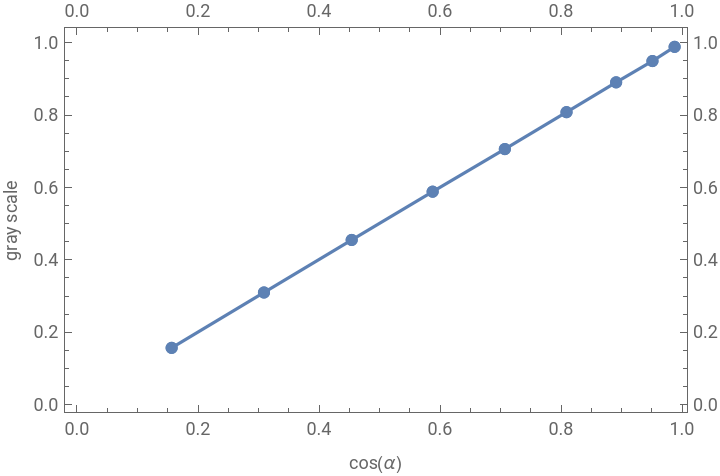
Now let me check the StippleShading’s effect:
In[]:=
ManipulateGraphics3D[{StippleShading[d],EdgeForm[],InfinitePlane[{0,0,0},{{1,0,0},{0,Cos[α],Sin[α]}}]},Lighting{DirectionalLight[White,{0,0,1}]},PlotRange{{-1,1},{-Cot[α],Cot[α]},{-1,1}},PlotRangePaddingNone,ViewPointFront,ViewVertical{0,0,1},ViewProjection"Orthographic",ViewAngle2,BackgroundBlack,BoxedFalse,ImageSize300×.6],α,,0,,{{d,.5},0,1},ControlPlacementTop,SaveDefinitionsTrue
π
4
π
2
Out[]=

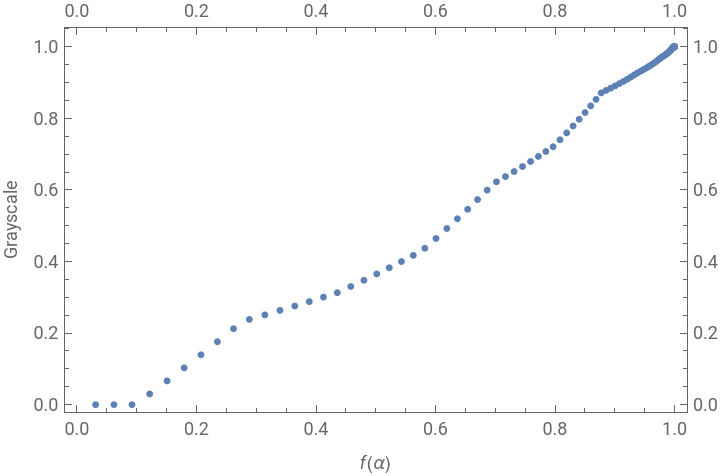
For (i.e. default StippleShading[]), a similar test can be done:
d=0.5
In[]:=
Function[α,Graphics3D[{StippleShading[],EdgeForm[],InfinitePlane[{0,0,0},{{1,0,0},{0,Cos[α],Sin[α]}}]},Lighting{DirectionalLight[White,{0,0,1}]},PlotRange{{-1,1},{-Cot[α],Cot[α]},{-1,1}},PlotRangePaddingNone,ViewPointFront,ViewVertical{0,0,1},ViewProjection"Orthographic",ViewAngle2,BackgroundBlack,BoxedFalse,ImageSize300×.6]//pipe[Rasterize,ColorConvert[#,"Grayscale"]&,ImageData[#,"Real"]&,Flatten,Mean]]/@Subdivide0,,100[[2;;-2]]//Iconize
π
2
Out[]=
In[]:=
(*f(α):*)Subdivide0,,100[[2;;-2]]//Cos//#(2-#)&,(*g:*)//ListPlot[#,FrameTrue,FrameTicksAll,FrameLabel{"f(α)","Grayscale"}]&
π
2
Out[]=
Separating gray scale for 3D shading
Separating gray scale for 3D shading
Take the following image for example:
Basically imgPremix is the projection of img onto RGB gamut’s boundary:
Generating abstract arts with shaders
Generating abstract arts with shaders
A popular choice for abstract painting is triangular mesh. Here I create one from a rectangle the same size as the original image, so later on I can query pixel values with ease:
For example, ImageValue[img,#]& can be applied on vertices’ coordinates directly:
However, as said before, instead of img, I’ll use colors from imgPremix, and tilt each triangular cells according to fraction, so they all get proper shades from a heads-down light. So instead of query colors for each vertices through MeshCoordinates[canvas], I should query for each triangles, say, through AnnotationValue[{canvas,2},MeshCellCentroid]:
Put every pieces together, here is the self-contained code:
Different variations are easy to create. For example I can boost colors with ImageAdjust, modify grayscale-to-angle transformation to ArcCos[g], use a different shader, etc.
Or even start from a non-triangular mesh:
Finally I should mention: to keep the post simple, I didn’t consider gamma correction for original color image. Readers interested in it can refer to my previous Community post Color notes: alpha-blending done properly. An super exciting shader I didn’t cover in this post is MaterialShading. I surely hope to explore it in another day!