Computing land surface temperature of Milan, Italy
by Julián Laverde, Wolfram Research, Sound & Vision. 07/14/2022
by Julián Laverde, Wolfram Research, Sound & Vision. 07/14/2022
Land Surface Temperature
Land Surface Temperature
Land surface temperature (LST) is the measurement of the emission of longwave radiation or thermal radiance in a particular location of the land surface derived from the interaction of solar radiation that heats the soil, or the surface of the canopy of vegetation [1]. LST is different from the air temperature that is forecasted in weather reports, as it is computed from data collected in satellites like the one used for this study, Landsat 8, and the satellite could received the radiation coming from snow, ice, human infrastructure, or vegetation canopy. As a fundamental aspect of climate and biology, LST is one of the most important pieces of information in remote sensing, being a key input parameters in climatic, hydrological, ecological, and biogeochemical models, as well as helping determine energy budgets provide relevant data to policy makers.
Import data from Landsat 8
Import data from Landsat 8
The data used was selected and downloaded by the USGS developed user interface EarthExplorer. The images picked are the Worldwide Reference System (WRS) path 194 and row 28, which corresponds to a region composed of a part of the Switzerland-Italy border a the Italian Lombardy region. The land cloud coverage was set at a maximum of 20%. 57 scenes from 2014 to 2021 met the selected criteria and were downloaded and added to the work notebook as following:
Selecting the data directory and picking the appropriate folders:
In[]:=
SetDirectory[NotebookDirectory[]];dataDir=FileNames[StartOfString~~"LC08"~~__];SetDirectory[FileNameJoin[{NotebookDirectory[],dataDir[[-12]]}]]
Out[]=
D:\Data Milan Region\LC08_L1TP_194028_20200719_20200722_01_T1
In order to process all files automatically, a mapping sequence over all data directories (dataDir) is run in the full version of this code.
After setting the correct folders, the metadata is imported which contains important data as the date of the scene and physical constants used for capturing the image.
After setting the correct folders, the metadata is imported which contains important data as the date of the scene and physical constants used for capturing the image.
Import metadata, select images file name, and compute date:
In[]:=
metaDataDir=FileNames[__~~"MTL.txt"~~EndOfString];imgsDir=StringDrop[FileNames[__~~"5.TIF"~~EndOfString],-5];metaData=Drop[Drop[Import[First[metaDataDir],"Data"],-1],None,{2}];metaData=AssociationThread[metaData〚All,1〛,metaData〚All,2〛];date=DateObject[ToExpression[StringSplit[metaData["DATE_ACQUIRED"],"-"]]];
The pixel value of the imported raw images are Digital Numbers (DN), thus a rescaling to top of atmosphere (TOA) radiance using radiometric rescaling coefficients provided in the metadata file is required and the values can be imported as following:
Select rescaling coefficients:
In[]:=
radianceMultBands=(metaData["RADIANCE_MULT_BAND_"<>#1]&)/@{"10","5","4"};radianceAddBands=(metaData["RADIANCE_ADD_BAND_"<>#1]&)/@{"10","5","4"};k1constant=metaData["K1_CONSTANT_BAND_10"];k2constant=metaData["K2_CONSTANT_BAND_10"];
The following step is to import the images. Importing them as data allows for easier checking of correct importing.
Import the images as raw data in DN:
In[]:=
{rawbandT,rawbandIR,rawbandR}=(Import[First[imgsDir]<>#1<>".TIF","Data"]&)/@{"10","5","4"};
These arrays have a relatively high dimension, therefore an array resampling to reduce the dimensions is useful to perform the following computations faster at the expense of the image resolution.
Check the original dimension of the arrays
In[]:=
Dimensions[rawbandT]
Out[]=
{7931,7831}
Resample the original arrays:
In[]:=
{bandT,bandIR,bandR}=(ArrayResample[#1,1000]&)/@{rawbandT,rawbandIR,rawbandR};
Compute LST
Compute LST
Brightness Temperature
Brightness Temperature
At this point, we can now perform the conversion from DN to TOA using the coefficients from the metadata file.
Define and apply TOA radiance correction function:
In[]:=
toaRadianceCorrection[band_,M_,A_]:=(M*band-A);{imgT,imgIR,imgR}=MapThread[toaRadianceCorrection[#1,#2,#3]&,{{Image[bandT],Image[bandIR],Image[bandR]},radianceMultBands,radianceAddBands}];
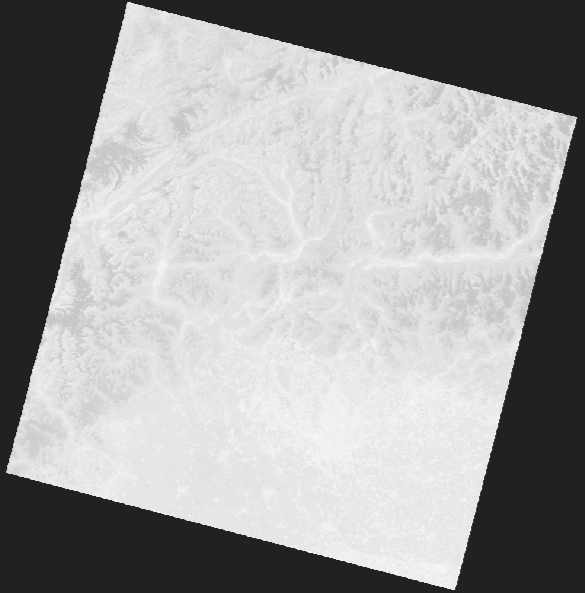
The next step is to compute the Brightness Temperature (BT), which is a measurement of the radiation in terms of temperature traveling upward from the top of Earth’s atmosphere [2]. The formula comes from the Plank’s blackbody radiation law as BT is the temperature at which a blackbody would have to be to emit an identical amount of radiation at the same wavelength [3] and the final formula is:
BT=
K
2
ln+1
K
1
L
λ
Where
◼
BT is the top of atmosphere brightness temperature in Kelvin
◼
L
λ
2
m
◼
K
1
K
2
The thermal band can be converted to BT using the thermal coefficients saved from the metadata file as follows:
Compute the BT of the thermal band in degrees Celsius:
In[]:=
BT=-273.15;
k2constant
Log+1
k1constant
imgT
Show BT:
In[]:=
ImageAdjust[Image[BT,ImageSizeMedium]]
Out[]=
Normalized Difference Vegetation Index and Proportion of Vegetation
Normalized Difference Vegetation Index and Proportion of Vegetation
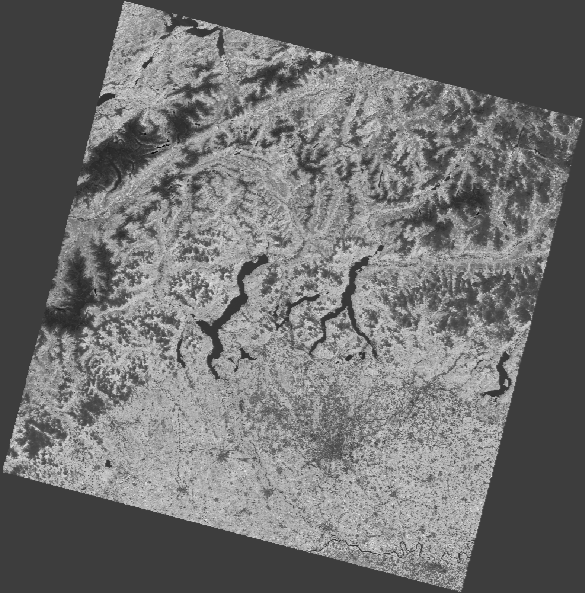
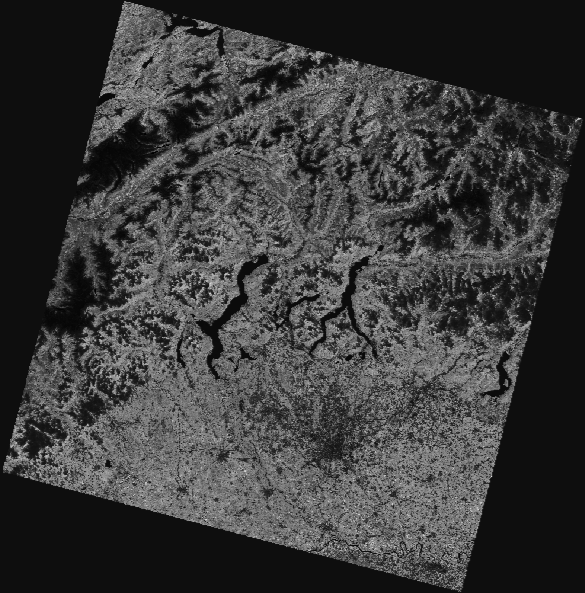
In order to calculate the land surface emissivity necessary to calculate the land surface temperature, it is required to compute the proportion of vegetation which is derived from the normalized difference vegetation index (NDVI).
The normalized difference vegetation index (NDVI) is a graphical indicator used to analyze remote sensing measurements, quantifying vegetation by measuring the difference between the reflected near-infrared and red light as the near-IR is strongly reflected by vegetation while red light is absorbed. For a deeper analysis of NDVI and other vegetation indices see How vegetated is Sacramento? Computing vegetation indices from Landsat 8-9.
Compute NDVI and its maximum and minimum values:
In[]:=
NDVI=;{minNDVI,maxNDVI}=MinMax[NDVI];
imgIR-imgR
imgIR+imgR
Show NDVI:
In[]:=
ImageAdjust[Image[NDVI,ImageSizeMedium]]
Out[]=
The proportion of vegetation can be calculated using the following formula:
PV=-
2
NDVI-
NDVI
min
NDVI
max
NDVI
min
Compute NDVI and its maximum and minimum values:
In[]:=
PV=;
2
NDVI-minNDVI
maxNDVI-minNDVI
Show PV:
In[]:=
ImageAdjust[Image[PV,ImageSizeMedium]]
Out[]=
Emissivity
Emissivity
After computing the proportion of vegetation, it is now possible to compute the land surface emissivity which is the efficiency with which a surface emits its stored heat as thermal infrared (TIR) radiation [4] and can be calculating using the following formula:
ϵ=m*PV+n
Where
◼
ϵ is the emissivity
Compute the emissivity:
Show the emissivity:
Land Surface Temperature
Land Surface Temperature
Finally, using the BT and the emissivity, one can compute the land surface temperature using the following formula:
where
◼
LST is the Land Surface Temperature in Celsius
◼
BT is the brightness temperature in Celsius
◼
ϵ is the emissivity
◼
λ is the average wavelength of the thermal band
Compute the LST:
At this point we have an image which its pixel values are temperature values in Celsius degrees. In order to display the image, a rescaling using ImageAdjust is necessary. For presentation purposes, a color function can be added using Colorize. In this particular case, a custom made color function was used:
Define a custom color function:
Rescale, adjust, and display the colorized LST image:
Show the colorized LST:
This image provides valuable information of the scene’s temperature, useful for a wide range of applications. On the other hand, this kind of map is hard to read without any geographical reference for the reader. For that matter, let’s add some information to help understand the scene.
Geographical information
Geographical information
First, let’s get the longitude and latitude of the corners of the image. Keep in mind that in Landsat products, these coordinates correspond to the corners of the full image including the black border.
Get image corners geographical coordinates:
For sake of simplicity, in this example I took as general coordinate the mean value between each pair of corners, resulting in an approximate value for the minimum and maximum longitude and latitude. This of course is an approximation that will result in slightly inaccurate position of the geo-objects. A more robust approach should be adopted for more sensitive applications were the geo-projection must be taken into account.
Get the mean value of the corners geographical coordinates:
Having the approximated coordinates of the corners, we can do write functions to do the rescaling from geo-coordinates to image coordinates in the figure.
Define functions to rescale geographical coordinates to image coordinates:
Having the necessary tools to draw the geo-objects, it only rests to have the coordinates as graphics primitives. In order to do so, I started with the entity of interest, using the “Polygon” property to get a polygon of the GeoPosition of the object. Then, I got the latitude and longitude values using LatitudeLongitude which usually returns a QuantityArray object for which I used Normal to get a list of Degree Quantities. I used QuantityMagnitude to get the value and Select to make sure that the points were inside the coordinates of the scene. Finally, I used the defined functions to convert the geographical coordinates to image coordinates and used Line/Polygon to create a primitive that could be used with Highlight image.
Get primitive from geographical data:
I also added markers picking city entities that are in the scene and I wrote a function to easily add them to the final image. More cities and places could have been added but I kept it simple for presentation purposes in this particular example.
Define functions and get markers for adding relevant places and cities to the map:
The result is show combining the LST map, the markers and the lines for the borders, as well as the date of the scene and the color function used.
Show the colorized LST image with geographical and date information:
Video
Video
At this point, it is possible to create a video of the temperature maps through time. For this, I only had to run all the previous code for each file in dataDir. The output images will be added in the association timelineImages.
Calculate all images:
Having all the images, I added the bar legend and rasterize the output to have images that can be taken as arguments in video creation built-in functions.
Create a list of frames and resulting video:
Milan temperature over a year
Milan temperature over a year
As well, it is possible to focus on a particular region. In this example, I used ImageHighlight with “remove” to select the region inside the borders of the administrative region of the city of Milan. After selecting from the data the files for a single year, we can know visualize the temperature of the city over a regular year.
Calculate all images:
Show the temperature of Milan over 2019:
References
References
1
.Khan, A., Chatterjee, S., & Weng, Y. (2021). Characterizing thermal fields and evaluating UHI effects. Urban Heat Island Modeling for Tropical Climates, 37–67. https://doi.org/10.1016/b978-0-12-819669-4.00002-7
2
.Brightness Temperature. (2022). Remote Sensing Systems. Retrieved July 18, 2022, from https://www.remss.com/measurements/brightness-temperature/
3
.American Metrological Society. (2012). Brightness temperature. In Glossary of Metrology. https://glossary.ametsoc.org/wiki/Brightness_temperature
4
.Gillespie, A. (2014). Land Surface Emissivity. Encyclopedia of Remote Sensing, 303–311. https://doi.org/10.1007/978-0-387-36699-9_ 77
5
.Landsat Missions | U.S. Geological Survey. (2022, June 2). USGS. Retrieved July 14, 2022, from https://www.usgs.gov/landsat-missions
6
.Wulder, M. A., Loveland, T. R., Roy, D. P., Crawford, C. J., Masek, J. G., Woodcock, C. E., Allen, R. G., Anderson, M. C., Belward, A. S., Cohen, W. B., Dwyer, J., Erb, A., Gao, F., Griffiths, P., Helder, D., Hermosilla, T., Hipple, J. D., Hostert, P., Hughes, M. J., Zhu, Z. (2019). Current status of Landsat program, science, and applications. Remote Sensing of Environment, 225, 127–147. https://doi.org/10.1016/j.rse.2019.02.015
7
.G. (2022, May 27). Landsat Program: 50+ Years Archive of Earth. GIS Geography. Retrieved July 14, 2022, from https://gisgeography.com/landsat/
8
.Landsat 9 | U.S. Geological Survey. (2020, July 23). USGS. Retrieved June 6, 2022, from https://www.usgs.gov/landsat-missions/landsat-9
9
.Normalized difference vegetation index. (2022, May 6). In Wikipedia. https://en.wikipedia.org/wiki/Normalized_difference_vegetation _index
10
.GISGeography. (2022, May 30). What is NDVI (Normalized Difference Vegetation Index)?. Retrieved June 6, 2022, from https://gisgeography.com/ndvi-normalized-difference-vegetation-index/