Abstract
Abstract
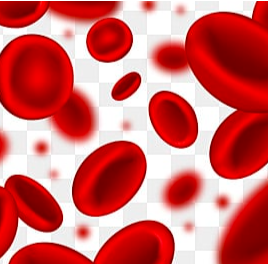
Red blood cells are commonly heard of and play an extremely important role as a component of blood. As there are many diseases associated with the shapes and volumetric features of these cells, this computational essay will explore how to analyse RBCs from a 2D microscopic image of blood by creating a RBC calculator.
As I aspire to be a doctor when I grow up, my obvious inclination towards the fields of biology caused me to read up on this topic. This concept is really interesting to explore through a computational lens. Through this project, I was able to use input images of RBCs and analyse the MCV and RDW values by creating a dynamic RBC calculator.
As I aspire to be a doctor when I grow up, my obvious inclination towards the fields of biology caused me to read up on this topic. This concept is really interesting to explore through a computational lens. Through this project, I was able to use input images of RBCs and analyse the MCV and RDW values by creating a dynamic RBC calculator.
Background Information
Background Information
It is known that erythrocytes perform an important function of supplying the tissues of the body with oxygen, as well as removing carbon dioxide from the tissues, which is then released through the lungs.
One of the important indicators in the complete blood count test are mean corpuscular volume (MCV) and red blood cell (RBC) distribution width (RDW). The MCV parameter determines the average volume of red blood cells in the blood and is responsible for how much oxygen the RBC can transport. The RDW parameter is a measure of the range of variation of RBC volume. Deviation of these parameters from the norm can be the cause of diseases of the circulatory system.
In particular, erythrocytes with low MCV are found in microcytic anemia, namely iron deficiency anemia, thalassemia, sideroblast anemia or chronic disease. Erythrocytes with elevated MCV are found in megaloblastic anemia (anemia that develops when there is a deficiency in the body of vitamin B12 or folic acid), liver diseases and hypothyroidism. RDW test is mainly used to differentiate an anemia of mixed causes from an anemia of a single cause. Thus, monitoring of MCV and RDW parameters can provide information on the presence/absence of the above diseases.
One of the important indicators in the complete blood count test are mean corpuscular volume (MCV) and red blood cell (RBC) distribution width (RDW). The MCV parameter determines the average volume of red blood cells in the blood and is responsible for how much oxygen the RBC can transport. The RDW parameter is a measure of the range of variation of RBC volume. Deviation of these parameters from the norm can be the cause of diseases of the circulatory system.
In particular, erythrocytes with low MCV are found in microcytic anemia, namely iron deficiency anemia, thalassemia, sideroblast anemia or chronic disease. Erythrocytes with elevated MCV are found in megaloblastic anemia (anemia that develops when there is a deficiency in the body of vitamin B12 or folic acid), liver diseases and hypothyroidism. RDW test is mainly used to differentiate an anemia of mixed causes from an anemia of a single cause. Thus, monitoring of MCV and RDW parameters can provide information on the presence/absence of the above diseases.
Methodology
Methodology
Initial parameters
Initial parameters
scale=0.08;model="model 1";nx=5ny=4n=nxnyindex=1;white=Graphics[{White,Rectangle[]},ImageSize->150]
I made a function to be able to locate the RBC and centroid of it in the image that is input. To do this, I mainly used the locator function along with Graphics.
In[]:=
whiteBig=Graphics[{EdgeForm[Black],White,Rectangle[{0,0},150{nx,ny}]},ImageSize{150nx,150ny},PlotRangePadding0]
In[]:=
locator=Graphics@{Blue,Disk[{0,0},Scaled@0.015]}
Out[]=
Functions
Functions
I made a list of all the functions that I would be using throughout this computational essay. The functions below are responsible for the calculations of the factors that I plan for the code to analyse in the calculator. This will work more in the backend of the program.
The following functions are to calculate the number of cell boxes, mean values and standard deviation which would eventually give the RDW and MVC values:
The following functions are to calculate the number of cell boxes, mean values and standard deviation which would eventually give the RDW and MVC values:
sd[data_]:=If[Length@data>1,StandardDeviation@data,0];rdw[data_]:=100.0;numBoxes[boxes_]:=Length/@boxes;
sd@data
Mean@data
1
2
The next functions are for binarizing the image and evaluating the component measurements which would help the code better understand the ellipse model to finally find the radius and therefore the volume:
cm[image_]:=Module[{bw},bw=SelectComponents[FillingTransform@ColorNegate@Binarize@image,"Count",-1];ComponentMeasurements[bw,{"Centroid","SemiAxes","Orientation"}][[1,2]]];take[data_,i_]:=Take[data,{(i-1)n+1,UpTo[in]}];addEllipse[image_,params_]:=HighlightImage[image,Graphics[{Red,Rotate[Circle[#,#2],#3]}]&@@params];volume[model_,r_]:=Switch[model,"model 1",1.4240329,"model 2",58.6r-131,"model 3",1.2246683,"model 4",1.2868404,"model 5",1.74471605];
3
r
3
r
3
r
3
r
The functions below help with the dimensions, cropping of large images and deals with the graphics in order to get a clearer image of the RBC:
rectangle[points_]:=Graphics[{EdgeForm[Blue],White,Opacity[0],Rectangle@@points}];cropBox[image_,points_]:=Module[{h,xy,yx},h=ImageDimensions[image][[2]];xy={0,h}+{1,-1}Transpose@points;yx=Reverse[Sort/@xy];ImageTake[image,Sequence@@yx]];cropping[image_,imageBoxes_]:=Module[{points},If[imageBoxes=!={},points=Partition[imageBoxes,2];cropBox[image,#]&/@points,Nothing]];
After this, I also wanted the calculator to be easy to understand while using and have an aesthetic appeal. To obtain this, I defined the following functions which I used later in the process.
styleFun=Function[Style[StringJoin@#,18]];cells[cellsFlag_:True]:=StringTemplate[If[cellsFlag,"Number of cells: `1`","Number of images: `1`"],CombinerFunctionstyleFun];box=StringTemplate["Number of boxes: `1`",CombinerFunctionstyleFun];meanVolume=StringTemplate["Mean cell volume (MCV): `1` ",CombinerFunctionstyleFun];rdwVolume=StringTemplate["RBC distribution width (RDW): `1` %",CombinerFunctionstyleFun];
3
μm
Next, I worked on the outputs that would be viewed by the user. This includes the result of the calculations of each factor as well as a comparative study of the results between different images in form of a histogram. For this, I used the functions below:
outFun1[imageNum_,radius_,volumes_]:=Column[{cells[]@imageNum,If[volumes==={},Nothing,Splice[{Row[{Spacer[0],meanVolume@NumberForm[Mean@volumes,{5,2}]}],Row[{Spacer[0],rdwVolume@NumberForm[rdw@volumes,{4,2}]}],Button[Style["Histograms",18],CreatePalette[Column[MapThread[Framed[Histogram[#,ImageSizeLarge,Frame->True,FrameLabel{#2,"Frequency"},BaseStyle16,PlotLabel"Distribution of cell "<>#3],ImageMargins20]&,{{2radius,volumes},{"D, μm","V, "},{"diameters","volumes"}}],Spacings1],WindowTitle"Histograms"]]}]]},Spacings1];outFun2[imageNum_,boxes_,radius_,volumes_]:=Column[{cells[False]@imageNum,If[volumes==={},box@Total@numBoxes@boxes,Splice[{Row[{Spacer[0],meanVolume@NumberForm[Mean@volumes,{5,2}]}],Row[{Spacer[0],rdwVolume@NumberForm[rdw@volumes,{4,2}]}],Button[Style["Histograms",18],CreatePalette[Column[MapThread[Framed[Histogram[#,ImageSizeLarge,Frame->True,FrameLabel{#2,"Frequency"},BaseStyle16,PlotLabel"Distribution of cell "<>#3],ImageMargins20]&,{{2radius,volumes},{"D, μm","V, "},{"diameters","volumes"}}],Spacings1],WindowTitle"Histograms"]]}]]},Spacings1];
3
μm
3
μm
Automatic mode
Automatic mode
I first worked on the automatic mode which is when images of ONLY single red blood cells are chosen to be analysed. The first step to start working on coding for this mode would be to clear variables that were defined earlier. This was done using a Clear function as shown below.
In[]:=
Clear[images,imageNum,radius,volumes]
mode="mode 1";
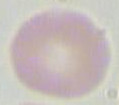
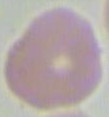
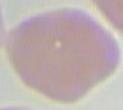
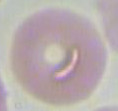
My first goal was to use images of single red blood cells and put them in the code as ' input data' . This was done as shown below . This step was extremely crucial because without this, further analysis and comparisons would not be made .
Input data
Input data
In[]:=
images=
,
,
,
,
,
,
,
,

Out[]=
,
,
,
,
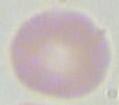
,
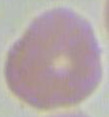
,
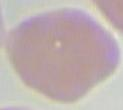
,
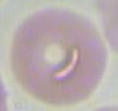
,

Calculations
Calculations
The next step would be to use functions from above for making calculations on the input data which was selected above. For this, I used functions like imageNum so that the calculator could provide information on how many images are selected. I also used parameters to get coordinates of the centre point and calculated the radius which is needed to calculate factors such as volumes.
Next, to be able to clearly notice the shape of the RBC, I tried to outline the ellipse of each image. I also tried to This was done using the functions below:
After getting these clear images with the values of the radius of each of them, I could calculate the volume according to different models of a biconcave shape. Hence, the below function helps obtain the volumes of each of the images selected above as shown in the output given below.
Output
Output
To get the final output in the form of a grid as it would appear in the calculator, the functions defined for aesthetic purposes above were used. This helped get the images as shown below:
The main motive of this project was to be able to attain information such as the MCV and RDW of the red blood cells. This can be calculated with help of the volumes which were also previously found.
In this case, I would use the output1 functions as defined in the start of the essay and this would help me get this information.
I also used output2 function to get this information in form of a histogram which can be seen if the 'histograms' button below is clicked.
In this case, I would use the output1 functions as defined in the start of the essay and this would help me get this information.
I also used output2 function to get this information in form of a histogram which can be seen if the 'histograms' button below is clicked.
Semiautomatic mode
Semiautomatic mode
For the semi-automatic mode, I needed the code to let the user choose which RBC they want to analyse as the image input would consist of multiple RBCs instead of just one. Hence, that is the major difference i would be working with as compared to the previous mode.
Input data
Input data
Firstly, I chose images with multiple RBCs and input this data in form of a list
Output
Output
Now as we have selected the RBC that we need to analyse from the image. The process afterwards would be the exact same as the automatic mode that is explained above. Hence, I would be using the same functions and process to evaluate this.
Result/Discussion
Result/Discussion
Conclusion
Conclusion
This code worked! I was able to retrieve ample of information which is crucial in understanding possible diseases related to RBCs through the calculator that was made. My approach to solving this computational investigation was accurate because the results are verified and seem reliable.
Bibliography
Bibliography
1. https://emedicine.medscape.com/article/2098635-overview #:~:text=The %20 red %20 cell %20 distribution %20 width %20(RDW)%20 test %20 measures %20 variation %20 in,determine %20 the %20 causes %20 of %20 anemia.
2. https://reference.wolfram.com/language/ref/DynamicModule.html
3. https://www.youtube.com/watch?v=JvVcyyubI_g
2. https://reference.wolfram.com/language/ref/DynamicModule.html
3. https://www.youtube.com/watch?v=JvVcyyubI_g