Terrain analysis is foundational to Earth science. Whether you are mapping landslide hazards, planning road corridors, modeling watershed hydrology, or classifying ecosystems, the starting point is almost always a Digital Elevation Model (DEM). This chapter shows how to retrieve, process, and visualize elevation data and its derivatives using the GoogleEarthEngineClient paclet, and then extends the techniques to land cover, soil properties, and geophysical texture analysis.
Throughout this chapter, examples make heavy use of the postfix (pipe) operator to build composable server-side processing pipelines. Computations run on the Google Earth Engine backend; only the final rendered pixels are transferred to your Mathematica session.
Throughout this chapter, examples make heavy use of the
//
Prerequisite:
Use of this paclet is subject to the Google Earth Engine Terms of Service.
Authenticate per Google Earth Engine (GEE) client paclet, Section 1.3
and then load the paclet with.
Use of this paclet is subject to the Google Earth Engine Terms of Service.
Authenticate per Google Earth Engine (GEE) client paclet, Section 1.3
and then load the paclet with
Needs["DiegoZviovich`GEE`"]
4.1 Digital Elevation Models (DEM)
A DEM assigns an elevation value to every pixel on the Earth's surface. Google Earth Engine hosts several global DEMs at varying resolutions and vintages. The three most commonly used are:
SRTM is an asset (a single global mosaic), so you load it with rather than .
IMAGE
GEELoadImage
GEECollection
4.1.1 Retrieve SRTM Elevation for the Swiss Alps
4.1.1 Retrieve SRTM Elevation for the Swiss Alps
The Swiss Alps span roughly 7.5--8.5 E longitude and 46.0--47.0 N latitude. This bounding box captures the Bernese Oberland, including the Eiger, Monch, and Jungfrau peaks.
Needs["DiegoZviovich`GEE"]GEEConnect["path/to/service-account-key.json"];
In[]:=
(*LoadtheglobalSRTMDEM*)dem=GEELoadImage["USGS/SRTMGL1_003"];(*RendertheSwissAlpswithaterrainpalette*)swissAlps=GEEComputePixels,dem,"VisParams"-><|"min"->500,"max"->4500,"palette"->{"006400","228B22","FFD700","8B4513","FFFFFF"}|>,"ImageSize"->320

Out[]=
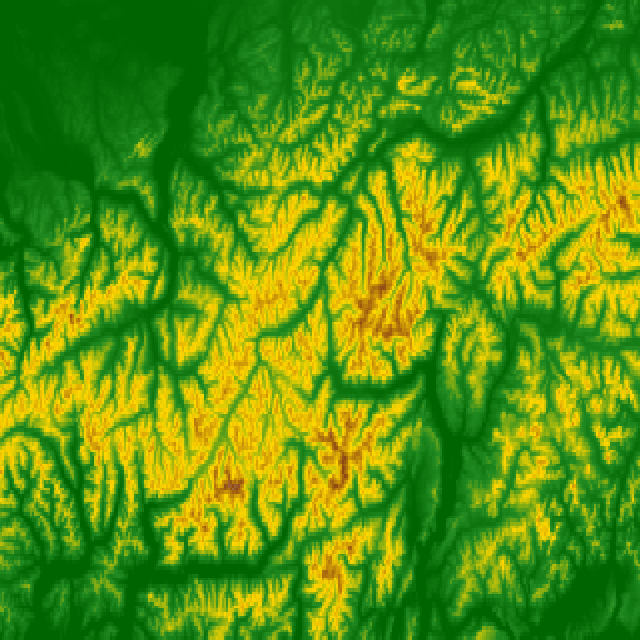
The palette progresses from dark green (valley floors near 500 m) through forest green and gold (alpine meadows) to brown (exposed rock) and white (glaciated summits above 4000 m). This color scheme is standard in Swiss topographic cartography.
4.1.2 Point Elevation Query
4.1.2 Point Elevation Query
GEEIdentify
(*ElevationofMountEverestsummit*)everest=GEEIdentify[GeoPosition[{27.99,86.93}],"USGS/SRTMGL1_003"]
Out[]=
PositionGeoPosition[{27.99,86.93}],Values{8315},Bands{elevation}
Note that SRTM reports approximately 8315 m for Everest because the radar measured the snow/ice surface, not bare earth, and the 30 m pixel averages the summit with lower surrounding terrain.
In[]:=
(*ComparewithWolfram'sbuilt-inGeoElevationData*)GeoElevationData[GeoPosition[{27.99,86.93}],UnitSystem->"Metric"]
Out[]=
The built-in draws from a different source and may return a slightly different value. Comparing the two is a useful sanity check.
GeoElevationData
4.1.3 Batch Elevation Sampling Along a Transect
4.1.3 Batch Elevation Sampling Along a Transect
Use to query elevations at many points in a single API call. This is far more efficient than looping over .
GEEGetSamples
GEEIdentify
In[]:=
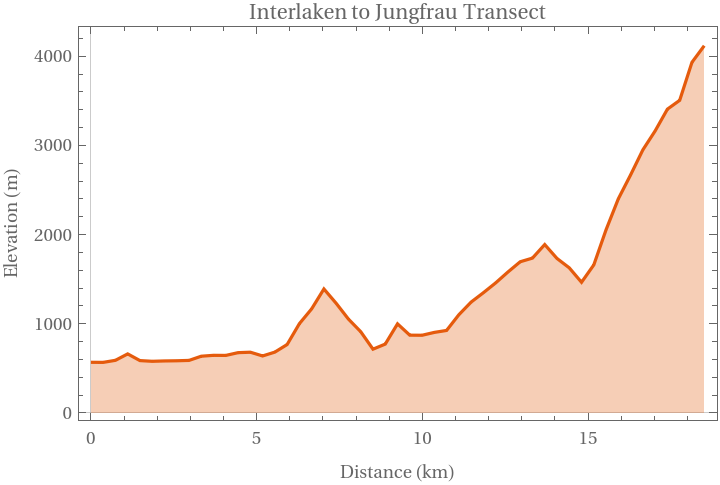
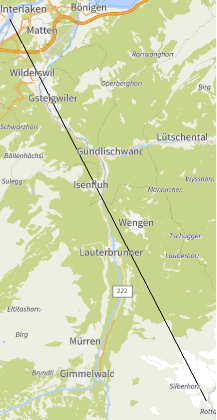
(*SampleatransectfromInterlakentotheJungfrausummit*)transectPoints=Table[GeoPosition[{46.6844+i*(46.5365-46.6844)/50,7.8505+i*(7.9614-7.8505)/50}],{i,0,50}];samples=GEEGetSamples[transectPoints,"USGS/SRTMGL1_003"];(*Extractelevationsandplottheprofile*)elevations=Merge[KeyTake[samples,"Values"],Identity/*Flatten];distances=With[{points=Flatten[Values[KeyTake[samples,"Position"]]]},Prepend[Table[GeoDistance[points[[1]],points[[n]],UnitSystem->"Metric"],{n,2,Length@points}],Quantity[0,"Kilometers"]]];ListLinePlot[Transpose[{distances,First@elevations}],FrameLabel->{"Distance (km)","Elevation (m)"},PlotLabel->"Interlaken to Jungfrau Transect",PlotTheme->"Scientific",Filling->Bottom]GeoGraphics[GeoPath[Flatten@Values[KeyTake[samples,"Position"]]]]
Out[]=
Out[]=
4.1.4 Elevation Statistics Over a Region
4.1.4 Elevation Statistics Over a Region
GEEReduceRegion
GEECompute
In[]:=
dem=GEELoadImage["USGS/SRTMGL1_003"];bbox=GEEGeometry;(*Meanelevation*)meanElev=GEECompute[dem//GEEReduceRegion[bbox,"mean",30]](*Minandmaxelevation*)minElev=GEECompute[dem//GEEReduceRegion[bbox,"min",30]]maxElev=GEECompute[dem//GEEReduceRegion[bbox,"max",30]]
4.1.5 Comparing DEMs
4.1.5 Comparing DEMs
Different DEMs have different error characteristics. ALOS performs better in steep terrain; Copernicus is the most temporally recent.
4.2 Terrain Derivatives with GEETerrain
Raw elevation is only the beginning. Slope, aspect, and hillshade are first-order derivatives that reveal the shape of the land surface.
4.2.1 Hillshade Map of the Grand Canyon
4.2.1 Hillshade Map of the Grand Canyon
Hillshade simulates illumination from a light source (default: azimuth 315, altitude 45) and is the foundation of cartographic relief shading. For terrain-adjusted solar irradiance calculations that build on hillshade and aspect, see Section 3.6.2.
The result reveals the intricate canyon morphology -- the layered mesas, narrow side canyons, and the meandering Colorado River corridor -- in a way that a flat elevation color map cannot.
4.2.2 Slope Map with Gradient Visualization
4.2.2 Slope Map with Gradient Visualization
Slope quantifies terrain steepness. Flat terrain has slope near 0 degrees; vertical cliffs approach 90 degrees. Slope maps are essential for landslide susceptibility, agricultural suitability, and construction planning.
Green pixels are flat plateaus and river terraces. Red pixels are the steep canyon walls where slope exceeds 60 degrees.
4.2.3 Aspect Map Showing Cardinal Directions
4.2.3 Aspect Map Showing Cardinal Directions
Aspect is the compass direction a slope faces. North-facing slopes (aspect near 0 or 360) receive less direct sunlight in the Northern Hemisphere and tend to retain more moisture and snow.
The circular palette wraps blue (north) through cyan (east), green (south), yellow (west), red (northwest), and back to blue, ensuring that 0 and 360 degrees share the same color.
4.2.4 Combining Hillshade and Slope for Cartographic Rendering
4.2.4 Combining Hillshade and Slope for Cartographic Rendering
Professional topographic maps often overlay a semi-transparent slope classification on a hillshade base. You can achieve this in Mathematica by compositing the two images client-side.
The 0.4 opacity on the slope layer lets the hillshade detail show through while still conveying slope intensity via color.
4.3 Advanced Terrain Analysis
Beyond the standard terrain derivatives, the paclet provides spatial filtering, gradient computation, and reprojection functions for more sophisticated analysis.
4.3.1 Gradient Magnitude for Edge Detection
4.3.1 Gradient Magnitude for Edge Detection
Bright pixels in the output correspond to locations where elevation changes most rapidly -- exactly the edges of canyon walls and mesa rims.
4.3.2 Smoothing a DEM with Focal Filters
4.3.2 Smoothing a DEM with Focal Filters
High-resolution DEMs can contain noise from sensor artifacts, vegetation canopy effects, or processing errors. Focal filters smooth these artifacts.
4.3.3 Local Elevation Range (Topographic Ruggedness)
4.3.3 Local Elevation Range (Topographic Ruggedness)
Local elevation range reveals fine-scale landforms that are invisible in the raw DEM because they are overwhelmed by regional elevation trends. The technique computes the difference between the focal maximum and focal minimum, yielding the range of elevation within a neighborhood.
High local relief values (deep red) mark the canyon rims where the difference between nearby maxima (plateau surface) and minima (canyon floor) is greatest. Low values (white) indicate either flat plateaus or the flat canyon floor itself.
4.3.4 Resampling and Reprojection
4.3.4 Resampling and Reprojection
When combining datasets at different resolutions or projections, explicit reprojection prevents subtle alignment errors.
4.4 Hydrological Terrain Analysis
Terrain controls where water flows. Slope, curvature, and contributing area determine drainage patterns, flood susceptibility, and erosion potential. While GEE does not include a full hydrological routing algorithm, you can approximate many analyses using slope thresholds and Boolean logic.
4.4.1 Identifying Flat Areas (Potential Flood Zones)
4.4.1 Identifying Flat Areas (Potential Flood Zones)
Near-flat terrain (slope < 2 degrees) indicates areas where water pools rather than draining. These areas are candidates for flood zones, wetlands, or agricultural irrigation.
Blue pixels in the result correspond to the flat deltaic terrain of the Mississippi River Delta -- a region highly vulnerable to flooding.
4.4.2 Computing Area of Flat Terrain
4.4.2 Computing Area of Flat Terrain
4.4.3 Terrain Classification with Boolean Logic
4.4.3 Terrain Classification with Boolean Logic
Combining elevation and slope thresholds produces a simple terrain classification without any machine learning.
This simplistic classification already captures the major physiographic regions: the flat Central Valley floodplain (blue), the Sierra Nevada ridges (brown), and the coastal plain (gray).
4.4.4 Stream-Adjacent Terrain
4.4.4 Stream-Adjacent Terrain
Combining elevation with vector hydrological data can identify riparian zones and flood-prone corridors.
4.5 Land Cover and Land Use
Land cover classification maps the physical material on the Earth's surface (forest, water, built-up area, cropland, etc.). These maps are derived from satellite imagery using supervised classification algorithms and are distributed as categorical rasters.
4.5.1 ESA WorldCover (10 m Resolution)
4.5.1 ESA WorldCover (10 m Resolution)
ESA WorldCover v200 is the highest-resolution freely available global land cover dataset. It classifies every 10 m pixel into one of 11 classes.
The Netherlands provides a striking example: intensive cropland (pink) dominates the interior, built-up areas (red) mark the Randstad urban agglomeration, and permanent water (blue) traces the Rhine-Meuse delta and the IJsselmeer.
4.5.2 Area per Land Cover Class
4.5.2 Area per Land Cover Class
4.5.3 Land Cover Change Detection
4.5.3 Land Cover Change Detection
Comparing two time periods reveals deforestation, urbanization, or agricultural expansion. MODIS Land Cover provides annual maps going back to 2001.
Red pixels mark locations where the MODIS IGBP classification changed between 2001 and 2020. The arc of deforestation along the southern and eastern Amazon is clearly visible.
4.5.4 Wolfram Integration: GeoRegionValuePlot
4.5.4 Wolfram Integration: GeoRegionValuePlot
4.6 Soil Properties
Soil data is critical for agriculture, carbon accounting, and ecosystem modeling. The OpenLandMap project provides global gridded soil property maps derived from machine learning models trained on field observations.
4.6.1 Key Soil Datasets
4.6.1 Key Soil Datasets
Each dataset contains bands for multiple standard depths: 0 cm, 10 cm, 30 cm, 60 cm, 100 cm, and 200 cm.
4.6.2 Soil Organic Carbon Map
4.6.2 Soil Organic Carbon Map
The YlOrBr (yellow-orange-brown) palette is the conventional choice for soil organic carbon: light yellow for mineral soils with little organic matter, deep brown for carbon-rich prairie or wetland soils.
4.6.3 Multi-Depth Soil Profile
4.6.3 Multi-Depth Soil Profile
Soil properties vary with depth. Querying all depth bands and plotting them as a vertical profile reveals the soil structure.
Typical prairie soils show high organic carbon near the surface that decreases exponentially with depth, reflecting the zone of biological activity and root density.
4.6.4 Soil pH Map
4.6.4 Soil pH Map
4.7 Geophysical Texture Analysis
Texture -- the spatial arrangement of pixel values -- carries information that individual pixel values do not. Two regions may have the same mean elevation but very different roughness, which affects radar backscatter, surface runoff, and habitat suitability.
4.7.1 Entropy for Geological Feature Detection
4.7.1 Entropy for Geological Feature Detection
In the Basin and Range province, high-entropy zones (red/yellow) correspond to the rugged mountain ranges, while low-entropy zones (dark blue) are the flat playas and alluvial fans.
4.7.2 Edge Detection with Convolution Kernels
4.7.2 Edge Detection with Convolution Kernels
The resulting image resembles a hand-drawn geological line map: bright lines trace fault scarps, ridge crests, and alluvial fan boundaries.
4.7.3 Combining Texture Metrics
4.7.3 Combining Texture Metrics
For comprehensive terrain characterization, combine entropy, gradient magnitude, and local relief into a multi-layer analysis.
4.8 3D Visualization with Wolfram Language
Mathematica excels at 3D scientific visualization. By retrieving raster data from GEE and converting it to numeric arrays, you can render publication-quality 3D terrain models entirely within Wolfram Language.
4.8.1 DEM to ListPlot3D
4.8.1 DEM to ListPlot3D
4.8.2 ReliefPlot for 2.5D Shaded Relief
4.8.2 ReliefPlot for 2.5D Shaded Relief
4.8.3 Comparing GEE SRTM with Wolfram GeoElevationData
4.8.3 Comparing GEE SRTM with Wolfram GeoElevationData
4.8.4 Overlay Satellite Imagery on 3D Terrain
4.8.4 Overlay Satellite Imagery on 3D Terrain
This produces a photorealistic 3D view of the Matterhorn with glaciers, rock faces, and alpine meadows visible on the terrain surface.
4.8.5 Contour Maps
4.8.5 Contour Maps
For georeferenced contours, convert pixel indices to geographic coordinates using the bounding box:
4.9 Putting It All Together: Multi-Layer Terrain Report
This section demonstrates a complete workflow that combines several techniques from the chapter into a single analytical report for a region of interest.
4.9.1 Region Setup
4.9.1 Region Setup
4.9.2 Elevation and Terrain
4.9.2 Elevation and Terrain
4.9.3 Elevation Statistics
4.9.3 Elevation Statistics
4.9.4 Land Cover Overlay
4.9.4 Land Cover Overlay
4.9.5 Local Relief
4.9.5 Local Relief
4.9.6 Dashboard Layout
4.9.6 Dashboard Layout
This produces a six-panel dashboard summarizing the terrain character of Yosemite National Park: elevation, hillshade, slope, local relief, land cover, and a composite overlay. Each panel was computed server-side on Google Earth Engine and rendered locally in Mathematica -- a workflow that scales to any region on Earth.
Summary
This chapter covered the core techniques for terrain and geophysical analysis with the GoogleEarthEngineClient paclet:
◼
Section 4.6 -- Soil property retrieval from OpenLandMap, including multi-depth profile visualization.
◼
Section 4.9 -- A complete multi-layer terrain report workflow combining all techniques into a dashboard.
The next chapter applies these techniques to vegetation and agriculture, covering spectral indices, crop monitoring, yield estimation, and precision farming workflows.
Next: Chapter 5: Vegetation, Agriculture & Precision Farming
CITE THIS NOTEBOOK
CITE THIS NOTEBOOK
Google Earth Engine (GEE) Paclet: terrain and geophysical analysis
by Diego Zviovich
Wolfram Community, STAFF PICKS, May 19, 2026
https://community.wolfram.com/groups/-/m/t/3718038
by Diego Zviovich
Wolfram Community, STAFF PICKS, May 19, 2026
https://community.wolfram.com/groups/-/m/t/3718038