Introduction
Introduction
For this project, I made a video transition effect for two images, using 2D or 3D manipulation. I have seen other methods for making a short transition between two given pictures, like using gradient wipes to make one picture emerge from another one and overlaying two pictures while decreasing one’s opacity. Inspired by these, I decide to implement my own version and find out if there is a more sophisticated and smoother way to making a video transition of two images. In my project, I do this with both 2D and 3D methods. In 2D, I uses mask and Image restyle, while in 3D I apply a rotation to each subimage to create a rippling effect.
Set up Some Variables
Set up Some Variables
To start, I pulled some sample images to transition and normalized their image sizes.
Initializing sample images
In[]:=
startImg=Image,ImageSize->{300,200};endImg=Image,ImageSize->{300,200};
2D Transition
2D Transition
To do a flat fade between two images, I overlay the two images and gradually decrease the top image’s alpha channel, revealing the bottom image.
Changing the value of an image’s alpha channel
In[]:=
Manipulate[Overlay[{startImg,SetAlphaChannel[endImg,x]}],{x,0,1},SaveDefinitionsTrue]
Out[]=



Using the function ImageResytle, I can create another possible method to transition between two images by changing the first image's style to match the second.
Blend the start image with the end image
In[]:=
ListAnimate[Table[ImageRestyle[RemoveBackground@startImg,w->RemoveBackground@endImg],{w,0,1,0.1}]]
Out[]=
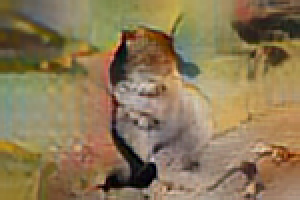
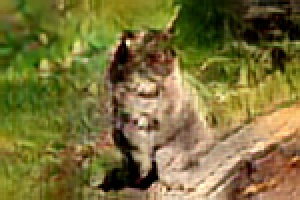
In the blendImg function, I gradually restyle and blend the start image with the end image and remove the background to make the transition smoother. The smaller the variable “step” is, the smoother the whole transition will be. After defining the function, I first blend startImg with the endImg, and then blend the endImg with the startImg. I reverse the blending effect of endImg to make it start from looking like startImg. Finally, I put them into a table and run them in ListAnimate.
In the blendImg function, I gradually restyle and blend the start image with the end image and remove the background to make the transition smoother. The smaller the variable “step” is, the smoother the whole transition will be. After defining the function, I first blend startImg with the endImg, and then blend the endImg with the startImg. I reverse the blending effect of endImg to make it start from looking like startImg. Finally, I put them into a table and run them in ListAnimate.
Mutually blending start image and end image, and using mask to blur the change in image.
In[]:=
blendImg[startImg_,endImg_,step_]:=MapThread[ImageAdjust[#1,{.35,0,#2}]&,{Table[ImageRestyle[RemoveBackground@startImg,w->RemoveBackground@endImg],{w,0,1,step}],Table[10^n,{n,0,-0.65,-0.65*step}]}]ListAnimate[Flatten[{blendImg[startImg,endImg,0.1],Reverse[blendImg[endImg,startImg,0.1]]}]]
Out[]=
3D Transition
3D Transition
Flipping Image as a Whole
Flipping Image as a Whole
I first create a 3D Polygon and put the image on it as its texture. Then, gradually rotate it for 180 degree and list animate the table that store it.
Make a flipping effect for individual
In[]:=
animatePositive[img_,step_]:=TableRasterize@Graphics3DRotate[{Texture[img],Polygon[{{-1,-1,0},{1,-1,0},{1,1,0},{-1,1,0}},VertexTextureCoordinates->{{0,0},{1,0},{1,1},{0,1}}]},{{0,0,1},{Sin[Pi*n/20],0,Cos[Pi*n/20]}}],ViewPoint->Above,,{n,0,10,step}ListAnimate@animatePositive[startImg,0.4]
Out[]=
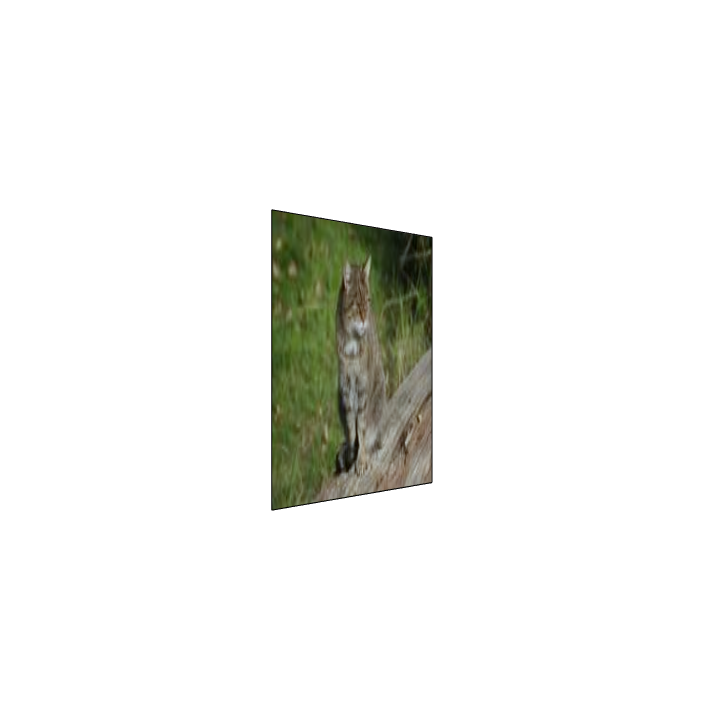
After making a flipping effect for single image, I apply it in the transition of two pictures. When the start image rotate 180 degree, I replace it with the end image which starts at 180 degree and rotates back. These two pictures are perpendicular to people at the time of replacement.
After making a flipping effect for single image, I apply it in the transition of two pictures. When the start image rotate 180 degree, I replace it with the end image which starts at 180 degree and rotates back. These two pictures are perpendicular to people at the time of replacement.
Use the flipping effect in transition
In[]:=
animateNegative[img_,step_]:=TableRasterize@Graphics3DRotate[{Texture[img],Polygon[{{-1,-1,0},{1,-1,0},{1,1,0},{-1,1,0}},VertexTextureCoordinates->{{0,0},{1,0},{1,1},{0,1}}]},{{1,0,0},{Sin[Pi*n/20],0,Cos[Pi*n/20]}}],ViewPoint->Above,,{n,0,10,step}ListAnimate@Join[animatePositive[startImg,0.4],animateNegative[endImg,0.4]]
Out[]=
Flipping SubImages Individually
Flipping SubImages Individually
Flipping SubImages Individually
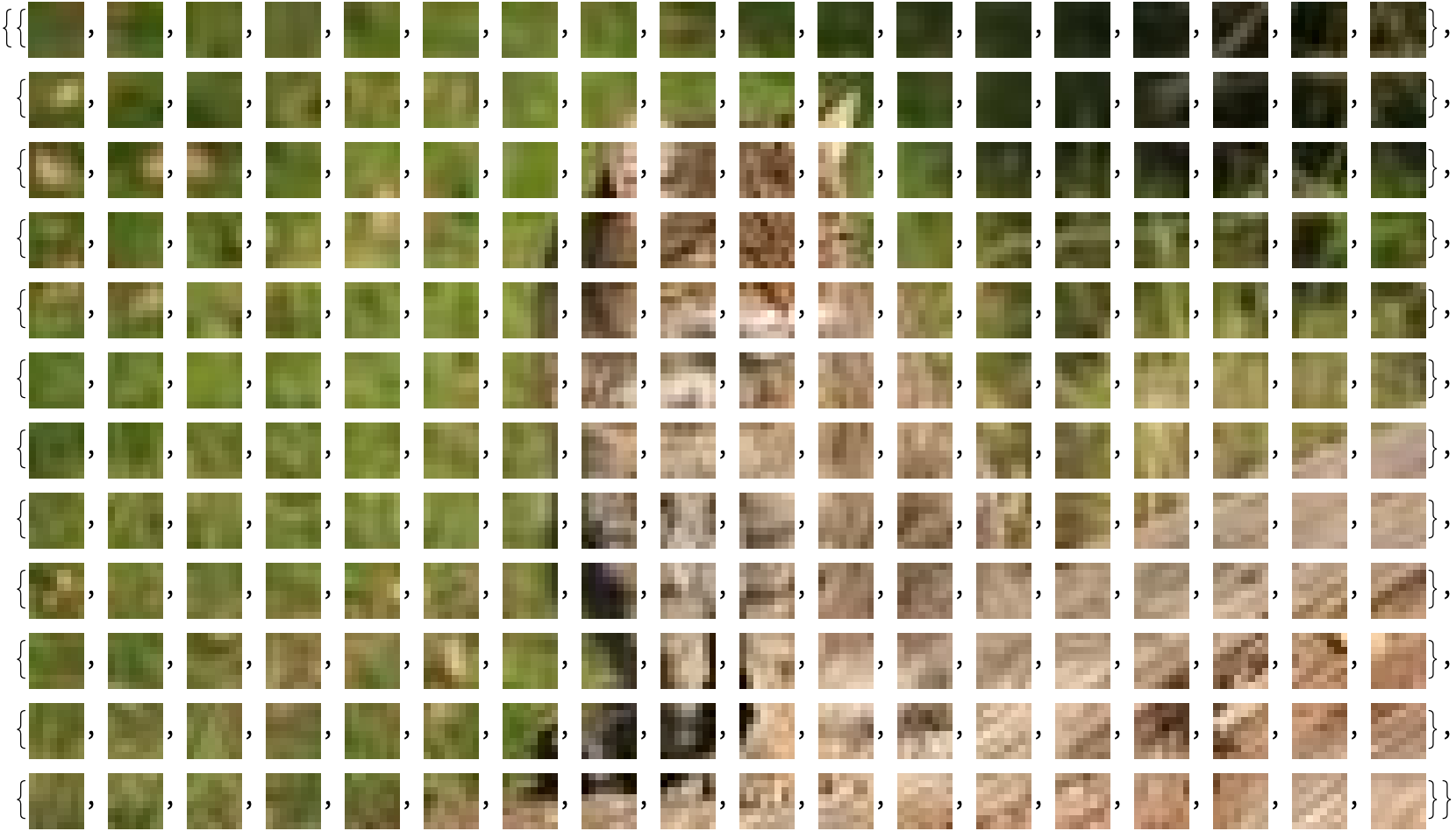
Dividing the start image and the end image into numeral subimages
Setting Partition
In[]:=
imgStart=ImagePartition[startImg,8]imgEnd=ImagePartition[endImg,8]
Out[]=
This positionAnimatedList function can generate a list of coordinates of subimages being flipped . Start grid is the first subimage being flipped, x1 is the column of the start grid, y1 is the row of the start grid, dst is the step of flipping, length1 is the number of column of subimages, and width1 is the number of the row of subimages. With x1 and y1 as the input, this function will find out the nearest subimage to it. Adding or subtracting dst will restrain the number of subimages in each step. Length1 and width1 can prevent the coordinate of subimages from going out of the image. The result of this function will decide the list of subimages being flipped.
This positionAnimatedList function can generate a list of coordinates of subimages being flipped . Start grid is the first subimage being flipped, x1 is the column of the start grid, y1 is the row of the start grid, dst is the step of flipping, length1 is the number of column of subimages, and width1 is the number of the row of subimages. With x1 and y1 as the input, this function will find out the nearest subimage to it. Adding or subtracting dst will restrain the number of subimages in each step. Length1 and width1 can prevent the coordinate of subimages from going out of the image. The result of this function will decide the list of subimages being flipped.
Find out the coordinate of subimages being flipped each step in grid
Extracting the subimages in these positions out to be prepared for flipping.
Extracting the subimages in these positions out to be prepared for flipping.
Finding out subimages being flipped each step due to its coordinate
Rotating an subimage to a particular angle at each step. As a result, the subimage will look like rotating if each step is connected. It might not look like a 3D rotation since I set the ViewProjection as ”Orthographic”. The reason why I set this is because that it may solve the problem of decreasing in 2D image length and width after rotation. You may try to delete “ViewProjection”Orthographic”” and see how it looks.
Rotating an subimage to a particular angle at each step. As a result, the subimage will look like rotating if each step is connected. It might not look like a 3D rotation since I set the ViewProjection as ”Orthographic”. The reason why I set this is because that it may solve the problem of decreasing in 2D image length and width after rotation. You may try to delete “ViewProjection”Orthographic”” and see how it looks.
Defining the rotation function
I first divide the startImg1 and endImg1 and find out all of the subimages which are going to be flipped at each step by using the function wholeList. After this, I replace subimages of the original image with the subimages after each flip, and the rotation rate is decided by the index of each step. The rotation rate will increase with each step in order to fully rotate all subimages.
I first divide the startImg1 and endImg1 and find out all of the subimages which are going to be flipped at each step by using the function wholeList. After this, I replace subimages of the original image with the subimages after each flip, and the rotation rate is decided by the index of each step. The rotation rate will increase with each step in order to fully rotate all subimages.
Combine all function together and make an transition flipping effect!
Try to put different images and other variables into the function and play around with it!!!
Conclusion
Conclusion
Future Work
Future Work
In my project, I use mask and image restyle in the 2D transition, and I use the flipping method to create a 3D transition effect. In the future, I may first want to extend the pattern of the subimage rotation to make it not only in the diamond shape. I would also want to let all subimages to rotate in the same rate. Now, I met a problem that if all subimages are rotated in the same rate, the later subimages aren’t going to end rotating even when the whole process is end.
Acknowledgement
Acknowledgement
Thank you to my mentor Eryn for revising my code, giving me idea, and helping me throughout the project. Also, thank to Anwesha for helping me find out mistake and giving me useful resources, and thank to Joseph for help with my code. Finally, I would thank my mentor group, TA group, as well as the rest of the students and staff at the Wolfram Summer Camp. I have a really good camp experience even though online, and I improve a lot in using wolfram language.