ORIGINAL ARTICLE: Alexander J. Norquist, Gabriel Jones-Thomson, Keqing He, Thomas Egg, and Joshua Schrier, A Modern Twist on an Old Measurement: Using Laboratory Automation and Data Science to Determine the Solubility Product of Lead Iodide, Journal of Chemical Education 2023 100 (9), 3445-3453. DOI: https://doi.org/10.1021/acs.jchemed.3c00445
Article Abstract: Laboratory automation and data science are valuable new skills for all chemists, but most pedagogical activities involving automation to date have focused on upper-level coursework. Herein, we describe a combined computational and experimental lab suitable for a first-year undergraduate general chemistry course, in which these topics are introduced in the context of determination of the solubility equilibrium constant of lead iodide. Students analyze their data using logistic regression analysis, which has a physical interpretation in terms of the solubility equilibrium expression and its stoichiometric coefficients. In addition to laboratory automation, data visualization, and data fitting skills, students also practice core laboratory skills such as the preparation of stock solutions using a volumetric flask and the use of micropipets. To keep the lab affordable, we demonstrate the use of a low-cost 3D-printed liquid dispensing robot to perform the automated experiment in addition to a commercial liquid-handling robot. Example pre- and post-lab computational notebooks are provided in both Mathematica and Python programming languages.
Pre-lab Exercise: Precipitation Determination
Pre-lab Exercise: Precipitation Determination
Learning Goals:
Learning Goals:
◼
Apply knowledge of solution mixing and equilibria typical in a first-year college curricula
◼
Introduce ideas about error and precision
◼
Introduce laboratory automation (for synthesis and characterization) and learn where this is an appropriate strategy
◼
Develop basic computer and data handling skills
Lab Objectives
Lab Objectives
◼
Introduce programming in Mathematica
◼
Introduce concentration space diagrams (J. Chem. Educ. 98, 1659-1666 (2021) doi:10.1021/acs.jchemed.0c01456) for solution mixing and equilibrium problems
◼
Generate an experiment plan
◼
Conduct it in the laboratory by manual pipetting and automated liquid handlers/dispensers
◼
Analyze the experimental data using logistic regression
Getting started
Getting started
◼
If you have limited Mathematica experience, you may wish to watch this screencast (12 minutes) which will help you get started by introducing basic concepts, including entering input, understanding functions, working with data and matrix operations, and finding functions. https://www.wolfram.com/broadcast/video.php?c=86&v=327
◼
If you have experience in another programming language, the Fast Introduction for Programmers is a good way to get started https://www.wolfram.com/language/fast-introduction-for-programmers/en/
Mathematica notebooks consist of text cells (like this one) and program input and output cells like the ones below. An input cell is evaluated by typing Shift+Enter. Any time you see a code cell, you should evaluate it using Shift+Enter. The first time you do this you will get a notification about initialization cells; these are some hidden code evaluations that are used to set up the animations, and you should click “OK” to permit these to run. It will only occur the first time you evaluate a cell during the session.
Basic of Mathematica
Basic of Mathematica
Pre-Lab: An Introduction to Concentration Space Diagrams
Pre-Lab: An Introduction to Concentration Space Diagrams
Solution Mixing in Concentration Space
Solution Mixing in Concentration Space
Making solutions with desired compositions is an essential task for all chemistry students. In your previous coursework, you may have learned how calculate the result of mixing two stock solutions using a four-step arithmetic process of converting concentration and volume information to moles, adding the moles present in the new solution, calculating a new volume, and then dividing the new number of moles by the new volume; this presents several opportunities for error. The inverse problem—whether a desired composition be made from two or more stock solutions—requires an algebraic treatment. However, there is a simpler way of thinking about the problem in terms of Cartesian coordinates.
If there are two solutes, X and Y, the concentration of both solutes can be represented as a point, {[X], [Y]}. If you read the section about Lists above, then you’ll remember that a list of values is specified by putting the elements inside the squiggly brackets, {},separated by a comma. We’ll use this notation so that you can enter the values directly into Mathematica.
If there are two solutes, X and Y, the concentration of both solutes can be represented as a point, {[X], [Y]}. If you read the section about Lists above, then you’ll remember that a list of values is specified by putting the elements inside the squiggly brackets, {},separated by a comma. We’ll use this notation so that you can enter the values directly into Mathematica.
◼
A neat solvent will have no solute, so its concentration point is {0,0}; this is labeled as point (a) below.
◼
A 1.0 M stock solution of X corresponds to a point at {1.0, 0}, labeled as (b) below.
◼
A stock solution that is 1.0 M in Y corresponds to a point at {0, 1.0}, labeled as (c) below.
Out[]=


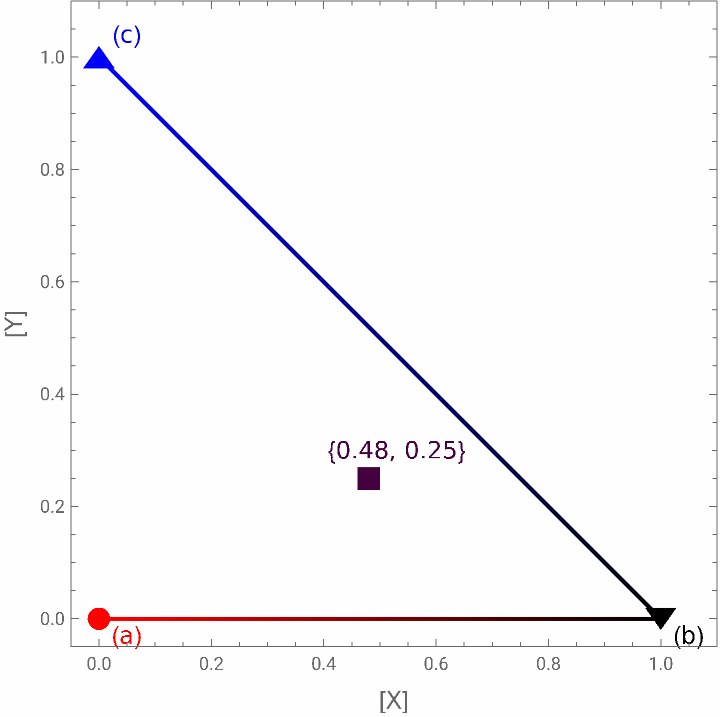
Suppose you mix solutions (a) and (b):
◼
The mixture cannot be less concentrated in X than the neat solvent
◼
The mixture cannot be more concentrated in X than the stock solution.
◼
And any combination of (a) and (b) will not introduce any of solute Y, which is totally absent.
◼
Therefore, the point describing the concentrations in the resulting mixture must be somewhere on the line between pure (a) and pure (b).
◼
TRY IT: Turn on this line by clicking the checkbox "Show AB-mixture line" in the graphic above.
The mixture between (a) and (b) along this line is defined by the equation: {0,0}+{1.0,0} , where and are the volume fractions of (a) and (b), respectively, ranging from zero (totally absent) to one (pure). The sum of these fractions must total to 1, i.e., +1. Rearranging this expression allows us to express everything in terms of ; we will assume that the remaining is made up by the neat solvent. This is known as a convex combination of (a) and (b)
v
a
v
b
v
a
v
b
v
a
v
b
v
b
1-
v
b
◼
TRY IT: Try dragging the “Volume fraction (b)” slider to move the square mixture point around. Observe how it remains on the AB-mixture line
The same logic should apply for mixtures of (a) and (c).
◼
TRY IT: Turn on the AC-mixture line
◼
TRY IT: Try dragging the Volume Fraction (c) slider to change the concentration
The same logic should apply for any mixture of (a), (b), (c).
◼
Any mixture of only (b) and (c) only should be on the line between those two stock solutions
◼
Any possible mixture of the three liquids, (a), (b), (c) sits within the triangle formed by the three points.
◼
TRY IT: Turn on all the mixture lines to see the triangle. Then try varying the volume fractions to find the boundaries of that point.
◼
More generally, a convex hull is the set of all possible convex combinations of the starting solutions.
◼
A common analogy used to describe the convex hull is that it is the shape formed by pulling a rubber band (or in higher dimensions, an elastic sheet) over a set of points, resulting in the outermost points connected by straight lines
◼
If you’ve taken linear algebra, then you’ll observe that the concentration will be described by with +≤1 (again, we implicitly defined 1--, so that ++1.
(1--){0,0}+{1.0,0}+{0,1.0}
v
b
v
c
v
b
v
c
v
b
v
c
v
a
v
b
v
c
v
a
v
b
v
c
Converting from Concentration to Volume Fractions
Converting from Concentration to Volume Fractions
Suppose that we want to generate a solution with concentrations [X] = 0.2 M and [Y] =0.3 M. This seems like it is inside the convex hull of possible mixtures, so it should be possible. What volume fractions do we need to blend to achieve this point?
◼
TRY IT: Try moving the slider bars to find volume fractions that satisfy this point; also calculate the implied volume fraction of (a).
Another approach is to have the computer perform this search. We begin by defining the different solutions and our target solution defining these as variables:
In[]:=
a={0,0};b={1.0,0};c={0,1.0};target={0.2,0.3};
Next we will find an instance where our equality is satisfied and each of the inequalities is satisfied. It is important that we specify that each of the volume fractions is greater or equal to zero
In[]:=
FindInstance[{targetva*a+vb*b+vc*c,va≥0,vb≥0,vc≥0,va+vb+vc1},{va,vb,vc}]
Out[]=
{{va0.5,vb0.2,vc0.3}}
OPTIONAL: If you have taken a linear algebra course, you might think about how you can express and solve this as a linear equation.
In this simple case, where each stock solution contains only one solute at 1M it is easy to perform the scaling. However, this approach is general enough to allow us to treat any arbitrary combination of volumes
Generating and Visualizing Random Experiments in Concentration Space
Generating and Visualizing Random Experiments in Concentration Space
Because the convex hull defines what mixtures are possible, by sampling points that are inside the convex hull we can define randomly-generated feasible experiments.
To do this, we’ll begin by using the definitions of a, b, c from above, generate the convex hull by calling the ConvexHullMesh function for the collection (list) of points:
To do this, we’ll begin by using the definitions of a, b, c from above, generate the convex hull by calling the ConvexHullMesh function for the collection (list) of points:
In[]:=
a={0,0};(*exampledefinitionsofthestocksolutions*)b={1.0,0};c={0,1.0};possibleMixtures=ConvexHullMesh[{a,b,c}]
Out[]=

This defines a new variable, possibleMixtures, describing the geometric region comprising the convex hull. We can plot this region using the RegionPlot function:
In[]:=
possibleMixturePlot=RegionPlot[possibleMixtures,PlotStyle{Gray,Opacity[0.2]},FrameLabel->{"[X]","[Y]"}]
Out[]=
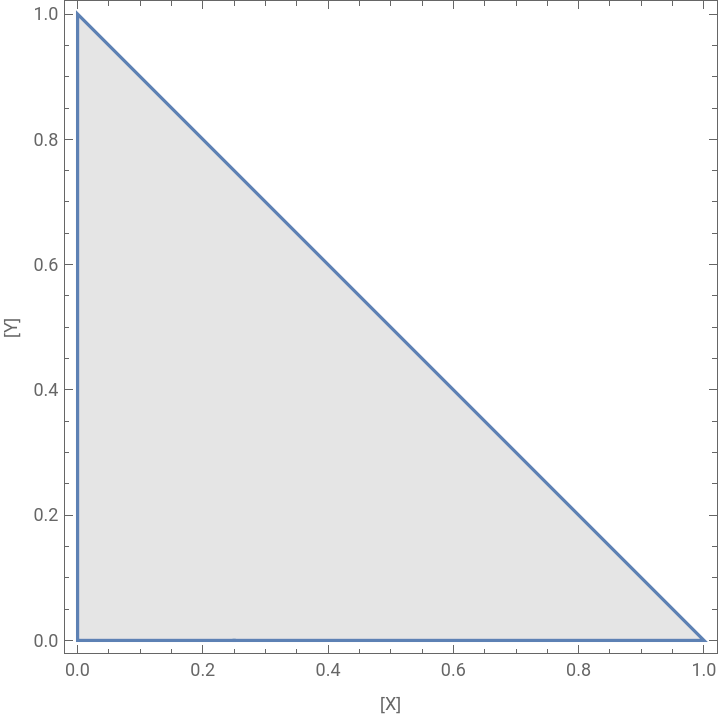
We can also generate random points within this region by calling the RandomPoint function; the first argument is the region within which we want to generate points and the second argument is the number of points to generate (in this case, 24):
Notice how these concentrations are a list of pairs of points, each describing the concentration of {[X], [Y]}. We can plot these points by using the ListPlot function:
Equilibrium Expressions in Concentration Space
Equilibrium Expressions in Concentration Space
Now let’s combine it with the plots above:
What does this plot tell us?
Solving for the Equilibrium Constant
Solving for the Equilibrium Constant
Transforming variables
Transforming variables
Logistic Regression
Logistic Regression
We’ll need to perform take the logarithm of the two concentrations, and I’ve defined some convenience functions that can do this for you. To avoid problems, you cannot modify the functions in the grey cells below, but you are free to copy them, change the names, and modify them in a new code cell:
(When you run this on your own data, you may get some warning messages about small or large parameters; this is because there is no unique solution to this equation if there is a line that can perfectly divide the two classes of outcomes.).
Let’s take a look at the outcome:
Let’s take a look at the outcome:
And then apply it to our data and find the fit:
We’ll similarly need to divide by this new normalization constant (again, as you saw in the example above, we can scale both of these arbitrarily and obtain the same result, so it is necessary to normalize; in this case there is only one input variable that we can choose, i.e., z):
This should be in vary good agreement with the values you obtained from your fitting, where we constrained the equilibrium curves to have the “correct” stoichiometry.
Exporting Instructions to the Real World
Exporting Instructions to the Real World
In the animations above you have been using simulated data. But in a real laboratory setting you will want to generate the example mixture points and then export the instructions. To do this, you will have to combine some of the strategies we’ve demonstrated above.
First, you’ve already seen how to define random concentration samples:
First, you’ve already seen how to define random concentration samples:
Next, we’ll need to determine the volume fraction for each target. Because this is something we need to do for each point, we’ll define a function for the process (with a few extra modifications to get the data into a simplified form):
Now, we’ll apply this to the randomly generated experiments to create a list of the corresponding volume fractions applying it to each item:
Of course, you don’t want to generate a fractional volume in the laboratory—you want to generate a desired total volume. This can be obtained by multiply this fraction by the total volume (expressed in the relevant units), let’s say it is 300 microliters:
It’s probably unrealistic to expect that you can obtain sub-microliter precision in the lab; in practice it will likely be even less than this depending on how the experiment is performed. So let’s be more realistic and truncate this to single microliters; we can do this using the IntegerPart function to obtain just the integer amounts.
Finally, you’ll need to get this to the human or robot who will be performing the experiment. We will do this by exporting to a Comma Separated Value (CSV) file, using the Export command. (Ultimately, the robot control programs accept different types of file formats, and your instructor or TA will help you convert the exported CSV file to an appropriate input format. If you are not using a robot, then you can just print the CSV file and use it to guide your manual pipetting.) To Export the file, you’ll provide a filename and the list of values to be exported:
Observe how the only output returned by this function is the name of the file. Look for this file on your computer and open it to confirm that you have exported the appropriate columns of data.
Importing Result Data and Fitting a Model
Importing Result Data and Fitting a Model
Suppose that you’ve saved a set of results describing the volume of your three stock solutions and the outcome stored in an CSV file—each row corresponds to the list {volume of a, volume of b, volume of c, outcome} . What are the steps that we need to take?
1
.Import the contents of the file to Mathematica
2
.Convert the volumes to concentrations (given the known stock solutions)
3
.Convert the concentrations to logarithms (with or without adding the stoichiometric constraint)
4
.Perform the Logistic Regression Fit to determine the equilibrium constant.
Let’s start with the first step. Your instructor will provide you with an example_results.csv file. Place it somewhere you can find it and Import it; you can use the Insert>File... menu option to locate the file if it is not in a standard place on your computer:
After reading the data, let’s define a function to convert the volumes to concentrations:
We’ll assume the same fictitious stock solutions used above and apply this function to compute the concentrations:
Now it’s in the form of a problem that we already solved in the section on Logistic Regressions. We merely have to use the functions that we defined there to obtain the results by Log transforming the data and obtaining the logistic regression parameters.
TRY IT: Starting with the computedConcentration variable defined above as the input, use the function from the Logistic Regression section to obtain the equilibrium constant. You should obtain nearly the same result as above; the difference results from the finite precision of the dispense volumes that we introduced with IntegerPart.
Post-lab Exercise: Precipitation Determination
Post-lab Exercise: Precipitation Determination
Outline of the Process
Outline of the Process
You have now run the experiments and saved a set of results describing the volume of your three stock solutions and the outcome in a CSV file—each row corresponds to the list {volume of a, volume of b, volume of c, outcome} .
Question: What are the steps that you need to take?
Question: What are the steps that you need to take?
1
.Import the contents of the file to Mathematica
2
.Convert the volumes to concentrations (given the known stock solutions)
3
.Plot the concentration data to see if it is reasonable
4
.Convert concentrations to logarithms
5
.Perform a Logistic Regression fit to determine the equilibrium constant.
6
.Plot the equilibrium constant to see if it is reasonable
6
.1
.Combine the plot of the equilibrium constant with the plot of the data to make sure it is consistent
Import the Results
Import the Results
◼
Save your CSV result file somewhere you can find it on your local computer.
◼
◼
You can use the Insert>File... menu option to locate the file if it is not in a standard place on your computer
◼
In our example we save the data processing notebook and the CSV file in the same folder, to simplify our reference to it, but this is not strictly necessary
Code
Code
Does the result make sense?
Does the result make sense?
◼
volumeData should be a list of 4-member lists (a list-of-lists)
◼
The last entry of each 4-member list should be a one or zero, corresponding to the reaction outcome
◼
If there are errors, try adding the option “Numeric”->True to the Import function to make sure that everything gets interpreted as a number (this might be a problem with some CSV exporters)
◼
Entries should match the results in your CSV file.
Convert volumes to concentrations
Convert volumes to concentrations
1
.Define a function to convert the volumes to concentrations
1
.1
.Takes as input the stock solution concentrations used
1
.2
.Takes as input a list containing the volumes of a, b, c and the outcome
2
.Define variables that store your stock solutions composition
3
.Apply the function to each entry in your volumeData and save the result in a new variable called concentrationData
In the pre-lab worksheet, we defined a function to perform this process. The below is a slight variation which divides by the total volume of your pipetting instruction
What else remains?
◼
Define variables describing the concentrations of the stock solutions
◼
Use the toConcentration function (defined above) to convert each of your volume data back to concentrations.
Code:
Code:
Does the result make sense?
Does the result make sense?
◼
concentrationData should be a list of 3-member lists (a list-of-lists)
◼
The last entry of each 3-member list should be a 1 or zero, corresponding to the reaction outcome.
◼
Concentrations (first two entries in each 3-member list) should be positive numbers
◼
Concentrations should be less than 0.01 M in each species (i.e., the concentration of the stock solutions you made)
Plot the Concentrations
Plot the Concentrations
Key ideas:
◼
Divide the samples into two groups, based upon the value of the third term in the entry
◼
Use ListPlot to plot the results
◼
Fiddle with ListPlot options to get it to display the way you want.
◼
Save the result into a variable pointPlot
This can be somewhat tricky, so we have explored two different ways to proceed.
Version 1
Version 1
Version 2
Version 2
Define functions that match patterns as to whether a point has the outcome zero or 1; if it is not the correct type, then we remove the point (by replacing it with Nothing), otherwise we keep it.
Convert to Log-Concentrations
Convert to Log-Concentrations
Now we need to convert from {[Pb], [I], outcome} to the constrained logarithmic form you explored in the pre-lab Exercise.
Write a function to perform the transformation for one entry, and then apply it to all the entries. Save the results into the variable logData
Write a function to perform the transformation for one entry, and then apply it to all the entries. Save the results into the variable logData
Code:
Code:
Warning: It is possible following will fail because one of the entries requires taking the logarithm of zero! Look at the output....you’ll see an Indeterminate which indicates this error:
If you encounter this error, you must fix it. You have a few options:
◼
Edit your CSV file and remove the offending line, and repeat the process from the top (you do not need to change the code)
◼
Write a function to remove Indeterminate values from the list, as demonstrated below:
Fit the Logistic Regression Model
Fit the Logistic Regression Model
Follow the example given in the pre-lab notebook:
1
.Use LogitModelFit to fit the logData values, storing the resulting fitted model into the variable constrainedModel
2
.Extract the “BestFitParameters” attribute of the constrainedModel.
3
.Normalize the parameters
Code:
Code:
Visualize Your Results
Visualize Your Results
2
.Combine the equilibriumPlot with your previous concentration plot (pointPlot) using the Show function
Code
Code
You can copy this image by right-clicking (ctrl-click) on the image and then paste it into a final lab report.
Alternatively, you can save the image by using the Export function; the first argument is the file name (the file extension will automatically determine the correct format), and the second argument is the variable contains the figure you wish to plot.
Alternatively, you can save the image by using the Export function; the first argument is the file name (the file extension will automatically determine the correct format), and the second argument is the variable contains the figure you wish to plot.
CITE THIS NOTEBOOK
CITE THIS NOTEBOOK
Using Laboratory Automation and Data Science to Determine the Solubility Product of Lead Iodide
by Joshua Schrier
Wolfram Community, STAFF PICKS, October 4, 2023
https://community.wolfram.com/groups/-/m/t/3027321
by Joshua Schrier
Wolfram Community, STAFF PICKS, October 4, 2023
https://community.wolfram.com/groups/-/m/t/3027321