Introduction
Introduction
Strangeworks is helping businesses find value in quantum technology today, while also helping them prepare for quantum advantage tomorrow. With the largest catalog of quantum hardware and software available, the Strangeworks platform is accessible to everyone, and brings the varied pieces of the quantum computing ecosystem together in one place.
To get started for free, create your account at strangeworks.com/signup. From there you will be able to activate hardware, view available QPUs, browse your quantum jobs, and retrieve your api key. The strangeworks-wolfram package allows Wolfram Mathematica users to communicate with the Strangeworks platform, enabling you to submit jobs to gate based quantum hardware, as well to a wider range of advanced compute providers (see full Strangeworks catalog for details).
In this notebook, we will take you through set-up and installation, authenticating with Strangeworks using your api key, creating a simple quantum circuit, and submitting that circuit to both IBM and AWS simulators/hardware. We’ll also show you how to check on the statuses of your jobs and download the results.
To get started for free, create your account at strangeworks.com/signup. From there you will be able to activate hardware, view available QPUs, browse your quantum jobs, and retrieve your api key. The strangeworks-wolfram package allows Wolfram Mathematica users to communicate with the Strangeworks platform, enabling you to submit jobs to gate based quantum hardware, as well to a wider range of advanced compute providers (see full Strangeworks catalog for details).
In this notebook, we will take you through set-up and installation, authenticating with Strangeworks using your api key, creating a simple quantum circuit, and submitting that circuit to both IBM and AWS simulators/hardware. We’ll also show you how to check on the statuses of your jobs and download the results.
Installation
Installation
◼
Download and authenticate Wolfram, there are free trials available. Skip this if you already have a Wolfram license.
◼
Sign up for free on the Strangeworks platform by visiting strangeworks.com/signup
◼
Activate the free IBM Quantum resource from the Catalog section of the Strangeworks platform. For additional resources, feel free to browse the entire Strangeworks Catalog at portal.strangeworks.com/products
◼
Enter your apiKey found on the Strangeworks Dashboard, and your Resource ID from the IBM Quantum resource detail page
◼
You’re almost ready to run the example below
Load Packages
Load Packages
First we want to load both the Wolfram QuantumFramework package and the Strangeworks Package:
In[]:=
PacletInstall["https://www.wolframcloud.com/obj/wolframquantumframework/QuantumFramework.paclet",ForceVersionInstallTrue];<<Wolfram`QuantumFramework`;
In[]:=
PacletInstall["Strangeworks/Strangeworks"]<<Strangeworks`Strangeworks`
Out[]=
PacletObject

Authenticate with Strangeworks
Authenticate with Strangeworks
We must first authenticate with Strangeworks using our api-key and our resource slugs for both IBM and AWS resources:
apikey="";resourceslugibm="";resourceslugaws="";authstatus=AuthenticateSW[apikey]
Out[]=
done
Quantum Circuit
Quantum Circuit
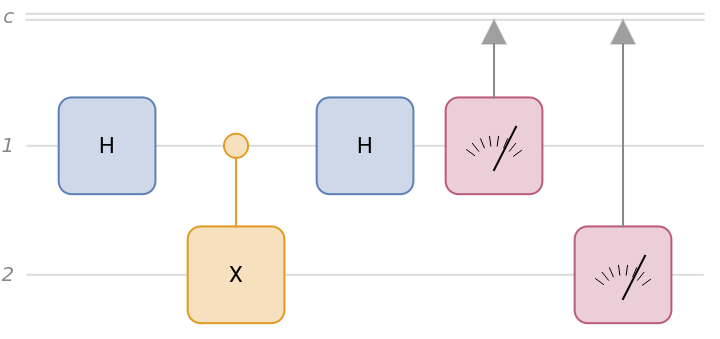
Next we will create a simple quantum circuit as an example to submit to the backends:
In[]:=
ops={QuantumOperator["H",{1}],QuantumOperator["CX",{1,2}],QuantumOperator["H",{1}],{1},{2}};qc=QuantumCircuitOperator[ops];qc["Diagram"]
Out[]=
Get Available Backends
Get Available Backends
We can also print the available backends for IBM:
In[]:=
resourcestatus=GetResourceSW[resourceslugibm,"ibm-quantum"]backends=BackendsSW[]
Out[]=
done
Out[]=
[{"name":"ibmq_qasm_simulator"},{"name":"simulator_extended_stabilizer"},{"name":"ibm_lagos"},{"name":"ibm_nairobi"},{"name":"ibm_perth"}]
And for AWS-Braket:
In[]:=
resourcestatus=GetResourceSW[resourceslugaws,"amazon-braket"]backends=BackendsSW[]
Out[]=
done
Out[]=
[{"name":"Aquila","arn":"arn:aws:braket:us-east-1::device/qpu/quera/Aquila","status":"ONLINE"},{"name":"Aria 1","arn":"arn:aws:braket:us-east-1::device/qpu/ionq/Aria-1","status":"ONLINE"},{"name":"Aria 2","arn":"arn:aws:braket:us-east-1::device/qpu/ionq/Aria-2","status":"OFFLINE"},{"name":"Aspen-M-3","arn":"arn:aws:braket:us-west-1::device/qpu/rigetti/Aspen-M-3","status":"OFFLINE"},{"name":"Harmony","arn":"arn:aws:braket:us-east-1::device/qpu/ionq/Harmony","status":"ONLINE"},{"name":"Lucy","arn":"arn:aws:braket:eu-west-2::device/qpu/oqc/Lucy","status":"ONLINE"},{"name":"SV1","arn":"arn:aws:braket:::device/quantum-simulator/amazon/sv1","status":"ONLINE"},{"name":"TN1","arn":"arn:aws:braket:::device/quantum-simulator/amazon/tn1","status":"ONLINE"},{"name":"dm1","arn":"arn:aws:braket:::device/quantum-simulator/amazon/dm1","status":"ONLINE"}]
Run Job on IBM
Run Job on IBM
We will first run our circuit through IBM. For this example we will just run on the simulator but one can run on hardware by chaning the name of the backend:
In[]:=
backend="ibmq_qasm_simulator";shots=100;GetResourceSW[resourceslugibm,"ibm-quantum"];swjob=RunSW[qc,backend,shots]jobslugibm=Part[swjob,2]
Out[]=
{{"slug":"frozen-bush-3098","job_id":"ZTg4MzkzMDItZGU3Zi00ODhkLTlmYjktNjc5MDQ4ODZjMzI2","external_identifier":"cl0gbu0q8psj90o2pm00","status":"RUNNING","_is_terminal_state":false,"remote_status":"RUNNING","job_data_schema":null,"job_data":"{\"backend\": \"ibmq_qasm_simulator\", \"program_id\": \"sampler\"}","date_created":null,"date_updated":null,"resource":null,"child_jobs":null,"files":null,"parent_job_slug":null},frozen-bush-3098}
Out[]=
frozen-bush-3098
Run Job on Braket
Run Job on Braket
We can also run on Braket backends through Strangeworks:
In[]:=
backend="arn:aws:braket:::device/quantum-simulator/amazon/sv1";shots=100;GetResourceSW[resourceslugaws,"amazon-braket"];swjob=RunSW[qc,backend,shots]jobslugaws=Part[swjob,2]
Out[]=
{{"slug":"rough-hail-5440","job_id":"MmEwOTU3ZDMtZGY2Ni00YWViLTk4MDktMmYyZWNlZjE1NzM0","external_identifier":"arn:aws:braket:us-west-2:498168020561:quantum-task/e1376176-0e96-4579-9c6c-b44b395060d2","status":"CREATED","_is_terminal_state":false,"remote_status":"CREATED","job_data_schema":"amazon-braket-task","job_data":"{\"taskId\": \"arn:aws:braket:us-west-2:498168020561:quantum-task/e1376176-0e96-4579-9c6c-b44b395060d2\", \"shots\": 100, \"backendRemoteId\": \"arn:aws:braket:::device/quantum-simulator/amazon/sv1\", \"backendSlug\": \"54223o29k\"}","date_created":null,"date_updated":null,"resource":null,"child_jobs":null,"files":null,"parent_job_slug":null},rough-hail-5440}
Out[]=
rough-hail-5440
Get Status
Get Status
We can check-up on the status of each job:
In[]:=
GetResourceSW[resourceslugibm,"ibm-quantum"];statusibm=StatusSW[jobslugibm]
Out[]=
COMPLETED
In[]:=
GetResourceSW[resourceslugaws,"amazon-braket"];statusaws=StatusSW[jobslugaws]
Out[]=
COMPLETED
Get Results
Get Results
And finally, we can download the results into the notebook:
In[]:=
GetResourceSW[resourceslugibm,"ibm-quantum"];resultibm=ResultSW[jobslugibm];histogramibm=Part[resultibm,2]GetResourceSW[resourceslugaws,"amazon-braket"];resultaws=ResultSW[jobslugaws];histogramaws=Part[resultaws,2]
Out[]=
{"samples": {"11": 27, "01": 21, "00": 22, "10": 30}, "sampleCount": 100}
Out[]=
{"samples": {"00": 17, "10": 34, "01": 27, "11": 22}, "sampleCount": 100}
Plot Results
Plot Results
We can also plot probability distributions to compare the results :
In[]:=
histogramSW[histogramibm]histogramSW[histogramaws]
CITE THIS NOTEBOOK
CITE THIS NOTEBOOK
Strangeworks: submit quantum circuits to quantum hardware through the Strangeworks platform
by Stuart Flannigan
Wolfram Community, STAFF PICKS, November 30, 2023
https://community.wolfram.com/groups/-/m/t/3074999
by Stuart Flannigan
Wolfram Community, STAFF PICKS, November 30, 2023
https://community.wolfram.com/groups/-/m/t/3074999