Supplementary files for this post are available here:
https://www.dropbox.com/s/lwi5azojm8dfdsr/data3.zip?dl=0
Included are graphics, blend-files, videos necessary to experiment with code and instructions in this post.
https://www.dropbox.com/s/lwi5azojm8dfdsr/data3.zip?dl=0
Included are graphics, blend-files, videos necessary to experiment with code and instructions in this post.
Abstract
Abstract
In Example 1 a pattern with stars was created Wolfram Language and a variant of it animated in Blender. Example 2 used synthetic geometry to construct Arbeloi from cords. A modified version was animated in Blender.
Experiment
Experiment
Example 1: Pattern from stars
Example 1: Pattern from stars
Pattern Creation - Wolfram Language
Pattern Creation - Wolfram Language
Two squares were overlay-ed:
In[]:=
tr1=TransformedRegion[Rectangle[],TranslationTransform[{-0.5,0.2}]];tr2=TransformedRegion[Rectangle[],RotationTransform[π/4]];Graphics[{EdgeForm[{Thick,Blue}],FaceForm[None],{tr1,tr2}}]
Out[]=
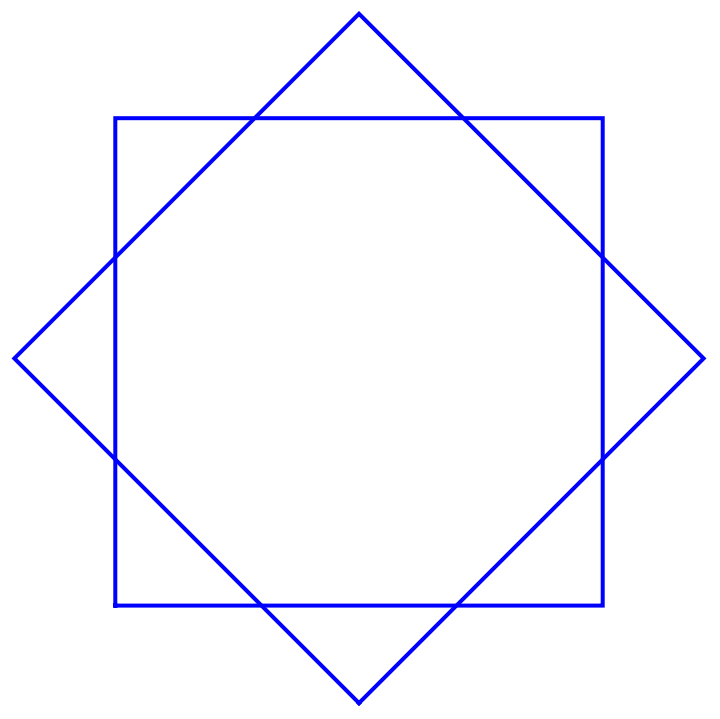
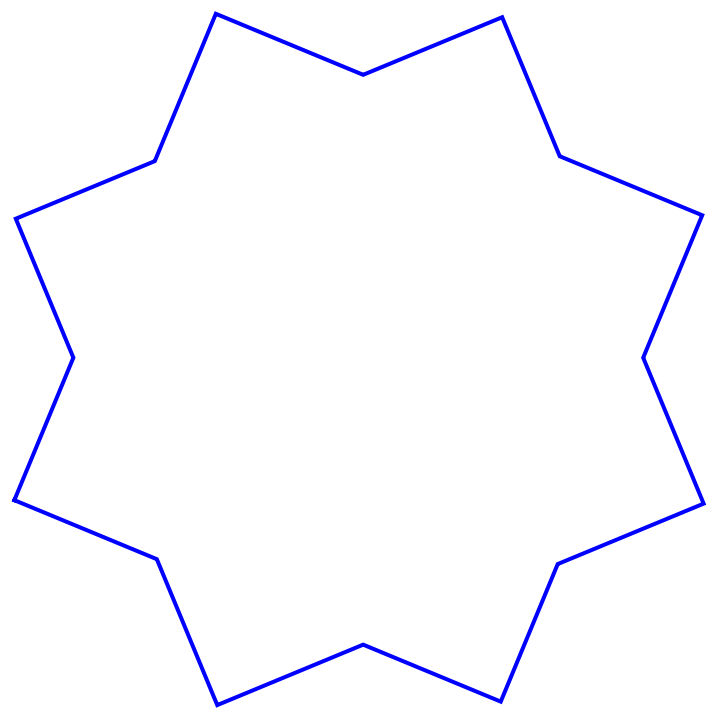
To build from this graphics a star some lines had to be deleted via RegionUnion. Additionally the resulting star was rotated by Pi/8. A star was exported as SVG file.
In[]:=
path0=SetDirectory[NotebookDirectory[]]ru=TransformedRegion[RegionUnion[tr1,tr2],RotationTransform[Pi/8]];gr=Graphics[{EdgeForm[{Thick,Blue}],FaceForm[None],ru}]Export[path0<>"\\data"<>"\\star.svg",gr]
Out[]=
D:\DDocs\0-published\woco\ams15pub
Out[]=
Out[]=
D:\DDocs\0-published\woco\ams15pub\data\star.svg
A row of stars was created:
In[]:=
ruc=Table[TransformedRegion[ru,TranslationTransform[{0,1.5*(i-1)}]],{i,0,8}];Graphics[{EdgeForm[{Thick,Blue}],FaceForm[None],ruc}]
Out[]=

A grid of stars was built :
In[]:=
rug=Table[TransformedRegion[#,TranslationTransform[{1.5*(i-1),0}]],{i,0,8}]&/@ruc;Length[rug]
Out[]=
9
In[]:=
Graphics[{EdgeForm[{Thick,Blue}],FaceForm[None],rug}]
Out[]=
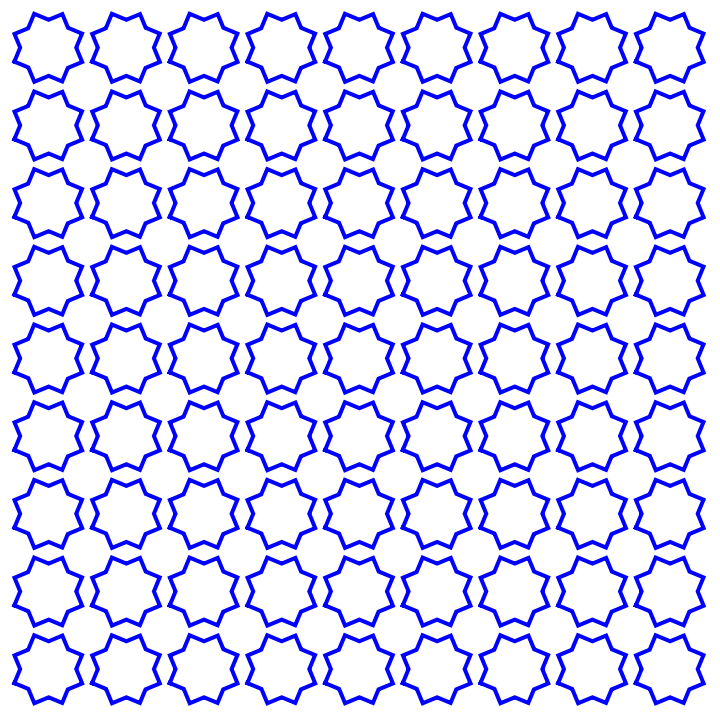
Hint: Did you see one or two images?
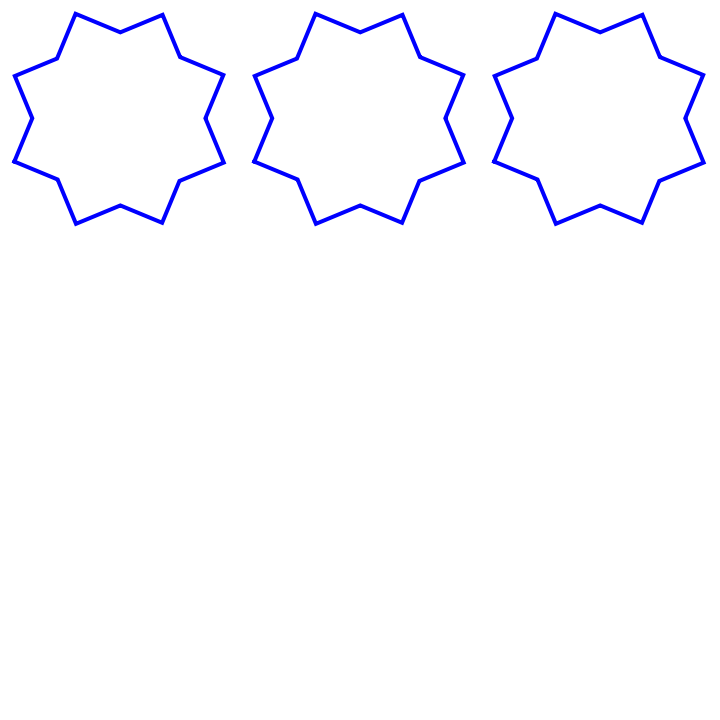
A smaller sample was animated :
rug2=Transpose[Take[Transpose[Take[rug,3]],3]];bw=Table[Graphics[{{EdgeForm[{Thick,White}],FaceForm[None],rug2[[1;;i-1]]},{EdgeForm[{Thick,Blue}],FaceForm[None],rug2[[i;;3]]}}],{i,3,2,-1}];ListAnimate[bw]
Out[]=
Animation - Blender
Animation - Blender
There are two approaches used in this guide:
A) Step-by-step instructions with annotated screenshots for one part of the animation.
B) Brief verbal description of the remaining steps.
A) Step-by-step instructions with annotated screenshots for one part of the animation.
B) Brief verbal description of the remaining steps.
Approach B:
A star was added to the scene by importing star.svg from folder data. The curve was extruded, solidified, subdivided and converted to a mesh. The star then was modified twice with the Array Modifier to form a grid of stars. Between the stars spheres were positioned in lines. The stars were given a metallic blue material, the spheres a gold-like material. The first part of the animation brings in the stars from left, then the spheres perpendicular from the front.
A grid of eight golden modified cylinders was moved up from below the camera view to meet 8 stars.
Next 8 monograms are lowered on the cylinders and fit together as decals. Finally a partial rotation of all objects anticlockwise and clockwise follows.
Hint: The monograms form a word.
A star was added to the scene by importing star.svg from folder data. The curve was extruded, solidified, subdivided and converted to a mesh. The star then was modified twice with the Array Modifier to form a grid of stars. Between the stars spheres were positioned in lines. The stars were given a metallic blue material, the spheres a gold-like material. The first part of the animation brings in the stars from left, then the spheres perpendicular from the front.
A grid of eight golden modified cylinders was moved up from below the camera view to meet 8 stars.
Next 8 monograms are lowered on the cylinders and fit together as decals. Finally a partial rotation of all objects anticlockwise and clockwise follows.
Hint: The monograms form a word.
Approach A:
A video will be produced with one star and one cylinder.
Step 1: Open single2.blend in data folder.
A video will be produced with one star and one cylinder.
Step 1: Open single2.blend in data folder.
Step 2: Test the animation and check the size of the animation (printer symbol on the vertical properties bar). Then set the output to folder rendered within folder data. Create it, if necessary.
Step 3: Further down in the output properties additional settings have to be checked. First set the output directory to folder rendered in folder data. In an earlier post the video was directly rendered. This can be risky. A safer way is to render the animation as image sequence (e.g. PNGs) and in a second step render a video from the images. Therefore set the output file format to PNG, the colorspace to RGB and the color depth to 8 bit.
Remark: For more advanced workflows OpenEXR (32 bit) is the format of choice.
Step 4: Choose Render animation in Render menu. The rendering takes place in a second window (default setting). Close the render window and create a new blender file by File/New/Video Editing.
Step 5: Check again the output resolution. Add/Image-Sequence opens a window to choose the directory with the rendered images. Within the proper directory all images can be selected by the shortcut key A. Then add image strip.
Remark: For more advanced workflows OpenEXR (32 bit) is the format of choice.
Step 4: Choose Render animation in Render menu. The rendering takes place in a second window (default setting). Close the render window and create a new blender file by File/New/Video Editing.
Step 5: Check again the output resolution. Add/Image-Sequence opens a window to choose the directory with the rendered images. Within the proper directory all images can be selected by the shortcut key A. Then add image strip.
Step 6: Check again the output settings or modify them to your preferences.
Step 7: Render the animation via Render Menu or shortcut (e.g. Win: Ctrl-F12).
Step 8: Save and close both files. Close Blender.
Step 9: Test your rendered video. It should be in data folder and named e.g. 0001-0090.mp4.
Hint: The standard output folder in Win is tmp.
Hint: The standard output folder in Win is tmp.
Example 2: Arbeloi from a cord
Example 2: Arbeloi from a cord
Construction of an Arbelos - Wolfram Language
Construction of an Arbelos - Wolfram Language
For the following part synthetic geometry (experimental in Wolfram Language version 13.1) was used to create an Arbelos:
Steps for constructing an Arbelos from cord:
1) Draw a circle with the center in the origin with radius 1. Add a cord to the circle.
3) Construct a normal to line (a,b) through midpoint e. The intersection points are (c ,d, e).
4) Draw a circle through (c, e) in midpoint g and radius equal to the distance of e and g.
5) Draw a circle through (e, d) in midpoint f and radius equal to the distance of e and f.
6) The circles to be found touch the line (a.b), the circle with center g from outside and the big circle from inside. Furthermore the lines (a, b) and (h, o) are perpendicular. The points (a ,e, h) or (a,h,e) are collinear.
1) Draw a circle with the center in the origin with radius 1. Add a cord to the circle.
3) Construct a normal to line (a,b) through midpoint e. The intersection points are (c ,d, e).
4) Draw a circle through (c, e) in midpoint g and radius equal to the distance of e and g.
5) Draw a circle through (e, d) in midpoint f and radius equal to the distance of e and f.
6) The circles to be found touch the line (a.b), the circle with center g from outside and the big circle from inside. Furthermore the lines (a, b) and (h, o) are perpendicular. The points (a ,e, h) or (a,h,e) are collinear.
The Block was used to try out/present random solutions. Sometimes only the input is presented as output. Reevaluating may help.
One Arbelos is used for export as PDF file:
Creation of Animation - Blender
Creation of Animation - Blender
There are two approaches used in this guide:
A) Step-by-step instructions with annotated screenshots for one part of the animation.
B) Brief verbal description of the remaining steps.
A) Step-by-step instructions with annotated screenshots for one part of the animation.
B) Brief verbal description of the remaining steps.
Approach B:
Prequel:
The PDF-file pattern was imported as image and rotated to lie on the x,y-surface. This image was used to build an arbelos in 3D beginning with the biggest circle. The line and the smaller circles were added via Add/Curve menu. A cylinder and a plane completed the scene. The curves were given depth via Curve Properties/Geometry/Depth. The cylinder and plane were subdivided. Circles and line got a metallic material. For the cylinder a glassy material was chosen. The plane was given a monochrome dark shiny material. The line was moved and the its change and that of the inner circles animated.
The PDF-file pattern was imported as image and rotated to lie on the x,y-surface. This image was used to build an arbelos in 3D beginning with the biggest circle. The line and the smaller circles were added via Add/Curve menu. A cylinder and a plane completed the scene. The curves were given depth via Curve Properties/Geometry/Depth. The cylinder and plane were subdivided. Circles and line got a metallic material. For the cylinder a glassy material was chosen. The plane was given a monochrome dark shiny material. The line was moved and the its change and that of the inner circles animated.
Animation Part 1:
To fill the circles flattened subdivided icosahedra were used. They were given a colored glassy material with a small amount of roughness. The animation started with filling the two inner circles. Then the four circles were lowered to their position. They touch the cord, one inner circle and the big circle. These four circles were again filled by modified icosahedra.
To fill the circles flattened subdivided icosahedra were used. They were given a colored glassy material with a small amount of roughness. The animation started with filling the two inner circles. Then the four circles were lowered to their position. They touch the cord, one inner circle and the big circle. These four circles were again filled by modified icosahedra.
Animation Part 2:
The moving parts were parented by an empty object. The full rotation of the empty object around the z-axis led to rotation of a group of objects.
The moving parts were parented by an empty object. The full rotation of the empty object around the z-axis led to rotation of a group of objects.
Approach A (for parts of the prequel):
Step 1: Open data/base.blend in Blender.
Step 2: Add a circle via Add/Curve.
Step 3: Select the object-properties in the vertical properties bar and change radius and center. The circle should touch the big and the small circle.
Approach A (for parts of the prequel):
Step 1: Open data/base.blend in Blender.
Step 2: Add a circle via Add/Curve.
Step 3: Select the object-properties in the vertical properties bar and change radius and center. The circle should touch the big and the small circle.
Step 4: Select the curve-properties in the vertical properties bar and open Geometry/Bevel and add a depth.
Step 4: Select the curve-properties in the vertical properties bar and open Geometry/Bevel and add a depth.
Step 5: Give both inner circles and the line a metallic blue material with a bit roughness.
Step 6: The big circle should get a similar material to Step 5 with a red color.
Step 7: Save the blend-file.
Hint: If the object has no material click new in node-editor navigation bar. Changing material properties can be done in the node editor window or on the right side in material properties.
Step 5: Give both inner circles and the line a metallic blue material with a bit roughness.
Step 6: The big circle should get a similar material to Step 5 with a red color.
Step 7: Save the blend-file.
Hint: If the object has no material click new in node-editor navigation bar. Changing material properties can be done in the node editor window or on the right side in material properties.
Step 8: Set the output percentage to 50 %. Render the arbelos via Render Menu.
Step 9: Save the rendered image as arbelos.png in RGB and 8bit. Close the render window.
Step 10: Save the blend-file as base2. Close Blender.
Step 8: Set the output percentage to 50 %. Render the arbelos via Render Menu.
Step 9: Save the rendered image as arbelos.png in RGB and 8bit. Close the render window.
Step 10: Save the blend-file as base2. Close Blender.
References
References
Collection of animations
Collection of animations
References
References
Pattern
Scene: Modified Octagons, Letters, Cylinders & Spheres
Inspiration: Geometric star patterns
Wolfram Language & System Documentation Center,” July 1, 2022 .
https://reference.wolfram.com/language
Audio:
Stock Music & Sound Effects - Royalty Free Audio - Storyblocks
https://storyblocks.com/audio (accessed 2022-07-01)
MEDIA MUSIC GROUP. 30 Sec Acoustic Heartfelt Bluegrass Southern Cooking. Accessed July 1, 2022. SBA-346744617.
Scene: Modified Octagons, Letters, Cylinders & Spheres
Inspiration: Geometric star patterns
Wolfram Language & System Documentation Center,” July 1, 2022 .
https://reference.wolfram.com/language
Audio:
Stock Music & Sound Effects - Royalty Free Audio - Storyblocks
https://storyblocks.com/audio (accessed 2022-07-01)
MEDIA MUSIC GROUP. 30 Sec Acoustic Heartfelt Bluegrass Southern Cooking. Accessed July 1, 2022. SBA-346744617.
Arbeloi
Scene: Modified Arbeloi, Circles, Cylinder & Icosahedra
Okumura, Hiroshi. “Wasan Geometry.” In Handbook of the Mathematics of the Arts and Sciences, edited by Bharath Sriraman, 1–52. Cham: Springer International Publishing, 2020. https://doi.org/10.1007/978-3-319-70658-0_ 122-1. Accessed July 9, 2022.
“Synthetic Geometry—Wolfram Language Documentation.” Accessed July 9, 2022. https://reference.wolfram.com/language/guide/SyntheticGeometry.html.
Audio:
Stock Music & Sound Effects - Royalty Free Audio - Storyblocks
https://storyblocks.com/audio (accessed 2022-07-09)
MEDIA MUSIC GROUP. Documentary Acoustic Bass And Vibes 30 Sec. Accessed July 9, 2022. Asset ID: SBA-346523362
Scene: Modified Arbeloi, Circles, Cylinder & Icosahedra
Okumura, Hiroshi. “Wasan Geometry.” In Handbook of the Mathematics of the Arts and Sciences, edited by Bharath Sriraman, 1–52. Cham: Springer International Publishing, 2020. https://doi.org/10.1007/978-3-319-70658-0_ 122-1. Accessed July 9, 2022.
“Synthetic Geometry—Wolfram Language Documentation.” Accessed July 9, 2022. https://reference.wolfram.com/language/guide/SyntheticGeometry.html.
Audio:
Stock Music & Sound Effects - Royalty Free Audio - Storyblocks
https://storyblocks.com/audio (accessed 2022-07-09)
MEDIA MUSIC GROUP. Documentary Acoustic Bass And Vibes 30 Sec. Accessed July 9, 2022. Asset ID: SBA-346523362