
A glyph, a single character in text so familiar that one would not think twice about it, turns into a complex shape when revolved in 3D space. Then animate the revolution’s arguments over time and you get something truly remarkable.
Introduction
Introduction
Sometimes instead of struggling with practical code to solve a problem, I wander about following the path of greatest aesthetic pleasure. I often have nothing to show for hours of wandering, but now and then I get lucky. Such is the case here with these revolved glyphs. They have been a rewarding creative adventure, and I’d like to share it with you.
Step 1: Turn a Glyph into a Graphic
Step 1: Turn a Glyph into a Graphic
I explain this step in another post called “Glyph Geometry,” so I’ll spare you the gritty details. Suffice it to say that this is a trick for turning text into a graphics object.
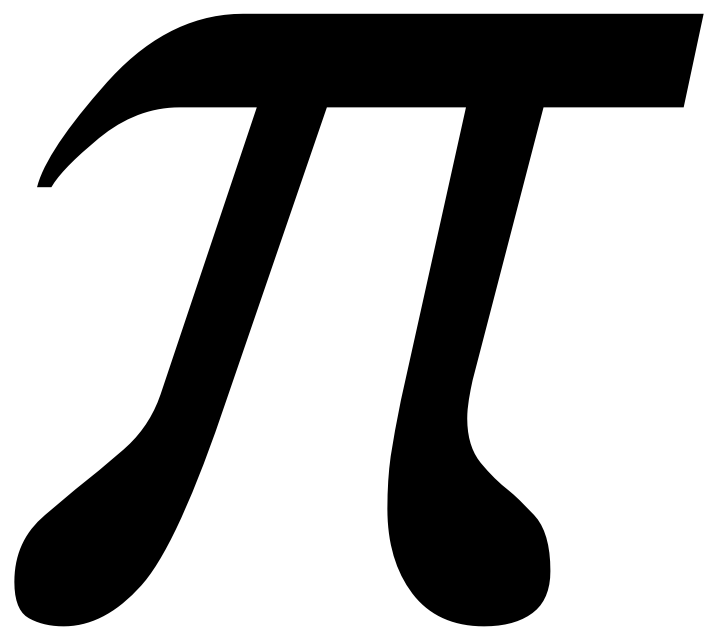
Turn the character “π” into its graphic self:
In[]:=
glyph="π";raw=ImportString[ExportString[Style[glyph,FontFamily"Times",FontSize72],"PDF"]]〚1,1〛;curve=raw/.a:FilledCurve[__]GeometricFunctions`DecodeFilledCurve[a];Graphics[curve]
Out[]=
Step 2: Extract Info from the Shape
Step 2: Extract Info from the Shape
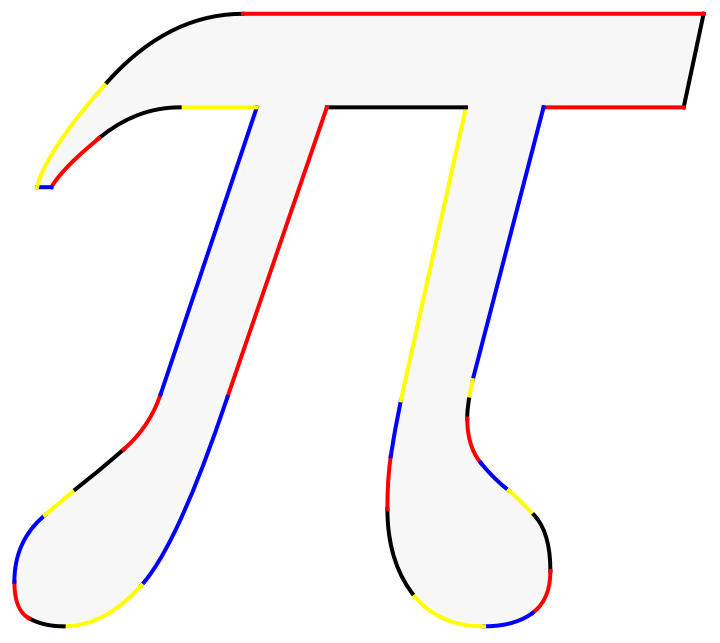
To spin the shape and animate it in 3D space, we need to break it’s outline curve into smaller pieces. The information is readily available inside the FilledCurve object we’re calling curve, but it has to be changed a bit so the segments can be manipulated individually.
Extract the outline’s segments and restore their end points:
segs=runs=curve〚2,1,1,1〛;For[i=1,i≤Length[runs],i++,For[j=1,j≤Length[runs〚i〛],j++,If[j>1,segs〚i,j,1〛=Prepend[runs〚i,j,1〛,runs〚i,j-1,1,-1〛]]]];
Out[]=
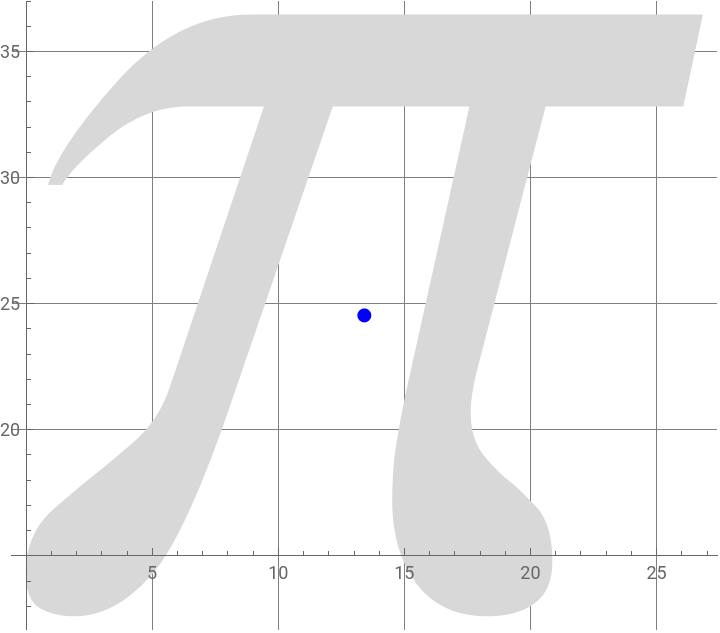
We also need to know the coordinates for the center of the glyph so we have a starting point for the revolution.
Calculate the glyph’s center coordinates.
In[]:=
xCenter=Mean[MinMax[Transpose[pts]〚1〛]];yCenter=Mean[MinMax[Transpose[pts]〚2〛]];
Out[]=
Step 3: Revolve the Glyph
Step 3: Revolve the Glyph
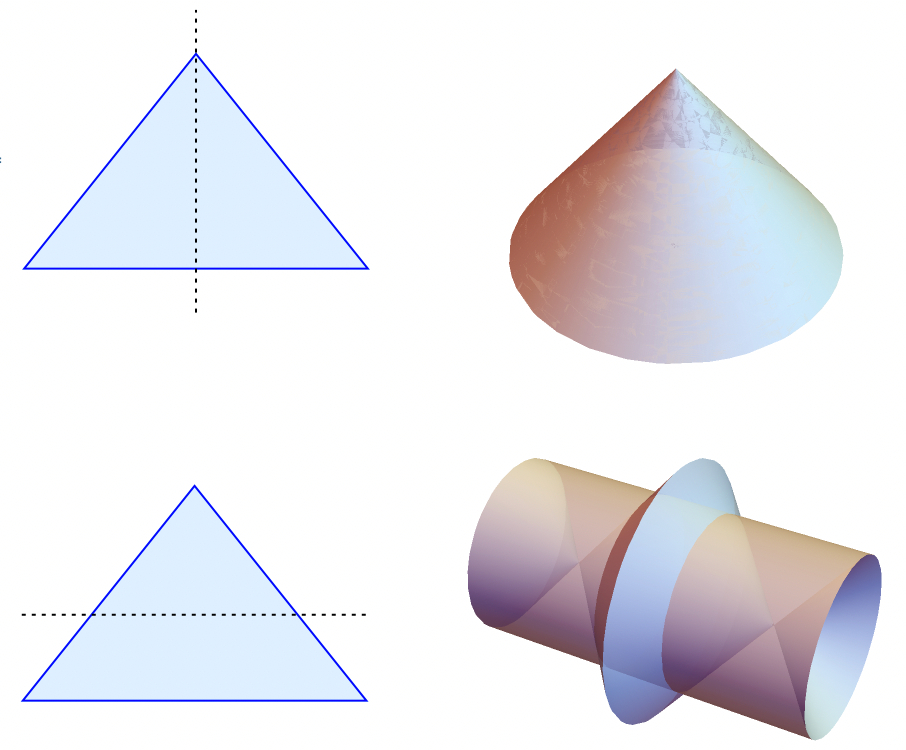
In high school geometry, students get a brief exposure to solids of revolution. If an isosceles triangle is revolved around its altitude, for instance, students learn that the perimeter sweeps the shape of a cone. If the same triangle is revolved around a different line, then a different shape emerges. Small changes result in complex and visually pleasing shapes. Here we just change from a vertical axis to a horizontal one, and what a surprise:
To revolve a glyph, we need to revolve each segment separately and then assemble all the results together. We’ll revolve all the segments of the pi glyph’s outline around a vertical axis through its center, so the following code might take a few seconds. The display shows one segment.
One revolved segment:
In[]:=
revAxis={0,0,1};allSegs=Flatten[segs,1]/.{a_Real,b_Real}{a-xCenter,b-yCenter};controlPointList=allSegs〚;;,1〛;rotSeg[bezFn_]:=RevolutionPlot3D{bezFn[t]〚1〛,bezFn[t]〚2〛},{t,0,1},;rings=Quiet[rotSeg[BezierFunction[#]]&/@controlPointList,Part::partw];
Out[]=
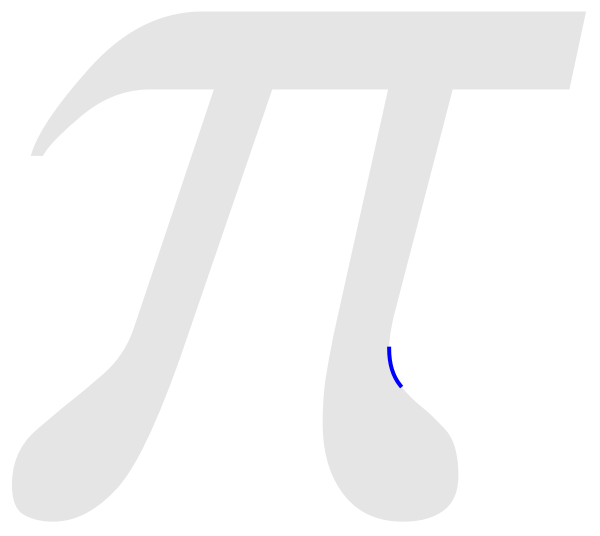

With all these rings put together, we get the whole revolved glyph. If you have the ability to rotate the graphic below, please do so. It’s cool. Can you see the original glyph in this new 3D shape?
Show all the segments in one graphic:
In[]:=
Showrings,
Step 4a: Animate the Axis of Revolution’s Position
Step 4a: Animate the Axis of Revolution’s Position
Animate the changing glyph:
Step 4b: Animate the Axis of Revolution’s Angle
Step 4b: Animate the Axis of Revolution’s Angle
I know, I know — how could this get any better, right? But I’ve got one more way to animate the glyph that may top what you’ve seen so far. Instead of moving the axis of revolution left and right, we’ll rotate it like bicycle wheel spokes. Again, it’s the same code with some changes.
Conclusion
Conclusion
If you find this kind of thing fascinating, I encourage you to experiment with the code. Try different glyphs; Chinese characters work wonderfully. Try altering the x and y location and the angle of the axis of revolution at the same time. Try applying a texture map or color function. You can increase the frame count and export the frames to a video editing application for a higher quality animation. It’s a creative space that you can explore however you want.