
If you’re like me you are receiving too much email every day. While you may be able to keep up with a short list of people and companies you know, there is this big quantity of “unsolicited emails” or SPAM that everyone has to deal with in some form or another. One option is to simply ignore them. Another one is to actively attempt to unsubscribe from as many as possible. But often times it feels like the well known Dutch phrase “mopping while the tap is running” (a close English counterpart is “bailing out a sinking ship” or “pushing water uphill”.
So what do you do, if you’re worried you’re missing those two or three important emails in an ocean of spammy emails? Even the best email clients aren’t really good at surfacing these emails. At best these email clients apply some basic generic ranking algorithm based on known spammy keywords. But what if you could unleash the wonderful world of AI and LLM on all these emails and let those models deal with scanning the contents of these email and classifying the relevant ones and deleting the irrelevant ones.
Well, that’s what this post is about: Using the Wolfram Language and its built-in mail processing functions and its LLM capabilities to create a “Mail Process Assistant” that aims to assist you with this time-consuming tasks. It’s like having a Microsoft “Clippy” that actually works!
To get started we need to connect to an actual mail server. We can use the MailServerConnect function to do this. All we need is the name of the server, the user’s login name and a password or some other sort of authentication code. In this case I locally stored my authentication code using SystemCredential:
In[]:=
server=MailServerConnect["imap.wolfram.com","arnoudb",SystemCredential["imap.wolfram.com"]]
Out[]=
MailServerConnection

The MailServerConnect command sets up the MailServerConnection which lets you request information from the mail server. To start out you can get a list of all the folders you have on the mail server. I happen to have 86 mail folders (Yikes! 😳) but many of them are old archived folders that are no longer in active use:
In[]:=
folders=server["MailFolderList"];Length[folders]
Out[]=
86
I store all my non-Wolfram emails in a single folder called “External”. I do make one exception for external emails from people I know and whom I have added to my address book. I can use SelectFirst on my list of folders and use StringMatchQ to select the folder named “External”. As you can see I have about 9,800 emails in that folder and of those I have about 3,600 unread emails: Like I said earlier, keeping up with every single external email if difficult to do:
In[]:=
external=SelectFirst[folders,StringMatchQ[#["Name"],"External"]&]
Out[]=
MailFolder
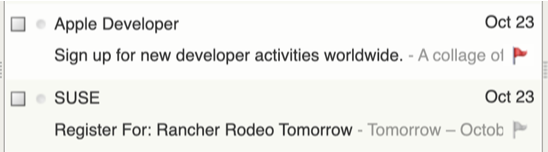
Now let’s try to come up with a task that this “Mail Process Assistant” could do: It would be super helpful if all the important emails could be flagged by this assistant. And with flagged I mean that the assistant could read the email and then set a status flag on that email if it is of interest. For example, I could prompt or inform the assistant that I care about Apple developer emails, but that I don’t care so much about SUSE emails. In other words, I would want the assistant to automatically flag certain emails, so that when I scan through my emails, I can quickly see the flagged emails like this:
Another thing I am interested in is tagging certain types of emails with certain keywords. For example, I am interested in emails about security updates in libraries, like updates to the OpenSSL library. In those cases I want specific emails to be tagged with the word “security” so that I can search for those specific tags in my “External” email folder:

So those are two examples of something that would be helpful to me. There are potentially other things like a daily summary of all external emails I received, possibly sorted by certain levels of interest that I have indicated. To make any of this happen, we need to use the LLMSynthesize function or something equivalent. In my case, I am using my personal LLM function called OllamaSynthesizeSynchronous, which is essentially the same thing as LLMSynthesize except that it runs all my LLM prompts locally on my own machine. This has the added benefit of not sharing my personal email content with a third party like OpenAI, Google, Meta, Anthropic, or others. The OllamaSynthesizeSynchronous function specifically runs a local copy of Llama 3.2 (the 3B sized one) which seems to work just fine for this sort of task. I plan to share this OllamaSynthesizeSynchronous on the Wolfram Function Repository soon and others have already posted on the Wolfram Community about how to set this up yourself. I expect support for Ollama will come soon as a standard Wolfram Language feature as well.
So let’s start with a specific task or prompt we can give this mail processing assistant. You have to be quite specific, but once you get the prompting working it tends to generate good results 9 out 10 times (and, with better LLMs, probably 99 out of a 100 times). In this task I ask the LLM (Llama 3.2 via Ollama) to generate a Wolfram Language list based on the body text of some given email. I want this list to be short and contain simple words. Since LLMs can be quite “chatty” I emphasize that I only want a Wolfram Language list of short word as tags:
In[]:=
prompt="Generate a short Wolfram Language list of tags for the following email.The list should have at most 5 tags, and not more.Each tag is a simple single lower case \"word\" and nothing else.Each tag is surrounded by double quotes.Only generate a list of tags and NOTHING ELSE.Here is the email:";
We can now test this out on a specific email. In this case I select the 10th last email in my “External” email folder. In MailFolder, the most recent email is given with index -1 and the oldest email is given with index 1. So picking the email with index -10 is a relatively recent email:
In[]:=
item=external[-10]
Out[]=
MailItem
In[]:=
body=Import[item["EMLFile"],{"EML","Body"}];
Now that we have the prompt and the email body text, we can give it to the LLM and have it respond with a list of tags:
In[]:=
string=OllamaSynthesizeSynchronous[StringJoin[prompt,body]]
Out[]=
{"feedback", "recommend", "survey", "experience", "customer"}
LLMSynthesize (and my own OllamaSynthesizeSynchronous) return a String, so we need to convert this to an expression with ToExpression. I wrap the result in HoldComplete with an eye on avoiding evaluating “bad code” from the LLM and also to be able to sanity check the correctness of the resulting expression in the next step:
In[]:=
tags=ToExpression[string,StandardForm,HoldComplete]
Out[]=
HoldComplete[{feedback,recommend,survey,experience,customer}]
The final step of this assistant process is to assign this list of tags to the email. For this you can use MailExecute with the “SetTags” command. The code below does a few things in sequence: First it checks that we have a list of strings for the tags variable. Then we clear all the existing tags on the current MailItem. Then we actually set the tags on the MailItem and finally we check that list of tags and return it to the user:
In[]:=
If[MatchQ[tags,HoldComplete[{_String...}]],MailExecute["ClearTags"->MailExecute["Tags",item],item];MailExecute["SetTags"->StringReplace[ReleaseHold[tags]," "->"_"],item];MailExecute["Tags",item]]
Out[]=
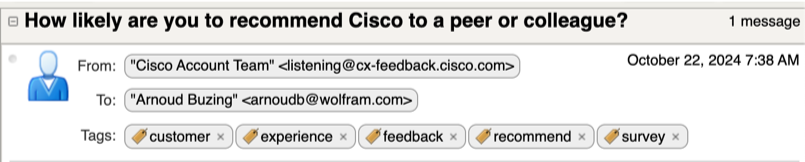
{customer,experience,feedback,recommend,survey}
In my email client this is the “before” picture. Note how the email does not list any tags yet:

And this is the “after” picture. Note how the email now lists the tags that were generated by the LLM:
Now these tags are still a little bit arbitrary, so better prompting could help a lot here. And you don’t really need one giant single prompt, so can also have multiple prompts that are more focused on a single question, like: If the following email is about a webinar or conference, return the tag ‘webinar’.
I am still exploring this idea, so I am interested what you think about this and what sort of improvements I could make or what sort of features a mail processing assistant should have. If you have any thoughts, ideas, or feedback, please do respond in the comments, I’d really like to hear them!

CITE THIS NOTEBOOK
CITE THIS NOTEBOOK
Ollama LLM based AI assistant for email processing
by Arnoud Buzing
Wolfram Community, STAFF PICKS, October 24, 2024
https://community.wolfram.com/groups/-/m/t/3307626
by Arnoud Buzing
Wolfram Community, STAFF PICKS, October 24, 2024
https://community.wolfram.com/groups/-/m/t/3307626