CITE THIS NOTEBOOK: Animating Wolfram surfaces with Blender: Stones & Gallery by Guenther Gsaller. Wolfram Community JAN 25 2023.
This is a continuation to the posts listed at: https://community.wolfram.com/web/ggoff/home
Supplementary files for this post are available here: https://www.dropbox.com/s/yfe3dwp3939domk/data5.zip?dl=0
Included are objects in 3D as stl-files, animation as gifs necessary to experiment with code and instructions in this post
Supplementary files for this post are available here: https://www.dropbox.com/s/yfe3dwp3939domk/data5.zip?dl=0
Included are objects in 3D as stl-files, animation as gifs necessary to experiment with code and instructions in this post
Abstract
Abstract
In Example 1 the construction of a brilliant was shown in a gif-animation. Animations done in Blender were partially recreated in Wolfram Language. Example 2 utilized constructive solid geometry within Wolfram Language to build a gallery in a box. Several animations from Blender were remade in Wolfram Language.
Experiment
Experiment
Example 1: Stones
Example 1: Stones
From Sketch to Animation
From Sketch to Animation
The article “Diamond Cut: Anatomy of a Round Brilliant” was used to develop the necessary steps to construct a brilliant. For the actual construction Geogebra was the chosen tool. The construction steps were adapted and described in a loose form.
Top:
1) For the top level create an octagon. Place a second rotated octagon on a lower second level. Build triangles with the edges of the first octagon as base and the third point on octagon two.
3) Set a third octagon to a lower third level. Build quadrilaterals with the first point on octagon one, two of the edges of the second octagon and the fourth point on octagon three.
4) Create a circle with 64 equidistant points on it. Every 8th point is lifted upwards a small distance. Build 64 triangles.
Top:
1) For the top level create an octagon. Place a second rotated octagon on a lower second level. Build triangles with the edges of the first octagon as base and the third point on octagon two.
3) Set a third octagon to a lower third level. Build quadrilaterals with the first point on octagon one, two of the edges of the second octagon and the fourth point on octagon three.
4) Create a circle with 64 equidistant points on it. Every 8th point is lifted upwards a small distance. Build 64 triangles.
Bottom:
5) Duplicate the top octagon. Scale it down and lower it. Then duplicate the circle with the 64 points. Lower the circle and the points a bit. Every 8th point is lowered downwards a small distance. Build a plane from one of the lowered points and two neighboured points in the smaller, lower octagon. Build a line from a neighboured lowered point and the midpoint of two neighboured points in lowest octagon. The intersection of plane and line delivers the lowest point of the gemstone. Build 8 quadrilaterals.
6) Build 64 triangles.
7) Connect the modified points from both from 4) and 5) to close the gap.
5) Duplicate the top octagon. Scale it down and lower it. Then duplicate the circle with the 64 points. Lower the circle and the points a bit. Every 8th point is lowered downwards a small distance. Build a plane from one of the lowered points and two neighboured points in the smaller, lower octagon. Build a line from a neighboured lowered point and the midpoint of two neighboured points in lowest octagon. The intersection of plane and line delivers the lowest point of the gemstone. Build 8 quadrilaterals.
6) Build 64 triangles.
7) Connect the modified points from both from 4) and 5) to close the gap.
A video from the construction steps was taken and a collection of six frames used to build a gif-animation.
In[]:=
path0=SetDirectory[NotebookDirectory[]<>"/data"]
Out[]=
/home/gg/Downloads/ams17/data
In[]:=
brill2=Import["brill2.gif",ImageSize->Small];ListAnimate[brill2]
Out[]=
From Object To Animation
From Object To Animation
Three stages of the animation were recreated.
Stage 1:
An object exported from Blender was imported as GraphicsComplex.
Stage 1:
An object exported from Blender was imported as GraphicsComplex.
In[]:=
brill3=Import["brilliant.stl"];
In[]:=
brill4=Graphics3D[{MaterialShading[{"Glazed",LightBlue}],brill3,Lighting"ThreePoint"},ImageSize->Small,Boxed->False]
Out[]=

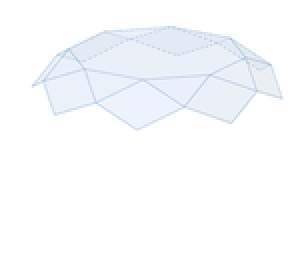
The brilliant’s faces were removed.
In[]:=
brill4a=Graphics3D[{EdgeForm[Lighter@Blue],FaceForm[],brill3,Lighting"ThreePoint"},ImageSize->Small,Boxed->False]
Out[]=

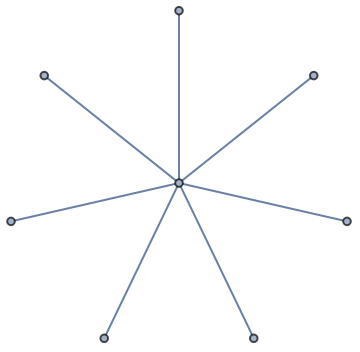
Remark: The triangulation of the top octagon was changed in Blender manually to a symmetrical pattern.
In[]:=
StarGraph[8,ImageSize->Small]
Out[]=
In[]:=
brill4b=Table[Graphics3D[{GeometricTransformation[brill4a[[1]],RotationTransform[Pi/6*i,{0,0,1}]]},Lighting"ThreePoint",Boxed->False,ImageSize->Small],{i,0,6}];
In[]:=
ListAnimate[brill4b]
Out[]=

In[]:=
(*Export["brill41.gif",brill4b,"ControlAppearance"None,ImageSize->250]*)
Stage 2:
A rotation of the gem from the default viewpoint to a viewpoint above was implemented.
A rotation of the gem from the default viewpoint to a viewpoint above was implemented.
In[]:=
Norm[{1.3,-2.4,2}]
Out[]=
3.38378
In[]:=
circle1=y^2+z^2==Norm[{1.3,-2.4,2}]^2;sol1=NSolve[circle1,z][[2,1]]
Out[]=
z0.223607
229.-20.
2
y
In[]:=
vps=Table[{0,y,z/.sol1},{y,-3.38,0,1/8}];brill4c=Show[brill4,ViewPoint->#,ImageSize->Small]&/@vps;ListAnimate[brill4c]
Out[]=

In[]:=
(*Export["brill42.gif",brill4c,"ControlAppearance"None,ImageSize->250]*)
Stage 3:
A kaleidoscope was built out of the brilliant from above.
A kaleidoscope was built out of the brilliant from above.
In[]:=
brill5=Graphics3D[{MaterialShading[{"Glazed",#}],brill3,Lighting"ThreePoint"},ViewPoint->{0,0,2},ImageSize->Small,Boxed->False,ImageSize->Small]&/@Lighter@{Blue,Yellow,Green};
In[]:=
ListAnimate[brill5]
Out[]=

In[]:=
(*Export["brill43.gif",brill5,"ControlAppearance"None,ImageSize->250]*)
Gem creation (low poly) - Blender
Gem creation (low poly) - Blender
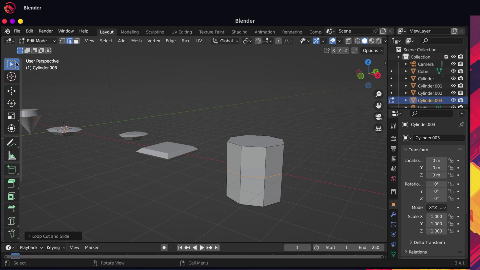
Instructions & screenshots for building simplified gem-cuts are presented with a TabView.
Out[]=
1
2
3
4
5
6
7
Hint:
The images of this guide were sampled via CurrentImageView by the author.
The images of this guide were sampled via CurrentImageView by the author.
Example 2: Gallery in a box
Example 2: Gallery in a box
Building up from simple objects
Building up from simple objects
Cylinder, Cube and Prism were used as building blocks. Combinations of Boolean operations with these simple objects ended in a complex structure.
1) Gallery:
Union and difference of regions were used to build the gallery.
Union and difference of regions were used to build the gallery.
2) Images:
Via union and rotation a set of disks were built and made ready to be placed in the gallery.
Via union and rotation a set of disks were built and made ready to be placed in the gallery.
3) Base:
Cuboid & Prism were used in combination of difference and union of regions to form the base.
Cuboid & Prism were used in combination of difference and union of regions to form the base.
4) Hull:
The hull was built as difference of cuboids.
The hull was built as difference of cuboids.
Open:
Closed (around):
From above to in front an object
From above to in front an object
For the viewpoint a circular journey from above to in front was implemented.
Translating an object
Translating an object
A set of hulls were built and combined with the rest.
Rotating an object
Rotating an object
Multiple Materials - Blender
Multiple Materials - Blender
Instructions & screenshots for projecting a frontal image on a disk is presented with TabView.
Hint: The images of this guide were collected via CurrentImageView by the author.
References
References
Collections of animations
Collections of animations
The newest collection is animations-04, which contains the original videos for Example 1 & 2.
References
References
Stone
Scene: Experiments in Stone/Shape/Color
GIA Education. “Diamond Cut: Anatomy of a Round Brilliant.” Accessed November 23, 2022. https://gia.eduhttps://www.gia.edu/diamond-cut/diamond-cut-anatomy-round-brilliant.
Dawson, Gary. “Learn Rhino 7 Jewelry Design Accredited Trainer Gary Dawson.” Rhino Jewelry CAD. Accessed November 23, 2022. https://rhinojewelrycad.com/.
Hohenwarter, Markus. GeoGebra – didaktische Materialien und Anwendungen für den Mathematikunterricht. PhD thesis,
University of Salzburg, Austria, 2006. Accessed November 23, 2022.
“Wolfram Language & System Documentation Center.” Accessed November 23, 2022. https://reference.wolfram.com/language/.
Audio:
Stock Music & Sound Effects - Royalty Free Audio - Storyblocks
https://storyblocks.com/audio (accessed 2022-11-23)
Rowe, Nicholas. Pensive Indie Folk - Keys and Slide Guitar (Looking For God Clip). Accessed November 23, 2022. Asset ID: SBA-300538861
Scene: Experiments in Stone/Shape/Color
GIA Education. “Diamond Cut: Anatomy of a Round Brilliant.” Accessed November 23, 2022. https://gia.eduhttps://www.gia.edu/diamond-cut/diamond-cut-anatomy-round-brilliant.
Dawson, Gary. “Learn Rhino 7 Jewelry Design Accredited Trainer Gary Dawson.” Rhino Jewelry CAD. Accessed November 23, 2022. https://rhinojewelrycad.com/.
Hohenwarter, Markus. GeoGebra – didaktische Materialien und Anwendungen für den Mathematikunterricht. PhD thesis,
University of Salzburg, Austria, 2006. Accessed November 23, 2022.
“Wolfram Language & System Documentation Center.” Accessed November 23, 2022. https://reference.wolfram.com/language/.
Audio:
Stock Music & Sound Effects - Royalty Free Audio - Storyblocks
https://storyblocks.com/audio (accessed 2022-11-23)
Rowe, Nicholas. Pensive Indie Folk - Keys and Slide Guitar (Looking For God Clip). Accessed November 23, 2022. Asset ID: SBA-300538861
Gallery In A Box
Scene: Modified Cylinder & Cube
Audio:
Stock Music & Sound Effects - Royalty Free Audio - Storyblocks
www.storyblocks.com/audio (accessed 2023-03-01)
we20nifty. Arp of Love. Accessed January 2, 2023. SBA-300504262.
Scene: Modified Cylinder & Cube
Audio:
Stock Music & Sound Effects - Royalty Free Audio - Storyblocks
www.storyblocks.com/audio (accessed 2023-03-01)
we20nifty. Arp of Love. Accessed January 2, 2023. SBA-300504262.