I often use my manual milling machine and the numerical visualization capabilities of Mathematica that I build.
Manually mill out the special size round hole you want.(Fig. 1~3)
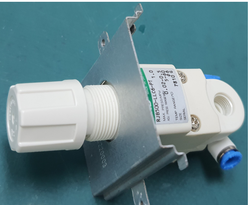
To fix related objects and quickly complete related fixtures. (Fig. 4)
In this way, I don’t have to outsource CNC manufacturers, and I can finish my work quickly. Save money, save time and effort. Because this code is really used too often, I am very happy to share it with you.
Manually mill out the special size round hole you want.(Fig. 1~3)
To fix related objects and quickly complete related fixtures. (Fig. 4)
In this way, I don’t have to outsource CNC manufacturers, and I can finish my work quickly. Save money, save time and effort. Because this code is really used too often, I am very happy to share it with you.
|
|
|
|
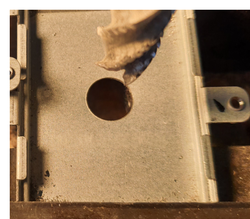
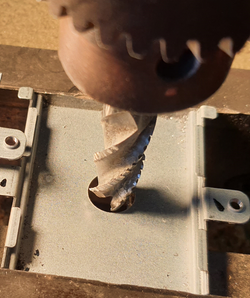
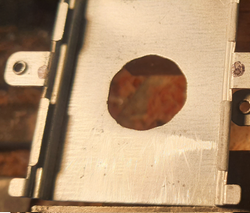
I’ll show a common example of manually cutting a 25.4mm(1 Inch) diameter hole using a 12mm diameter milling cutter. I explain the decomposition steps as follows:
In[]:=
manuallyFi=25.4;(*manually cutting a 25.4mm diameter hole*)millCutter=12;(*milling cutter with a diameter of 12mm*)
1
.In the large circle of 25.4mm, calculate the position of the inscribed circle. For the convenience of explanation, I first preset the number of inscribed circles to be 12.
In[]:=
n=12;(* The number of inscribed circles is preset to 12 *)millPoints=CirclePoints,0,n;circlePointListOnGrid = (millPoints*200 // Round)/200;
manuallyFi-millCutter
2
2
.The millPoints coordinate group is calculated by the above formula. The circlePointListOnGrid is the value corrected for my milling machine with a resolution of 0.005mm. According to this coordinate group, the positioning of the milling machine will be manually adjusted for cutting.
In[]:=
millTable2D=TableGraphicsBlue,Thick,Circle{0,0},,Green,Dashed,Thick,Line[{{0,0},#}]&/@CirclePoints,0,n[[1;;step]],PointSize[Large],Point@circlePointListOnGrid[[1;;n]],Black,PointSize[Large],Point@circlePointListOnGrid[[1;;step]],Red,Circle#,&@circlePointListOnGrid[[step]],{step,1,n,1};animateVersion1=ListAnimate[millTable2D,ControlPlacement->Right,DefaultDuration5,AnimationRunningFalse,AnimationRepetitions1]
manuallyFi
2
manuallyFi
2
millCutter
2
Out[]=
3
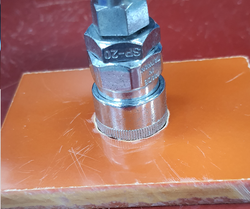
.The actual finished product is as follows, which can clamp a tuyere.(Fig.12)
|
Because of the animateVersion1, it is easy to fail due to human negligence, thus making a strange hole that cannot be used. So I improved it to the animateVersion2 (below), using an even number of symmetries to design a path for the milling cutter. The advantages of doing it are:
A. Really reduce human error.
B. In addition to milling holes, you can also mill cavity.
A. Really reduce human error.
B. In addition to milling holes, you can also mill cavity.
In[]:=
pathPoints=GatherBy[circlePointListOnGrid,First]/.{{x0_?NumericQ,y0_?NumericQ},{x0_?NumericQ,y1_?NumericQ}}->{{x0,0},{x0,y0},{x0,y1},{x0,0}}//Flatten[#,1]&;millPointsPath=Table[Subdivide[pathPoints[[i]],pathPoints[[i+1]],4],{i,1,Length@pathPoints-1}]//Flatten[#,1]&;millPathTable2D=TableGraphicsBlue,Thick,Circle{0,0},,Opacity[0.6],Pink,Disk#,&/@millPointsPath[[1;;step]],Green,PointSize[Large],Point@circlePointListOnGrid,Opacity[1],Black,PointSize[Large],Point@millPointsPath[[1;;step]],{step,1,Length@millPointsPath,1};animateVersion2=ListAnimate[millPathTable2D,ControlPlacement->Right,DefaultDuration5,AnimationRunningFalse,AnimationRepetitions2]
manuallyFi
2
millCutter
2
Out[]=
The following is the actual processing process.(Fig.5~11)
The following is the actual processing process.(Fig.5~11)
|
|
| ||||||
|
|
| ||||||
| | |
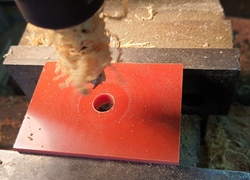
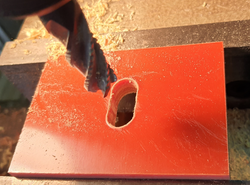
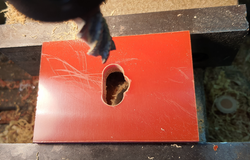
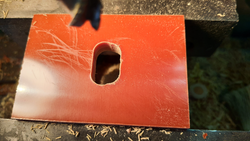
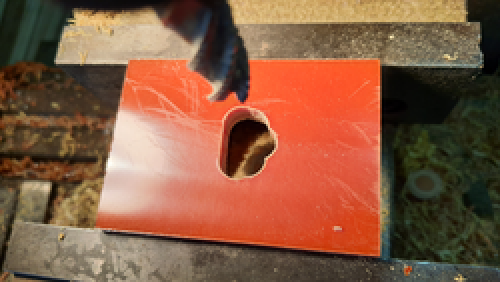
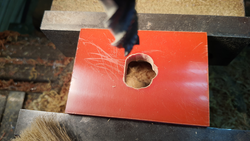
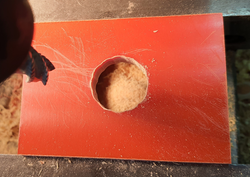
The above code was written in about two hours and started to use.
After many uses and revisions, share the final version with all DIY Makers. The finshCode is as follow
After many uses and revisions, share the final version with all DIY Makers. The finshCode is as follow
The operation description of the above figure is as follows
The operation description of the above figure is as follows
Step 1: Adjust the slider to get the coordinates.(circlePointsTable)
Step 2: Think about how Edge Roughness affects you.(see Uncute thickness ,nearpoint$R)
Step 3: Copy down the coordinates.
Step 4: Go to the milling machine and follow the red path in the middle of the picture.(millingPath)
Step 5: Celebrate the finished work! ! !
Step 2: Think about how Edge Roughness affects you.(see Uncute thickness ,nearpoint$R)
Step 3: Copy down the coordinates.
Step 4: Go to the milling machine and follow the red path in the middle of the picture.(millingPath)
Step 5: Celebrate the finished work! ! !
Experience sharing:
Experience sharing:
4. Fig.14 When the overlapping area of drilling holes becomes smaller (as shown in Fig.15, the dark red area becomes smaller), it may be challenging to use an electric drill to complete.